To schedule social media posts, you can use each platform's own scheduler or one tool for all of them: write the post, choose the network and pick a future date and time. Instagram's app, Meta Business Suite, TikTok's website, YouTube Studio and Pinterest each schedule their own network for free, one post at a time. A scheduler such as PostEverywhere's social media scheduler takes one post to every network you choose, at the same minute.
This guide covers both: what each platform's own scheduler can do, how to schedule in one tool, and the planning, bulk, approval and AI agent steps that make a week of posts take an hour instead of a day.
| Each platform's own scheduler | One scheduler for every network | |
|---|---|---|
| Networks per post | One | All the ones you pick, each with its own caption |
| How far ahead | Set by each platform, from 10 days on TikTok to 30 days on Instagram and Pinterest | PostEverywhere has no limit of its own |
| Where you see the plan | A separate list inside each app | One calendar for everything |
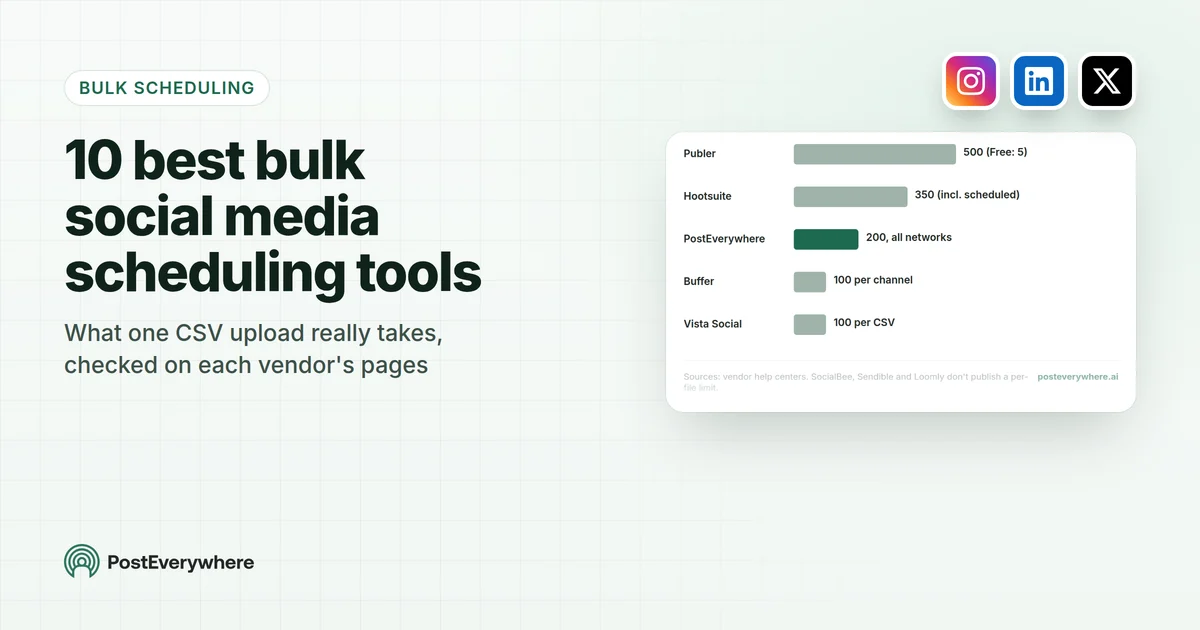
| Bulk | Mostly one post at a time | A posting queue or a .csv of up to 200 posts |
| Team approvals | Not built in | Submit for approval, then Approve or Request changes |
| AI agents | Not supported | ChatGPT, Claude or any MCP client can schedule |
| Cost | Free | PostEverywhere from $9 a month, 7-day free trial |
Two ways to schedule posts on social media
Each platform's own scheduler. Most big networks now have a schedule option somewhere. It's free and safe, because it's the platform itself. The catch is that every one works differently: different limits, different screens, and a separate list of scheduled posts in each app.
If you post to one or two networks a few times a week, that's fine.
One scheduler for every network. A scheduler connects to each network through its official API. You write a post once, tick Instagram, LinkedIn, TikTok and the rest, adjust the caption where a network needs it, and pick a time.
The post waits in the scheduler and publishes to each network at that minute. It's the faster route once you post to three or more networks, or more than a handful of times a week.
Neither route changes how a post is ranked. Platforms judge a post on how people respond to it, not on whether it was scheduled. The choice is about time and control, not reach.
How to schedule posts on each platform's own tools
Here is what each platform's own scheduler does, with the limits from its help pages. Each section links to the PostEverywhere page for that network if you'd rather schedule it alongside everything else.
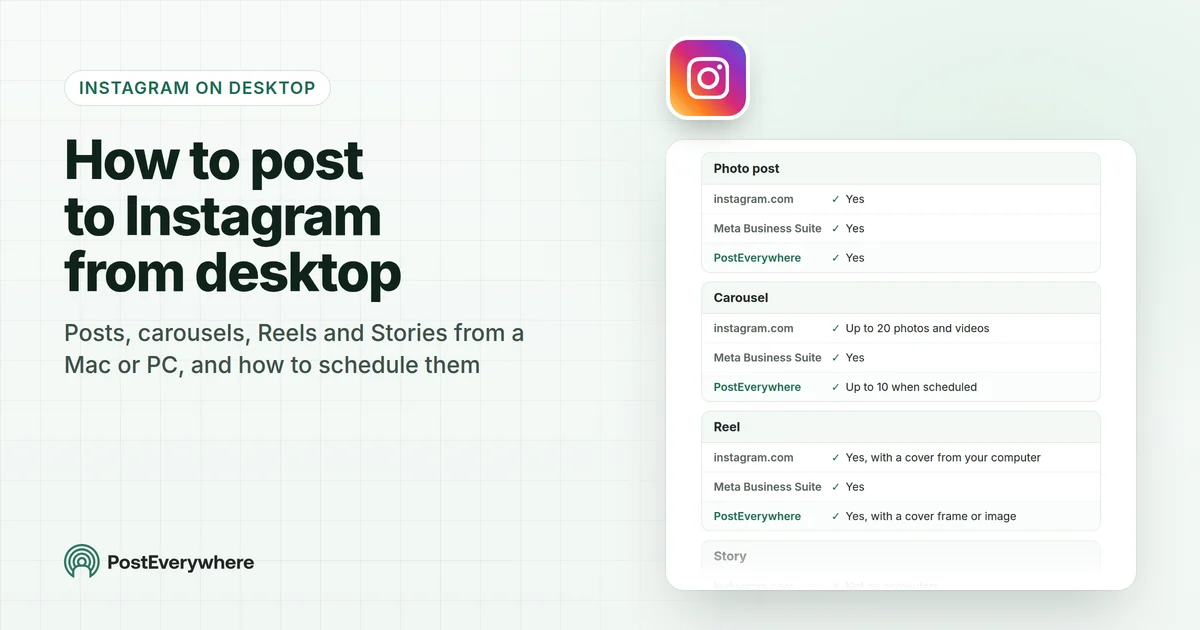
In the Instagram app, tap Create, choose Post or Reel, tap More options and turn on Schedule this post. Instagram's help page on scheduled posts says you need a public account and can schedule up to 25 posts a day, up to 30 days ahead. Stories aren't covered by the app's scheduler.
For Stories and Trial Reels as well, see scheduling Instagram with PostEverywhere. Step by step: our walkthrough for Instagram feed posts and carousels, and a separate guide to scheduling Stories and Reels.
Facebook Pages schedule through Meta Business Suite. Open Create post, write it, turn on Scheduling options and pick a date and time, according to Meta's help page on scheduling in Business Suite. Active times suggests when your followers were most active.
The same screen can post to a linked Instagram account. Scheduling Facebook with PostEverywhere covers Page posts and Reels next to your other networks. Our Facebook Pages, Reels and profiles walkthrough covers each route in detail.
TikTok
TikTok's scheduler is on its desktop website: upload a video, switch on the schedule toggle and pick a time from 15 minutes to 10 days ahead, according to TikTok's help page on scheduling.
It isn't in the main mobile app, and a scheduled video can't be edited, only deleted. Our TikTok scheduling guide for videos and photo posts walks through both TikTok's route and PostEverywhere's.
YouTube
In YouTube Studio, upload the video, open the Schedule card and set the date, time and time zone, then select Schedule. YouTube's help page on scheduled publishing explains that the video stays private until that time, then goes public. Scheduling YouTube with PostEverywhere covers videos and Shorts with a title, description, tags and visibility per video.
For Shorts, our YouTube Shorts scheduling walkthrough covers YouTube Studio and PostEverywhere.
On Pinterest, create a Pin and select Publish at a later date. Pinterest's help page on scheduling Pins allows up to 30 days ahead, one Pin at a time, with up to 10 scheduled Pins waiting at once.
Once a Pin is scheduled you can change its date, title, board, description and link, but not the image or video. PostEverywhere schedules Pins, video Pins and carousel Pins without that 10-Pin ceiling.
Our Pinterest Pin scheduling walkthrough covers Pinterest's own scheduler and PostEverywhere step by step.
LinkedIn, X (Twitter), Threads and the rest
Look for a clock or calendar icon in each app's own composer; where there is one, it schedules for that network only, and what it supports changes often. A scheduler covers them in the same post as everything else: LinkedIn profiles and company pages, X (Twitter) posts and threads, Threads, Bluesky, plus Telegram channels and groups, Discord, Google Business Profile and WordPress blog posts.
Step-by-step guides for each: LinkedIn profiles and Company Pages, PDFs included, tweets, threads and polls on X, posts on Threads and Discord messages and announcements.
One post, every network, one schedule. Write it once, adjust it per platform and let PostEverywhere publish it everywhere through each network's official API. See PostEverywhere's social media scheduler.
How to schedule social media posts in one tool
This is the flow in PostEverywhere today. It's the same in a desktop browser, a phone browser and, with fewer options, the iPhone app.
Schedule a post to several networks with PostEverywhere
One post, every network you choose.
- Connect your accountsIn Accounts, connect each network you post to, once.
- Open New Post and pick accountsSelect every account the post should go to, for example Instagram, LinkedIn and TikTok.
- Write the postType the caption, or press Write with AI and say what the post is about.
- Add mediaUpload, drag or paste images or a video, or Add from your library or Add from Google Drive.
- Customise per platformGive a network its own caption or settings, such as Instagram's post type or YouTube's title.
- Pick a time and ScheduleChoose a date and time, a suggested best time, or the next queue opening, then click Schedule.
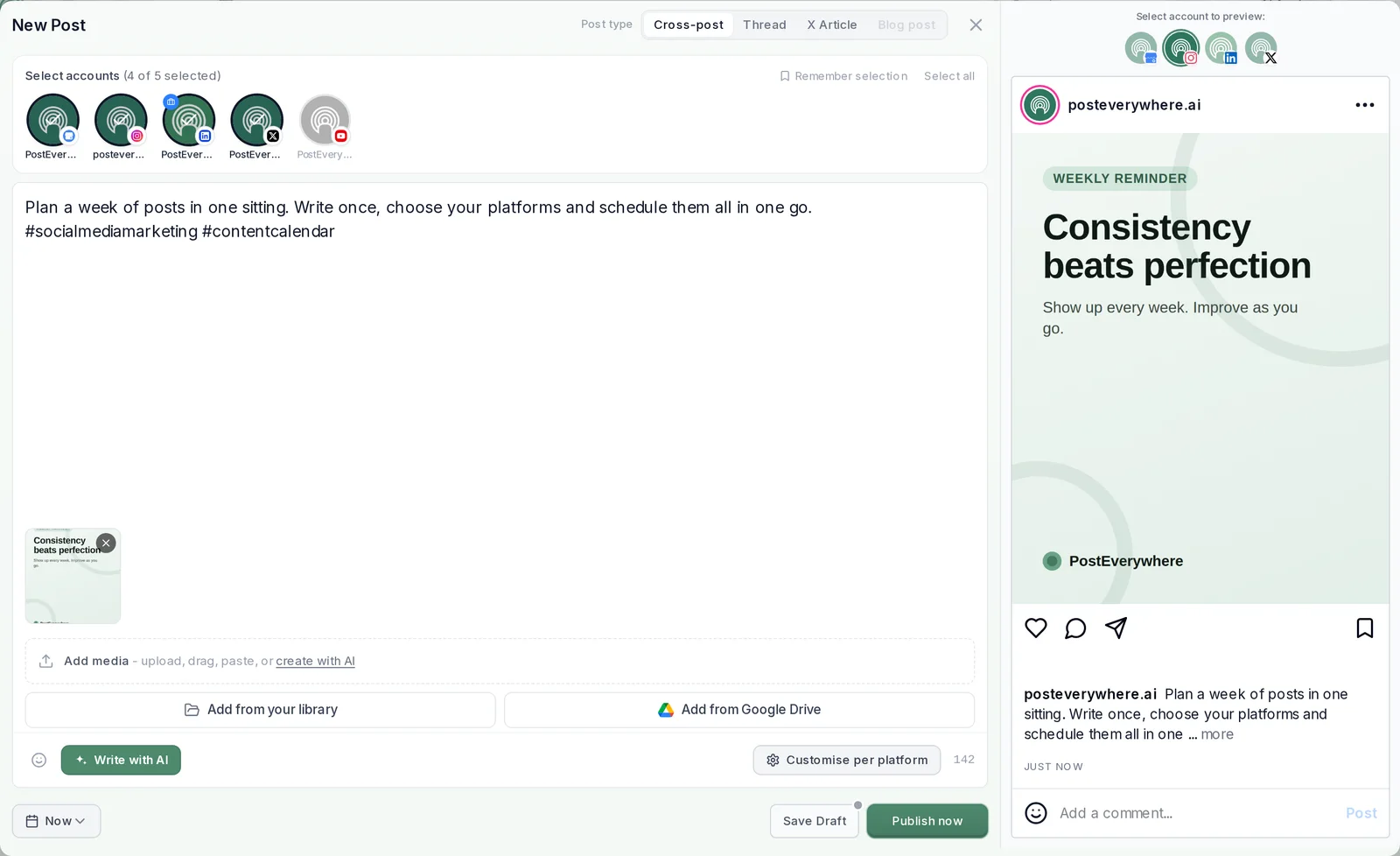
What happens next:
- Each network gets the right version. A LinkedIn caption can run long while X (Twitter) gets a short one; Customise per platform keeps them apart, and anything you don't change uses the main post.
- You can still change your mind. Until a post goes live, open it from the content calendar to edit it, move it or delete it.
- You see what happened. Each post moves from Scheduled to Posted, or to Failed with the platform's reason and a Retry button.
Our cross-posting overview goes deeper on adapting one post for several networks.
Plan the week before you schedule
Scheduling is the last step. The hour before it, planning, is where the time is saved.
Pick your slots. Decide how often each network gets a post, then set those times once in a queue of recurring openings. New posts can go to "Next queue opening" instead of a hand-picked time.
The queue starts from presets such as Steady weekdays, Commute and lunch, or Always on.
Use better times. When you schedule in PostEverywhere, the when-to-post menu suggests times. PostEverywhere looks at when your posts have done best and suggests those times. New accounts start with what works across PostEverywhere on each platform. How suggested posting times work explains it.
See the whole plan. Lay the week out in the calendar so you can spot three promotional posts in a row or a silent Thursday, then drag posts to fix it.
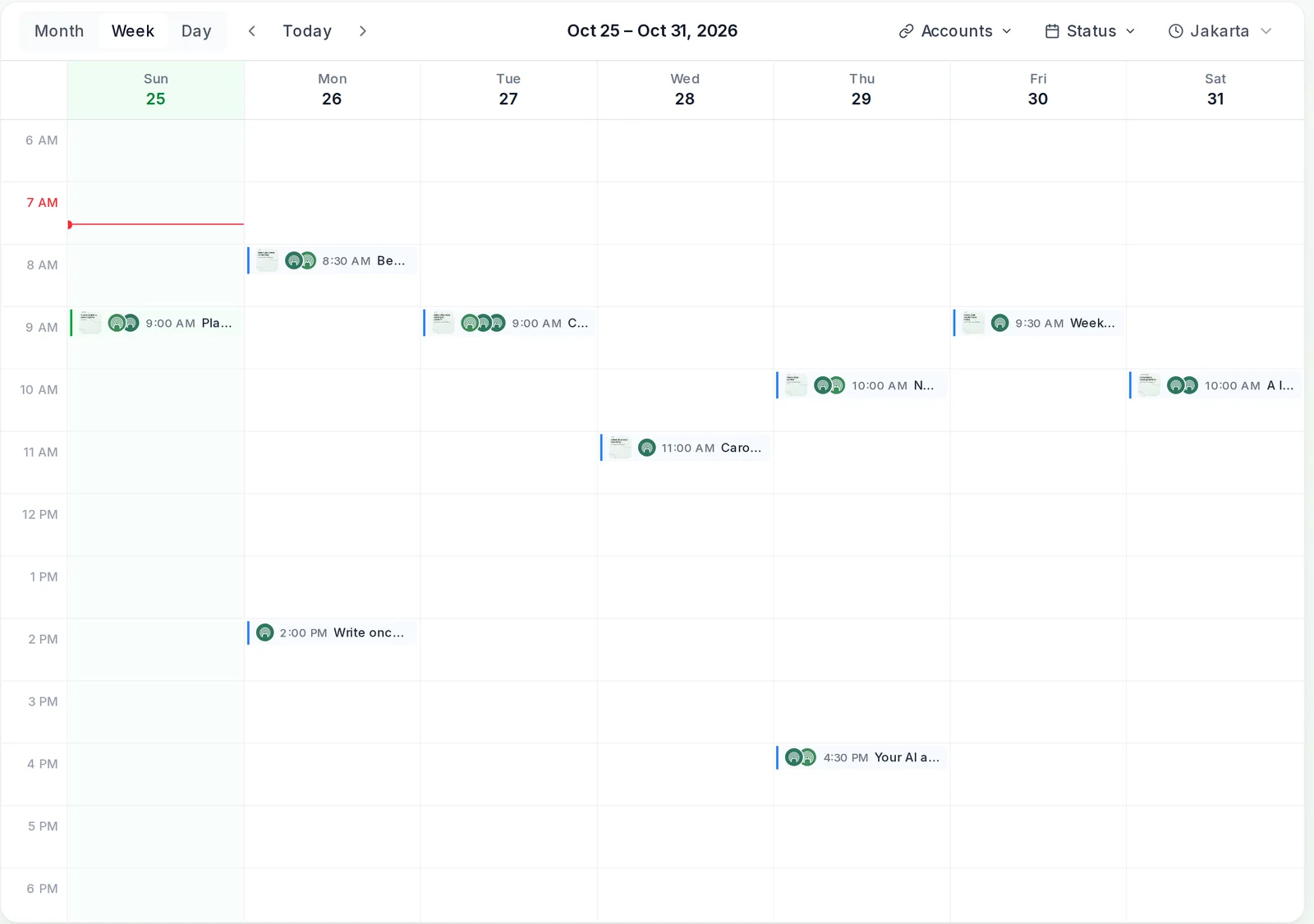
Need something to fill the plan? These free content calendar templates give you a structure, and our piece on a content calendar versus a scheduler explains how the two fit together.
Scheduling a month of posts in one go
When you batch-create content, one post at a time gets slow. A .csv upload loads the lot:
- Upload your images and videos to the Media library.
- Make a .csv with one row per post: date, time, the post text, the platforms (for example instagram+facebook) and the media filename. For a carousel, separate filenames with a
|. - Upload it in Bulk Upload. One file takes up to 200 posts, up to 5 MB. Rows without a time get a suggested best hour on that date.
- Review the rows, then schedule them.
PostEverywhere's bulk scheduling page shows the file format, and the posting queue is the lighter option when you'd rather not set times at all. For the full walkthrough with a template, see our CSV bulk upload guide.
Plan a month in one sitting. Upload a .csv, or let the queue place each post, and see the whole month in one calendar. Load your next batch with bulk scheduling.
Scheduling with approvals for a team or client
If someone else signs off posts before they go out, build that into scheduling rather than chasing it in chat.
- Turn on Require approval. In PostEverywhere it holds posts from Members; Owners and Admins publish directly. It's on every plan except Lite.
- Members submit, approvers decide. A Member's button reads "Submit for approval" instead of Schedule. The approver chooses Approve, or Request changes with a note the author sees.
The full flow is on how approvals work in PostEverywhere, and what Owners, Admins and Members can each do is spelled out separately. Agencies running several brands can keep each client in its own workspace, up to 5 on the Scale plan.
Let an AI agent schedule your posts
You can also hand the scheduling to an AI agent. PostEverywhere runs a hosted MCP server that ChatGPT, Claude, Cursor and other MCP clients connect to, on every plan. Once connected, you ask in plain language, for example "schedule these three clips for Tuesday, Wednesday and Thursday at 6 PM on Instagram and TikTok", and the agent uploads the media, writes the captions and creates the posts.
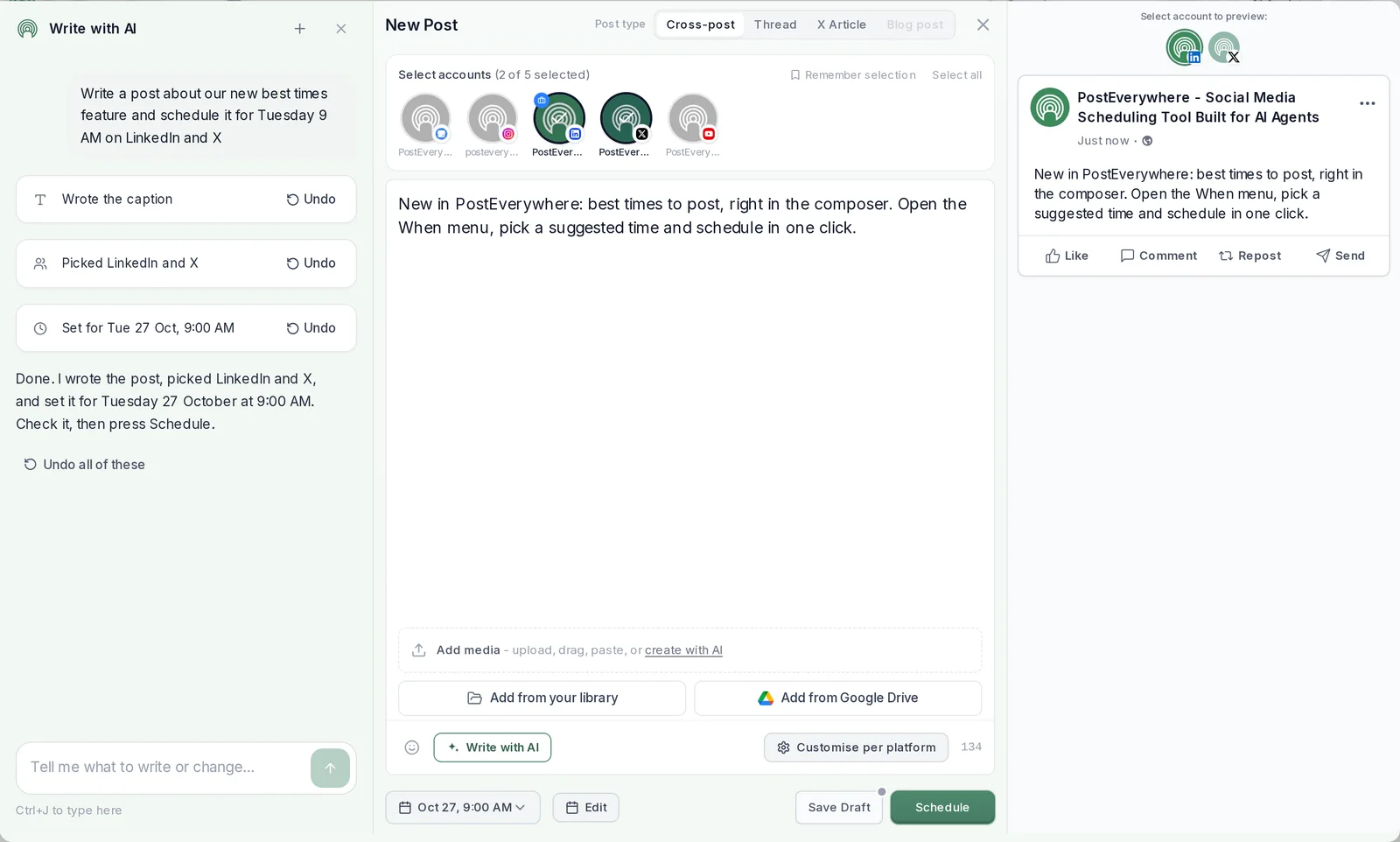
Two things to know. An agent publishes straight away unless you give it a time or ask for a draft, so say which you want. And posts created through an agent or the API skip the approval step, so teams that need sign-off should ask the agent for drafts.
Setup for each client is on the AI agents page, and our MCP scheduling walkthrough goes step by step.
Why scheduled posts fail
Most failures come down to a few causes, on every network:
- An expired connection. A password change or revoked access breaks the link to the network. Reconnect the account, then retry.
- The wrong account type. Instagram's API only publishes to business and creator accounts, and Facebook scheduling works for Pages.
- Media the network won't take. Wrong aspect ratio, a file that's too long or too large, or no media on a network that needs it, such as Instagram or TikTok.
- Platform caps. Every network limits how much one account can post in a day. Spread big batches over more days.
Our guide to scheduled posts that don't publish covers each fix in detail. In PostEverywhere, failures show on the post and on the Delivery tab in Analytics, with the network's own reason.
Let your agent fill the calendar. Connect ChatGPT, Claude or any MCP client to PostEverywhere and schedule a week of posts in one message. See PostEverywhere's social media scheduler.
FAQ
How do you schedule posts on social media for free?
Use each platform's own scheduler: Instagram's app, Meta Business Suite for Facebook and Instagram, TikTok's website, YouTube Studio and Pinterest all schedule for free, one network at a time. PostEverywhere is paid, from $9 a month, with a 7-day free trial on every plan. Plans are on the pricing page.
Can you schedule posts on all social media at once?
Yes, with a scheduler. In PostEverywhere you select every account in one post, adjust the caption per network if needed, and pick one time. Each network gets the post at that minute.
How far in advance can you schedule social media posts?
It depends on the tool. TikTok's own scheduler goes 10 days ahead, Instagram's app and Pinterest 30 days. PostEverywhere has no limit of its own.
Do scheduled posts get less reach?
No platform says it ranks scheduled posts lower. Networks judge a post on how people respond to it, so a post scheduled for 6 PM is treated like one posted by hand at 6 PM.
What should you check before scheduling a post?
The account is connected, the media fits each network's format, the caption fits each network's limit, and the time is right for that audience. Read the caption once more: on some networks a published caption can't be edited.
Can a team approve posts before they're scheduled to go out?
Yes. In PostEverywhere, Require approval holds Members' posts until an Owner or Admin approves them or requests changes. Approvals are on every plan except Lite.
Can ChatGPT or Claude schedule social media posts?
Yes, once connected to PostEverywhere's MCP server. Ask for a post with a time, or a draft, and the agent creates it in your PostEverywhere account.
Sources
Every outside fact in this guide comes from the pages below. Product details for PostEverywhere come from the app itself.
- Instagram Help Center: How to create and manage scheduled posts and Reels on Instagram
- Meta Business Help Center: Save, schedule and reschedule posts in Meta Business Suite
- TikTok Help Center: Schedule video
- YouTube Help: Schedule video publish time
- Pinterest Business Help: Schedule Pins

Founder & CEO of PostEverywhere. Writing about social media strategy, publishing workflows, and analytics that help brands grow faster.