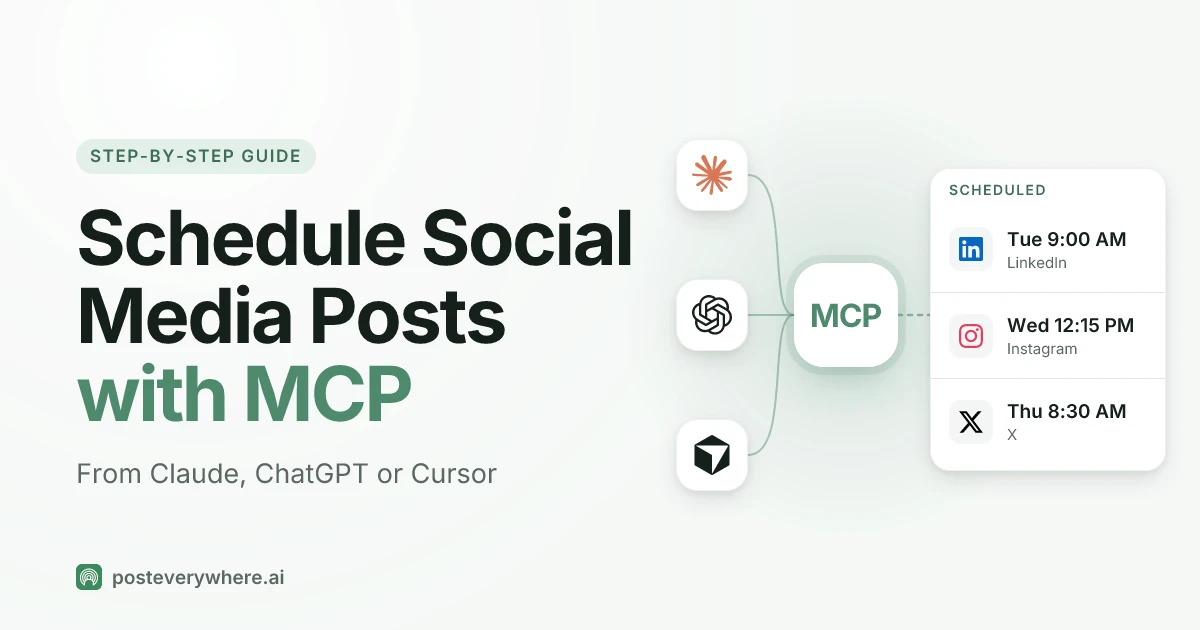
Short answer: how to schedule social media posts with MCP comes down to two steps. Connect your AI assistant to the MCP server of a scheduling tool, then ask for the post in plain words. The assistant turns "put this on LinkedIn and Instagram on Tuesday at 9am" into a tool call with your accounts, your caption and an exact time, and the scheduling tool publishes it through each platform's official API when that time comes. With PostEverywhere, the server address is https://mcp.posteverywhere.ai/mcp, it works in Claude, ChatGPT, Cursor and most other MCP clients, and setup takes about two minutes.
That's the whole idea. The rest of this guide covers the parts that trip people up: which way to connect each assistant, the time zone mistake almost everyone makes on their first post, how to give each platform its own caption, and how to check what actually went out. I'll use PostEverywhere's server for the examples because it's the one I built and know inside out, but the same steps apply to any scheduling tool with a proper MCP server. If you're still choosing one, our comparison of every social media MCP server and API is the place to start.
Written by Jamie Partridge, Founder of PostEverywhere. I schedule most of our own posts this way, usually from Claude, sometimes from Cursor in the middle of shipping something.
What MCP actually does when you schedule a post
Model Context Protocol is an open standard that lets an AI assistant call tools in other software. Anthropic introduced it in late 2024, and it's now supported by Claude, ChatGPT, Cursor, Windsurf, Codex and a long list of other clients.
For social media, the important thing to understand is that the assistant never touches Instagram or LinkedIn itself. It talks to the MCP server. The server belongs to a scheduling tool that already holds authorised connections to your accounts, and that tool does the publishing. So there are three links in the chain:
- Your assistant writes the post and decides what to call.
- The MCP server turns that call into a scheduled post in your scheduling tool.
- The scheduling tool publishes it to each platform at the right time, through the platform's own API.
This matters for two reasons. Your social passwords never go anywhere near the AI. And the post doesn't depend on the chat staying open: once it's scheduled, you can close the tab, and it still goes out on Tuesday at 9am. If you want the longer version of how this differs from calling an API directly, I wrote it up in social media API vs MCP.
What you need before you schedule posts with MCP
Three things, and none of them is technical:
- A scheduling account with your social profiles connected. In PostEverywhere that's the Accounts page: connect Instagram, LinkedIn, TikTok, X or whichever of all top platforms you post to. The assistant can only post where the scheduling tool can.
- An assistant that supports remote MCP servers. Claude (any plan, including free, which allows one custom connector), ChatGPT on a paid plan, Claude Code, Cursor, Windsurf and most coding assistants all do.
- A plan that includes MCP access. In PostEverywhere it's on every plan from $9 a month, including the 7-day free trial, so you can test the whole flow before paying anything.
If your social accounts aren't connected yet, do that first. An assistant with a working MCP server and no connected accounts will cheerfully tell you it has nowhere to post.
Step 1: Connect your assistant to the MCP server
Each assistant has its own way in. Pick yours.
Claude (web, desktop and mobile)
Claude is the simplest, because PostEverywhere is listed in Claude's connector directory. Open it while signed in to Claude, add it, sign in to PostEverywhere and click Approve. There is no API key to copy.
You can also add it by hand as a custom connector: in Claude, go to Customize → Connectors, click +, choose Add custom connector, and paste https://mcp.posteverywhere.ai/mcp. Anthropic's guide to custom connectors covers the screens if they look different on your plan. Connectors belong to your Claude account, so once it's added on the web it also works in the Claude desktop and mobile apps. There's a walkthrough with screenshots of each step if you get stuck.
ChatGPT
ChatGPT connects to MCP servers as a custom connector, which needs Developer mode switched on in your settings. That's available on paid plans (Plus, Pro, Business, Enterprise and Edu) and is set up on chatgpt.com rather than in the phone app. Once it's on, you add a custom MCP server with the address https://mcp.posteverywhere.ai/mcp, sign in, and approve.
OpenAI has renamed these menus more than once (connectors became apps, and its developer docs now describe the flow in terms of plugins), so if a label doesn't match, follow the meaning rather than the exact words. PostEverywhere's ChatGPT page tracks the current path. A PostEverywhere app for ChatGPT is in review with OpenAI; until it's approved, Developer mode is the way in, and it gives you the same publishing tools.
Claude Code
One command in your terminal:
claude mcp add --transport http posteverywhere https://mcp.posteverywhere.ai/mcp
Add --scope user if you want it in every project rather than just the current one. Claude Code's MCP docs explain the scopes. More detail, including project-level setup, is in our walkthrough.
Cursor
Cursor reads MCP servers from .cursor/mcp.json in your project, or ~/.cursor/mcp.json for every project, as described in Cursor's MCP documentation. Add the hosted server with your API key from the Developers page in PostEverywhere:
{
  "mcpServers": {
    "posteverywhere": {
      "url": "https://mcp.posteverywhere.ai/mcp",
      "headers": { "Authorization": "Bearer pe_live_YOUR_KEY" }
    }
  }
}
There's a fuller walkthrough with screenshots, and the same pattern works for Windsurf, Codex and any client that accepts a remote server with a header. The full list of supported clients is on the AI agents page.
Want to try it on your own accounts? Every PostEverywhere plan includes the hosted MCP server, from $9 a month. Start your 7-day free trial and connect Claude or ChatGPT in a couple of minutes.
Step 2: Check the connection before you schedule anything
Before asking for a real post, ask:
"List my connected PostEverywhere accounts and tell me if any need reconnecting."
The assistant should come back with your accounts by platform and name. If it says it has no such tool, the connector isn't switched on for this conversation (in Claude, check the + menu under Connectors; in ChatGPT, pick it from the tools for that chat). If an account shows as needing reconnection, fix it in PostEverywhere first. A post scheduled to an account whose login has expired will fail at publish time, and you'd rather find out now than on Tuesday morning.
I do this check at the start of any session where I'm scheduling more than one or two posts. It takes five seconds and it has saved me from at least one launch-day post going nowhere.
Step 3: Schedule your first post
Now the real thing. A good first prompt names the platforms, the time with its time zone, and the text:
"Schedule this to LinkedIn and Instagram for next Tuesday at 9:00am London time: 'We just shipped bulk scheduling from a spreadsheet. Upload a CSV, check the preview, and a month of posts is booked.' Read me back the exact UTC time before you book it."
Behind the scenes, the assistant calls create_post with your account IDs, the caption and a scheduled_for time. Three things decide what happens to the post:
- No time at all: the post publishes immediately. Be careful with vague prompts like "post this".
- A
scheduled_fortime: the post is scheduled and appears in your PostEverywhere calendar. draft: true: the post is saved as a draft and nothing goes out until it's scheduled.
That last line in my prompt, asking for the UTC time read back, is a habit worth stealing. Here's why.
The time zone trap (and how to avoid it)
This is the mistake I see most often, and it's not the assistant's fault.
The scheduled_for time is an ISO 8601 timestamp. If it ends in Z or carries an offset like +01:00, the server uses it exactly. If it has no offset, the server treats it as UTC. There is also a timezone field, but it's a display label: it doesn't change when the post fires.
So if you're in New York and say "9am" without a time zone, there's a real chance the assistant books 09:00 UTC, which is 5am your time. Most of the time, assistants get it right because they infer where you are. The few times they don't, the post goes out hours early, and nobody notices until the engagement numbers look odd.
Three habits remove the risk:
- Always say the time zone. "9am London time" or "9am Eastern", never just "9am".
- Ask for the UTC time back before the assistant books, as in the prompt above.
- Glance at the calendar after a batch. PostEverywhere shows every post in your own time zone, so a 5am slot stands out straight away.
Three ways to choose when posts go out
An exact time is only one option. Through PostEverywhere's MCP server, an assistant can pick the time three ways.
An exact time. What we've just covered. Best for launches, events and anything tied to a date.
The account's best time. Ask "schedule it for the best time on LinkedIn this week" and the assistant can pass schedule_at: "best_time", which books the next good slot for that account, at least 30 minutes ahead. It can also call get_best_times first and show you the options. Each suggestion says what it's based on: your own past posts, what works for other accounts on that platform, or general guidance when there isn't enough data yet. We explain how those times are worked out separately.
The next queue opening. If you've set up a posting queue in PostEverywhere (for example, weekdays at 8:30am and 12:15pm), the assistant can pass use_queue: true and the post takes the next free slot. It can call get_queue first to tell you exactly when that will be. This is how I fill a quiet week: write five posts with the assistant, drop them all in the queue, done.
My rule of thumb: exact times for anything date-bound, the queue for evergreen posts, best time when you genuinely don't care which day.
Give each social platform its own caption
The laziest version of cross-posting is the same caption everywhere, and it shows. A LinkedIn post that reads well is too long for X; an Instagram caption full of hashtags looks odd on LinkedIn.
MCP makes this easy to avoid, because the assistant can send a different caption per platform in one post using platform_content. You just have to ask:
"Write this announcement once, then adapt it: a 3-sentence version for LinkedIn, a punchy one under 260 characters for X, and an Instagram caption with 5 relevant hashtags. Schedule all three for Thursday 10am Eastern."
The assistant writes all three and books them as one post with three versions, so they stay together in the calendar and you can see them side by side. The same field sets platform-specific options too, like the board for a Pinterest pin or the title for a WordPress post. For X, Threads and Bluesky, it can also build a thread of up to 25 parts with thread_posts.
There's a fuller playbook on adapting one idea for each network if you want to go deeper.
Adding images and video to scheduled posts
This is where MCP has one real limitation: an assistant can't upload a file from your computer through the MCP server. Media gets in one of three ways:
- From your Media library. Upload the files in the PostEverywhere app first, then ask the assistant to use them. It finds them with
list_mediaand attaches them by ID. This is the route I use for anything sitting on my laptop. - From a public link. Give the assistant a URL and it imports the file with
upload_media_from_url: images up to 25 MB, and MP4 video up to 4 GB. Video imports run in the background, so for a large file the assistant checks the video is ready before attaching it. - Generated. On the full server, the assistant can create an image with
generate_image. If you'd rather make visuals by hand, make them in AI Studio first and they land in the same library.
The Media library can't be searched by file name through MCP, so if you've uploaded a lot, tell the assistant which ones you mean ("the three images I uploaded today"). And remember that some platforms need media: YouTube and TikTok need a video, Pinterest needs an image, and Instagram needs at least one of the two.
Review drafts before anything goes live
If you want a human to sign off, ask for drafts:
"Draft three LinkedIn posts about our new pricing. Save them as drafts, don't schedule anything."
The assistant saves each one with draft: true. You review them (in the chat, or in PostEverywhere's All Posts view), and when you're happy you say "schedule the second one for Wednesday at 9am Eastern". It then calls schedule_post on that draft.
One thing to know: posts created through MCP or the API skip PostEverywhere's approval queue, which is built for team members posting from the app. Approving or rejecting posts can't be done through MCP at the moment. Drafts are the review step for agents. If your team needs sign-off on everything an assistant writes, make "save as a draft" part of every prompt, or put it in the assistant's standing instructions.
Running a team? PostEverywhere's approvals, workspaces and calendar keep human and agent posts in one place. See plans and start a free trial.
Scheduling a week (or a month) in one go
Once one post works, the natural next step is a batch. "Plan two weeks of posts for Instagram and LinkedIn around these three themes, show me the plan, then schedule it when I say yes" works well in Claude or ChatGPT.
For bigger batches, the assistant can use bulk_create_posts, which takes up to 50 posts in a single call and reports success or failure for each one. Scheduled posts don't count against the per-minute posting limit, so a month of content goes in without fuss.
Two tips from doing this a lot:
- Approve the plan before the posts. Ask for a table of dates, platforms and one-line summaries first. Fixing a plan is quick; fixing 30 booked posts is not.
- Know when a spreadsheet is the better tool. If the posts already exist in a sheet, bulk scheduling from a CSV is faster and cheaper than having an assistant retype them. MCP shines when the assistant is doing the writing.
After it's scheduled: check, change, retry
Scheduling is half the job. The other half is knowing it worked.
- What's booked: "What have I got scheduled this week?" The assistant calls
list_postswith the scheduled status. - Did it go out: "Did yesterday's LinkedIn post publish?" The assistant calls
get_post_results, which returns the status for each platform, the live post link, and any error. - Change a post: "Move Thursday's post to Friday at 2pm Eastern and shorten the X version." The assistant calls
update_post. This works on scheduled posts and drafts; once a post is published, it can't be edited through PostEverywhere. - See every call the assistant made: open the Logs page in PostEverywhere. Each MCP tool call is listed with when it ran, whether it worked and the error if it didn't, so you can check exactly what your assistant did (more on AI agent logs). Logs cover the calls themselves; whether a post then went live on the platform is what
get_post_resultstells you. - Fix a failure: "Retry anything that failed this week." The assistant calls
retry_failed_posts, usually after you've fixed the cause (most often an account that needed reconnecting).
If you run agents unattended, webhooks are better than asking: PostEverywhere can notify your system the moment a post publishes or fails. That's covered in our guide to building a social media agent.
What MCP scheduling can't do (yet)
It's worth being clear about the edges, so nothing surprises you:
- No uploads from your computer. Media comes from your Media library, a public URL, or is generated.
- No approving through MCP. Drafts are the review path for agent posts.
- No editing after publishing. Change a post while it's scheduled, not after.
- Deleting doesn't unpublish. Deleting a published post removes it from PostEverywhere, but it stays live on the platform, with one exception: X posts can be deleted on X too.
- Smaller tool sets in some assistants. The full server has 40 tools. Claude's connector has 39 (no image generation), and ChatGPT has 30, which covers writing, scheduling and checking posts but leaves out a few developer tools like webhooks.
None of these is a reason not to use it. They're just worth knowing before you build a routine around it. If you want to see how other tools compare on these points, the AI agents for social media roundup covers which assistants and servers can do what.
Scheduling prompts worth saving
These are the prompts I use most. Copy them, change the details.
Book one post properly:
"Schedule this to LinkedIn and X for Wednesday 9am Eastern. Shorten the X version to under 260 characters. Read back the UTC time before booking."
Fill the queue:
"Write five short posts from this blog post, one per weekday, and add them to my next five queue openings on LinkedIn. Show me the times first."
Best time, no fuss:
"Post this to Instagram at the best time in the next three days, using the image at [link]."
Draft for review:
"Draft a launch thread for X and a LinkedIn post. Save both as drafts. Don't schedule."
Weekly check:
"What's scheduled for next week, which accounts need attention, and did anything fail this week?"
Ready to stop copy-pasting into five apps? PostEverywhere connects Claude, ChatGPT and Cursor to all top platforms through one MCP server. Start your 7-day free trial.
Frequently Asked Questions
Can Claude schedule social media posts?
Yes. Claude can schedule social media posts once it's connected to a scheduling tool's MCP server. Add PostEverywhere from Claude's connector directory or as a custom connector, approve it once, and Claude can book posts on all top platforms at the time you name.
Can ChatGPT schedule posts to Instagram or LinkedIn?
Yes, through a custom MCP connector. Switch on Developer mode on a paid ChatGPT plan, add https://mcp.posteverywhere.ai/mcp as a custom server, and ChatGPT can schedule posts to Instagram, LinkedIn and other connected accounts through PostEverywhere.
Do I need to code to schedule posts with MCP?
No. In Claude and ChatGPT, setup is a few clicks and a sign-in, with no code and nothing to install. Config files only come into it for coding tools like Cursor or Claude Code, and even there it's one command or a short JSON snippet.
Why did my post go out at the wrong time?
Usually a missing time zone. If the scheduled time has no offset, it's treated as UTC, so "9am" without a zone can become 9am UTC. Always name the time zone in your prompt and ask the assistant to read back the UTC time before booking.
Can an AI agent post the same thing to every platform at once?
Yes, and it can tailor each one. One post can carry a different caption per platform, so LinkedIn gets the long version, X gets a short one and Instagram gets hashtags. The posts stay together as one item in your calendar.
Will the post still publish if I close the chat?
Yes. Once the assistant has scheduled the post, it lives in your scheduling tool, not in the chat. You can close the conversation and the post still publishes at the booked time.
Is it safe to give an AI assistant access to my social accounts?
The assistant never sees your social passwords. It talks to the MCP server with a revocable key or sign-in, and the scheduling tool publishes through each platform's official API. You can revoke access at any time from the Developers page in PostEverywhere.
How many posts can an assistant schedule at once?
Through PostEverywhere's MCP server, up to 50 posts in a single bulk call, with a result for each one. In practice, assistants also schedule batches one post at a time, which works fine for a week or two of content.

Founder & CEO of PostEverywhere. Writing about social media strategy, publishing workflows, and analytics that help brands grow faster.