Can you schedule Instagram posts? Yes. In the Instagram app, tap Create, choose Post or Reel, then tap More options and turn on Schedule this post. Instagram's help page says you need a public account, and you can schedule up to 25 posts a day, up to 30 days in advance. On a computer, Meta Business Suite schedules Instagram posts too. To schedule Trial Reels too, plan further out than 30 days, or run Instagram next to TikTok, LinkedIn and your other accounts, use a scheduler that publishes through Instagram's official API, such as PostEverywhere for Instagram.
This guide walks through all three routes step by step, then covers carousels, Reels and Stories, timing, and the reasons a scheduled Instagram post doesn't go out.
| Instagram app | Meta Business Suite | PostEverywhere | |
|---|---|---|---|
| Where you schedule | Your phone | Desktop browser or the Business Suite app | Desktop browser, phone browser or the iPhone app |
| Account type | Any public account, per Instagram's help page | Business or creator account | Business or creator account |
| How far ahead | Up to 30 days | Pick a date and time in Scheduling options | No limit of its own |
| Formats | Photos, carousels and Reels | Posts, Reels and Stories | Feed posts, carousels, Reels, Stories and Trial Reels |
| Other networks | Instagram only | Instagram and Facebook | All top platforms in one post |
| Bulk | One at a time | One post at a time | One at a time, a posting queue, or a .csv of up to 200 posts |
| Cost | Free | Free | From $9 a month, 7-day free trial |
Can you schedule Instagram posts?
Yes, and there are three ways to do it. Which one fits depends on where you work and what you post.
Instagram's own scheduler. Instagram added scheduling to the app for photos, carousels and Reels. According to Instagram's help page on scheduled posts and Reels, you need a public account, you can schedule up to 25 posts a day, up to 30 days ahead, and scheduled content keeps the privacy and audience settings you had when you scheduled it. You'll see older guides quoting 75 days.
Instagram's help page now says 30, so plan around that.
Meta Business Suite. Meta's free desktop tool schedules Instagram and Facebook posts from a browser. You need an Instagram business or creator account, but not a Facebook Page: Meta's guide to connecting Instagram to Business Suite lets you log in with your Instagram username and password.
A scheduler connected through the Instagram API. Meta's Content Publishing API lets approved apps publish images, carousels, Reels, Stories and Trial Reels to Instagram professional accounts. That is the route PostEverywhere uses.
Your post waits in PostEverywhere until its time, then publishes by itself, with no reminder to tap.
How a post is published doesn't change how it is ranked. Instagram judges a post on what people do with it, such as watching, sending, saving and commenting, not on the button that published it.
Our guide to Instagram's ranking signals covers them surface by surface.
How to schedule Instagram posts in the Instagram app
For a handful of posts in the next month, the app's own scheduler is free and quick. These steps come from Instagram's help center.
Schedule a post or Reel in the Instagram app
On your phone, from a public account.
- Tap CreateTap Create in the top left, or swipe right anywhere in Feed, then tap Post or Reel.
- Pick your mediaSelect a photo, several photos for a carousel, or a video, then tap Next.
- Add the captionWrite the caption and add any effects or filters.
- Tap More optionsIt sits below the caption on the final screen.
- Turn on schedulingSwitch on Schedule this post or Schedule this reel, choose a date and time, then tap Done and Back.
- Tap ScheduleThe post is saved as scheduled content and goes live at that time.
To change a post before it goes out, open your profile, tap Menu in the top right, and tap Scheduled content under Your insights and tools. Each post there has Options for Delete, Edit post, Reschedule and Share now.
You can reach the same list from the Create screen by tapping Scheduled.
Know the limits before you build a plan around it:
- 30 days and 25 posts a day. Both come from Instagram's help page. A daily Reel and a daily carousel fit easily; a month of content does not fit beyond day 30.
- Some post types can't be scheduled. Instagram's help page names product tagging, collaborative posts, sponsored posts and fundraisers as not compatible with scheduled content.
- No Stories. The help page covers Reels, photos and carousel posts. Stories need Business Suite or a scheduler.
- One post at a time, on your phone. There is no bulk upload, and no calendar view of the month.
How to schedule Instagram posts on desktop
Instagram's scheduling help describes the app. On a computer, Meta's own route is Meta Business Suite, and these steps come from Meta's help page on saving, scheduling and rescheduling posts.
Schedule an Instagram post in Meta Business Suite
In a desktop browser, with an Instagram business or creator account.
- Open Create postGo to Meta Business Suite, then Content, then Create post. Use Create reel or Create story for those formats.
- Choose where it goesIf your Facebook Page and Instagram account are connected, posts go to both by default. Deselect Facebook under Post to if it's for Instagram only.
- Compose the postAdd your photos or video and write the caption. The preview on the right shows how it will look in the feed.
- Turn on Scheduling optionsSwitch on the toggle and pick a date and time. Active times suggests when your audience is most active.
- Click ScheduleThe post appears in the Planner tab and in Content, then Posts and reels, then Scheduled.
To move a post later, open Content, then Posts and reels, then Scheduled, click Options on the post and choose Manage post, then Reschedule post. You can do the same from the Planner calendar.
Click Finish later instead of Schedule if you want to keep a draft.
Business Suite is a good free option if Instagram and Facebook are the only networks you run. It lists Create post, Create reel and Create story, according to Meta's page on posting from Business Suite, and each one has a Schedule option.
Meta's guide to posts in Business Suite caps an Instagram post at 10 photos. What it can't do is reach TikTok, LinkedIn, YouTube or anything outside Meta.
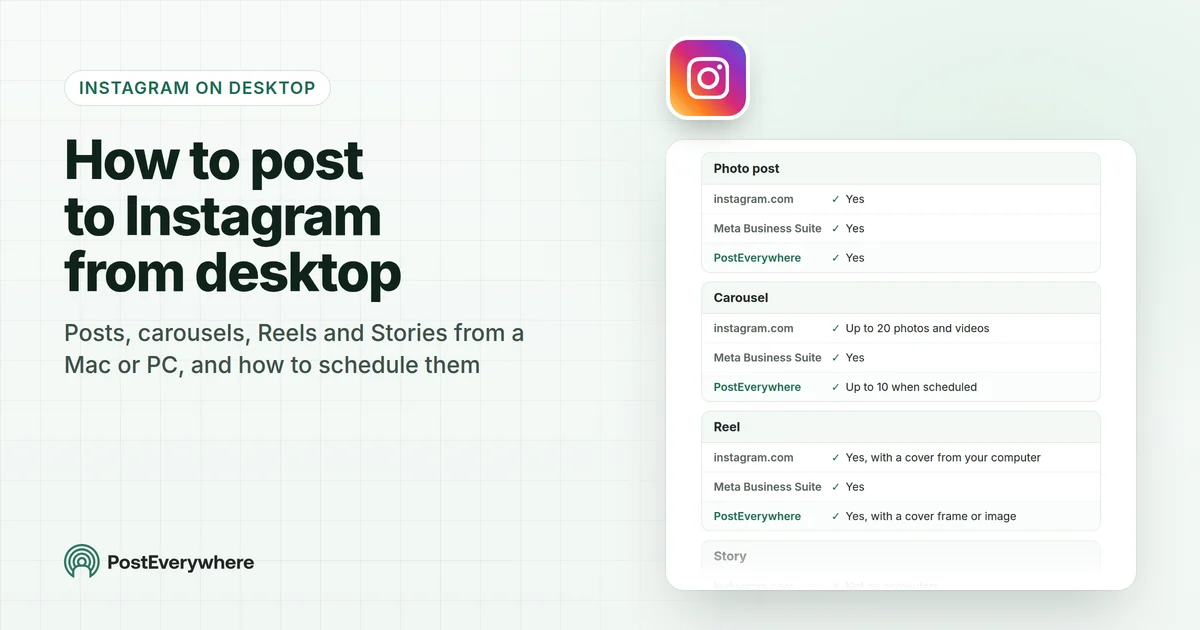
For posting from a computer without scheduling, including the instagram.com upload flow, see our guide to posting to Instagram from a Mac or PC.
Schedule Instagram with the rest of your week. PostEverywhere holds each feed post, carousel, Reel and Story until its time, then publishes it through the official Instagram API. See how PostEverywhere schedules Instagram.
How to schedule Instagram posts with PostEverywhere
This is the flow in PostEverywhere today. It works in a desktop browser and, with a smaller screen, in your phone's browser.
Schedule an Instagram post with PostEverywhere
Feed post, carousel, Reel, Story or Trial Reel.
- Connect InstagramIn Accounts, sign in with Instagram, or connect the Instagram account linked to one of your Facebook Pages. It must be a business or creator account; a Facebook Page isn't required.
- Open New Post and pick the accountSelect your Instagram account. Add Facebook, TikTok or any other account if the same post should go there too.
- Add your mediaUpload or drag in one image, 2 to 10 images for a carousel, or one video. You can also pick from your Media library or Add from Google Drive.
- Choose the post typeIn Customise per platform, set Instagram's post type to Feed Post, Reels, Story or Trial Reel. Outside of Stories, every video goes out as a Reel.
- Write the captionType it, or use Write with AI. Instagram allows up to 2,200 characters and 5 hashtags.
- Pick a time and ScheduleChoose a date and time, a suggested best time, or the next queue opening, then click Schedule.
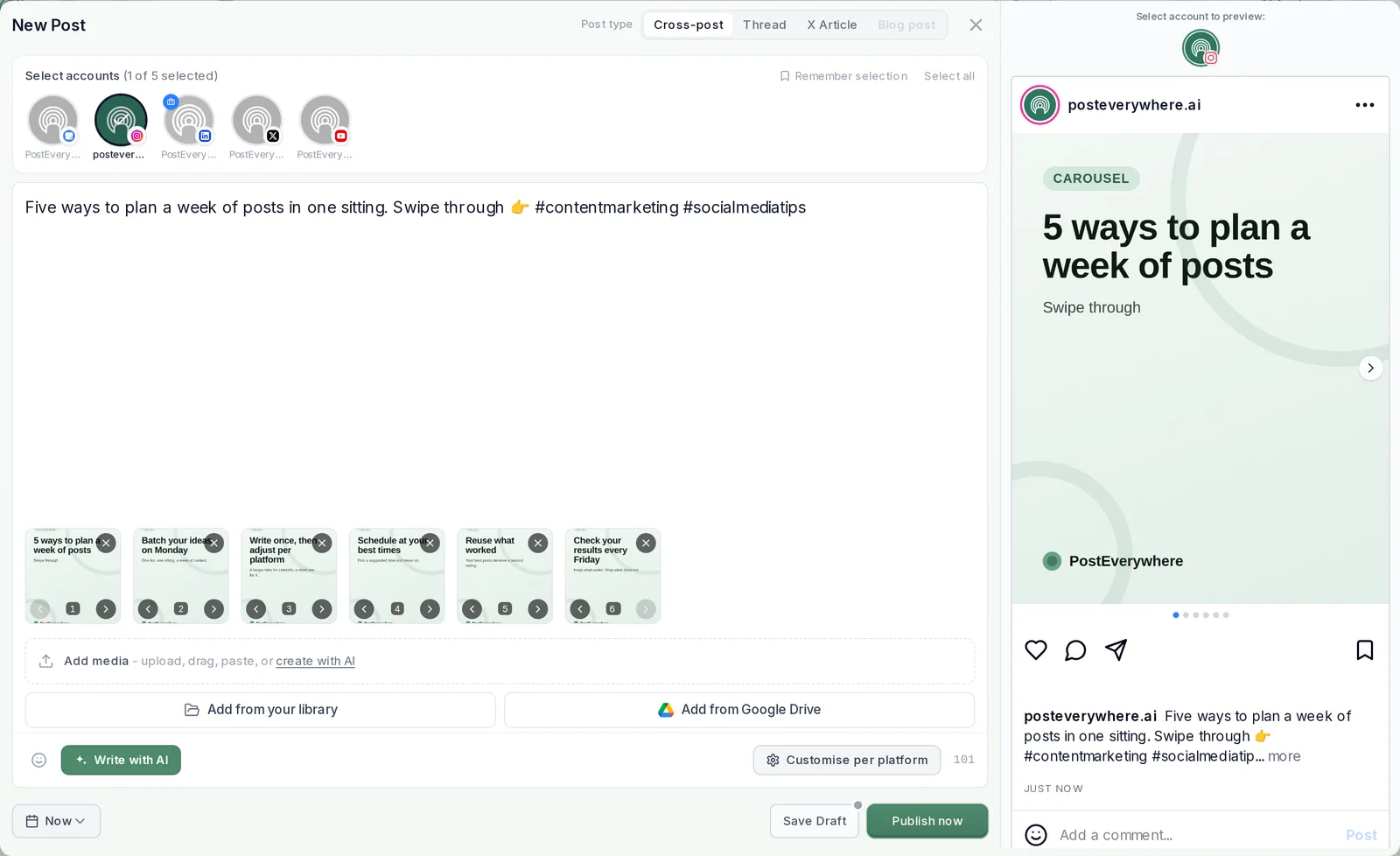
A few details worth knowing:
- Business or creator accounts only. Instagram's API publishes to professional accounts, so a personal account can't be scheduled through any API tool. Switching to a professional account is free in Instagram's settings.
- Alt text and covers. Add alt text of up to 100 characters to each image, and set a Reel's cover from a frame of the video or an image you upload.
- Different words per network. If the post also goes to Facebook or LinkedIn, Customise per platform gives Instagram its own caption while the others keep the main post.
- You can still change your mind. Until the post goes live, click it in the content calendar to edit the caption, move it to another day, or delete it.
- You see what happened. Each post moves from Scheduled to Posted, or to Failed with Instagram's reason and a Retry button.
Can you schedule Instagram posts from your phone?
Yes. Instagram's own app schedules posts and Reels, as above. PostEverywhere's iPhone app has a "Schedule for later" switch on its composer and schedules to Instagram and your other connected accounts. On any other phone, PostEverywhere runs in the browser.
Schedule a month of Instagram posts in one sitting
Desktop is where scheduling Instagram gets fast. Captions are easier to write on a keyboard, and a week of edited photos and Reels lives on your computer anyway. There are three ways to load a batch into PostEverywhere:
- One by one in the composer, giving each post its own slot. Fine for five or six posts.
- A queue of recurring time slots. Set your openings once, for example 11 AM and 7 PM on weekdays, then choose "Next queue opening" on each post and it drops into the next free slot.
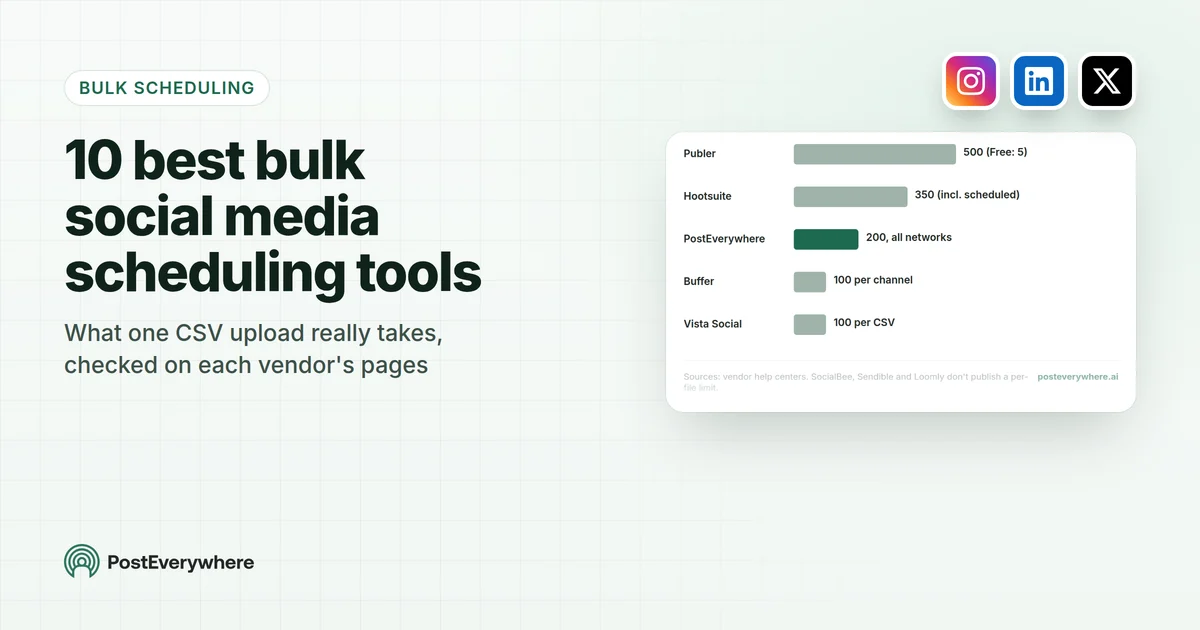
- A .csv upload of the whole batch. Upload your media to the Media library, then a .csv with one row per post: caption, date, time and the media filename, with carousel images separated by a
|. One upload takes up to 200 posts. Rows without a time get a suggested best hour on that date.
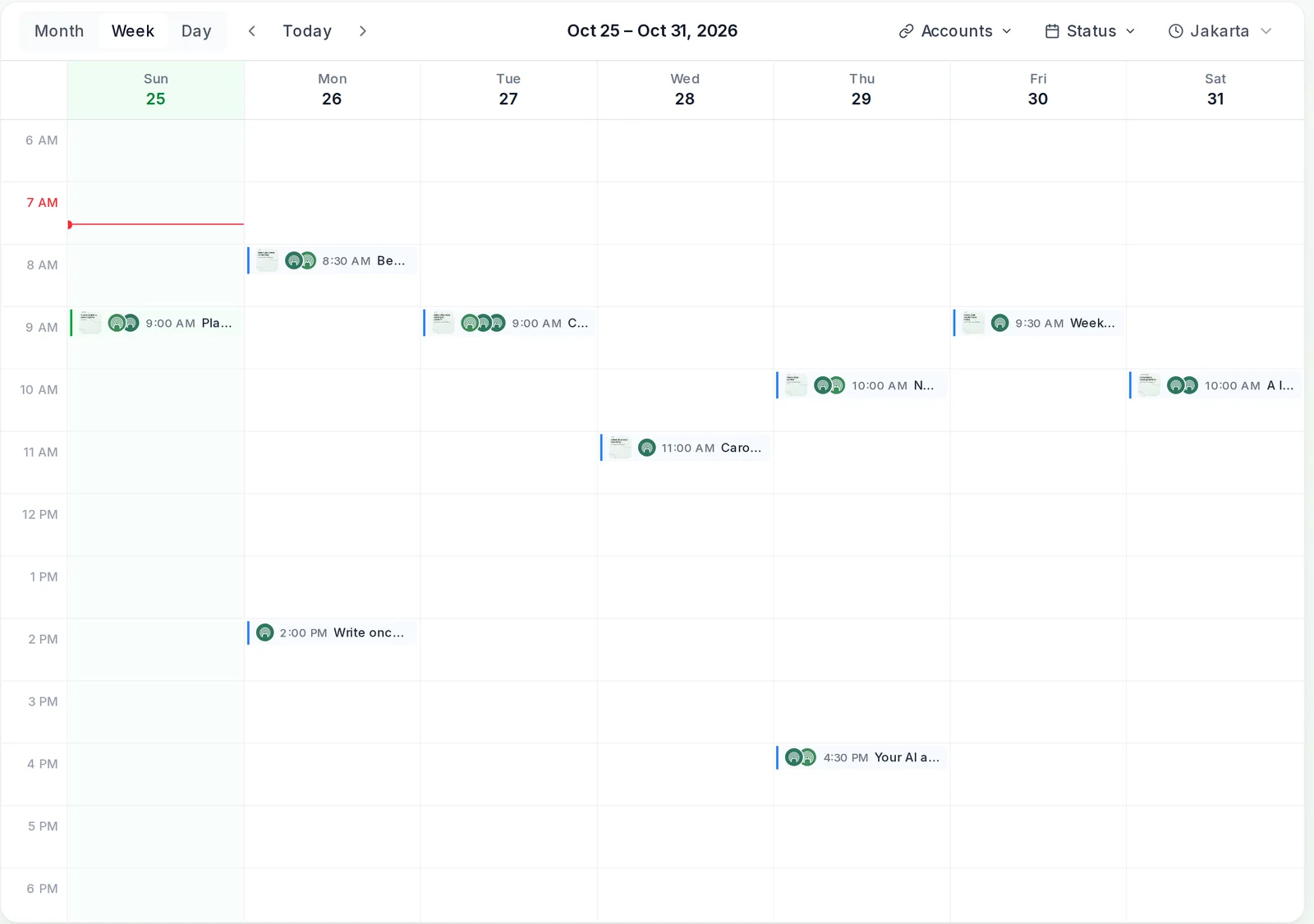
The calendar answers a common complaint about the app's scheduler: there is no month view in Instagram. Here you see the whole plan, spot three carousels in a row, and drag one to Thursday. To fill it, borrow from these 100 Instagram content ideas.
Plan the grid once, then let it run. Load a month of Instagram posts from a .csv or your queue and every one goes out on time. Load your next batch from a .csv.
Scheduling carousels, Reels, Stories and Trial Reels
Each Instagram format schedules a little differently.
- Carousels. In the Instagram app, a carousel takes up to 20 photos and videos, according to Instagram's help page on multi-photo posts. In PostEverywhere a scheduled carousel takes 2 to 10 images, in the order you set; a clip goes out as its own Reel. Our carousel best practices cover slide order and length.
- Reels. Attach a vertical video and leave the post type on Reels. PostEverywhere takes MP4 or MOV files from 3 seconds to 15 minutes. Add a trending sound in the Instagram app first, then schedule the exported file.
- Stories. The Instagram app's scheduler doesn't cover Stories, but Business Suite's Create story does. In PostEverywhere, set the post type to Story. A scheduled Story is one image or one video; stickers such as polls and links are added by hand in the app. Our Stories and Reels scheduling walkthrough covers both formats step by step.
- Trial Reels. A Trial Reel is shown to non-followers first. In PostEverywhere it is one of the four post types, and it reaches your followers only if it performs well. Our explainer on how Trial Reels reach non-followers first covers when to use one.
For pixel sizes of every placement, see Instagram aspect ratios.
Best time to schedule Instagram posts
A scheduled post only helps if the slot is a good one. We published our own numbers, from more than 14,500 Instagram posts scheduled with PostEverywhere, in our day-by-day Instagram timing data.
For format-specific timing, see the best times for Reels and for Stories.
When you schedule in PostEverywhere, the when-to-post menu also shows suggested times. PostEverywhere looks at when your posts have done best and suggests those times. New accounts start with what works across PostEverywhere on Instagram.
Our page on how suggested posting times work explains it across platforms.
Why can't I schedule posts on Instagram?
Most problems come down to a short list of causes, and each has a quick fix.
| What you see | Likely cause | Fix |
|---|---|---|
| No Schedule this post switch in the app | The account is private | Make the account public in Instagram's settings, or use a scheduler |
| The date won't save in the app | It's more than 30 days out, or you've hit 25 posts that day | Pick a date inside the window, or use a scheduler |
| Can't connect the account to a scheduler | It's a personal account | Switch to a business or creator account in Instagram's settings, free |
| Post failed after a password change | The connection to Instagram has expired | Reconnect the account from Accounts, then retry |
| Carousel refused | A video slide, or fewer than 2 images, in a PostEverywhere carousel | Use 2 to 10 images and post the clip as a Reel |
| Caption refused | More than 2,200 characters or more than 5 hashtags | Trim the caption and keep to 5 hashtags |
| Text-only post won't schedule | Instagram needs a photo or video | Add an image, or design the text into one |
| Publishing blocked on a Page-linked account | Meta's Page Publishing Authorization isn't complete | Complete it on the linked Facebook Page, then retry |
The hashtag cap is Instagram's: its hashtag help page allows up to 5 tags on a post. The Page Publishing Authorization rule and a cap on how many posts an account can publish through the API in 24 hours both come from Meta's Content Publishing documentation.
No scheduler gets around those, and tools that skip the official API put the account at risk.
In PostEverywhere, failures show on the post itself and on the Delivery tab in Analytics, with Instagram's reason. Our guide to scheduled posts that don't publish covers fixes across every network.
What you can't schedule on Instagram
A few things are made in the Instagram app and stay there, whichever route you use:
- Collabs, product tags, sponsored posts and fundraisers. Instagram's help page lists them as not compatible with scheduled content. PostEverywhere doesn't add collaborators, locations, or user or product tags either.
- Story stickers. Polls, question boxes, music and link stickers can't be added through the API. Put text in the image itself, and post sticker Stories by hand.
- Instagram's filters and trending sounds. Meta's API doesn't apply Instagram filters, and its audio library isn't open to schedulers. Edit in the app, export, then schedule the finished file.
Your agent can schedule Instagram too. Connect ChatGPT, Claude or any MCP client to PostEverywhere and ask it to line up next week's Reels and carousels. See PostEverywhere for Instagram.
FAQ
Can you schedule Instagram posts for free?
Yes. The Instagram app and Meta Business Suite both schedule posts for free. PostEverywhere is paid, from $9 a month, and every plan starts with a 7-day free trial. Compare plans side by side.
How far in advance can you schedule Instagram posts?
In the Instagram app, up to 30 days ahead, according to Instagram's help page. PostEverywhere has no limit of its own, so next month works as well as tomorrow.
Can you schedule posts on a personal Instagram account?
In the Instagram app, yes, as long as the account is public, according to Instagram's help page. Meta Business Suite and schedulers that use the Instagram API, including PostEverywhere, need a business or creator account.
Can you schedule Instagram posts on desktop?
Yes. Meta Business Suite schedules Instagram posts from a desktop browser, and PostEverywhere works in any desktop browser too.
Where do I find scheduled posts on Instagram?
In the app, open your profile, tap Menu, then Scheduled content. In Business Suite, they are in the Planner and under Content, then Posts and reels, then Scheduled. Posts scheduled in PostEverywhere wait in its content calendar and appear on Instagram once they publish.
Can you edit a scheduled Instagram post?
Yes. In the app, Scheduled content offers Edit post, Reschedule, Share now and Delete. In PostEverywhere you can change the caption, the time or the day until the post goes live.
Do scheduled Instagram posts get less reach?
Instagram ranks posts on how people respond, such as watch time, sends, saves and comments, not on how they were published. A Reel posted at 6 PM through the official API is judged like one you posted by hand at 6 PM.
Can you schedule Instagram Stories?
Not in the Instagram app's scheduler, which covers posts and Reels. Meta Business Suite schedules Stories with Create story, and PostEverywhere schedules them when you set the post type to Story.
Sources
Every outside fact in this guide comes from the pages below. Product details for PostEverywhere come from the app itself.
- Instagram Help Center: How to create and manage scheduled posts and Reels on Instagram
- Instagram Help Center: Share a post with multiple photos or videos on Instagram
- Instagram Help Center: Use hashtags on Instagram
- Meta Business Help Center: Save, schedule and reschedule posts in Meta Business Suite
- Meta Business Help Center: Post Facebook and Instagram content from Meta Business Suite
- Meta Business Help Center: Create and manage posts in Meta Business Suite on desktop
- Meta Business Help Center: How to connect your Instagram account to Meta Business Suite
- Meta for Developers: Instagram Platform, Content Publishing

Founder & CEO of PostEverywhere. Writing about social media strategy, publishing workflows, and analytics that help brands grow faster.