Yes—you can schedule posts on X. In 5 minutes, I'll show you how to schedule X posts (formerly Twitter) from desktop using X Pro's free scheduler or a faster third-party tool, plus the best times and common pitfalls to avoid.
import { ServerVideo } from '@/components/ServerVideo'
Schedule across all platforms: Use our social media scheduler to manage X, Instagram, TikTok, YouTube, LinkedIn, Facebook, Threads, and Pinterest from one dashboard.
TL;DR
- X Pro (formerly Twitter Blue) lets you schedule posts free ($8/month subscription required)
- Third-party tools let you batch upload 20-50 posts at once
- AI-powered scheduling auto-generates X posts, suggests trending topics, and optimizes thread structures
- Best times to schedule X posts: 8-10 AM, 12-1 PM, and 5-6 PM in your audience's timezone
- Batch scheduling saves 5-10 hours per week for consistent posters
- Use PostEverywhere to batch schedule to X, Instagram, TikTok, YouTube, LinkedIn, and Facebook simultaneously
- Free tools: Viral Hook Generator for scroll-stopping openers, Hashtag Generator for trending tags
Jump to:
- Can You Schedule Posts on X?
- How to Schedule Posts on X From Desktop (X Pro)
- Schedule X Posts Without X Pro
- Best Times to Schedule X Posts
- Troubleshooting
- FAQs
Can You Schedule Posts on X? (Yes—Here's How)
Yes. You can schedule posts on X using X Pro (formerly Twitter Blue, $8/month) or third-party schedulers like PostEverywhere, Buffer, or Hootsuite. (If you have ever wondered why people still write "twt" instead of "X" or "tweet" inside posts, our TWT glossary entry explains the shorthand.)
According to Buffer's social media research, accounts that post consistently (3-5 times per day) see 2-3x higher engagement rates than sporadic posters. But manually posting 5x per day burns you out fast.
Here's why you should schedule X posts:
- Batch your work: Write 20-30 posts in one 1-hour session, then schedule them for the week
- Post at optimal times: Your posts go live at 8 AM or 6 PM even if you're asleep or in meetings
- Maintain consistency: Never miss a posting slot because you're busy, traveling, or out of ideas
- Reduce decision fatigue: Plan your content calendar once per week instead of scrambling daily
- Focus on engagement: Spend less time on logistics, more time responding to replies and building community
For creators and brands posting 5+ times per week, batch scheduling X posts saves 5-10 hours weekly. That's 40+ hours per month you can reinvest in content quality, audience engagement, or building other marketing channels.
Learn how to schedule Instagram Reels, schedule TikToks, and schedule YouTube Shorts to maximize your reach across all platforms. You can even post to all social media at once with the right tool.
Save time with batch scheduling: Try PostEverywhere's X scheduler to upload multiple posts at once, schedule across platforms, and auto-post at optimal times. Start your free trial →
How to Schedule Posts on X From Desktop (X Pro)
X offers native scheduling through X Pro (formerly Twitter Blue), a $8/month subscription. It's affordable but has some limitations.
Step-by-Step: X Pro Scheduler
- On desktop, log in to x.com (or use the X mobile app)
- Subscribe to X Pro if you haven't already: Settings → Subscriptions → X Premium → Subscribe ($8/month)
- Click Post to open the composer
- Write your post (up to 280 characters for free accounts, 25,000 for X Pro)
- Add media (images, videos, GIFs) at the right X aspect ratios if desired
- If you're including a link, run the URL through our Twitter Card validator first — the preview image, title, and description need to render before X's composer locks in the card
- Click the calendar icon at the bottom of the composer
- Select date and time (you can schedule up to 18 months ahead)
- Click Confirm → Schedule
Your post will auto-publish at the selected time.
Note: X Pro is required for native scheduling. Free accounts cannot schedule posts using X's native tools—you must use a third-party scheduler.
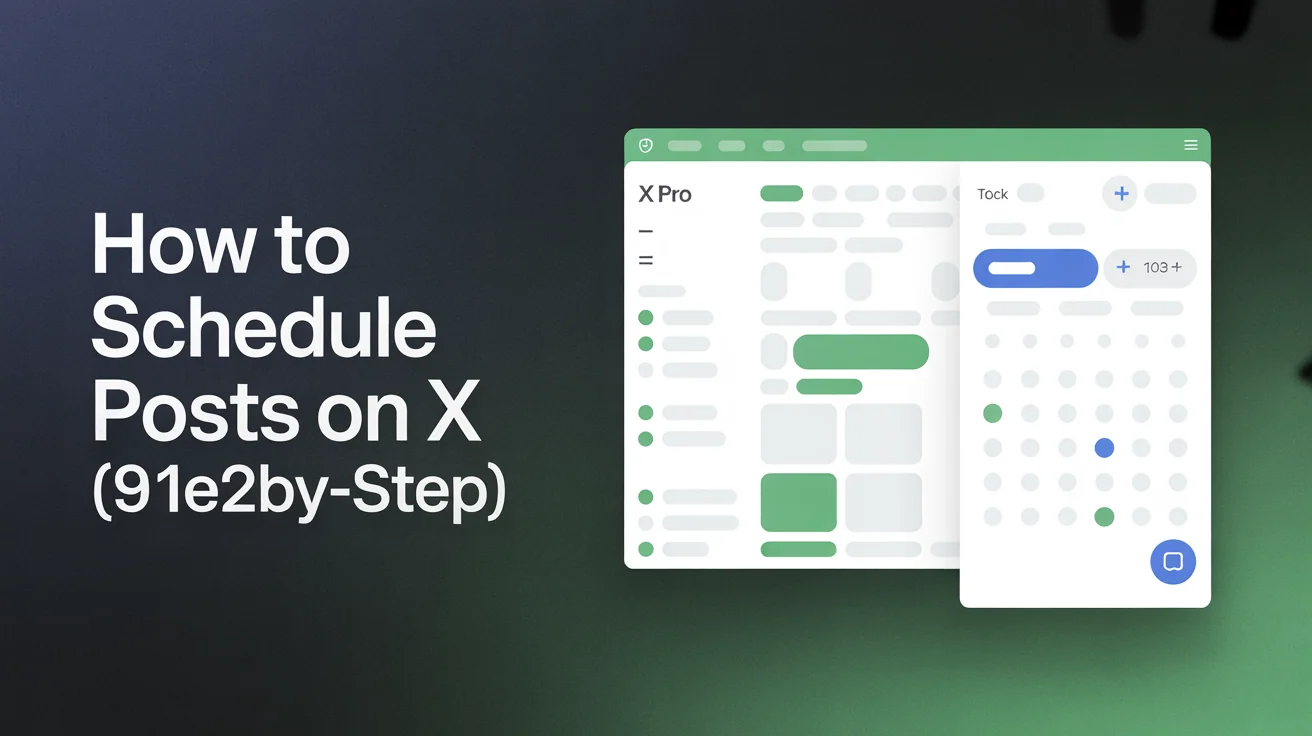
X Pro Scheduler Limitations
- Requires subscription: $8/month for X Pro (formerly Twitter Blue)
- One post at a time: No batch upload—you must schedule each post individually
- No calendar view: Can't see all scheduled posts in a unified calendar
- Limited analytics: Basic stats only; no advanced insights or best-time recommendations
- No cross-posting: Can't schedule to Instagram, TikTok, LinkedIn, or Facebook simultaneously
- No thread scheduling: Threads must be scheduled manually, one tweet at a time
For casual users posting 1-2 times per day, X Pro's scheduler works fine. But if you're posting 5+ times daily or managing multiple platforms, you need a third-party tool.
See X Help Center for official guidance.
Schedule X Posts Without X Pro (Third-Party Tools)
Third-party schedulers unlock features X Pro can't match:
Key advantages:
- Batch upload: Upload 20-50 posts at once and schedule them in one session
- Calendar view: See your entire content calendar (X, Instagram, TikTok, LinkedIn, YouTube) in one dashboard
- Desktop workflow: Write and schedule posts from your computer (faster than mobile)
- Cross-platform posting: Schedule the same content to X, Instagram, LinkedIn, Facebook, TikTok, and YouTube simultaneously
- Advanced analytics: Track best posting times, engagement patterns, and audience growth
- Team collaboration: Multiple team members can schedule, approve, and publish content
- Thread scheduling: Pre-schedule entire X threads with one click
- Content recycling: Auto-repost evergreen content at intervals
- No X Pro required: Schedule without $8/month subscription
Popular third-party X schedulers include PostEverywhere, Buffer, Hootsuite, and Later.
X Pro vs Third-Party Scheduler Comparison
| Feature | X Pro ($8/mo) | PostEverywhere (Paid) |
|---|---|---|
| Schedule X posts | Yes (1 at a time) | Yes (batch 20-50) |
| Batch upload | No | Yes |
| Scheduling window | 18 months ahead | Unlimited (months ahead) |
| Cross-post to Instagram, TikTok, LinkedIn, YouTube | No | Yes |
| Visual calendar (all platforms) | No | Yes |
| Best-time suggestions | No | Yes (AI-powered) |
| Thread scheduling | Manual (1 tweet at a time) | Yes (entire thread) |
| Team collaboration | Basic | Advanced |
| Analytics & reporting | Basic | Advanced (engagement, reach, best times) |
| Content recycling | No | Yes |
| No subscription required | No ($8/mo) | Free trial, then paid |
Bottom line: If you're posting 5+ times per day and want to grow faster, a third-party scheduler like PostEverywhere will save you hours and unlock cross-platform reach.
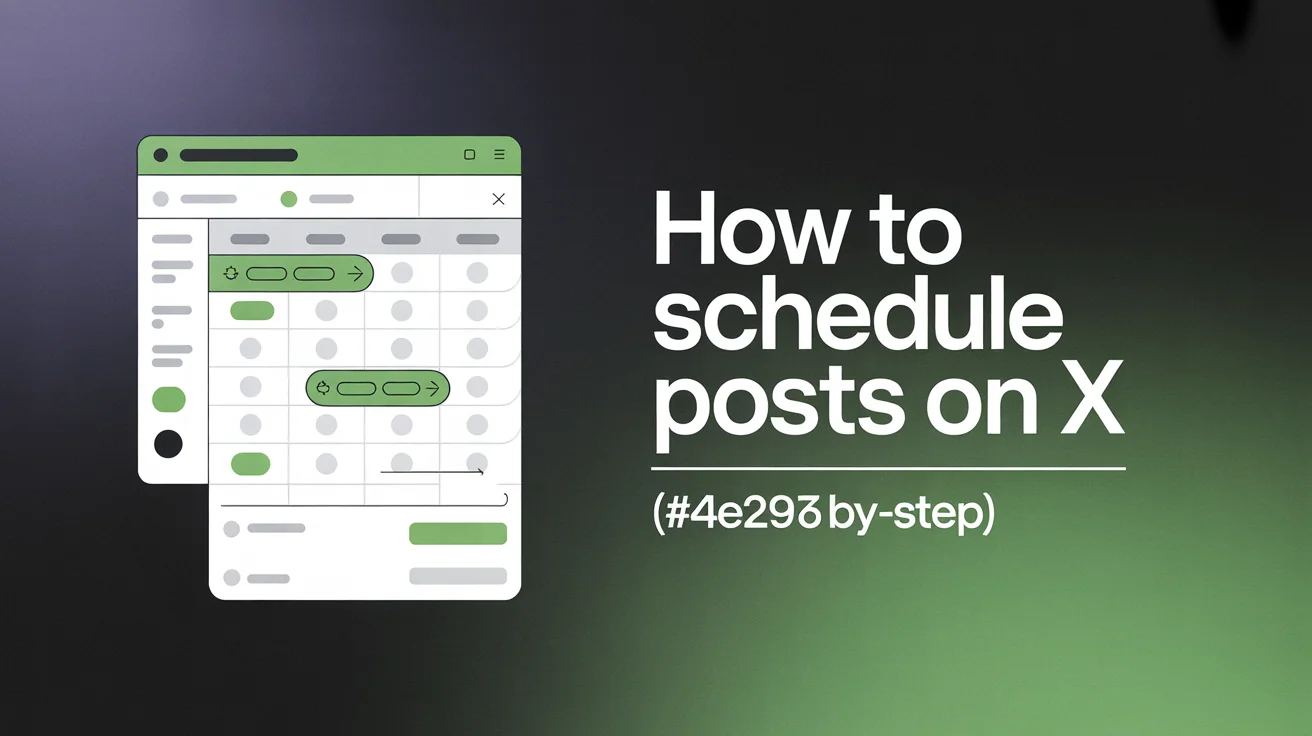
How to Batch Schedule X Posts (Step-by-Step)
Here's the exact workflow I use to schedule a week of X posts in under 30 minutes:
Step 1: Batch-Write Your X Posts
Set aside 30-60 minutes to write multiple posts in one session:
- Pick content pillars: Educational tips, industry news commentary, personal stories, engagement questions
- Use templates: Save proven formats (e.g., "3 lessons I learned from [topic]")—or use our Viral Hook Generator
- Write 20-30 posts: Mix of text-only, images, videos, threads
- Keep variety: Alternate between educational, entertaining, and promotional content
- Repurpose content: Turn one idea into posts for multiple platforms with our Content Repurposer
Pro tip: Write more posts than you need. Some won't feel right when you review them—having extras gives you flexibility. According to Sprout Social's research, batch-creating content improves consistency by 67% compared to on-demand posting.
For content inspiration, see X's Best Practices for Creators and X Marketing Guide.
Step 2: Open Your X Scheduler
If using a third-party tool:
- Log in to your X scheduling tool
- Navigate to the "Upload" or "Composer" section
- Select Batch Upload (if available) or create posts one-by-one
If using X Pro, you'll need to repeat the composer process for each post individually.
Step 3: Upload All Posts at Once
For third-party tools:
- Click Batch Upload or Upload Multiple
- Paste your posts (many tools support CSV import or multi-line text boxes)
- Add media (images, videos, GIFs) to each post
- Review and customize each post
For X Pro:
You must create each post separately in the X composer. This is time-consuming, but follow the steps in the X Pro section above for each post.
Step 4: Customize Each X Post
For each post:
- Write engaging copy: Start with a hook that grabs attention (use our Viral Hook Generator for ideas)
- Add media: Images get 150% more engagement; videos get 10x more views (per Buffer's data)
- Use hashtags sparingly: 1-2 relevant hashtags max—find the best ones with our Hashtag Generator
- Tag accounts: Mention relevant accounts to increase reach and engagement
- Enable replies: Keep replies on unless you have a specific reason to disable
Pro tip: Mix up your content types: 40% educational/tips, 30% engagement/questions, 20% curated content/commentary, 10% promotional. See X's Content Strategy Guide and our social media strategy guide for more ideas on defining your content pillars.
Step 5: Schedule at Optimal Times
Use your X Analytics to identify when your audience is most active.
If you don't have data yet, use these baseline best times:
- Morning commute: 8-10 AM
- Lunch break: 12-1 PM
- Evening wind-down: 5-6 PM
For detailed guidance, see our comprehensive timing guide.
Spacing strategy:
- 5-10 posts per day: Space posts 2-3 hours apart
- Threads: Schedule 1-2 hours apart from standalone posts to avoid self-competition
- Time zones: If your audience is global, stagger posts for major regions (US East 9 AM, UK 2 PM, Australia 8 PM)
Step 6: Review Your Calendar
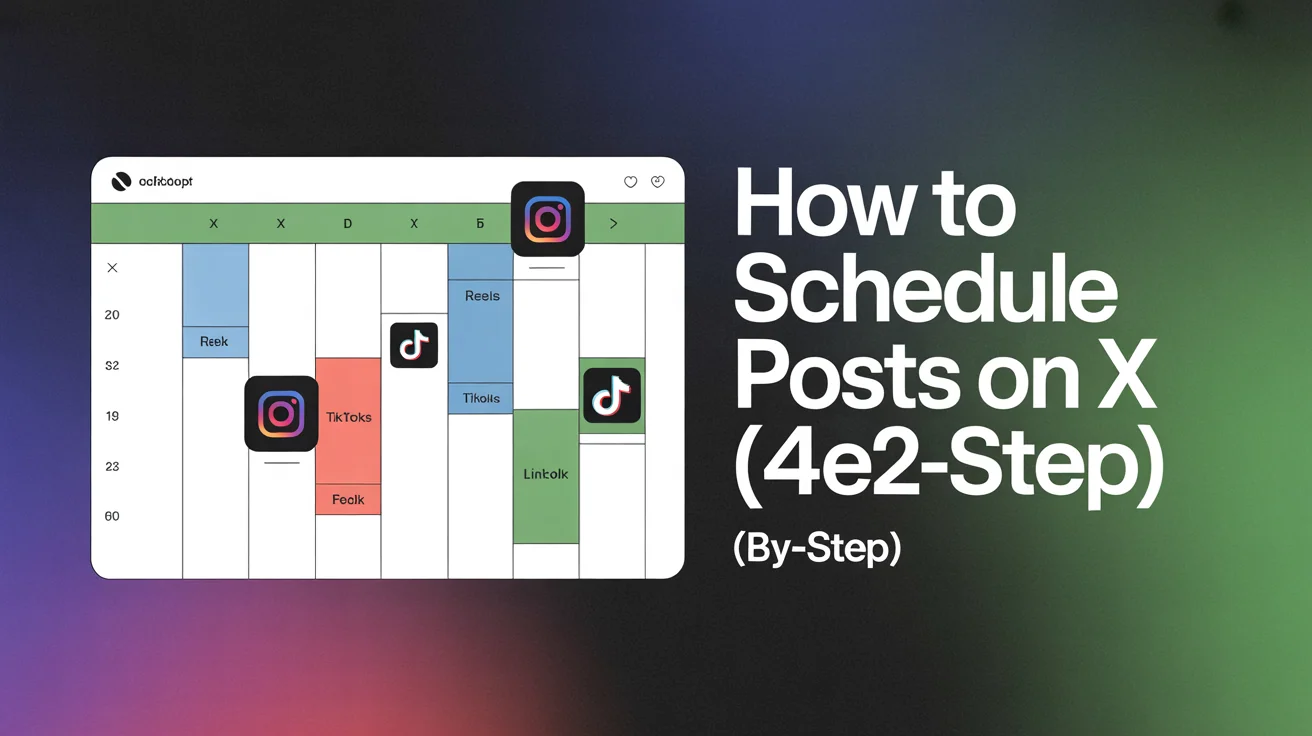
Before confirming, review your scheduled X posts in calendar view:
- Are posts spaced evenly throughout the day and week?
- Are you testing different times to see what performs best?
- Do you have a mix of content types (educational, entertaining, promotional)?
- Are threads scheduled with proper spacing?
If using a third-party tool, you'll see all platforms in one calendar (X, Instagram, TikTok, LinkedIn, YouTube, Facebook). This makes it easy to avoid over-posting on one platform and under-posting on another.
Step 7: Confirm and Auto-Post
Hit Schedule (or Confirm), and you're done. Your X posts will auto-publish at the times you selected.
What happens next:
- Posts publish automatically at scheduled times
- You get notifications (email or in-app) when posts go live
- Analytics start tracking impressions, engagements, clicks
- You can edit or reschedule any post before it publishes
Cross-platform tip: If you're also posting to Instagram, TikTok, LinkedIn, and YouTube, use PostEverywhere to schedule to all platforms simultaneously—saving even more time. Try it free →
Best Times to Schedule X Posts in 2026
According to Sprout Social's X research and Buffer's 2025 study, the best times to schedule X posts are:
Universal Best Times (All Audiences)
| Day | Best Times (ET) | Why |
|---|---|---|
| Monday | 8-10 AM, 12-1 PM, 5-6 PM | Commute + lunch + post-work |
| Tuesday | 9-10 AM, 12-1 PM, 5-6 PM | Peak engagement day |
| Wednesday | 9-10 AM, 12-1 PM, 5-6 PM | Mid-week consistency |
| Thursday | 9-11 AM, 1-2 PM | Pre-weekend activity |
| Friday | 9-11 AM, 5-6 PM | Morning + happy hour |
| Saturday | 9-11 AM | Weekend leisure scrolling |
| Sunday | 9-11 AM | Morning coffee scroll |
Overall best times: 8-10 AM, 12-1 PM, and 5-6 PM in your audience's timezone.
For a full deep dive, see our comprehensive timing guide.
How to Find YOUR Best Times
Generic best times are a starting point, but your specific audience might differ. Here's how to find your optimal posting times:
Check X Analytics:
- Go to analytics.x.com
- Navigate to Tweets → Sort by Impressions or Engagements
- Note the posting times of your top-performing tweets
Test different times for 2-4 weeks:
- Schedule posts at 3 different times per day (morning, midday, evening)
- Track impressions, engagements, and link clicks in the first 1-3 hours
- Double down on times that consistently outperform
Use third-party analytics:
- Tools like PostEverywhere analyze your historical performance and suggest optimal times
- Some tools use AI to predict the best times based on your audience behavior
Factor in time zones:
- If your audience is global, schedule for 2-3 major time zones (e.g., US East Coast 9 AM, UK 2 PM, Australia 8 PM)
- Use batch scheduling to post similar content at different times for different regions
X Scheduling Best Practices
To maximize reach and engagement when scheduling X posts:
1. Post Consistently (5-10x Per Day Minimum)
According to CoSchedule's X study (see alternatives) and Hootsuite's research, brands that post 5-10 times per day see 2-3x higher engagement than those posting 1-2 times.
Why consistency matters on X:
- X's algorithm favors accounts that post regularly
- More content = more chances to appear in followers' feeds
- Audience expects regular content from accounts they follow
Batch scheduling makes this easy: Write 30 posts in 1 hour, schedule them for the week, repeat.
2. Test Different Posting Times
Don't assume the "best times" above work for your audience. Test 3-4 different times per day for 2-4 weeks and track results.
What to track:
- Impressions in first 1 hour
- Impressions in first 24 hours
- Engagements (likes, retweets, replies, clicks)
- Profile visits and follower growth
Tip: Use PostEverywhere's analytics to compare performance across different posting times and automate this testing. Before posting, check your content's potential with our Viral Score Predictor.
3. Use Media (Images, Videos, GIFs)
Posts with media get significantly higher engagement:
- Images: 150% more retweets than text-only (Buffer data)
- Videos: 10x more engagement than text-only (X Business data)
- GIFs: 55% more engagement (Twitter data)
Scheduling tip: When batch-scheduling, prepare all media assets in advance and upload them during your scheduling session. Make sure your images and videos meet the recommended social media image sizes for X to avoid compression. For media best practices, see X's Media Best Practices.
4. Write Strong Hooks
Your first 1-2 sentences determine if people keep reading or scroll past:
- Start with a question, bold statement, or surprising stat
- Use line breaks to make text scannable
- Keep it concise (140-200 characters performs best)
- Add emojis sparingly (1-2 max)
Example: Instead of "Here are some tips for scheduling posts", try "Spending 10 hours a week manually posting? Here's how to automate it in 30 minutes:"
Need hook ideas? Use our free Viral Hook Generator to create scroll-stopping openers for your X posts and threads.
5. Schedule Threads Strategically
Threads perform well on X for in-depth content:
- Schedule threads during high-engagement times (9-10 AM or 5-6 PM)
- Use third-party tools to pre-schedule entire threads
- Leave 2-3 hours between threads and standalone posts to avoid self-competition
Thread best practices:
- Hook in tweet 1 (promise value)
- Deliver value in tweets 2-8
- CTA in final tweet (link, follow, retweet)
Learn more: How to Create Effective X Threads
6. Engage After Posting
Scheduling posts is only half the work. Engagement drives reach:
- Check replies within 30-60 minutes of posts going live
- Reply to all comments (boosts engagement rate)
- Retweet and reply to relevant accounts in your niche
- Spend 15-30 minutes daily engaging with your community
Pro tip: Block 30 minutes each morning to reply to overnight comments and engage with your niche.
7. Cross-Post to Other Platforms
Your X content can work on other platforms. Instead of manually posting to each:
- Use PostEverywhere to schedule the same content to X, LinkedIn, Facebook, and Instagram
- Adapt format per platform (e.g., LinkedIn prefers long-form, Instagram prefers visual-first)
- Maximize reach without extra work
- For TikTok, use our TikTok Caption Generator to adapt your X posts into viral video captions
- For Instagram, optimize your profile with our Instagram Bio Generator
- For Threads, see our walkthrough on posting the same thing to Twitter and Threads to extend each post's reach without retyping
- For LinkedIn, follow our step-by-step on posting to LinkedIn and Twitter at the same time
This strategy helps you post content across all social media platforms at once efficiently.
Troubleshooting: Why My Scheduled X Post Didn't Publish
If your scheduled X post didn't publish, here are the 7 most common issues and fixes:
1. X Pro Subscription Expired
Symptoms: Scheduled posts in X Pro don't publish; no error message
Fix:
- Go to Settings → Subscriptions → Verify X Pro is active
- If expired, renew subscription ($8/month)
- Re-schedule any missed posts
Prevention: Enable auto-renewal for X Pro to avoid interruptions.
2. Third-Party Tool Access Revoked
Symptoms: Scheduled posts via third-party tool don't publish
Fix:
- Go to Settings → Apps and sessions → Revoke access → Re-authorize your scheduling tool
- Reconnect your X account in the third-party tool's settings
- Re-schedule any missed posts
Prevention: Third-party tools usually send email alerts when access expires. Check your email and re-authorize promptly.
3. Time Zone Mismatch
Symptoms: Posts publish at wrong time (e.g., 3 hours early/late)
Fix:
- For X Pro: Check Settings → Account → Time zone
- For third-party tools: Go to tool Settings → Time zone and select your audience's timezone
Prevention: Always verify timezone settings when setting up scheduling for the first time.
4. Post Violated X's Rules
Symptoms: Post scheduled but never published; you receive a policy violation notice
Fix:
- Review X's Rules
- Check for prohibited content (spam, copyright violations, misleading info)
- Edit and re-schedule compliant version
Prevention: Avoid sensational clickbait, copyrighted media, and misleading claims.
5. Character Limit Exceeded
Symptoms: Post won't schedule; error message about character limit
Fix:
- Free accounts: 280 characters max
- X Pro: 25,000 characters max
- Use our free X character counter to ensure your posts and threads fit perfectly within the limits.
- Shorten your post or split into a thread
Prevention: Write posts in a text editor with character count before scheduling.
6. Media File Size Too Large
Symptoms: Upload fails or post never publishes
Fix:
- Images: Max 5 MB (PNG, JPG, GIF)
- Videos: Max 512 MB (MP4)
- Compress large files using TinyPNG for images or HandBrake for videos
Prevention: Export media in web-optimized formats (1200px wide for images, 720p for videos).
7. App/Browser Cache Issues
Symptoms: Scheduled posts disappear from queue or show wrong status
Fix:
- Clear your browser cache (Chrome: Settings → Privacy → Clear browsing data)
- Or use Incognito/Private mode to check if posts are actually scheduled
- For mobile app: Force-close X app and reopen
Prevention: If using X Pro via browser, use Chrome or Safari (Edge sometimes has issues).
Having trouble with scheduled posts? If your posts aren't going live, check our troubleshooting guide for scheduled posts not publishing.
FAQs
Can you schedule posts on X for free?
X Pro ($8/month) is required for native scheduling. However, some third-party tools offer free scheduling with limitations (e.g., Buffer's free plan allows 10 scheduled posts). For unlimited scheduling and batch upload, paid plans start at $10-20/month.
How do I schedule posts on X from desktop?
Use X Pro: Open composer → Write post → Click calendar icon → Select date/time → Schedule. Alternatively, use a third-party scheduler like PostEverywhere for batch upload and cross-platform posting.
Can you batch schedule X posts?
X Pro does not support batch upload—you must schedule each post individually. Third-party tools like PostEverywhere, Buffer, and Hootsuite let you batch upload 20-50 posts at once and schedule them in one session.
How far in advance can you schedule X posts?
X Pro: up to 18 months ahead. Third-party schedulers: unlimited (months or years ahead, depending on the tool).
Why didn't my scheduled X post publish?
Common reasons: X Pro subscription expired, third-party tool access revoked, timezone mismatch, violated X Rules, character limit exceeded, or media file too large. See the Troubleshooting section above for detailed fixes.
Can you schedule X posts on mobile?
Yes. X Pro lets you schedule posts from the X mobile app (iOS/Android) using the same process as desktop. Third-party tools also offer mobile apps, though typing and managing posts is faster on desktop.
What's the best time to schedule X posts?
Best times are typically 8-10 AM, 12-1 PM, and 5-6 PM in your audience's timezone. But your specific audience might differ—check your X Analytics to see when YOUR followers are most active.
Can you schedule threads on X?
Yes. X Pro requires you to schedule each tweet in a thread individually. Third-party tools like PostEverywhere let you pre-schedule entire threads with one click.
Do scheduled X posts perform as well as live posts?
Yes. X's algorithm does not penalize scheduled content. In fact, scheduling lets you post at optimal times (even when you're asleep or in meetings), which often improves performance vs posting randomly.
Can you edit a scheduled X post?
Yes. In X Pro, go to your drafts/scheduled posts → click the post → edit text/media → save. You can also change the scheduled time or delete the post before it goes live. Third-party tools have similar editing capabilities.
How much does X scheduling cost?
X Pro: $8/month (includes scheduling plus verification badge, longer posts, edit button). Third-party schedulers: $10-50/month depending on features. PostEverywhere starts at $9/month for unlimited X scheduling, batch upload, and cross-platform posting to Instagram, TikTok, LinkedIn, YouTube, and Facebook.
Can you schedule X posts with images and videos?
Yes. Both X Pro and third-party tools support images (up to 4 per post), videos (up to 2:20 for free accounts, 10 min for X Pro), and GIFs. Upload media during the scheduling process. Our complete cross-posting on social media guide covers how to size and adapt these media assets for X alongside every other platform.
Getting Started: X Scheduling Checklist
Ready to start scheduling X posts? Follow this 10-step checklist:
- Subscribe to X Pro (if using native scheduling): Settings → Subscriptions → X Premium → Subscribe ($8/month)
- Choose your scheduler: X Pro (native, $8/mo) or third-party tool (paid, more features)
- Batch-write 20-30 posts in one session (set aside 30-60 minutes)
- Prepare media assets: Export images (1200px wide, <5 MB) and videos (720p, <512 MB)
- Check your analytics (if available): X Analytics → Top Tweets → Note best-performing times
- Upload posts to your scheduler (batch upload if using third-party tool)
- Add media and hashtags (1-2 hashtags max, images boost engagement 150%)
- Schedule at optimal times: 8-10 AM, 12-1 PM, or 5-6 PM in your audience's timezone
- Review your calendar: Ensure posts are spaced 2-3 hours apart (5-10 per day minimum for best results)
- Confirm and auto-post: Hit "Schedule" and let your X posts publish automatically
Bonus: If posting to Instagram, TikTok, LinkedIn, or Facebook too, use PostEverywhere to schedule to all platforms at once—saving 10+ hours per week. Try free for 7 days →
Next Steps
Now that you know how to schedule posts on X, here's how to maximize your reach:
- Compare X schedulers: See our best X/Twitter schedulers comparison for a side-by-side breakdown of the top tools
- Connect X: Set up PostEverywhere's X integration to schedule posts with AI-powered content generation
- AI-powered: Use AI social media scheduler to auto-generate X posts, thread ideas, and trending topic suggestions
- Write better hooks: Use our free Viral Hook Generator to create scroll-stopping openers
- Preview link cards: Verify how your X posts with links appear using our free OG image checker
- Optimize posting times: See our timing guide for data-backed strategies across all platforms
- Cross-post to Instagram: Learn how to schedule Instagram Reels from desktop
- Optimize your Instagram: Use our Instagram Bio Generator to perfect your profile
- Add TikTok: See how to schedule TikToks to grow on vertical video, use our TikTok scheduler for consistent posting, and try our TikTok Caption Generator for viral captions
- Add YouTube Shorts: Check out how to schedule YouTube Shorts to triple your video reach
- Find trending hashtags: Use our Hashtag Generator for platform-optimized tags
- Post to all platforms at once: Use our cross-platform publishing tool to reach every audience in seconds
- Batch your workflow: Check out how to plan a month of social media content in one day
Ready to save 10+ hours per week? Try PostEverywhere to batch schedule X posts, Instagram Reels, TikToks, YouTube Shorts, LinkedIn posts, and Facebook content from one dashboard. Upload once, schedule everywhere, and let AI suggest the best times to post. Start your free 7-day trial →

Founder & CEO of PostEverywhere. Writing about social media strategy, publishing workflows, and analytics that help brands grow faster.