Social media posting queue
Set the times you want to post each week. Then add posts to the queue and each one takes the next free opening. No date picker, no time picker, no gaps in your calendar.
Get started from as little as $9 per month. $0 due today, cancel anytime.


Used by 2,831 happy customers
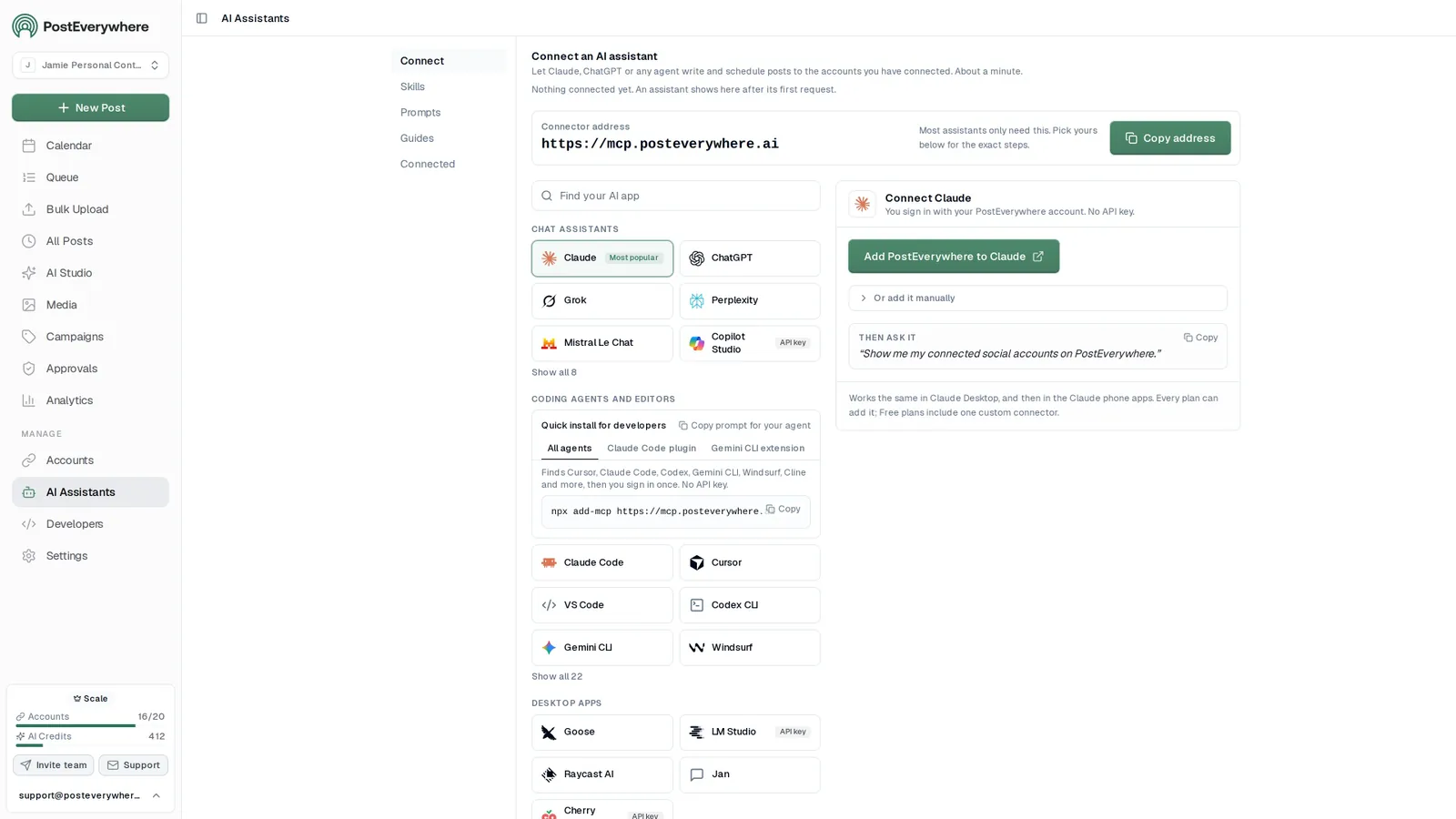
Connect your AI agent
Let your AI agent fill your posting queue
- Connect any AI agent.
- Add PostEverywhere to ChatGPT, Claude, Grok, Perplexity, Cursor or any other AI app that supports MCP with one address. It takes about a minute.
- Ask in plain English.
- “Plan five posts about our launch for next week.” Your agent writes every post for you.
- It schedules and publishes.
- Your agent can post now, schedule for later or save a draft for you to review. Every post lands in your calendar, and scheduled posts go out on time through each network's official API.
$0 due today, cancel anytime
Connector address
https://mcp.posteverywhere.aiAI assistants
Plus any other MCP client. See every setup guide
What your agent can do
Skills teach your agent the job. The 39 tools do the work.
- Plan a content calendarPlan a week or month of posts and fill your queue.
- Repurpose contentTurn a blog post, transcript or newsletter into a set of posts.
- Cross-post a videoOne video to TikTok, Reels, Shorts and more, with the right caption for each.
- Fix failed postsFind posts that didn't go out, explain why, and fix them.
- Weekly reportA short weekly or monthly report, ready to paste into an email.
- Brand voiceLearn how you write from your own posts and keep new posts in your voice.
Set it once
Choose your posting times once, not once per post
Most scheduling work is not writing the post. It is deciding when to put it. The queue removes that decision. You set recurring weekly openings, and every post you add takes the next one that is free.
- Recurring weekly openings.
- Add the slots you want, for example weekdays at 9:00. They repeat every week without you touching them again.
- Wall-clock times.
- Openings run on your workspace timezone. An opening at 9:00 publishes at 9:00 where your team works.
- A live preview before you commit.
- The queue shows the exact date and time of the next 10 posts, so you can see the real pattern rather than guess at it.
Recurring posting times. Add posts to the queue and each takes the next free opening.
- Monday 09:00
- Tuesday 09:00
- Wednesday 09:00
- Thursday 09:00
- Friday 09:00
- SaturdayNo openings
- SundayNo openings
Next openings
Where the next posts added to the queue will land (UTC).
- 1 Mon, 12 Oct, 9:00 am
- 2 Tue, 13 Oct, 9:00 am
- 3 Wed, 14 Oct, 9:00 am
- 4 Thu, 15 Oct, 9:00 am
- 5 Fri, 16 Oct, 9:00 am
Suggested schedules
General starting points, not measured from your audience.
Steady weekdays
5 openings / week
Commute and lunch
7 openings / week
Always on
14 openings / week
Changing your openings does not move posts already in the queue. They keep the time they were given.
In the composer
Add to the queue in one click
Write the post, pick Next queue opening, and it drops into the next free slot. It works the same way for every network you have connected, so a queued post can go to Instagram, LinkedIn, TikTok or any of the other accounts in the workspace.
- One option, not a form.
- Choosing "Next queue opening" replaces picking a date, a time and a timezone. It is a single click at the end of writing.
- Works with cross-posting.
- Queue one piece of content to several accounts at once and let each platform get the format it needs.
- Exact scheduling still available.
- The queue is an option, not a replacement. Pick a specific date and time whenever a post needs one.
Post to (5 of 8 selected)
Select allLaunch week is here
Plan once, publish everywhere. Schedule your posts to Instagram, LinkedIn, X, Facebook and Threads from one calendar.
What will you ship this week? #contentmarketing #socialmedia
 spring-blend.jpg
How our team plans a whole launch week in one sitting, and the checklist we use for every network.
Launch week, planned in one sitting. The checklist we use for every network 👇
Safe to change
Editing your schedule never moves queued posts
Changing a posting schedule in most tools means finding out later that everything shifted. Here it does not. Posts already in the queue keep the exact time they were given. Your new openings apply to what you add next.
- Already queued means already fixed.
- Add an opening, remove one, or move one an hour later. The posts sitting in the queue do not move.
- Change the pattern whenever you want.
- Seasonal campaigns, a quieter August, a push before a launch. Edit the openings and the change applies from that point forward.
Changing your openings does not move posts already in the queue. They keep the time they were given.
- Monday 09:00 17:00
- Tuesday 09:00
- Wednesday 09:00
- Thursday 09:00
- Friday 09:00
- SaturdayNo openings
What the queue does
Posting queue capabilities
A small feature that removes a decision you were making dozens of times a month.
- Recurring weekly openings
- Set the times you want to post each week, for example weekdays at 9:00. Those openings repeat every week until you change them.
- Automatic slot assignment
- Add a post to the queue and it takes the next free opening. You never open a date picker or choose a time.
- Live queue preview
- See exactly when the next 10 queued posts will publish, with the real date and time, before you commit to anything.
- One-click queueing
- The composer has a "Next queue opening" option. Pick it and the post fills the next free slot straight away.
- Workspace timezone
- Openings are wall-clock times in your workspace timezone. 9:00 means 9:00 where your team works.
- Queued posts stay put
- Editing your openings never moves posts that are already queued. They keep the time they were given.
Starter schedules
About the suggested schedules
The queue ships with three starter schedules: Steady weekdays, Commute and lunch, and Always on. They are sensible defaults to start from, and they are general guidance rather than times measured from your own results. For that, the queue also offers Your best times, based on when your posts have done best.
| Starter schedule | Openings per week |
|---|---|
| Steady weekdays | 5 openings |
| Commute and lunch | 7 openings |
| Always on | 14 openings |
| Your own | Any times you choose, up to 100 openings |
If you want to set your openings from data, our best time to post research covers what the studies actually show for each platform.
Recurring posting times. Add posts to the queue and each takes the next free opening.
- Monday 09:00
- Tuesday 09:00
- Wednesday 09:00
- Thursday 09:00
- Friday 09:00
- SaturdayNo openings
- SundayNo openings
Next openings
Where the next posts added to the queue will land (UTC).
- 1 Mon, 12 Oct, 9:00 am
- 2 Tue, 13 Oct, 9:00 am
- 3 Wed, 14 Oct, 9:00 am
- 4 Thu, 15 Oct, 9:00 am
- 5 Fri, 16 Oct, 9:00 am
Suggested schedules
General starting points, not measured from your audience.
Steady weekdays
5 openings / week
Commute and lunch
7 openings / week
Always on
14 openings / week
Changing your openings does not move posts already in the queue. They keep the time they were given.
Why a queue works
Consistency beats intensity on every platform
The hardest part of social media is not any single post. It is the fiftieth one. Teams start strong, post daily for three weeks, then go quiet because every post needs a decision about when to publish it. A queue removes that decision. The schedule is already agreed, so the only question left is what to say.
Mon
5
9:00 AM
Launch week is here
1:30 PM
Behind the scenes
Tue
6
10:00 AM
5 tips for faster scheduling
5:00 PM
Product teaser
Wed
7
9:00 AM
Customer story
3:00 PM
New templates
Done. 6 posts scheduled for the rest of the week, each one tailored for its platform.
Bulk for campaigns, queue for the drip. Pair the queue with bulk scheduling for campaign content and the content calendar to see everything in one view.
Fill it faster than you can write. Use AI Studio when you need to fill the queue faster than you can write, then send each post to the next opening.
Every client on its own rhythm. Agencies get the most out of it. Each client workspace has its own openings, so a client that wants three posts a week and one that wants two a day are configured once and then left alone. Combine it with team workspaces and multi-account management.
A reviewer before the slot. When more than one person is adding to the queue, turn on the approval workflow so a reviewer sees each post before it takes a slot.
Access that fits the job. Set team roles so everyone has the access they need and nothing more.
The fiftieth post looks like the first. Once the openings are set, the queue keeps the same rhythm in week ten as in week one, without anyone choosing a time.
$0 due today, cancel anytime
Or ask your agent to fill the queue
See all skills and prompts“Look at my PostEverywhere queue for the next two weeks and tell me where the gaps are. Then suggest posts to fill them.”
View skill“Plan next week of posts for my LinkedIn and X in PostEverywhere.”
View skill“Turn this article into five posts and schedule them in PostEverywhere.”
View skill
Pricing
Simple pricing, unlimited posts on every plan
Every plan posts to all top platforms and includes the API and hosted MCP server for your AI agent.
7-day free trial on every plan. Card required, $0 due today, cancel anytime. Compare every plan
FAQ
Posting queue FAQ
Straight answers about plans, platforms and how scheduling works.
What is a social media posting queue?
A posting queue is a set of recurring weekly openings that you define once. Instead of choosing a date and time for every post, you add the post to the queue and it takes the next free opening automatically. It turns scheduling from a per-post decision into a one-time setup.
How do I set up the queue?
Open the queue in the app and add the weekly openings you want, for example Monday to Friday at 9:00. Those times repeat every week. A live preview shows you when the next 10 queued posts will land, so you can check the pattern before you add anything.
What happens if I change my posting times later?
Posts that are already in the queue keep the time they were given. Editing your openings only affects posts you add after the change. Nothing you have already lined up gets moved or reshuffled behind your back.
Does the queue pick the best time to post for my audience?
It suggests them, and you decide. Settings › Posting Queue offers Your best times as a schedule, based on when your posts have done best. Accounts without enough posts yet see Popular on your platforms, which is what works across PostEverywhere on each platform. The three starter schedules, Steady weekdays, Commute and lunch, and Always on, are general guidance. Whichever you pick, the queue publishes at the times you set.
What timezone does the queue use?
Openings are wall-clock times in your workspace timezone. If you set an opening at 9:00, the post publishes at 9:00 in that timezone. You do not need to convert anything or think about UTC offsets.
Can I still schedule a post for a specific date?
Yes. The queue is an option, not a replacement. You can pick an exact date and time for any post as you always could, and use the queue for the routine content that just needs to go out regularly.
How is the queue different from bulk scheduling?
Bulk scheduling is for uploading many posts at once from a CSV. The queue is for the steady drip of individual posts over time. Many teams use both: bulk upload a campaign, then queue the day-to-day content around it.
Which plans include the posting queue?
The posting queue is available on every plan, from Lite at $9 per month up to Scale at $39 per month. Every plan comes with a 7-day trial and a card is required to start it.
Still have questions?
Contact us or browse the full FAQ.
$0 due today, cancel anytime
Related Features & Tools
Explore related features and guides to get the most out of PostEverywhere.
Post Approval Workflow
Require sign-off before a queued post publishes.
Team Roles and Permissions
Owner, Admin and Member access across your workspace.
Bulk Scheduling
Upload a CSV and schedule hundreds of posts at once.
Content Calendar
See every queued and scheduled post in one view.
Social Media Scheduler
Schedule across all top platforms from one place.
Cross-Posting
One upload, formatted for every platform.
Team Workspaces
A separate queue for every client or brand.
Best Time to Post
The research behind choosing your openings.
Social Media Automation
Set the schedule once and let it run.
Pricing
Every plan includes the posting queue.
“This tool has truly made my content posting so much easier, I can't work without it. I can schedule my posts days in advance while working on other projects. Set it and forget it.”