Can you schedule posts on LinkedIn? Yes. In LinkedIn, write your post, click the clock icon, pick a date and time and click Schedule. LinkedIn's help page says you can schedule a post "between 10 minutes and 3 months" ahead, and Company Page posts need at least an hour's notice. Events and jobs can't be scheduled, and Company Pages also can't schedule photo sets, polls or reshares. To schedule LinkedIn posts a month at a time, put PDF carousels on a Page, or plan LinkedIn next to your other platforms, use a scheduler that publishes through LinkedIn's official API, such as PostEverywhere for LinkedIn.
This guide shows how to schedule LinkedIn posts both ways, step by step, then covers Company Pages, PDF carousels, timing, and the short list of reasons a scheduled LinkedIn post fails to go out.
| LinkedIn's own scheduler | PostEverywhere | |
|---|---|---|
| Where you post | Your profile, or a Company Page you admin | Profiles and Company Pages, next to all top platforms |
| How far ahead | 10 minutes to 3 months (1 hour minimum for Pages) | No limit of its own |
| Posts per session | One at a time | One at a time, or up to 200 from a .csv |
| Company Page photo sets | Not schedulable | Up to 20 images in one post |
| PDF carousels | Document posts from the composer | One PDF per post, up to 100 MB |
| Change a scheduled post | Edit post or Modify schedule | Edit, drag to a new day or delete in the calendar |
| Cost | Free | From $9 a month, 7-day free trial |
Can you schedule posts on LinkedIn?
You can, in two ways, and the difference is where the post waits before it goes live.
LinkedIn's built-in scheduler. The clock icon in LinkedIn's post composer saves a post for later. According to LinkedIn's help page on scheduling posts, the window runs from 10 minutes to 3 months ahead, you can type a time or pick a 30-minute slot, and scheduled times are converted to UTC from your device's time zone. The post waits inside LinkedIn until its time.
A scheduler connected through LinkedIn's API. LinkedIn's Posts API lets an approved app publish posts for a member or an organization. That is the route PostEverywhere uses. Your post waits in PostEverywhere, then goes to LinkedIn at its minute and publishes by itself.
How the post is ranked doesn't change between the two. LinkedIn's feed judges a post on how readers respond, such as time spent reading, comments and reshares, not on the tool that published it. Our guide to LinkedIn's feed ranking signals covers them in detail.
How to schedule a post on LinkedIn with the clock icon
If you post a couple of times a week from your own profile, LinkedIn's scheduler is free and does the job. These are the steps from LinkedIn's help center.
Schedule a post in LinkedIn
On a computer. On the phone app, tap Post, then the clock icon in the upper right.
- Click Start a postFrom your LinkedIn homepage, or from your Company Page as an admin, open the Create a post window.
- Write the postAdd your text and any image, video or document. Posts can run to 3,000 characters.
- Click the clock iconIt sits in the lower right of the post window and opens Schedule post.
- Choose a date and timeType a time or pick a 30-minute slot, between 10 minutes and 3 months ahead.
- Click Next, then ScheduleThe post is saved and waits in LinkedIn until its time.
Know the limits before you build a plan around it:
- 3 months is the ceiling. A date further out won't save.
- One post at a time. There's no bulk upload, so a month of posts means a month of trips through the composer.
- Some formats can't be scheduled. Events and jobs can't be scheduled anywhere, and Company Pages have a longer list, covered below.
- Managing what's queued. Click Start a post, then the clock icon, then View all scheduled posts. Each post's More menu offers Edit post and Modify schedule, and the delete icon removes it.
How to schedule a post on a LinkedIn Company Page
Page posts follow the same flow from the Page's own Start a post box, with a few differences. LinkedIn's help page for Page scheduling says super admins and content admins can schedule, the window runs from an hour ahead to three months, and you can't schedule "events, multiple photos, reshares, polls, jobs, and service posts" for a Page.
Two details are worth knowing if several people run the Page. Any Page admin can view, edit, reschedule and delete posts that other admins scheduled. And if an admin is removed from the Page, their scheduled posts pass to the admin who removed them.
Plan the quarter, not the next post. PostEverywhere holds each LinkedIn post, PDF carousel and photo set until its time, then publishes it through LinkedIn's official API. See how PostEverywhere schedules LinkedIn.
How to schedule LinkedIn posts with PostEverywhere
This is the flow in PostEverywhere today. It works the same in a desktop browser and, on a smaller screen, in your phone's browser.
Schedule a LinkedIn post with PostEverywhere
Profile or Company Page, text, images, video or PDF.
- Connect LinkedInIn Accounts, sign in with LinkedIn and add your profile and any Company Page where you're an admin.
- Open New Post and pick the accountSelect the profile or Page the post belongs to. Add X or other accounts if the same news should go there too.
- Write the postType it, or use Write with AI. LinkedIn posts run up to 3,000 characters, and only the opening lines show before "see more".
- Add images, a video or a PDFAttach up to 20 images, one video, or one PDF that publishes as a swipeable document. Paste a link with no media and LinkedIn shows a link card.
- Set visibilityChoose Public, Connections Only or LinkedIn Members, and switch off resharing if the update should stay with that audience.
- Pick a time and ScheduleChoose a date and time, a suggested time, or the next queue opening, then click Schedule.
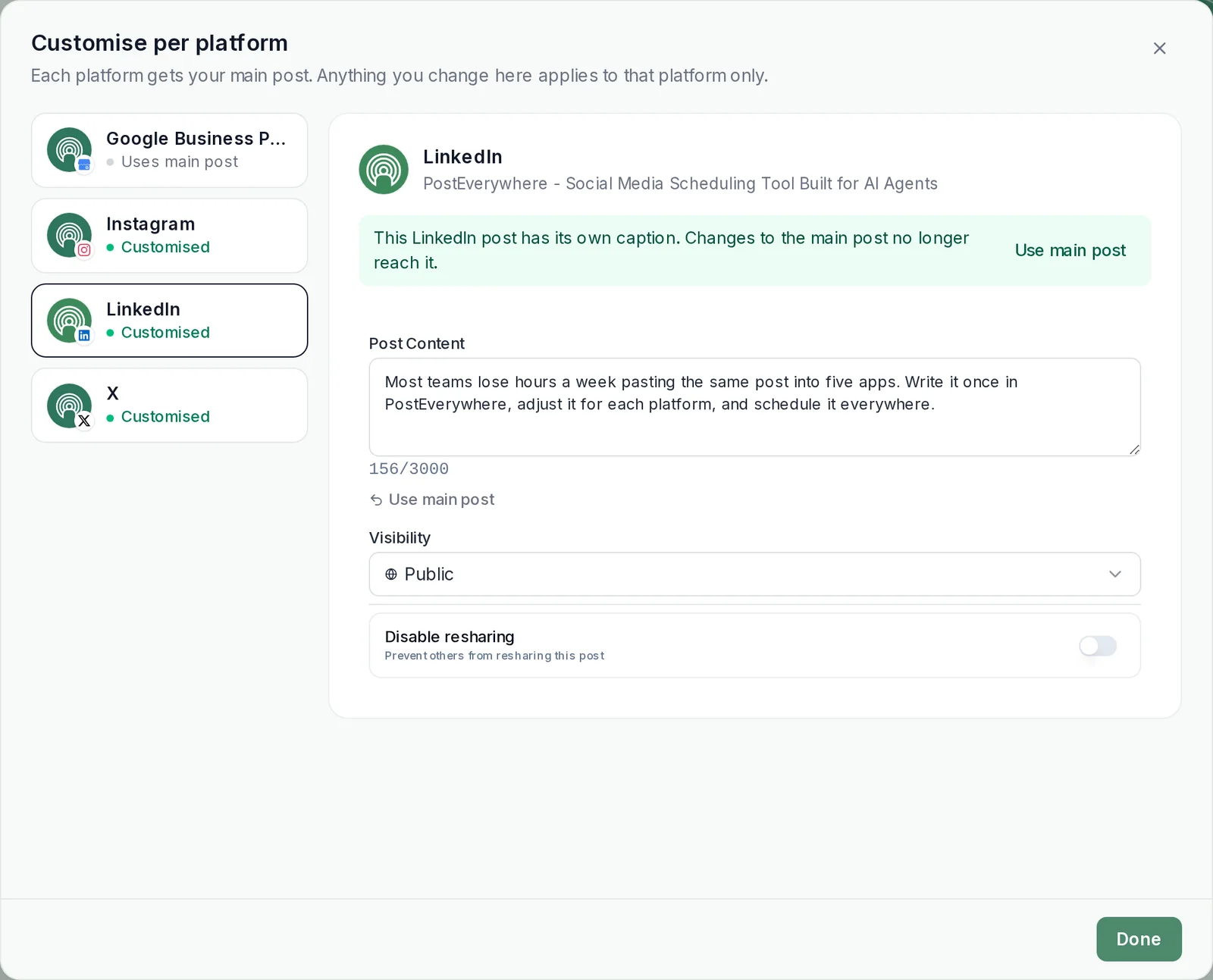
A few details worth knowing:
- Profile or Page, per post. Name the account on each post so company news never lands on a personal profile. Connections Only is for personal profiles, since a Company Page has no connections.
- Link cards build themselves. Put a URL in a post with no media and PostEverywhere builds the article card from the page's title, description and image. If the page has no preview image, the URL goes out as plain text.
- You can still change your mind. Until the post goes live, click it in the content calendar to change anything, move it to another day or delete it. Once LinkedIn has accepted it, edit it on LinkedIn.
- You see what happened. Each post moves from Scheduled to Posted, or to Failed with LinkedIn's reason and a Retry button.
Scheduling LinkedIn PDF carousels and document posts
What most people call a LinkedIn carousel is a document post: a PDF that readers swipe through page by page. LinkedIn's composer has a Document option for it. In PostEverywhere, attach one PDF of up to 100 MB to a post and it publishes as a document at its scheduled time, to a profile or a Company Page.
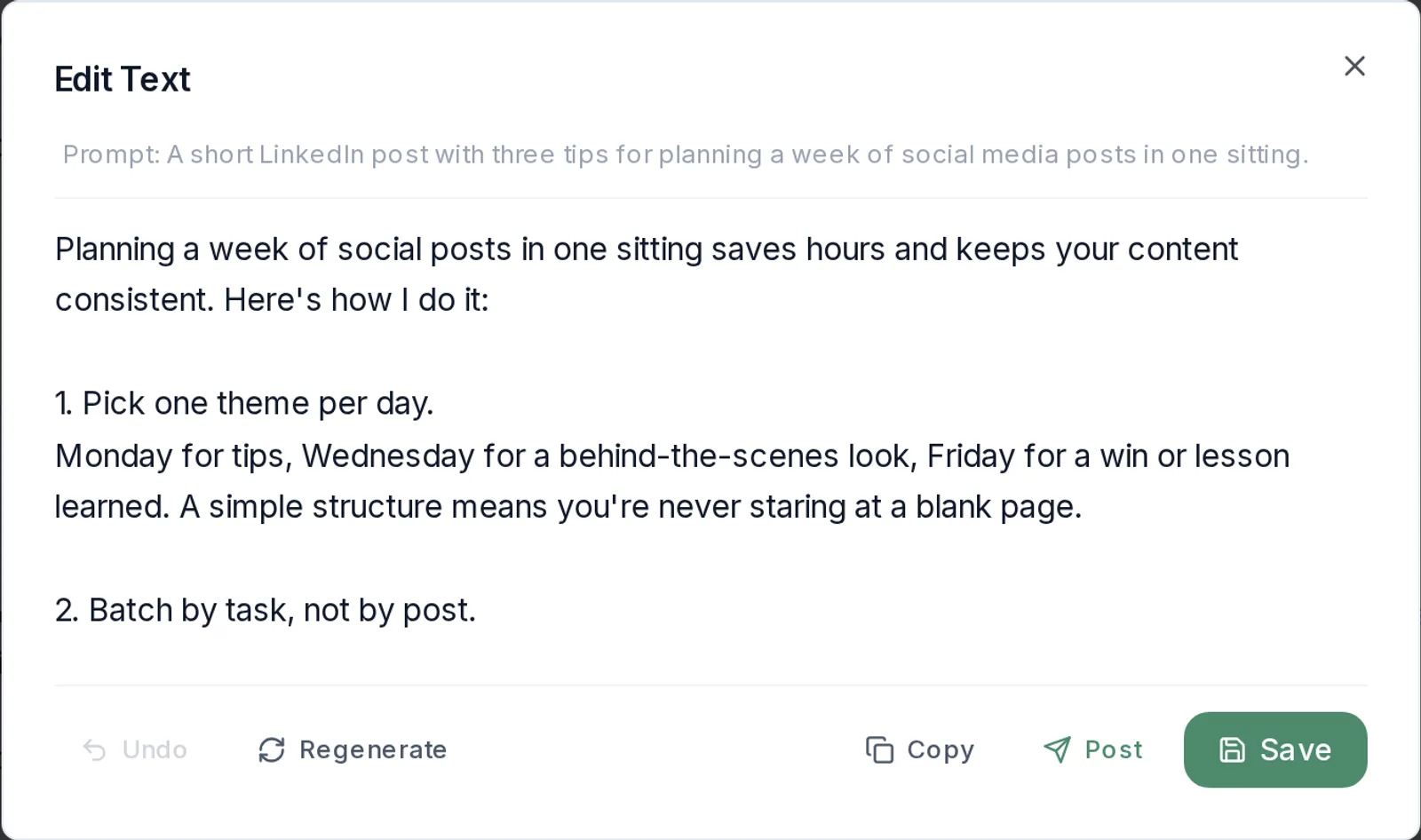
If you'd rather post photos, a multi-image post takes up to 20 images, which LinkedIn's own scheduler won't do for a Company Page. Not sure which format suits the update?
Our comparison of LinkedIn carousels against plain text posts covers when each one earns more attention, and LinkedIn image and document sizes lists the dimensions that don't get cropped.
How to schedule LinkedIn posts in bulk
LinkedIn schedules one post at a time. That's fine for two posts a week and slow for a month across a founder's profile and the Company Page. In PostEverywhere there are three ways to load a batch:
- One by one in the composer, choosing the profile or Page each time. Fine for a week of posts.
- A queue of recurring slots. Set your openings once, for example Tuesday and Thursday mornings, then choose "Next queue opening" on each post and it drops into the next free slot.
- A .csv upload of the month. One row per post with the text, date, time and any media filename from your Media library. One upload takes up to 200 posts. Rows without a time get a suggested best hour on that date.
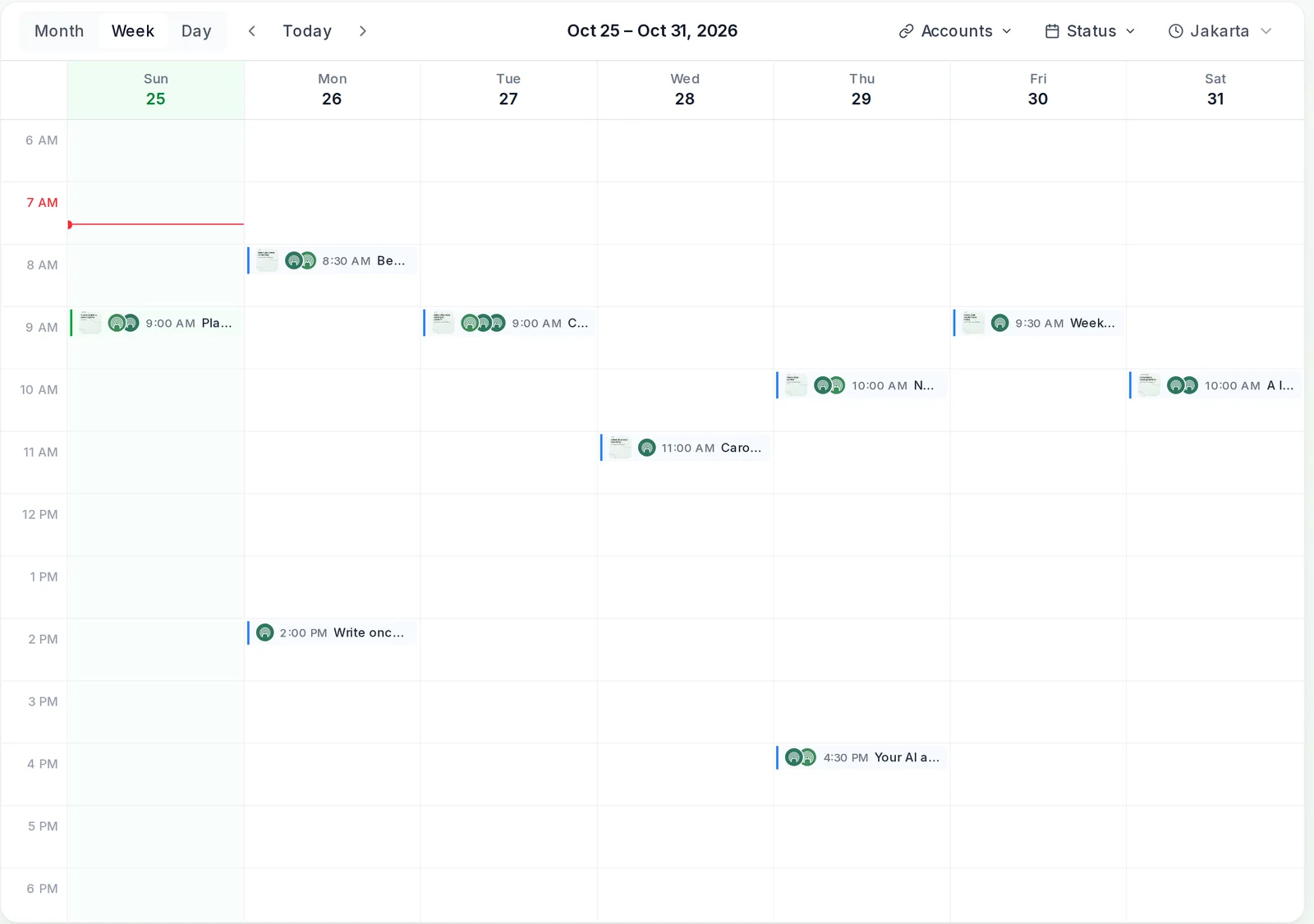
Because PostEverywhere holds the posts itself, there's no 3-month wall. On Starter and above, teams can switch on Require approval so posts written by Members wait for an owner or admin, which suits approval workflows for company posts.
If the same news also goes to X, our guide to posting to LinkedIn and X (Twitter) together covers how to rewrite it for each, and PostEverywhere's cross-posting shows how one post reaches all top platforms.
A month of LinkedIn posts in one sitting. Write the batch once, pick the profile or Page for each, and let every post go out on time. Upload your next month from a .csv.
Best time to schedule LinkedIn posts
Scheduling only pays off when the slot is a good one. Our LinkedIn timing guide by day and hour covers when posts tend to do best, from our own data.
When you schedule in PostEverywhere, the when-to-post menu also shows suggested times. PostEverywhere looks at when your posts have done best and suggests those times. New accounts start with what works across PostEverywhere on LinkedIn.
Our page on how suggested posting times work explains it across platforms.
Why scheduled LinkedIn posts fail, and how to fix them
Most failures come down to a short list of causes, and each has a quick fix.
| What you see | Likely cause | Fix |
|---|---|---|
| No clock icon | You're creating a post type LinkedIn won't schedule, or you aren't a super or content admin of the Page | Check the post type and your Page role |
| The date won't save in LinkedIn | It's more than 3 months out, or less than 10 minutes away (an hour for Pages) | Pick a time inside the window, or schedule it in PostEverywhere |
| A Page photo set won't schedule | LinkedIn doesn't schedule multiple photos for Pages | Post it now, or schedule it in PostEverywhere |
| Failed after a password or role change | The connection to LinkedIn has lapsed | Reconnect the account from Accounts, then retry the post |
| Link shows as plain text | The linked page has no preview image or blocks automated visitors | Add an image to the page's tags, or attach your own image |
| Video rejected | It's shorter than 3 seconds, longer than 10 minutes or over 5 GB | Trim or re-export the video |
| Poll won't schedule | Polls aren't schedulable on Pages, and PostEverywhere doesn't publish them | Post the poll in LinkedIn itself |
In PostEverywhere, failures show on the post itself and on the Delivery tab in Analytics, with LinkedIn's reason, so you know whether to reconnect, fix a file or simply press Retry.
For failures across every platform, our guide to scheduled posts that didn't publish goes deeper. Scheduling from your own code instead? Our developer walkthrough for scheduling LinkedIn posts through an API covers the requests and errors.
What you can't schedule on LinkedIn
A few things stay in LinkedIn, whichever route you use:
- Events and jobs. LinkedIn's help page lists both as unschedulable.
- Polls, reshares and service posts on Pages. LinkedIn won't schedule them for a Company Page, and PostEverywhere doesn't publish polls.
- Articles and newsletters. Long-form articles are written in LinkedIn's publishing tool. PostEverywhere publishes posts, not articles.
- @mentions and image alt text, in PostEverywhere. Add @mentions and alt text in LinkedIn itself.
Analytics follow the same split. PostEverywhere Analytics reports impressions, clicks, likes, comments and shares for Company Page posts. LinkedIn doesn't share post numbers for personal profiles, so profile posts show whether they published or failed.
Your agent can schedule the week too. Connect ChatGPT, Claude or any MCP client to PostEverywhere and ask it to turn a blog post into a week of LinkedIn posts. See PostEverywhere for LinkedIn.
FAQ
Can you schedule LinkedIn posts for free?
Yes. LinkedIn's own scheduler is free, from 10 minutes to 3 months ahead, one post at a time. PostEverywhere is paid, from $9 a month, and every plan starts with a 7-day free trial. See every plan and its limits.
How far in advance can you schedule a LinkedIn post?
Up to 3 months in LinkedIn's own scheduler, according to LinkedIn's help pages. PostEverywhere has no limit of its own, so a launch next quarter can be scheduled today.
Can you schedule posts on a LinkedIn Company Page?
Yes. Super admins and content admins can schedule Page posts from an hour to three months ahead, but not events, multiple photos, reshares, polls, jobs or service posts. In PostEverywhere, connect the Page and schedule text, up to 20 images, a video or a PDF to it.
How do I see my scheduled posts on LinkedIn?
Click Start a post, then the clock icon, then View all scheduled posts. On the phone app, tap Post, the clock icon, then View all. Posts scheduled in PostEverywhere sit in its content calendar instead and appear on LinkedIn once they publish.
Can you schedule a LinkedIn post from your phone?
Yes. In the LinkedIn app, tap Post, write the post and tap the clock icon in the upper right. On an iPhone, the PostEverywhere app has a "Schedule for later" switch and a PDF button for LinkedIn document posts. On other phones, PostEverywhere works in the browser.
Do scheduled LinkedIn posts get less reach?
LinkedIn ranks posts on how readers respond, such as time spent, comments and reshares, not on how they were published. A post sent through LinkedIn's official API at 9 AM is judged like one you posted by hand at 9 AM.
Can you schedule a LinkedIn carousel?
Yes, as a PDF document post. In PostEverywhere, attach one PDF of up to 100 MB to a post and schedule it like any other; it publishes as a swipeable document on a profile or Company Page.
Can you edit a scheduled LinkedIn post?
Yes. In LinkedIn, open View all scheduled posts and use the More menu to choose Edit post or Modify schedule. In PostEverywhere, click the post in the calendar and change anything until it goes live.
Sources
Every outside fact in this guide comes from the pages below. Product details for PostEverywhere come from the app itself.
- LinkedIn Help: Schedule posts
- LinkedIn Help: Scheduled posts for LinkedIn Pages
- LinkedIn Help: Post and share updates
- Microsoft Learn, LinkedIn Marketing: Posts API

Founder & CEO of PostEverywhere. Writing about social media strategy, publishing workflows, and analytics that help brands grow faster.