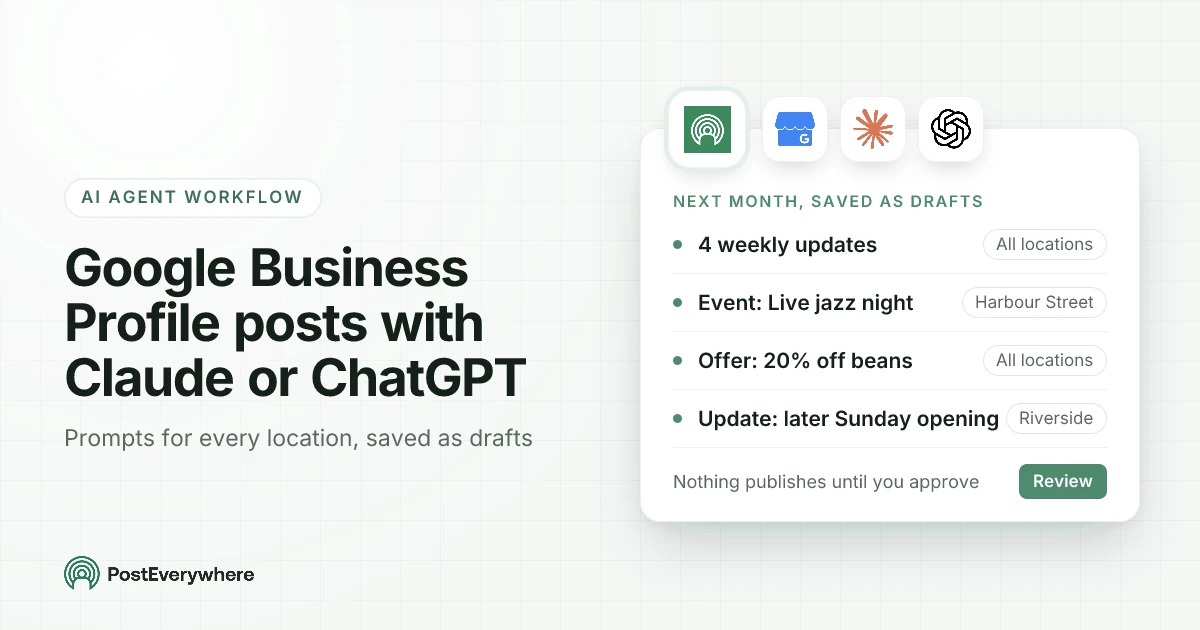
Yes, you can hand your Google Business Profile posts to AI: Claude or ChatGPT can write a month of them for every location and save them in PostEverywhere as drafts you approve before anything goes live. You give the agent the month's news, offers and events once. It turns them into updates, events and offers with the right titles, dates, buttons and photo, and puts each one in your calendar.
That matters most when you run more than one location. A café with three sites, a dental group or a franchise usually keeps one profile busy and lets the rest go quiet, because filling in the same fields for each location is dull.
An AI agent is good at exactly that, as long as a person still reads every post.
Below is the workflow: a one-time setup, a monthly prompt, a weekly check, the review step you keep, and what to say when Google turns a post down. Every prompt is ready to copy.
Written by Jamie Partridge, Founder of PostEverywhere.
The Google Business Profile workflow at a glance
A month of Google Business Profile posts with an AI agent
About 30 minutes a month for a few locations, plus five minutes a week. You approve everything.
- OnceConnect your agent and your locationsAdd PostEverywhere to Claude or ChatGPT, then connect each verified business in PostEverywhere.
- OnceGive the agent your house rulesGoogle's field rules plus your own: tone, links, buttons, and no phone numbers in the text.
- MonthlyAsk for the month, saved as draftsPaste the month's news, events and offers. The agent writes each post per location and saves it as a draft.
- MonthlyReview the drafts in your calendarOpen each draft, check the type, dates, button and photo, and ask for changes in plain words.
- MonthlyApprove, then scheduleTell the agent which drafts to schedule, or schedule them yourself in PostEverywhere.
- WeeklyCheck what went outAsk what published, what failed and why, and add one timely update if something new happened.
The rest of this guide takes those steps one at a time, using an example business: Northwind Coffee, with cafés on Harbour Street, Market Square and Riverside.
Before you start: connect Claude or ChatGPT to PostEverywhere
You do this once. It takes about ten minutes, most of it connecting your locations.
- Connect your AI agent. In Claude, add PostEverywhere from the connector directory (how connectors work in Claude). In ChatGPT, find PostEverywhere in ChatGPT's Plugins and select Connect. Either way you sign in to PostEverywhere and approve the connection, with no API key to copy. Our setup pages for Claude and ChatGPT walk through each screen.
- Connect each business. In PostEverywhere's Accounts page, choose Google Business Profile and sign in with the Google account that owns or manages the business. If that login manages several businesses, tick the ones to add. Each business is one account on your plan, and only verified profiles can post. The agent can send you a connect link if you ask, but you complete the Google sign-in yourself.
- Put this month's photos in your media library. Google allows one photo per post, a JPG or PNG up to 5 MB and at least 250 by 250 pixels. Upload them to PostEverywhere with clear names ("harbour-street-terrace.jpg") so the agent can pick the right one. It can also import a photo from a public web link. Our guide to Google Business Profile image sizes covers the shape that crops best.
- Decide who approves. If a manager or client signs off posts, turn on approvals for the workspace. You can then ask the agent to send its drafts for approval, and your reviewers are notified.
If you look after several brands or clients in separate workspaces, there's one difference between the agents. When you connect Claude you can give it all your workspaces or just one, and it names the workspace before it creates or changes anything. ChatGPT works in one workspace for now.
Haven't connected an agent yet? PostEverywhere works with Claude, ChatGPT and other MCP clients on every plan, and schedules Google Business Profile posts next to all top platforms. Start a 7-day free trial.
Give the agent Google's rules first
Most bad AI posts for Google come from the agent not knowing the rules. It writes a phone number into the text, forgets the event title, or adds a button to an offer.
PostEverywhere refuses an invalid post with a plain reason, so nothing broken reaches Google, but it's quicker to set the rules once.
These are the rules PostEverywhere enforces for every Google Business Profile post:
| Field | Update | Event | Offer |
|---|---|---|---|
| Text | Required, up to 1,500 characters | Required, up to 1,500 characters | Required, up to 1,500 characters |
| Title | None | Required, up to 58 characters | Required, up to 58 characters |
| Dates | None | Start and end date and time, in the business's local time | Start and end dates |
| Button | Optional: Book, Order online, Buy, Learn more, Sign up or Call now | Same choice as updates | None: Google adds View Offer itself |
| Extras | None | None | Optional coupon code, redeem link and terms |
| Media | One photo, no video | One photo, no video | One photo, no video |
Every button except Call now needs a full web address. Call now uses the phone number on your Business Profile, which is why it's the right fix for posts that mention a number.
Google's content policy for posts says it "may remove posts with unverified contact information", including phone numbers, email addresses and social media handles.
Paste this at the start of the chat, or save it in a ChatGPT project's instructions or a Claude project so every chat uses it:
House rules for our Google Business Profile posts in PostEverywhere:
- Business: [name], [what you sell], locations: [list them].
- Tone: [three words]. UK spelling. No exclamation marks in titles.
- Post types: update for news, event for anything with a time,
  offer for a discount or code. Event and offer titles: 58 characters max.
- Never put a phone number, email address or social handle in the text.
  Use a Call now button instead.
- Buttons: Book links to [booking URL], Order online to [order URL],
  Learn more to the location's page on [website].
- One photo per post, from my PostEverywhere media library.
  Match the photo to the location in its filename.
- Times are [your time zone]. Event times are each location's local time.
- Always save posts as drafts. Never publish or schedule unless I say so.
If your agent already knows your brand voice, keep that too. Our brand voice brief is the one-page version we recommend, and the Google rules above sit underneath it.
Monthly prompt: Google Business Profile updates, events and offers for every location
Once a month, give the agent what's actually happening. The quality of the posts depends almost entirely on this. "Write some posts for my cafés" gets you four interchangeable updates; real details get you posts people act on.
Plan next month's Google Business Profile posts in PostEverywhere.
First list my connected Google Business Profile locations and anything
already scheduled for them next month.

What's happening:
- All locations: winter menu launches on the 1st. Order online link: [URL]
- Harbour Street: live jazz on Friday the 12th, 7pm to 10:30pm. Book link: [URL]
- All locations: 20% off whole beans from the 15th to the 21st, code BEANS20
- Riverside: open an hour later on Sundays from the 7th

Make one update a week for all locations, plus the event and the offer.
Location-only news goes only to that location.
Pick a photo for each from my media library and tell me which one you used.
Set each one for 8am on a weekday, and save everything as drafts.
Then give me a short list of what you made.
Example conversation
What a reply to the monthly prompt can look like.
- You
Plan next month's Google Business Profile posts in PostEverywhere... save everything as drafts. Then give me a short list of what you made.
- AI agent
You have three Google Business Profile locations connected: Harbour Street, Market Square and Riverside. Nothing is scheduled for them next month yet. I saved 8 drafts:
- 4 weekly updates to all three locations. The first launches the winter menu with an Order online button.
- 1 event for Harbour Street: "Jazz night on the terrace", Friday 12th, 7pm to 10:30pm, with a Book button.
- 1 offer for all three locations: "20% off whole beans", 15th to 21st, coupon code BEANS20.
- 1 update for Riverside about the later Sunday opening, with a Learn more button to its page.
- 1 reminder update for the last day of the bean offer.
Each draft is set for 8am on a weekday and has one photo from your media library. Nothing will publish until you ask me to schedule them.
Behind that prompt, the agent reads your connected accounts and what's already booked, so it doesn't stack a new post on an old one. It fills in each post's type, title, dates and button, the same fields you'd fill in by hand.
If a field breaks a rule, PostEverywhere refuses the draft with the reason ("Add a title for your event.") and the agent fixes it and saves again.
Two details are worth knowing:
- One post can go to several locations, with the same text. Each location publishes its own copy at the same time. Anything that differs by location, like an address or a local event, needs its own post, and the agent makes one per location when you tell it what's local.
- An event has two sets of dates. The schedule time is when the post appears on your profile. The event dates are what customers see. A Friday event is usually best posted the Monday before, which is why the example prompt asks for weekday mornings. Our Google Business Profile scheduling guide covers the timing in more detail.
Review Claude or ChatGPT's drafts before anything goes live
This is the step you don't hand over. The agent is good at a tidy first draft. It doesn't know that the jazz night moved, that Riverside's manager hates the photo of the counter, or that a "20% off" offer needs approval from head office.
Open the month in your content calendar and filter Status to Drafts. Every draft the agent saved is there on its day, under each location's name.
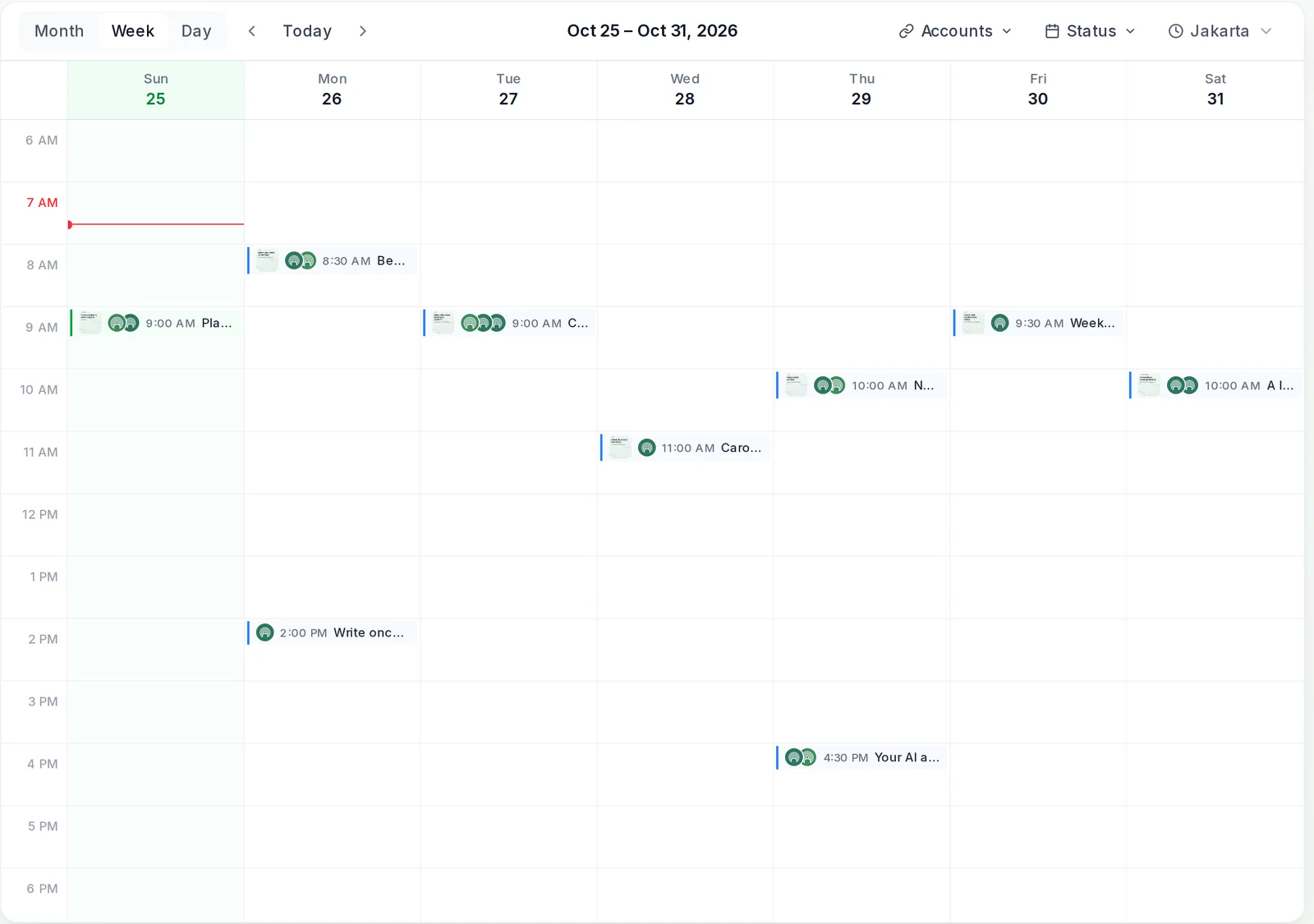
Click a draft to open it in the composer. Under Customise per platform, the Google Business Profile tab shows exactly what the agent filled in, with a preview of the post on the right.
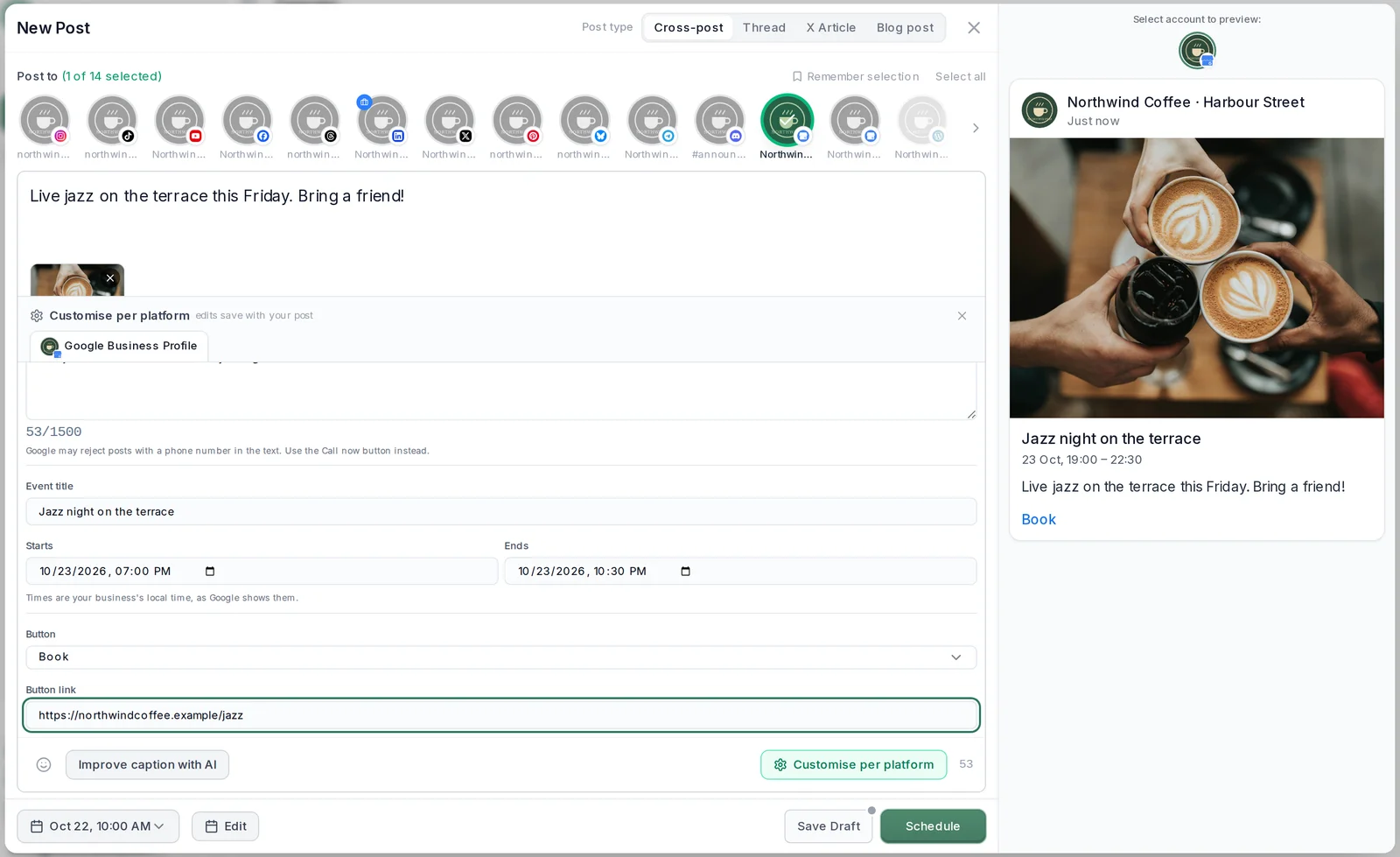
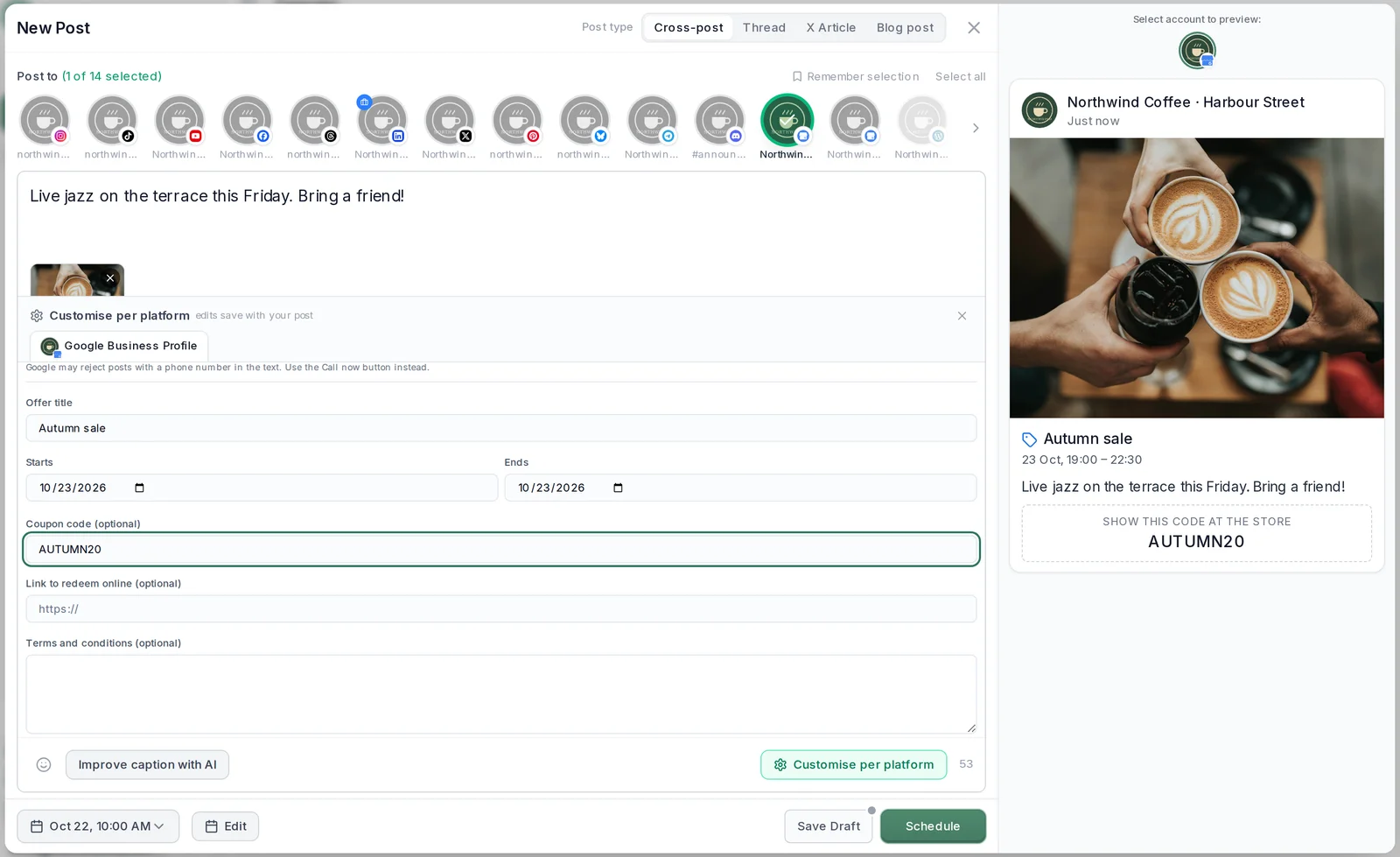
Check five things on each draft:
- The right locations. Location-only news should go to one location only.
- The post type and dates. An event with a time, an offer with the right end date.
- The button and its link. Click the link. Agents copy links well but can't tell when a page has moved.
- The photo. One photo, of the right place.
- The text. No phone numbers, nothing promised that isn't true, and nothing that reads like filler. Google's posts help page asks you to avoid "auto-generated or distracting content", so a post that sounds machine-written is worth a rewrite.
You can fix small things yourself in the composer. For anything bigger, ask in plain words:
Change the jazz night draft: it's now Saturday the 13th, same times.
The Riverside update should link to [URL], not the homepage.
Use a different photo for week three, not the counter shot.
Then schedule all the Google Business Profile drafts for next month
at the times you set. Tell me if any of them fails a rule.
The agent edits the drafts and schedules them. If your workspace uses approvals, ask it to send the drafts for approval instead, and an owner or admin approves them before they're scheduled.
See every location's month in one calendar. PostEverywhere schedules Google Business Profile updates, events and offers next to Instagram, Facebook and the rest, yourself or through your AI agent. See PostEverywhere for Google Business Profile.
Weekly Google Business Profile check: what went out and what's new
Once a month gets the plan in. Once a week keeps it honest. Five minutes, one prompt:
What went out on my Google Business Profile locations this week,
and did anything fail? Tell me Google's reason for any failure.
Then draft one update for [location] about [this week's news],
for tomorrow at 8am, and show it to me before you schedule it.
The agent reads each post's result per location. A post either published or failed with a reason. PostEverywhere doesn't get views or clicks for Google Business Profile posts, so don't ask the agent which post "did best" on Google: it has no numbers to go on, and a good agent will say so.
The second half of the prompt is where the weekly check earns its time. A new pastry or a sold-out event is the kind of news that makes a profile look alive, and it takes the agent a minute to draft.
If you run the same routine across your other platforms, our 30-minute weekly social media routine shows the full version.
Adapt the same post for Instagram and Facebook
Most local businesses post the same news on Google, Instagram and Facebook. It shouldn't be the same text. Google's post sits on a listing people find while deciding where to go; Instagram's caption sits in a feed.
With PostEverywhere, one post can go to all three, each with its own caption, while Google keeps its type, dates and button.
Make one draft for the Harbour Street jazz night that goes to the
Harbour Street Google listing and our Instagram and Facebook accounts.
Google: an event with the title, times and Book button as before.
Instagram: a shorter, warmer caption with three local hashtags,
and "link in bio" for booking.
Facebook: a friendly caption that includes the booking link.
Use the same photo everywhere. Save it as a draft and show me
each caption.
Two things to keep in mind:
- Instagram needs the photo. Google is happy with a text-only update; Instagram isn't. Give every cross-posted update a photo.
- Don't copy Google's rules to the other platforms. The "no phone numbers" rule is Google's. On Facebook, a number in the text is fine if you want it there.
Our guide to cross-posting explains how one post becomes a native post on each platform, and our restaurant social media guide has ideas for what to post on each.
Fix a rejected Google Business Profile post
Rejections come in two kinds, and they need different fixes.
Refused before it's saved. PostEverywhere checks the rules when the agent saves or schedules a post. If a title is missing, the end date is before the start, a button has no link or there are two photos, the post isn't saved and the agent gets the reason.
A good agent fixes it and tries again without you noticing.
Failed at Google. Some problems only show when the post reaches Google. PostEverywhere marks the post Failed for that location, with a reason in plain words:
| What PostEverywhere says | What to do |
|---|---|
| "Google rejected this post. Posts with phone numbers in the text, or that break Google's content rules, are rejected." | Take out the number, email or handle, add a Call now button, and post a corrected copy |
| "Google does not allow posts on this Business Profile yet. Verify the business on Google first" | Finish verification in Google, then retry. The agent can't verify a business for you |
| "Your Google Business Profile connection has expired." | Reconnect it on the Accounts page, or ask the agent for a reconnect link, then retry |
| "Google could not use this photo." | Use a JPG or PNG between 10 KB and 5 MB, at least 250 x 250 pixels |
| "Google did not accept this post. Check the button link and the event or offer dates" | Fix the link or the dates and post a corrected copy |
Some limits come from Google's policy rather than a field: hotels can't post offers, and Google's developer guide to posts says product posts can't be made through its API at all. Post a hotel's news as an update or event with no deal in it.
Your agent can only edit drafts and scheduled posts, not one that failed (you can still fix that one yourself in the post's details), so for a content problem it saves a corrected copy instead of retrying. Retrying the same text gets the same answer. This prompt handles both cases:
One of my Google Business Profile posts failed. Find it, tell me
Google's reason, and fix it:
- If it's a connection or verification problem, tell me what I need
  to do and retry it once I say it's sorted.
- If it's the content, write a corrected copy for the same location
  that follows our house rules, save it as a draft and show me.
Example conversation
Fixing a post that Google turned down.
- You
One of my Google Business Profile posts failed. Find it, tell me Google's reason, and fix it.
- AI agent
The Riverside update about Sunday opening failed: "Google rejected this post. Posts with phone numbers in the text, or that break Google's content rules, are rejected." The text ended with "call us on" and a number.
I saved a corrected copy as a draft for Riverside: the same text without the number, and a Call now button, which uses the phone number on your profile. It's set for tomorrow at 8am. Shall I schedule it?
Our guide to scheduled posts that didn't publish covers failures on the other platforms, and the Google Business Profile scheduling guide lists everything Google turns down.
Running several Google Business Profile locations or clients
For one business with many locations, everything sits in one workspace. The monthly prompt names the locations, and the agent decides which posts go to all of them and which go to one.
For an agency with several clients, keep each client in its own workspace and name the client in the prompt:
In my Northwind Coffee workspace, plan next month's Google Business
Profile posts with the same house rules as last month. Save as drafts.
A Claude connection set up for all your workspaces names the workspace before it creates or changes a post, so a draft can't land in the wrong client's calendar. A ChatGPT connection works in one workspace: the one that was active when you connected it.
Connected accounts are shared across your organisation, so check the location names in the agent's summary before you approve.
At scale, run the monthly prompt for every client in one sitting, then approve as each client signs off. Keep each client's house rules in their own saved instructions, so one client's booking link never lands on another's post.
What Claude or ChatGPT can't do on Google Business Profile
The limits, so you can plan around them:
- No reviews, Q&A or messages. The agent can't read or reply to reviews, questions or messages on your profile. Replying to reviews is still yours, and Google lists it among its tips for local ranking.
- No business info changes. Hours, address, categories and services are edited in Google.
- No video and one photo. Google Business Profile posts from PostEverywhere carry at most one photo, and no video.
- No product posts. Google doesn't allow them through its API.
- No views or clicks. The agent can tell you whether each post published or failed, not how many people saw it.
- No sign-ins or verification. It can send you a link to connect or reconnect a business, but you complete the Google sign-in, and verification happens in Google.
- No editing a post after it publishes. It can change drafts and scheduled posts, not live ones.
Everything the agent does through PostEverywhere is logged, so you can see later which post it created or changed. And because it saves drafts first, the worst a bad prompt can do is waste a few minutes of your review.
Let your agent draft the month, and keep the final say. Connect Claude or ChatGPT to PostEverywhere through our hosted MCP server and try the monthly prompt on your own locations. Every plan starts with a 7-day free trial.
How it works under the hood
Claude and ChatGPT reach PostEverywhere through the Model Context Protocol, an open standard that lets AI agents use tools in other apps. The agent sends the post text, the locations and the Google Business Profile settings (type, title, dates, button, link and coupon).
PostEverywhere checks them against Google's rules, saves the draft, and publishes through Google's Business Profile API when you schedule it.
Our guide to scheduling posts through MCP shows the calls step by step. For post ideas, the Google Business Profile integration announcement has examples for a café, a salon and a plumber.
FAQ
Can ChatGPT post to my Google Business Profile?
Yes, through PostEverywhere. Connect the PostEverywhere app in ChatGPT, connect your business in PostEverywhere, and ChatGPT can write, save and schedule updates, events and offers for it. Ask it to save drafts first so you can check each post before it goes live.
Can Claude write and schedule Google Business Profile posts?
Yes. Add PostEverywhere from Claude's connector directory and ask Claude to plan your posts. It sets the post type, title, dates and button for each location and saves them in your PostEverywhere calendar.
A Claude connection can also work across all your workspaces, naming the workspace before it changes anything.
Can the agent post to several Google Business Profile locations at once?
Yes. One post can go to several locations, and each publishes its own copy at the same time with the same text. News that only applies to one location needs its own post, and the agent makes one per location when you tell it what's local.
Will Google reject posts written with AI?
Google judges the post, not how it was written. Its posts help asks you to avoid "auto-generated or distracting content", and its content policy may remove posts with phone numbers, email addresses or social handles in the text.
Give the agent real details, keep contact details out of the text, and read every draft before it goes live.
Can the agent add photos to Google Business Profile posts?
Yes, one photo per post. The agent can pick a photo from your PostEverywhere media library or import one from a public web link. It has to be a JPG or PNG up to 5 MB and at least 250 by 250 pixels. Video isn't supported for Google Business Profile posts.
Can Claude or ChatGPT reply to my Google reviews?
No. Through PostEverywhere, the agent can write, schedule and check Google Business Profile posts, but it can't read or reply to reviews, questions or messages. It also can't edit your hours, address or categories, which you change in Google.
How do I stop the agent publishing something by mistake?
End every planning prompt with "save everything as drafts" and put the same rule in your saved instructions. Drafts sit in your PostEverywhere calendar and go nowhere until you, or the agent on your say-so, schedule them.
If someone else signs off posts, turn on approvals and ask the agent to send drafts for approval.
Sources
Outside facts in this guide come from the pages below. PostEverywhere's rules and messages come from the app itself.
- Google Business Profile Help: Create & manage posts on your Business Profile
- Google Business Profile Help: Business Profile photos, videos & posts content policy
- Google Business Profile Help: Tips to improve your local ranking on Google
- Google for Developers: Create Posts on Google
- Claude Help Center: Use connectors to extend Claude's capabilities
- Model Context Protocol

Founder & CEO of PostEverywhere. Writing about social media strategy, publishing workflows, and analytics that help brands grow faster.