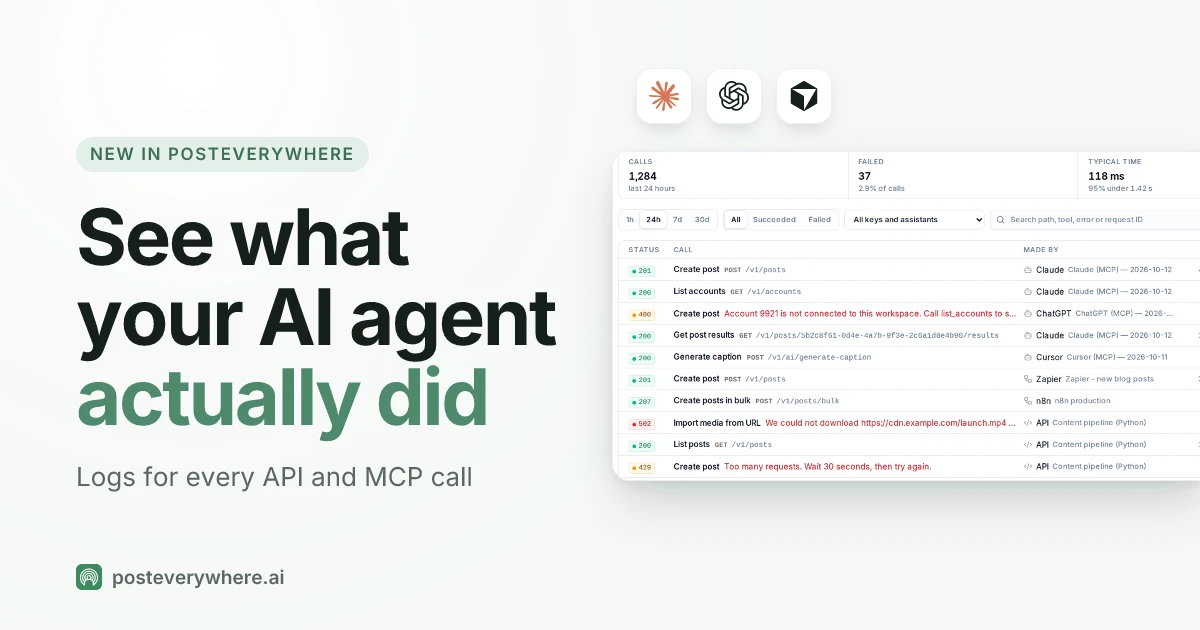
Short answer: PostEverywhere now has AI agent logs. Every call made to your account through the API or the MCP server is listed on a new Logs page: what Claude, ChatGPT, Cursor, n8n or your own code asked for, when, how long it took, whether it worked, and the exact error when it didn't. Logs are kept for 30 days on every plan, and secrets are redacted before anything is saved. It's live now, under Developers in the sidebar.
Here's why we built it, what it shows, and the honest limits.
Written by Jamie Partridge, Founder of PostEverywhere.
Why AI agent logs matter more than API logs ever did
When a developer calls an API, they wrote the code. If something goes wrong, they can read their own request.
When an AI assistant calls an API, nobody wrote the request. You typed "schedule this for Tuesday at 9am on LinkedIn and Instagram" into Claude or ChatGPT, and the assistant decided which tool to call, which accounts to pass and what time to send. Most of the time it gets this exactly right. When it doesn't, you used to be left with the assistant's own summary of what it did, which is the one account of events you can't fully trust.
That gap is the obvious worry for anyone connecting an assistant to their social accounts: "how do I know what it actually did?" It's the question I kept asking myself. I schedule most of our posts from Claude, and more than once I've wanted to see the exact call behind a post that went out at a strange time.
Logs close that gap. The assistant's summary is now something you can check against the record.
What you'll see on the Logs page
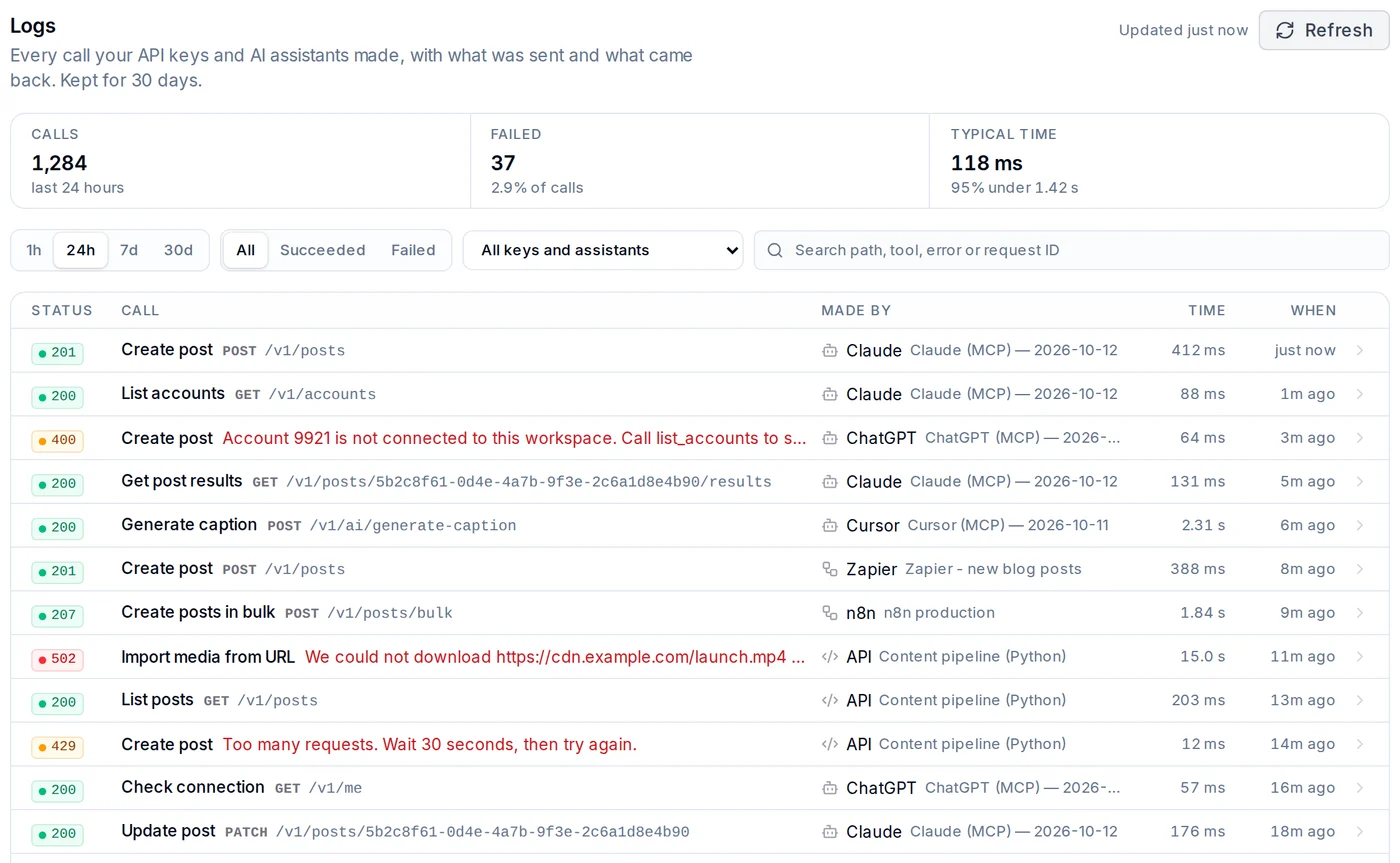
Illustrative sample data in the real Logs page.
Every call made with an API key is one row. That includes the keys created when you connect Claude, ChatGPT or Cursor over MCP, your own scripts, the CLI, and automation tools like n8n, Zapier and Make. Each row shows:
- Status: the HTTP status, so failures stand out in red and amber.
- Call: the action in plain words ("Create post", "List accounts"), with the method and path.
- Made by: which assistant or tool made the call, and the name of the key it used.
- Time and when: how long the call took, and how long ago it happened.
At the top, three totals give you the shape of the last hour, day, week or month: how many calls were made, how many failed (and what share), and the typical response time. You can filter to failed calls only, narrow it to one key or one assistant, or search by path, MCP tool name, error code or request ID. Calls load 100 at a time, with older ones a click away.
Open any call to see exactly what happened
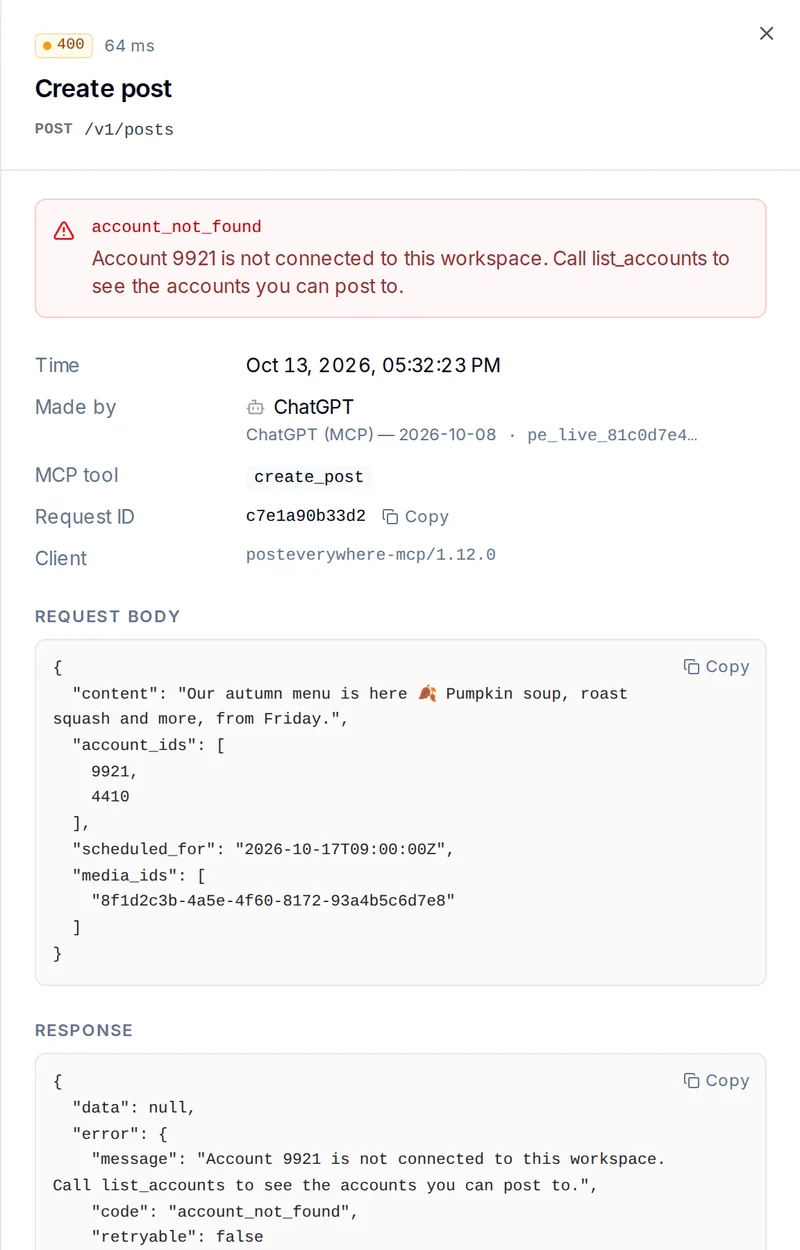
Illustrative sample data: a failed call, opened.
Click a row and a side panel opens with the full detail:
- The error, with its code and a plain-English message that usually says what to do next. In the example above, ChatGPT tried to post to an account that isn't connected to the workspace, and the message tells it to list the available accounts first.
- The MCP tool the assistant called, such as
create_postorget_post_results. - Who made it, down to the specific connection and key.
- The request body: the caption, the accounts, the scheduled time and any media, exactly as the assistant sent them.
- The response PostEverywhere sent back.
- A request ID you can copy, which matches the
X-Request-Idheader now returned on every API response.
That request body is the part I find most useful. If a post went out at 5am instead of 9am, you can see the scheduled_for time the assistant actually sent, and whether it carried a time zone. (It's the most common scheduling mistake with assistants, and our guide to scheduling posts with MCP explains how to avoid it.)
Connecting an assistant for the first time? PostEverywhere works with Claude, ChatGPT, Cursor and most MCP clients, with Logs included on every plan. Start your 7-day free trial.
Secrets are redacted, captions are kept
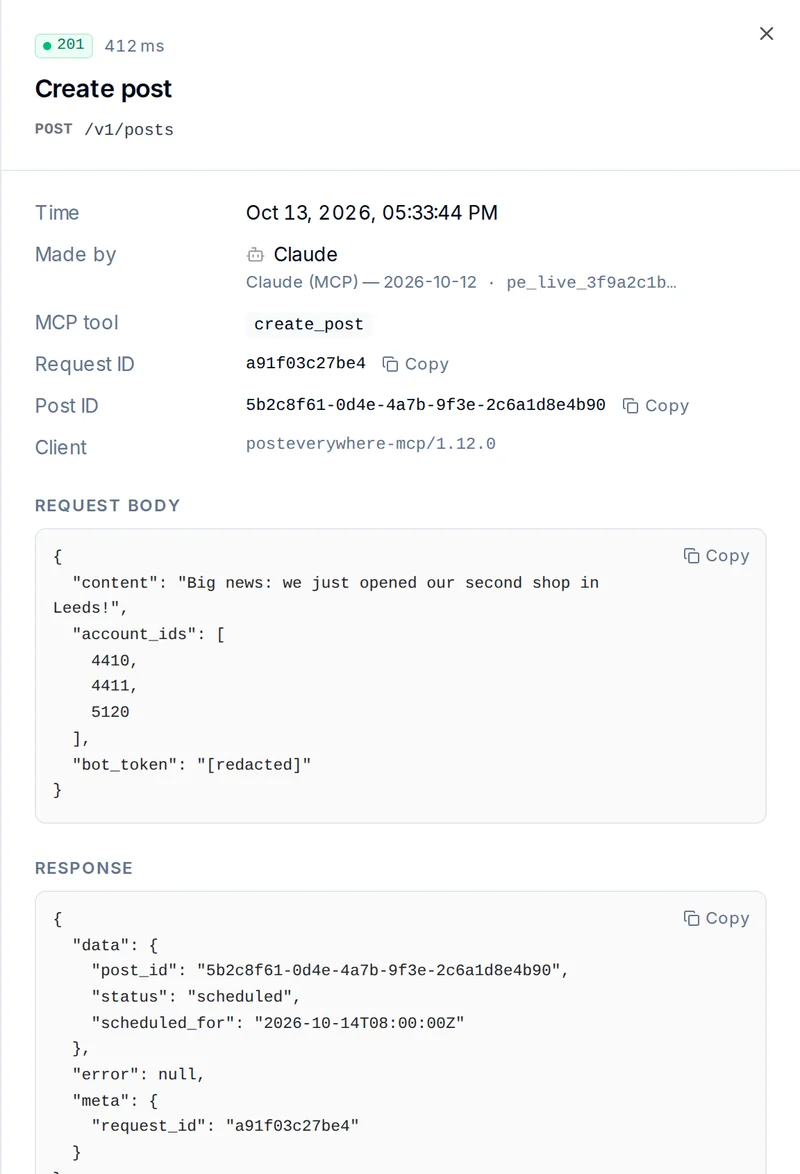
Illustrative sample data: a token shown as [redacted].
A log of everything is only useful if it's safe to keep. Before an entry is saved, passwords, tokens, API keys, webhook URLs and other secret-looking values are replaced with [redacted], and file data isn't stored at all. That follows the same principle as the OWASP logging guidance, which lists passwords, access tokens and secrets as data to keep out of logs.
Post captions are kept on purpose. Seeing exactly what the assistant wrote is the point, and it's your organisation's own content. For successful read requests (listing posts, checking accounts), only the status and timing are stored, not the full response.
Who can see what follows your team roles: owners and admins see every call across the organisation, and members see only the calls made by the keys and assistants they connected themselves.
Four ways to use AI agent logs
The uses we built it for:
Checking an assistant's work. After a planning session in Claude or ChatGPT, filter to that assistant and skim the "Create post" rows. Every post it booked is there, with the accounts and times it actually sent.
Debugging an automation. When an n8n or Zapier flow stops posting, filter to failed calls. The error message usually names the problem directly: an account that needs reconnecting, a media URL that couldn't be downloaded, or a rate limit.
Answering "why did this happen?" Paste a request ID from your own code, or from an error your assistant reports, into the search box and jump straight to the call. Include it when you contact us and we can find it too.
Keeping an eye on usage. The totals show how much your keys and assistants are doing and how often they fail. A failure rate that suddenly jumps is worth a look, even if nobody has complained yet.
What logs don't do (yet)
We'd rather you know the edges up front:
- Logs show our API's answer, not the platform's. A call that returned "scheduled" can still fail when it publishes to Instagram or TikTok later. To see whether a post actually went live, use the post results in the app, the
get_post_resultstool, or webhooks. - No live streaming. The page updates when you press Refresh.
- No alerts or export. You can't get notified about failures from Logs, or download them. Webhooks are the way to be told about failed posts.
- 30 days of history, on every plan.
- Only API and MCP calls. Activity in the web app or the iPhone app isn't included, and neither are webhook deliveries or the account-connect screens.
- Agents can't read their own logs. There's no MCP tool or API endpoint for logs, so the record stays something you check, not something the assistant reports on.
Why this matters if you're trusting an assistant with your accounts
The Model Context Protocol, which Anthropic introduced in 2024, made it easy for assistants to act in other software. The protocol's own security best practices spend a lot of time on what can go wrong when a server acts on a user's behalf, and the clients add their own checks: Claude asks you to approve tool calls and Cursor asks before running MCP tools by default.
Approval prompts cover the moment before a call. Logs cover everything after. Together, they mean you never have to take an assistant's word for what happened to your social accounts. If you're still deciding how much access to give an assistant, our guide to giving AI agents safe access to social media covers the rest.
Want to see it on your own account? Connect Claude or ChatGPT, schedule a post, then open Logs. Try PostEverywhere free for 7 days.
Where to find it
Open Logs in the PostEverywhere sidebar, just under Developers, or go straight to app.posteverywhere.ai/logs. There's nothing to switch on: every call made since launch is already there. The Logs documentation covers every field and filter, and the errors reference explains each error code you might see.
If you haven't connected an assistant yet, the AI agents page lists every one we support, and the social media API and developer hub cover the code side.
Frequently Asked Questions
What are AI agent logs in PostEverywhere?
AI agent logs are a record of every API and MCP call made on your PostEverywhere account. Each entry shows what the assistant or tool asked for, when, how long it took, whether it worked and the error if it failed.
Can I see what Claude or ChatGPT did on my account?
Yes. Calls from Claude, ChatGPT and Cursor through the MCP server appear on the Logs page with the assistant's name and the MCP tool it used. Open any call to see the exact request it sent and the response it got.
How long are logs kept?
Logs are kept for 30 days on every plan. There is no export, so copy anything you need to keep longer.
Are my API keys or passwords stored in the logs?
No. Passwords, tokens, API keys, webhook URLs and other secret-looking values are replaced with [redacted] before an entry is saved, and file data isn't stored. Post captions are kept so you can see what was written.
Do logs show whether my post was published?
Not directly. Logs show PostEverywhere's response to each call, such as a post being scheduled. Whether it later published on each platform shows in your post results, through the get_post_results tool, or through webhooks.
Which plans include logs?
All of them. Logs are included on every PostEverywhere plan from $9 a month, including the 7-day free trial, with the same 30 days of history.
Who on my team can see the logs?
Owners and admins see every call in the organisation. Members see only the calls made by the keys and assistants they connected themselves.

Founder & CEO of PostEverywhere. Writing about social media strategy, publishing workflows, and analytics that help brands grow faster.