


One media library for every post you publish
Upload images, videos and PDFs once, then reuse them in any post you schedule with PostEverywhere's social media scheduler. Search, sort and favourite your files, add them from Google Drive, and let your AI agent pick from the same library.
Get started from as little as $9 per month. $0 due today, cancel anytime.


 Works with any AI agent


Used by 2,831 happy customers
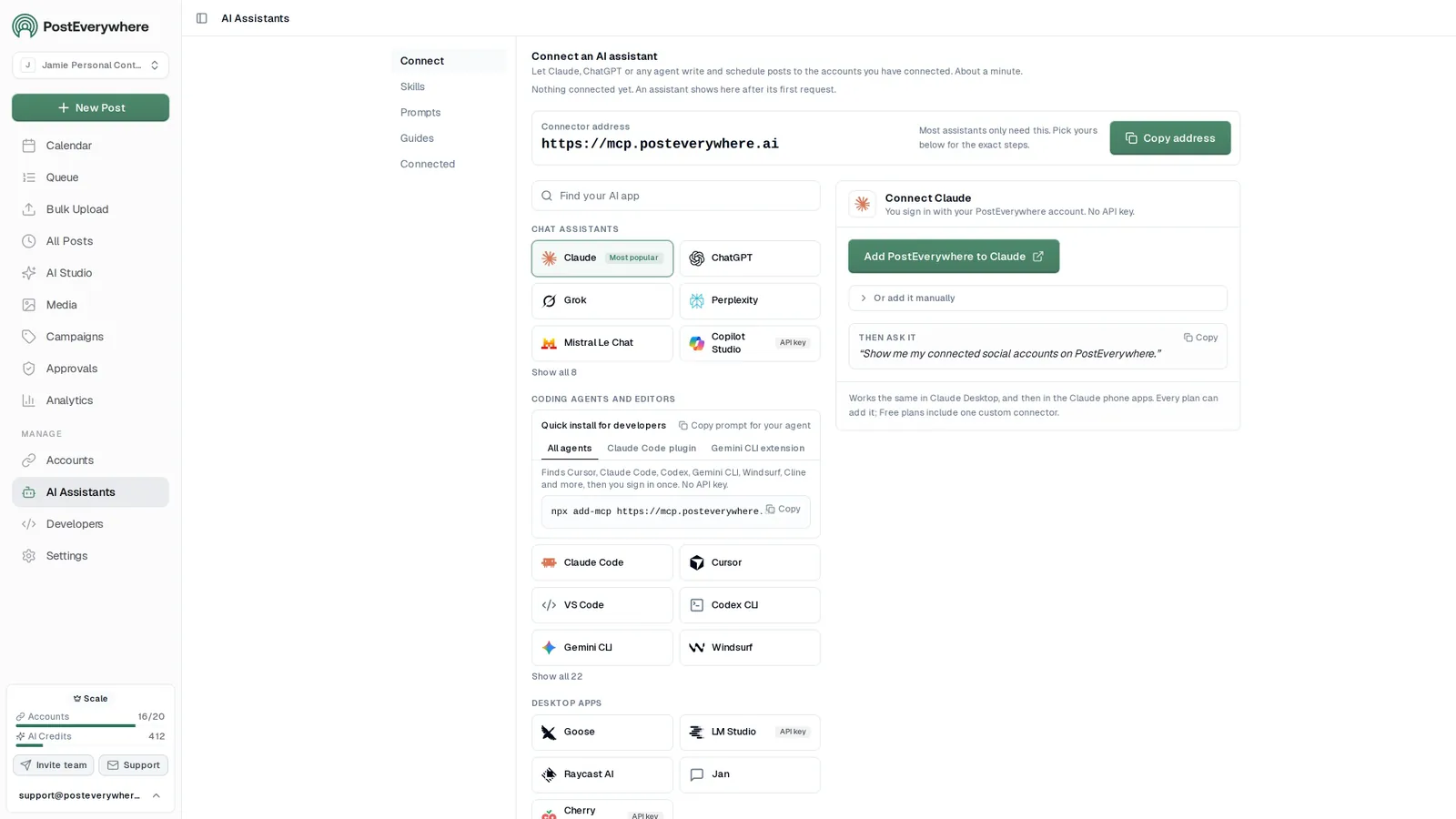
Connect your AI agent
Let your AI agent post from your media library
- Connect any AI agent.
- Add PostEverywhere to ChatGPT, Claude, Grok, Perplexity, Cursor or any other AI app that supports MCP with one address. It takes seconds.
- Ask in plain English.
- “Write an Instagram caption for this announcement and schedule it with PostEverywhere tomorrow at noon, using the latest image in my PostEverywhere media library: [your announcement].” Your agent writes every post for you.
- It schedules and publishes.
- Your agent can post now, schedule for later or save a draft for you to review. Every post lands in your calendar, and scheduled posts go out on time through each network's official API.
$0 due today, cancel anytime
Connect your AI agent
Choose your AI agent and connect in seconds.
Works on every Claude plan, including free. Full Claude guide
- 1
Add to Claude
One click from Claude’s connector directory.
- 2
Sign in or start your free trial
New here? Create an account and start a 7-day free trial. It’s $0 today, and a card is needed. Then allow access and you’re sent back.
- 3
Ask Claude
“Plan and schedule my posts for next week.”
Ask your agent
See all 15 skills and prompts“Write an Instagram caption for this announcement and schedule it with PostEverywhere tomorrow at noon, using the latest image in my PostEverywhere media library: [your announcement].”
View skill“Post this video to TikTok, Instagram Reels and YouTube Shorts with PostEverywhere. Write the right title and caption for each: [video link].”
View skill“Use PostEverywhere to plan next week of posts for all my connected accounts. Suggest one post a day, show me the plan, then schedule it when I say yes.”
View skill
One place for your files
Upload once, find it in seconds
Media in the sidebar holds every image, video and PDF your team uploads. Drop in up to 50 files at a time or click Add from Google Drive, and everyone in your organisation sees the same library, so the approved logo is the one that gets used.
- Search, sort and filter.
- Find a file by its name or description, switch between All, Images, Videos and Documents, and sort by date, size, usage or name.
- Favourites for the files you reach for most.
- Star a file and filter to Favorites when you need it, or show only the images and videos made in AI Studio with the AI generated filter.
- Images, video and PDFs together.
- JPG, PNG, GIF, WebP, HEIC, HEIF, AVIF and SVG images, MP4, MOV, AVI, WebM, MKV, M4V and 3GP video, and PDFs for LinkedIn document posts.
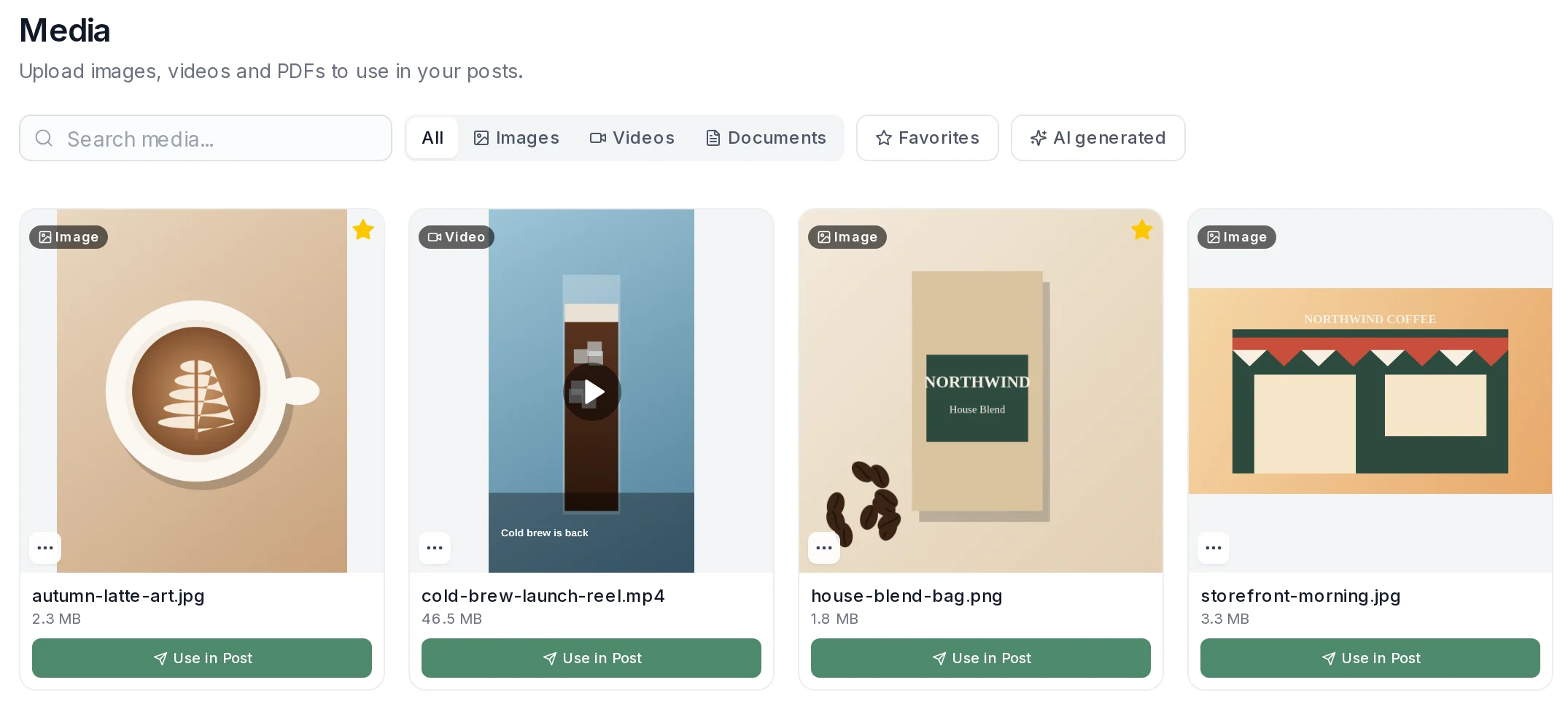
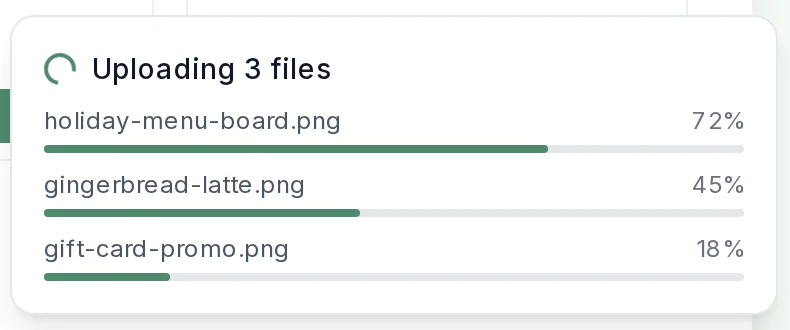
The Media page and an upload in progress. Example files from a demo workspace.
Use in Post
Reuse the same file in every post, on every platform
Click Use in Post on any file and the composer opens with it attached. Select several and Create Post brings them in together. Already writing? Add from your library sits in the composer, with its own search box and room for up to 10 items per post. The same files feed cross-posting to all top platforms.
- One upload, all top platforms.
- Attach a file once and the post goes to every account you pick. Once the platforms are chosen, the smallest platform limit applies, so you know before scheduling if a file is too big for one of them.
- Carousels from the library.
- Tick several images on the Media page and click Create Post, or add them from the composer, for an Instagram carousel or a TikTok photo post.
- Safe to delete.
- Deleting a file that a scheduled post or draft still uses warns you first and lists what is affected, and deleting several files at once asks for confirmation.
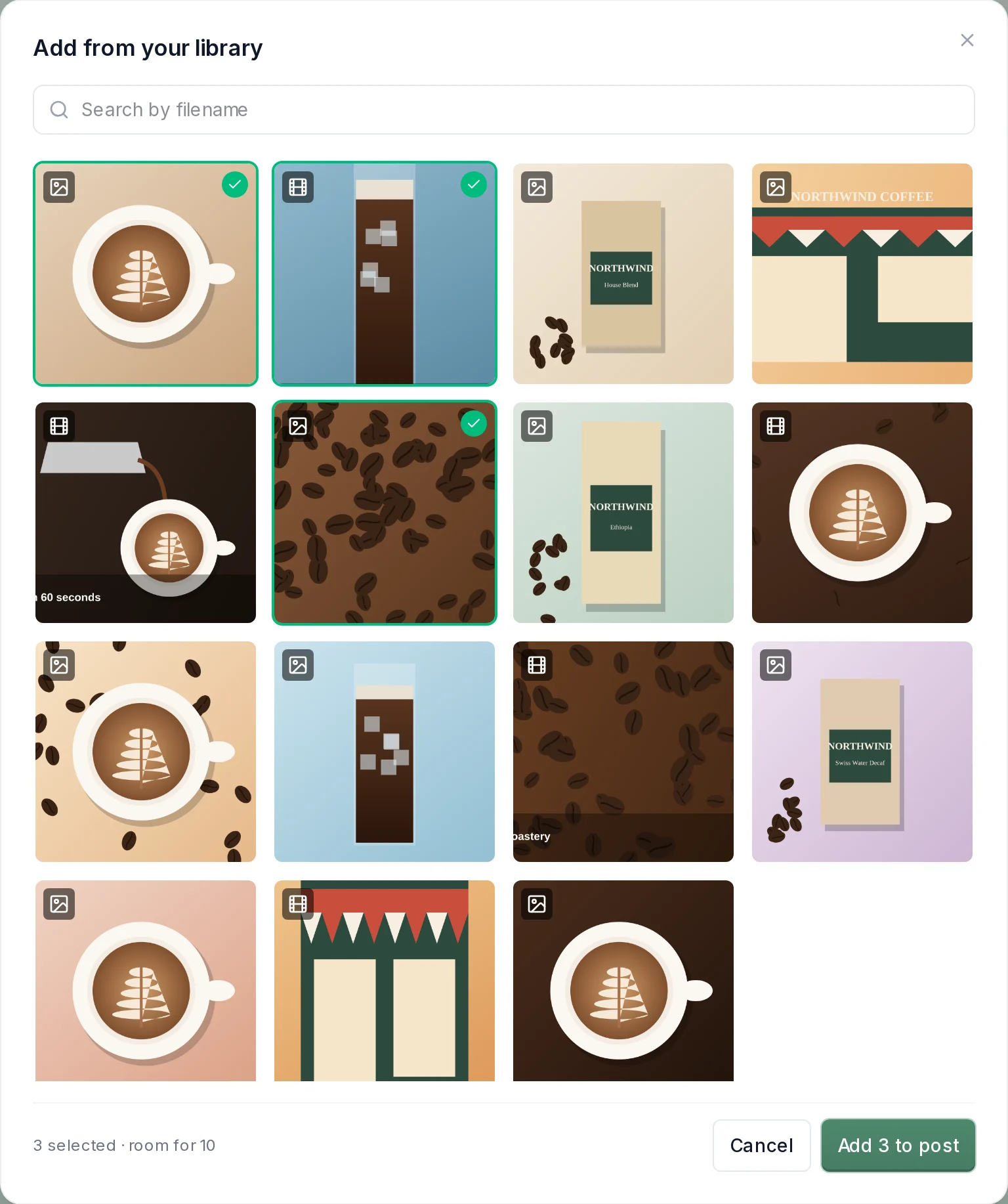

Add from your library in the composer, and the files once attached. Example files from a demo workspace.
AI Studio, Google Drive and agents
Everything you make or import lands in the same library
Images, videos and carousel PDFs made in AI Studio save themselves to the library under the AI generated filter, and they do not count towards your storage. Photos and videos from Google Drive copy in with one click. Your AI agent or the API can upload to the library too, list what is there and attach any file to a post.
- Made in AI Studio, kept for later.
- Every generated image, video and carousel is saved as it is made, so nothing has to be downloaded to be kept, and AI media is free of your storage quota.
- Add from Google Drive.
- Pick up to 20 photos and videos at a time from your Drive on the Media page, or add them straight into a post from the composer. We only see the files you pick, and they become ordinary library files. Web app only.
- Agents and the API.
- An agent connected through the MCP server can import an image or MP4 from a public link, upload a local file including a PDF, and find what you already have. API keys do the same from your own code.
- For developers.
- Direct uploads, upload from URL, list, get and delete, on the same media endpoints for the REST API and the MCP server. Videos import in the background and report when they are ready.
Post the single-origin beans photo from my media library to Instagram, Facebook and LinkedIn tomorrow at 9am, with a caption about the new Ethiopia lot.
Used PostEverywhere
list_media16 filesget_mediaReady to attachgenerate_caption1 captioncreate_postScheduled to 3 accounts
Done. single-origin-beans.jpg is attached and the post is scheduled for tomorrow at 9:00 AM on Instagram, Facebook and LinkedIn. It is in your calendar if you want to change the caption.
 single-origin-beans.jpg2.8 MB · Tomorrow, 9:00 AM
What the library does
Media library capabilities
Enough structure to keep a team's files in order, without a filing system to maintain.
- Upload in batches
- Add up to 50 files in one go from the Media page. Images, video and PDFs all go in the same library.
- Video at full quality
- Videos up to 4 GB stay exactly as you uploaded them. Nothing is recompressed on the way in.
- Documents for LinkedIn
- Upload a PDF of up to 100 MB and post it as a LinkedIn document post, from the composer or through your AI agent.
- Shared with your whole team
- Everyone in your organisation sees the same library, so the approved logo and the current product photos are the ones that get used.
- Storage that grows with you
- Lite includes 2 GB, Starter 5 GB, Growth 10 GB and Scale 50 GB, with 50 GB more for $5 a month on any paid plan.
- On your iPhone too
- The iPhone app has a Media screen as well: browse, filter, favourite, delete, and pick files for a post from the composer.
Formats and limits
What the media library accepts
The same library serves the composer, bulk scheduling, AI Studio, the iPhone app, the API and your AI agents. These are the file types it takes and the limits on each.
| Item | What the library accepts |
|---|---|
| Images | JPG, PNG, GIF, WebP, HEIC, HEIF, AVIF and SVG, up to 20 MB each. |
| Video | MP4, MOV, AVI, WebM, MKV, M4V and 3GP, up to 4 GB each, kept at the quality you uploaded. |
| Documents | PDF, up to 100 MB, for LinkedIn document posts. |
| Per upload | Up to 50 files at a time from the Media page. |
| From a link (API and agents) | Images up to 25 MB and MP4 video up to 4 GB, imported from a public URL. Videos import in the background. |
| Google Drive | Photos and videos, up to 20 files at a time, in the web app. |
| Storage | Lite 2 GB, Starter 5 GB, Growth 10 GB, Scale 50 GB, and 2 GB on the trial. Add 50 GB for $5 a month. AI Studio media does not count, and uploads over the quota are blocked. |
Once you pick the platforms for a post, the smallest platform limit applies to that post.
Step by step
How the media library works
Four steps from a batch of files to posts on every network. The same library feeds the composer, bulk scheduling and your AI agents.
- Upload your files. Click Upload on the Media page and pick up to 50 files, or click Add from Google Drive and choose them from your Drive. Videos keep their original quality.
- Find them again. Search by name or description, switch between Images, Videos and Documents, star your favourites, and sort by Date, Size, Usage or Name.
- Use them in a post. Click Use in Post, or select several files and click Create Post. In a bulk upload CSV, put the exact filename in the media column, with | between carousel slides.
- Keep it tidy. Delete what you no longer need to free space. Anything still attached to a scheduled post or a draft is flagged before it goes, and deleting several files at once asks you to confirm.
See how the library fits into an AI social media manager that plans, writes and schedules, or read the Google Drive import guide. Plans start at $9/mo with a 7-day free trial.
$0 due today, cancel anytime
Schedule up to 200 posts in one go.
Drop your CSV here or click to upload
Max 200 posts per upload, 5MB max
october-posts.csv30 rows| date | platforms | content | media |
|---|---|---|---|
| Oct 5, 09:00 | Launch week is here | launch.mp4 | |
| Oct 6, 12:30 | 60-second product tour | tour.mp4 | |
| Oct 7, 09:00 | Three lessons from launch week | ||
| Oct 8, 17:00 | Customer spotlight | spot-1.jpg|spot-2.jpg |
+ 26 more rows
Why a media library
Stop re-uploading the same logo
Most teams keep their social media files in a shared drive, a chat thread and three phones. A library inside the scheduler means the file is already where the post is made, for every account and every teammate.
Post to (5 of 8 selected)
Select allLaunch week is here
Plan once, publish everywhere. Schedule your posts to Instagram, LinkedIn, X, Facebook and Threads from one calendar.
What will you ship this week? #contentmarketing #socialmedia
 spring-blend.jpg
How our team plans a whole launch week in one sitting, and the checklist we use for every network.
Launch week, planned in one sitting. The checklist we use for every network 👇
One file, every platform. Upload the product shot once and attach it to the Instagram post, the LinkedIn update and the Pin. Cross-posting sends one post to every account you pick, with the same file behind each one.
One library for the whole team. Everyone in your organisation sees the same files, so the approved logo and the current product photos are the ones that get used. See team workspaces for how clients and brands are organised.
Bulk uploads by filename. A CSV row names its media by library filename, so upload the month's images and videos first, then bulk schedule up to 200 posts against them in one upload.
AI Studio keeps its work here. AI Studio saves every image, video and carousel to the library as it is made, under the AI generated filter, free of your storage quota.
Agents can reach it. Through the MCP server, Claude, ChatGPT and other AI agents list your media, import new files from a link and attach them to posts. API keys do the same from your own code, each in the workspace it was created in.
Files stay until you delete them. Nothing is removed after a post goes out, so last season's campaign is ready to reuse. Storage runs from 2 GB on Lite to 50 GB on Scale, with 50 GB packs on top. Compare plans on the pricing page.
$0 due today, cancel anytime
Pricing
Simple pricing, unlimited posts on every plan
Every plan posts to all top platforms and includes the API and hosted MCP server for your AI agent.
7-day free trial on every plan. Card required, $0 due today, cancel anytime. Compare every plan
FAQ
Media library FAQ
Straight answers about file types, limits, storage and sharing.
What file types can I upload to the media library?
Images (JPG, PNG, GIF, WebP, HEIC, HEIF, AVIF and SVG), video (MP4, MOV, AVI, WebM, MKV, M4V and 3GP) and PDF documents for LinkedIn document posts. Images can be up to 20 MB, videos up to 4 GB and PDFs up to 100 MB. Once you choose the platforms for a post, the smallest platform limit applies to that post.
How much storage do I get?
Lite includes 2 GB, Starter 5 GB, Growth 10 GB and Scale 50 GB, and the 7-day free trial comes with 2 GB. You can add 50 GB for $5 a month on any paid plan. Files are not deleted after a post goes out, media made in AI Studio does not count towards the limit, and when the quota is full new uploads are blocked until you delete files or add storage.
Can I reuse one file in several posts?
Yes. Click Use in Post on any file and the composer opens with it attached, or click Add from your library while you are writing a post. A file can be attached to as many posts as you like, on any mix of accounts, without uploading it again.
Can I make a carousel from files already in the library?
Yes. Click Select on the Media page, tick the images you want, then click Create Post and they open in the composer together, ready for an Instagram carousel or a TikTok photo post. Inside the composer, Add from your library has its own search box and takes up to 10 items per post.
What happens if I delete a file that a scheduled post uses?
PostEverywhere stops and tells you. If a file is attached to scheduled posts or drafts, the delete warns you and lists what is affected before anything is removed, so a tidy-up never silently breaks a post. Deleting several files at once asks for confirmation first as well.
Can I add files from Google Drive?
Yes. Click Add from Google Drive on the Media page or in the composer, sign in to Google and pick your photos and videos, up to 20 at a time. Only the files you pick are shared with PostEverywhere, and they are copied into your library as ordinary files. It works in the web app on every plan; it is not in the iPhone app.
Can my AI agent use the media library?
Yes. Through the MCP server or the API, your AI agent can upload to the library (an image or MP4 from a public link, or a local file including a PDF), list what is already there and attach any file to a post. An API key or agent connection works in the workspace it was created in. Agents cannot pull files from Google Drive; import those on the Media page first.
Does everyone on my team see the same files?
Yes. The library in the web app is shared across your whole organisation, so every team member you invite sees the same images, videos and PDFs. API keys and AI agent connections see the workspace they were created in.
Is the media library included on every plan?
Yes. Every plan, and the 7-day free trial, includes the Media page, Use in Post, Add from Google Drive and API and agent access. Plans differ only in storage: 2 GB on Lite, 5 GB on Starter, 10 GB on Growth and 50 GB on Scale, with 50 GB packs for $5 a month on top.
Still have questions?
Contact us or browse the full FAQ.
$0 due today, cancel anytime
Related Features & Guides
Explore related features and guides to get the most out of PostEverywhere.
Bulk Scheduling
CSV rows name their media by library filename.
AI Studio
Images, video and carousels, saved to the library as they are made.
Team Workspaces
Clients and brands, each with its own posts and calendar.
Cross-Posting
One post, one file, every platform.
Content Calendar
See every scheduled post and its media in one view.
Social Media API
Upload, list and attach media from your own code.
MCP Server
Let Claude, ChatGPT and other agents use your library.
iPhone App
The same library in your pocket.
Post from Google Drive
How Add from Google Drive works and what it imports.
How to bulk schedule from a CSV
Upload the media first, then one row per post.
Schedule posts with MCP
Where an agent gets its media from.
Media library help
Upload, search, storage and deleting, step by step.
Pricing
Storage per plan and the 50 GB add-on.

What customers say


“This product just WORKS, I didn’t have any issues with it and everything went smoothly so far. For us, is a no brainer, I used to manually schedule posts in hours , now I do it in a minute. Love the Claude Connector /MCP , for us it’s worth every dollar.”
Laurentiu Cotet, RomaniaView original “The calendar view is really nice and neatly organized. Originally there wasn’t a way to thread an X post but now there is - that was my biggest complaint but is now fixed. I was able to very easily integrate my agent into it which allows me to quickly draft and schedule dozens of posts in minutes. Super easy, great UI.”
M W, United StatesView original “Thanks for providing this easy to use software that saves me lots of time and therefore makes me more consistent with posting. Good value.”
Lisa, AustraliaView original - ★★★★★Customer
“This tool has truly made my content posting so much easier, I can't work without it. I can schedule my posts days in advance while working on other projects. Set it and forget it.”
Kim V., Content Creator