Yes, you can schedule Google Business Profile posts. Here's how to do it, two ways.
Google's own Business Profile has a Schedule this post switch for updates, offers and events. If Google is your only channel and you run one location, that's all you need.
If you also post to Instagram, Facebook or anywhere else, or you look after more than one location, PostEverywhere is the easier route. Every platform and every location sits in one calendar, a month of updates can come from one spreadsheet, and Claude or ChatGPT can do the scheduling for you.
Below are the steps for both, starting with PostEverywhere. After that: what each post type needs, the posts Google turns down, and how often it's worth posting.
| Google Business Profile | PostEverywhere | |
|---|---|---|
| Post types | Updates, offers and events | Updates, offers and events |
| Media | Photos or video | One photo per post, no video |
| Several locations | Share a post across several profiles | Pick several locations in one post |
| Repeating posts | Repeats weekly, monthly or on a custom schedule | Weekly openings in a posting queue |
| Bulk upload | Not covered in Google's posts help | Up to 200 posts from a .csv (updates with one photo) |
| Other platforms | Google only | Same calendar as all top platforms |
| AI agents | Not covered in Google's posts help | Claude, ChatGPT and other MCP clients can schedule posts |
| Cost | Free | From $9 a month, 7-day free trial |
Can you schedule Google Business Profile posts?
You can, in two ways. The difference is where the post waits before it goes live.
In your Business Profile. Google's help page on creating and managing posts describes a Schedule this post switch in its composer, a Repeats menu, and an option to share one post across several Business Profiles. The post waits inside Google until its time.
Through a scheduler connected to Google's API. Google offers a Business Profile posts API that approved apps use to publish to the locations you manage. That is the route PostEverywhere uses. Your post waits in PostEverywhere, then goes to Google at its minute.
Either way, the published post is the same: it shows on your Business Profile on Google Search and Maps, and Google reviews it against its content policy after it publishes.
How to schedule Google Business Profile posts with PostEverywhere
This is the flow in PostEverywhere today. It works the same in a browser on your computer or on your phone.
Schedule a Google Business Profile post with PostEverywhere
Updates, events and offers, for one location or several. Works on a computer or in your phone's browser.
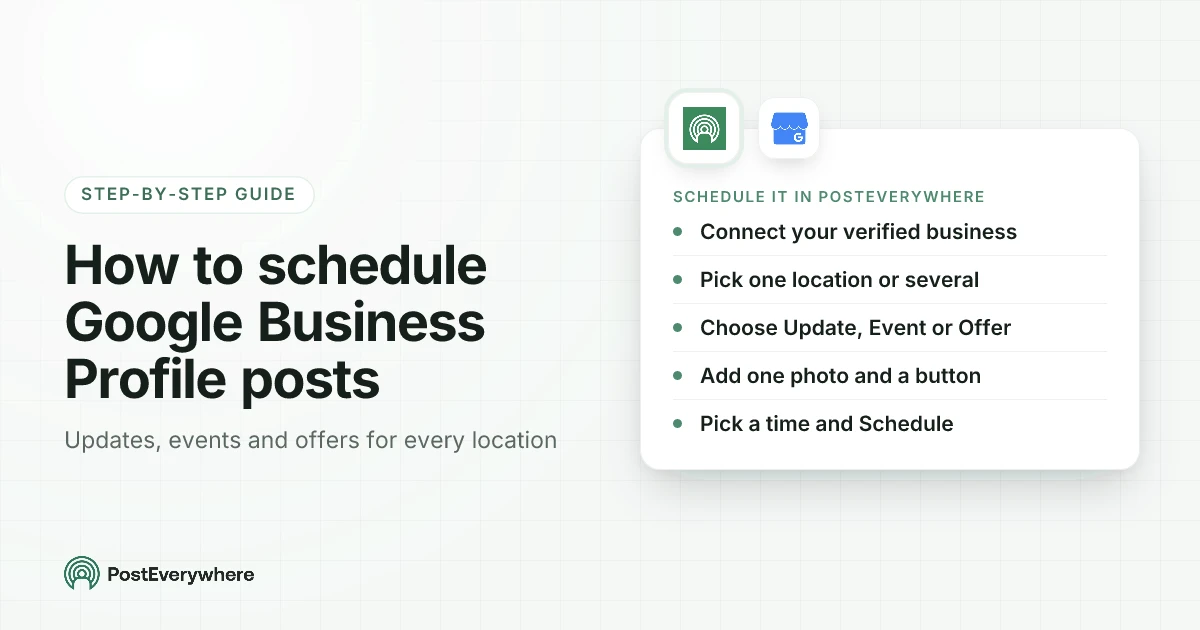
- Step 1Connect your businessIn Accounts, choose Google Business Profile and sign in with the Google account that owns or manages it. If it manages several businesses, tick the ones to add.
- Step 2Pick one location or severalIn New Post, select the locations under Post to. Add Instagram, Facebook or other accounts too if the same news belongs there.
- Step 3Write the post and add a photoUp to 1,500 characters for Google, typed or drafted with Write with AI. Add one JPG or PNG, up to 5 MB and at least 250 x 250 pixels.
- Step 4Choose the post type and buttonOpen Customise per platform, then the Google Business Profile tab. Pick Update, Event or Offer, fill in its fields and choose a button.
- Step 5Pick a time and ScheduleChoose a date and time, or the next queue opening. The post publishes at that minute through Google's API.
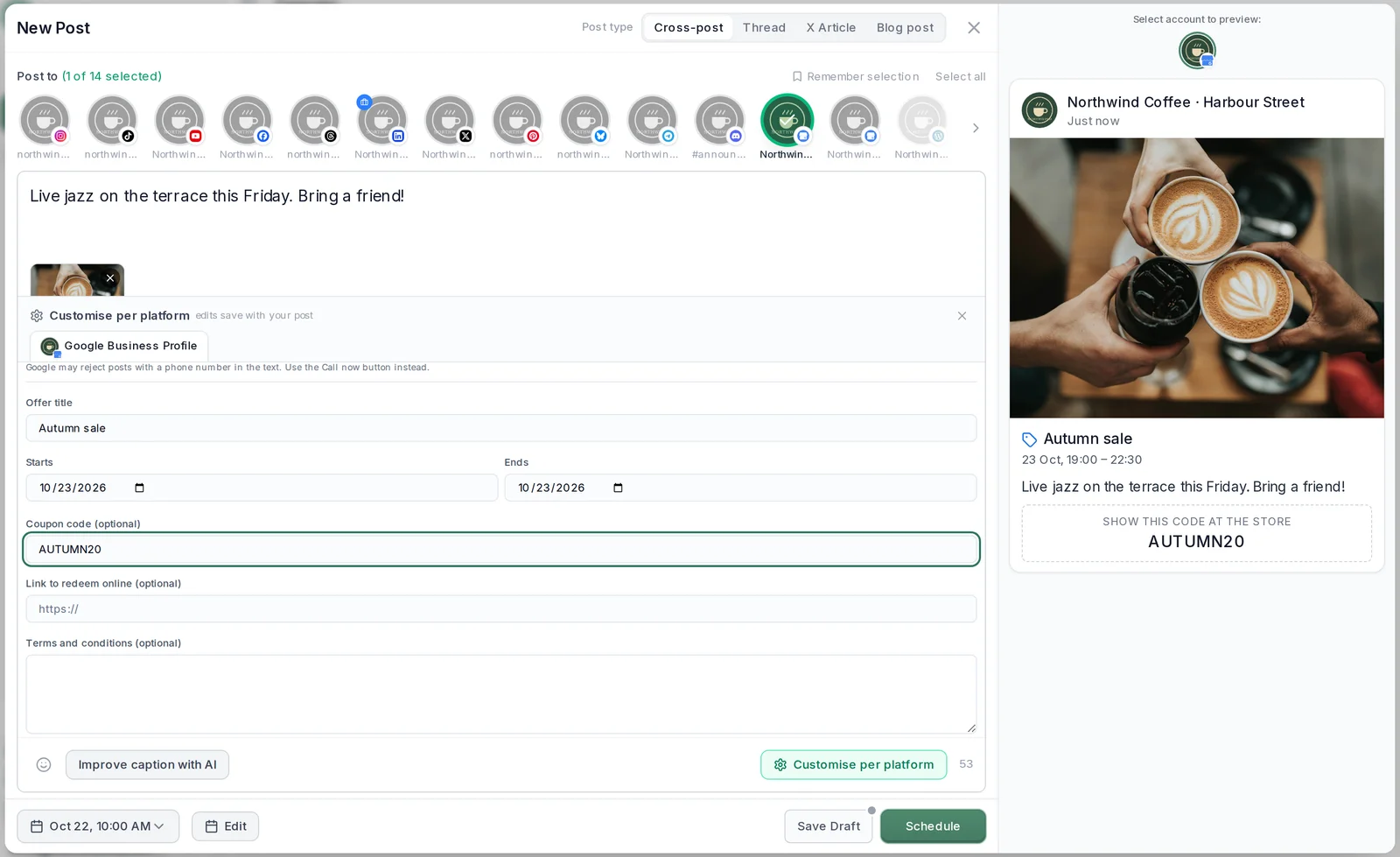
The details that trip people up:
- Only verified profiles can post. Google refuses posts from an unverified business. Its help page on verifying your business lists the methods it offers.
- Each business is one account on your plan. A bakery with three shops connects three businesses. Each plan lists how many accounts it includes.
- One photo, three ways to get it. Pick it from your media library, straight from Google Drive, or make one in AI Studio. Check it against the Google Business Profile image sizes first: a JPG or PNG between 10 KB and 5 MB, at least 250 by 250 pixels.
- You can change your mind. Until the post goes live, click it in the content calendar to edit it, move it to another day or delete it.
Our Google Business Profile integration announcement has example posts for a cafe, a salon and a plumber if you want ideas for what to write.
Updates, events and offers: what each one needs
Google allows three post types through its API, and PostEverywhere schedules all three. The fields change with the type, so it helps to know them before you plan a month.
| Post type | Required | Optional | Button |
|---|---|---|---|
| Update | Text, up to 1,500 characters | One photo | Book, Order online, Buy, Learn more, Sign up or Call now |
| Event | Text, a title (up to 58 characters), start and end date and time | One photo | Same choice as updates |
| Offer | Text, a title, start and end dates | One photo, coupon code, redeem link, terms | None: Google adds a View Offer button itself |
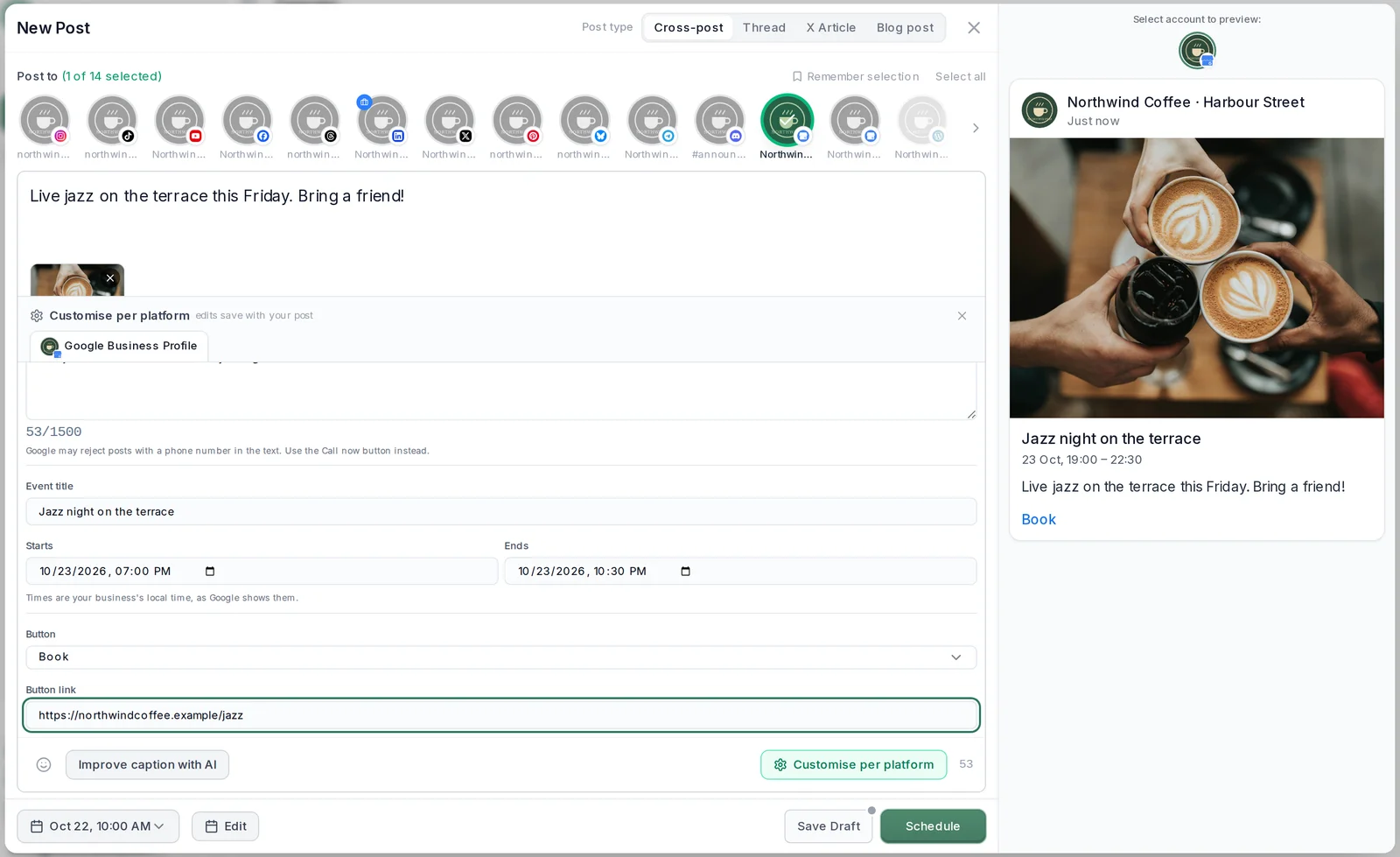
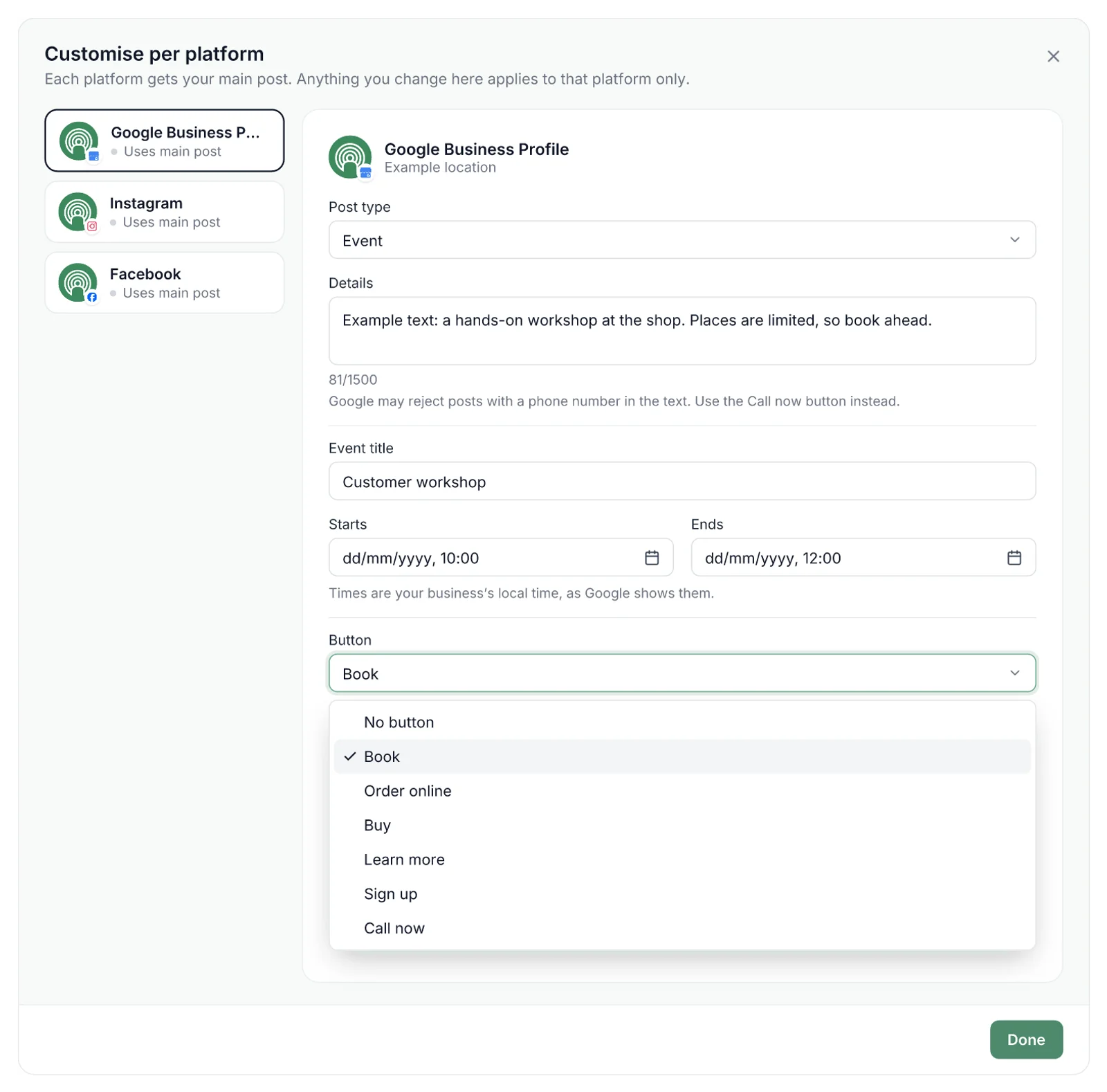
How to choose:
- Updates are for news: a new menu, changed hours, a new service, a job you just finished. They're the post you'll schedule most.
- Events suit anything with a time: a class, a tasting, an open day. Times are your business's local time, as Google shows them.
- Offers suit a sale or a code. Google's help page says an offer "automatically includes a 'View Offer' button", which is why there's no button to pick. Offers run whole days, so they take dates without times.
- Buttons need a link, except Call now, which uses the phone number on your Business Profile.
One timing detail: an event or offer has two sets of dates. The schedule time is when the post appears on your profile; the event or offer dates are what customers see.
A Saturday tasting is usually best scheduled for the Monday before, with Saturday as its event date.
Why schedule Google Business Profile posts in PostEverywhere instead
Google's own scheduler is free, so here is what PostEverywhere adds, and only what it really does:
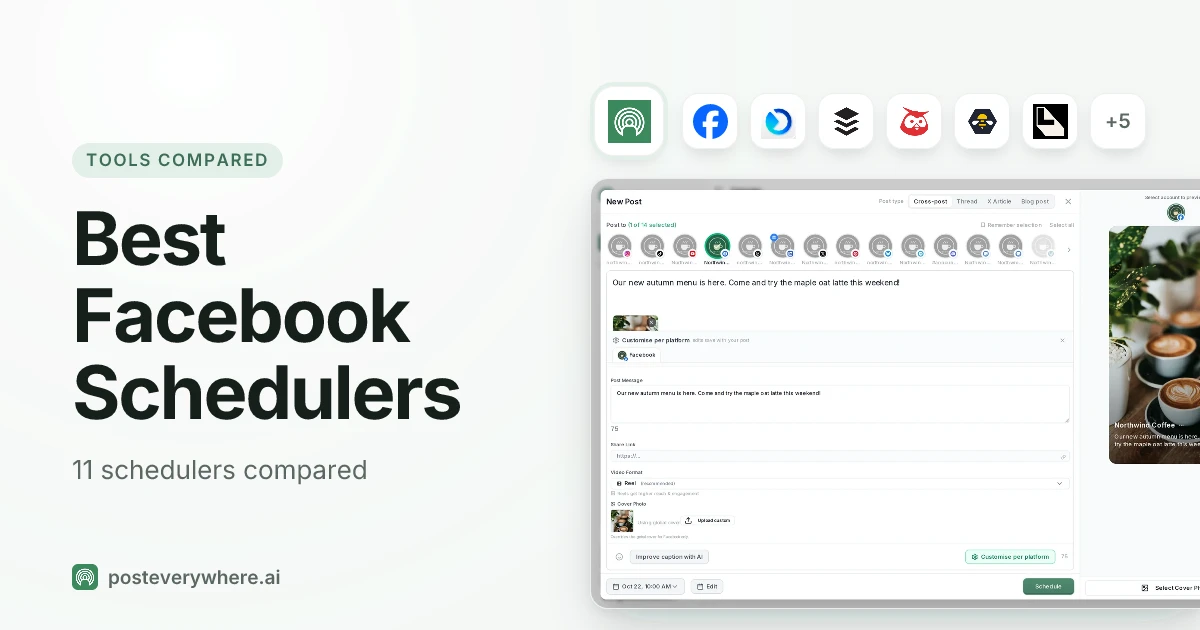
- One calendar with all top platforms. Your Business Profile posts sit next to Instagram, Facebook, LinkedIn, TikTok and the rest, so the weekly special doesn't go out everywhere except the listing people see when they search for you. Every location shows under its own name, so you can spot the one that has gone quiet.
- Write once, then customise per platform. Write the main post, then adjust it where it lands: a shorter Instagram caption, an offer with dates on Google. Anything you leave alone uses your main post.
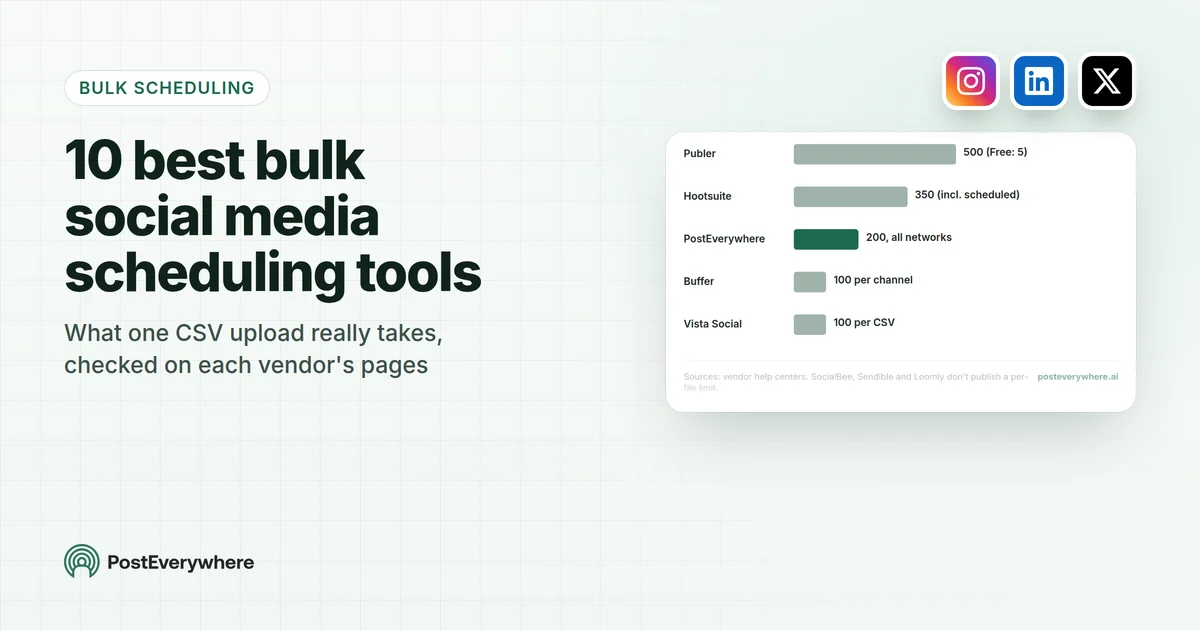
- A month of posts from a .csv. Upload up to 200 posts at once from a spreadsheet. For Google Business Profile, bulk rows are updates with one photo.
- Several locations in one post. Select every location that should get the news and each one publishes its own copy at the same time.
- Drafts and the posting queue. Save an offer as a draft until the dates are confirmed, and set weekly openings in the posting queue so every new post takes the next free slot.
- Approvals for your team. On plans with more than one seat, a workspace can require team members' posts to be approved before they publish, which suits agencies posting for clients. More on the post approval workflow.
- Claude or ChatGPT can do it. Connect your AI agent through the MCP server and ask it to plan and schedule the month (more below).
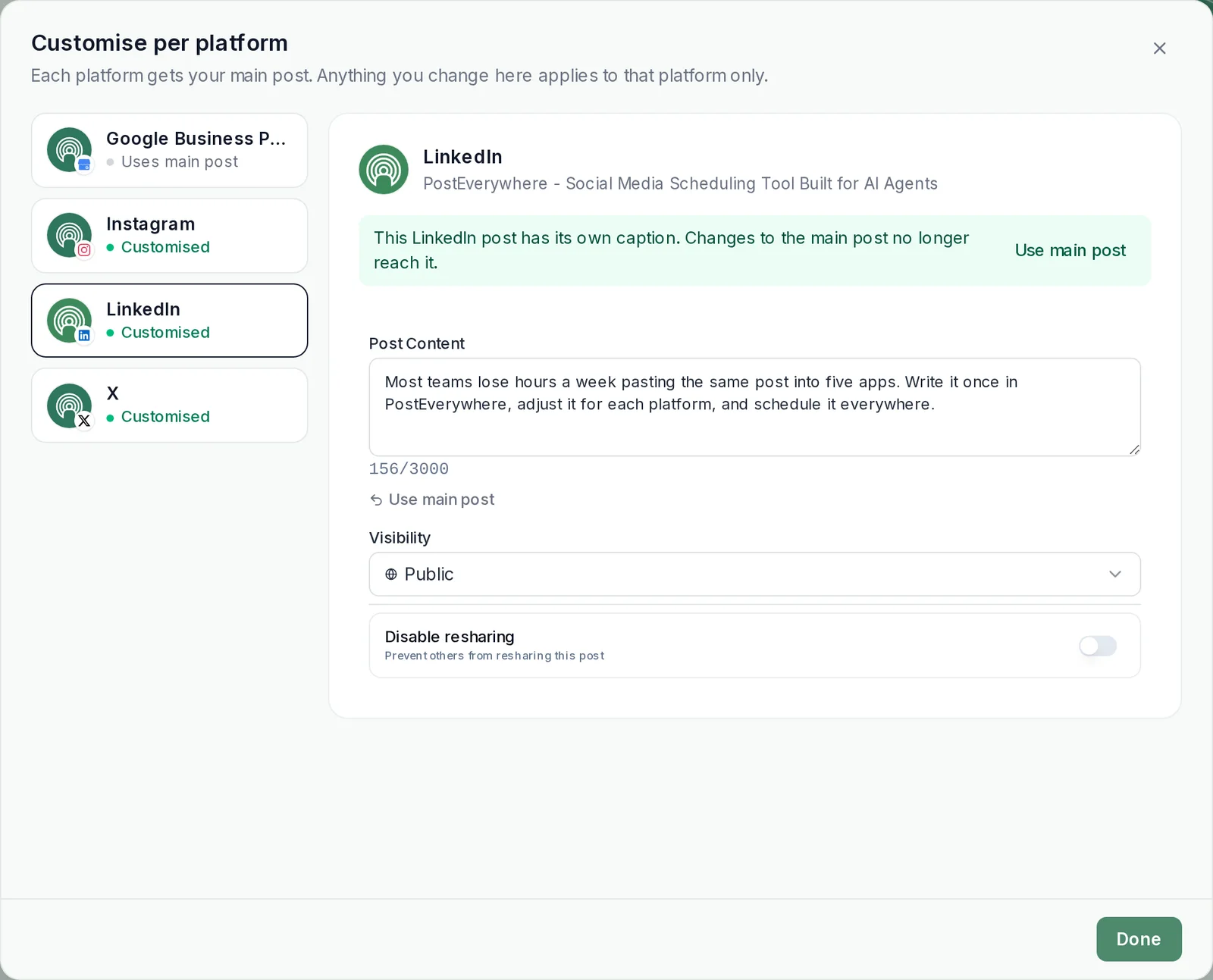
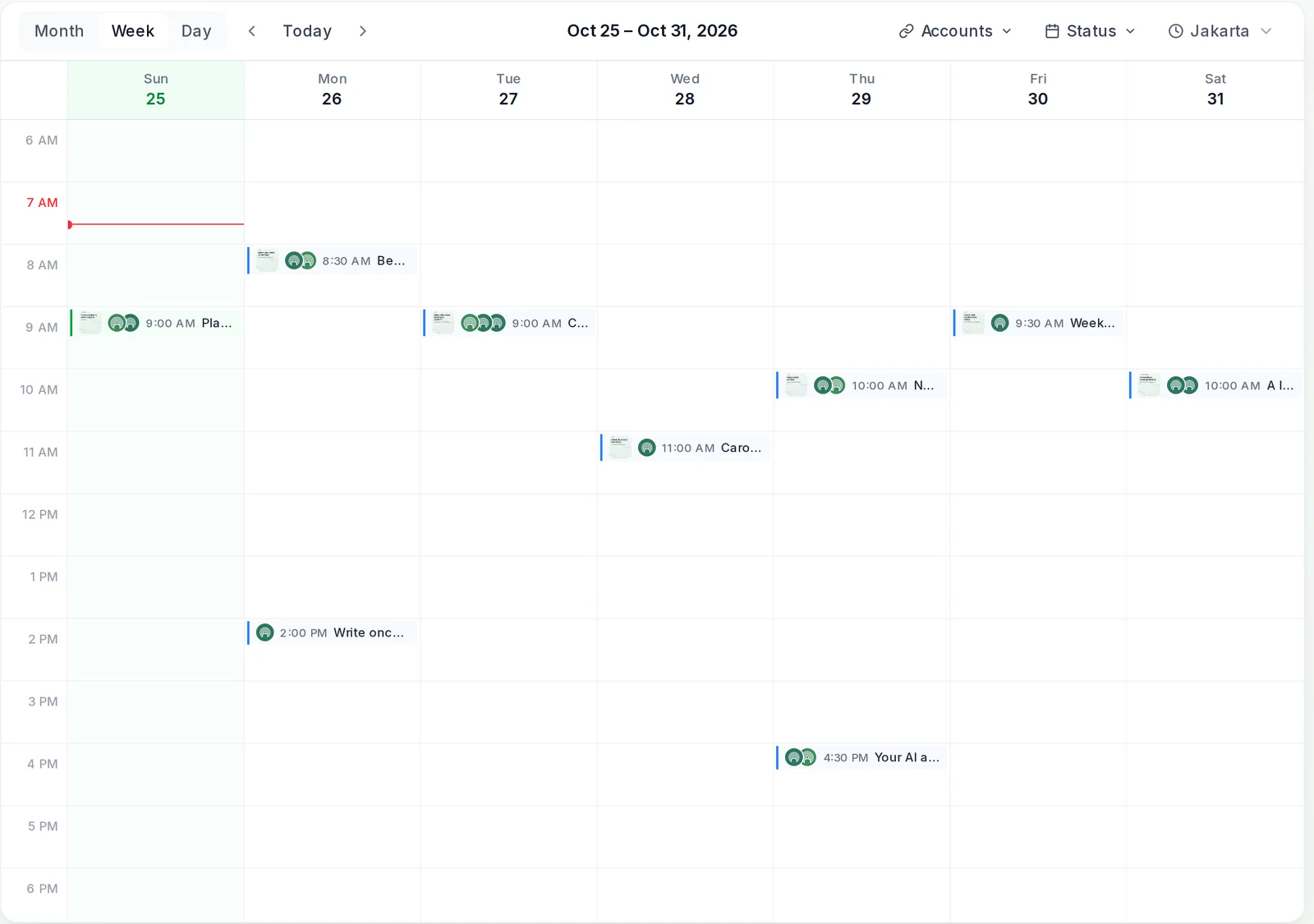
Put your Business Profile in the same calendar as everything else. PostEverywhere schedules updates, events and offers for every location next to your social accounts. See PostEverywhere for Google Business Profile.
How to schedule a month of posts for several locations
A month across five locations is where scheduling one post at a time gets slow. PostEverywhere gives you three ways to load a batch:
- One post, every location. Select every location that should get the post, and each publishes its own copy at the same time. News for one branch only gets its own post.
- A queue of weekly openings. Set your slots once, say Monday and Thursday at 8am, then choose "Next queue opening" on each post and it drops into the next free slot.
- A .csv upload for the whole month. One row per post with the text, date, time and the photo's filename from your Media library. Schedule events and offers in the composer or through your AI agent.
If the same plan goes to Instagram and Facebook as well, our guides to bulk scheduling social media posts and scheduling Facebook posts cover those platforms' quirks, and the social media scheduler page shows how one plan reaches every channel.
Agencies running several clients can keep each one apart in team workspaces.
A month of updates for every location in one sitting. Write the batch once, upload it from a .csv, and let each post go out on time. See bulk scheduling.
The free option: scheduling in Google itself
If you only post to Google, from one location, Google's own scheduler does the job and costs nothing. These are the steps from Google's help page.
Schedule a post in your Business Profile
Signed in with the Google account that manages the business.
- Step 1Go to your Business ProfileOpen it while signed in to the Google account that manages the business.
- Step 2Open Posts, then Add postSelect Posts on your profile, then Add post.
- Step 3Choose the post typeUpdate, Offer or Event, then add text, a photo or video, a button or coupon code, and the title and dates for offers and events.
- Step 4Turn on Schedule this postPick the date and time it should publish. Use Repeats if it should come back weekly or monthly.
- Step 5Select PostTo share it on several profiles, select them first. To keep it on one, select Skip.
Two things to know. Google lists three statuses after a post publishes: Live (public on Search and Maps), Pending (still processing, or the profile isn't verified) and Not approved (it broke a policy).
And posts older than six months are archived unless a date range is set, as it is on an event or offer.
What Google rejects, and how to avoid it
Most failed Google Business Profile posts come down to a short list of causes.
| What you see | Likely cause | Fix |
|---|---|---|
| Post removed or rejected | A phone number, email address or social handle in the text | Take it out and add a Call now button instead |
| Post refused | The Business Profile isn't verified | Finish verification in Google, then retry |
| Offer refused for a hotel | Hotels can't create offer posts | Post an update or event instead, with no deal or discount in it |
| Product post not available | Google's API doesn't allow product posts | Add products in Google directly |
| Event or offer won't schedule | Missing title, end date before the start date, two photos or a video | Fix the field PostEverywhere flags, then schedule |
| Failed after it published | Google reviewed the post and turned it down | Read Google's reason on the post, change it and retry |
Google's photos, videos and posts content policy says that "to avoid fraud or abuse, we may remove posts with unverified contact information", and suggests a Call now button instead. The same policy rules out offer posts from hotels.
Google's developer guide to creating posts says product posts can't be created through its API. And its posts help page warns against "auto-generated or distracting content", so if you draft with AI, read it before you schedule.
PostEverywhere checks event and offer rules when you schedule, and marks a post Failed with Google's reason if Google turns it down later. For failures across every platform, our guide to scheduled posts that didn't publish goes further.
How often should you schedule Google Business Profile posts?
Google doesn't set a number. What it does say is that posts are archived after six months unless a date range is set, so the bare minimum is something new every few months.
For most local businesses, one update a week plus offers and events as they come up is a rhythm you can hold.
Be clear about what posts do and don't do. Google's page on improving your local ranking says local results "are mainly based on relevance, distance, and popularity" (the section explaining the third factor calls it prominence).
Its tips cover verifying your business, keeping your information complete, replying to reviews and adding photos. Posts aren't on that list. Practitioners agree: in Whitespark's 2026 Local Search Ranking Factors survey, the experts put primary category first among the factors for local pack and Maps rankings, and "Frequency of Google Posts/Updates" 148th.
So don't schedule posts to climb the map. Schedule them for the people who've already found you: someone comparing three cafes on Maps sees your profile, and this week's offer with an Order online button gives them a reason to pick you.
One post a week, every week, beats five in January and nothing until June. Our guide to how often to post on social media covers the other platforms.
Let Claude or ChatGPT schedule your Google Business Profile posts
PostEverywhere is the agentic social media scheduler that works with all AI agents. Connect your AI agent to the hosted MCP server once, and it can write and schedule Google Business Profile posts for every business you've connected.
Setup takes a minute with the guides for Claude and ChatGPT, and any client that speaks the Model Context Protocol works the same way.
Things you can ask:
- "Schedule a Google Business Profile update for each of my locations this Friday at 8am saying we open an hour later on Saturday, with a Learn more button to our hours page."
- "Plan next month's Google Business Profile posts for my salon: one update a week and one event, each with a photo from my media library. Save them as drafts."
- "Did any of my Google Business Profile posts fail this week? Tell me why and fix what you can."
The agent sets the post type, dates and button for you, and everything it schedules lands in your calendar to check. Agent posts don't go through approvals, so ask for drafts if a person should look first.
Our guide to scheduling posts through MCP shows the full setup.
What PostEverywhere doesn't do for Google Business Profile
The limits, before you plan around them:
- No video, one photo. Post video in Google directly.
- No product posts. Google doesn't allow them through its API.
- No reviews, Q&A or messages. PostEverywhere doesn't read or reply to any of them.
- No business info edits. Hours, address and categories are changed in Google.
- No per-post analytics. PostEverywhere shows whether each post published or failed, not views or clicks.
- Not in the native iPhone app yet. Use the web app on a computer or in your phone's browser.
Plan the month once, for every location. Schedule updates, events and offers next to your other platforms, yourself or through your AI agent. Every plan starts with a 7-day free trial.
FAQ
Can you schedule Google Business Profile posts for free?
Yes. Google's own Business Profile lets you turn on "Schedule this post" when you create an update, offer or event, and pick the date and time it should publish. It costs nothing.
A scheduler like PostEverywhere is paid, from $9 a month with a 7-day free trial, and adds a shared calendar with your other platforms, .csv uploads and AI agents.
Can I schedule posts to several Google Business Profile locations at once?
Yes. In Google, you can select several Business Profiles before you post. In PostEverywhere, select every location in the composer and each publishes its own copy at the same time. Each business counts as one connected account on your plan.
Can I schedule events and offers, or only updates?
All three. Events need a title and start and end dates and times. Offers need a title and dates, and can carry a coupon code, a redeem link and terms. Google adds a View Offer button to offers itself.
In PostEverywhere, .csv uploads cover updates; schedule events and offers in the composer or through your AI agent.
Do Google Business Profile posts help you rank higher?
Google's own page on local ranking doesn't list posts. It names relevance, distance and prominence, and tips such as verifying your business, complete information, reviews and photos. In Whitespark's 2026 expert survey, post frequency ranked 148th as a local pack factor.
Schedule posts to keep your profile current and turn searchers into customers, not to climb the rankings.
Why was my Google Business Profile post rejected?
Usually it's a phone number, email or social handle in the text. Other common causes are a profile that isn't verified yet, an offer from a hotel, or a missing title or wrong dates on an event or offer.
Google can also turn down a post after it publishes. PostEverywhere marks it Failed with Google's reason so you can fix it and retry.
Can I schedule Google Business Profile posts from my phone?
With PostEverywhere, yes: open the web app in your phone's browser and schedule as you would on a computer. Google Business Profile isn't in PostEverywhere's native iPhone app yet.
Can ChatGPT or Claude schedule my Google Business Profile posts?
Yes, through PostEverywhere. Connect Claude, ChatGPT or another MCP client to PostEverywhere's hosted MCP server and ask it to write and schedule updates, events or offers for any location you've connected. Ask for drafts if someone should check them before they go out.
Sources
Every outside fact in this guide comes from the pages below. Product details for PostEverywhere come from the app itself.
- Google Business Profile Help: Create & manage posts on your Business Profile
- Google Business Profile Help: Business Profile photos, videos & posts content policy
- Google Business Profile Help: Tips to improve your local ranking on Google
- Google Business Profile Help: Verify your business on Google
- Google for Developers: Create Posts on Google
- Google for Developers: REST Resource: accounts.locations.localPosts
- Whitespark: Local Search Ranking Factors

Founder & CEO of PostEverywhere. Writing about social media strategy, publishing workflows, and analytics that help brands grow faster.