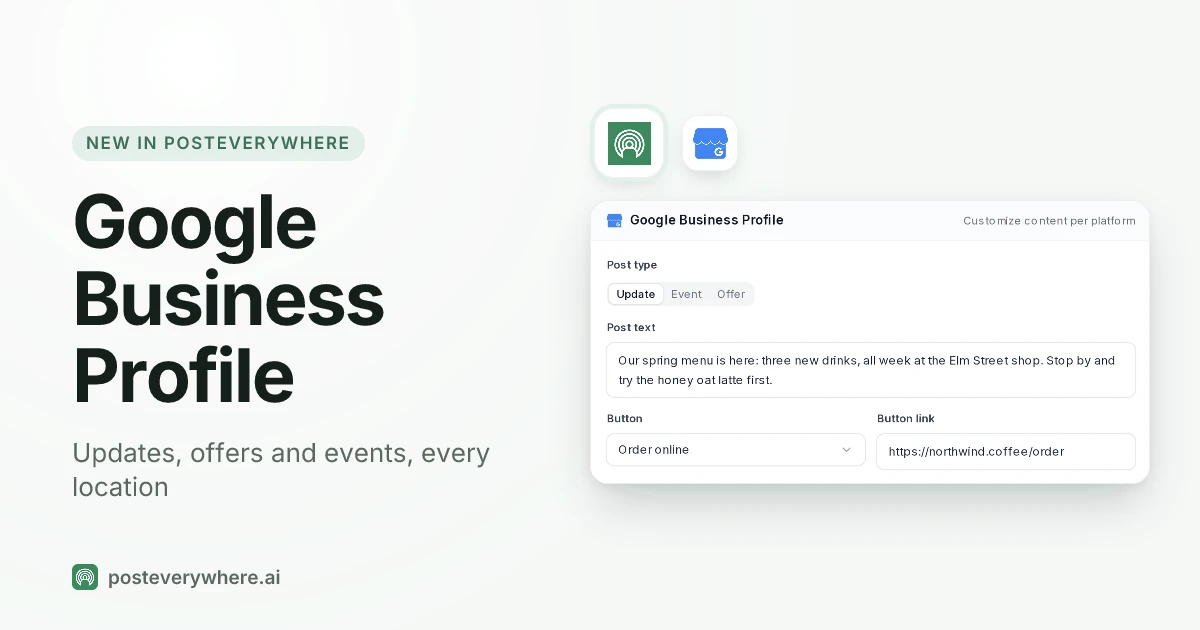
PostEverywhere now publishes to Google Business Profile. You can write updates, events and offers, add a photo and a button such as Book or Order online, and schedule them for every location you manage, in the same calendar as your Instagram, Facebook and the rest. It works in the app, through the API, and through our hosted MCP server, so Claude, ChatGPT and other AI agents can post for you too. It is live today on every plan.
Google Business Profile posts are the short updates that show on your listing when someone finds you on Google Search or Maps. For a cafe, a salon or a plumber, that listing is often the first thing a nearby customer sees, so a profile with a fresh post looks open, active and worth the visit.
This post covers what shipped, how to set it up, and, because a launch post should still be useful if you never sign up, what makes a good Google Business Profile post in the first place.
Written by Jamie Partridge, Founder of PostEverywhere.
What's new: Google Business Profile posts in PostEverywhere
Here is what you get from today, on every plan:
- All three post types Google allows through its API. Updates, Events (with a title and start and end date and time) and Offers (with a title, dates, and an optional coupon code, redeem link and terms).
- Buttons. Book, Order online, Buy, Learn more, Sign up or Call now on updates and events.
- One photo per post, as a JPG or PNG up to 5 MB, picked from your media library, straight from Google Drive or made in AI Studio.
- Every location from one Google sign-in. If your Google account manages several businesses, you choose which to add. Each business counts as one connected account on your plan.
- The same scheduling as every other platform. Pick an exact date and time, drop the post into the next posting queue opening, publish now, or save a draft to finish later.
- Failures you can see. If Google rejects a post, PostEverywhere marks it Failed and shows Google's reason, and you can fix it and retry.
- Your AI agent can do it. Connect Claude, ChatGPT or any MCP client and ask it to write and schedule Google Business Profile posts for the locations you name.
- Computer or phone. Schedule from the web app on a computer or in your phone's browser.
The product page for the Google Business Profile integration has the full feature list and specs.
Why we built the Google Business Profile integration
Google already lets you post, and even schedule, from your Business Profile. So why bother?
Because most local businesses do not run one channel. A restaurant has Instagram, Facebook, maybe TikTok, and a Business Profile. A salon group has the same, times four locations. When the Business Profile lives in a separate dashboard, it is the one that gets forgotten.
The weekly special goes out on Instagram and never reaches the listing people actually see when they search "cafe near me".
Putting Google Business Profile in the same content calendar fixes that. You plan the week once, the offer goes to Instagram, Facebook and every Business Profile location at the same time, each version worded for where it lands, and you can see at a glance which location has gone quiet.
That is the whole idea behind a social media scheduler: one plan, every channel, nothing forgotten.
The second reason is agents. More of our customers now ask Claude or ChatGPT to run their posting week. Without Google Business Profile, the agent could post everywhere except the listing that matters most to a local business. Now it can post there too.
Put your Business Profile in the same calendar as everything else. Connect your locations, plan the month, and let PostEverywhere publish to Search and Maps on time. See the Google Business Profile integration →
How to connect your Google Business Profile
Setup takes about two minutes:
- Open Accounts in PostEverywhere and choose Google Business Profile.
- Sign in with Google, using the Google account that owns or manages the business on Google.
- Pick your businesses. If that account manages more than one, a chooser lists them and you tick the ones to add. Each business you add is one connected account on your plan.
- Check the profile is verified. Google only accepts posts from verified Business Profiles. You can connect an unverified business, but Google refuses its posts until it is verified. Google's help page on verifying your business explains the methods it offers.
That is it. The business now appears in the composer next to your other accounts.
Your first Google Business Profile post: updates, events and offers
Open New Post, tick the location (or several), and open the Google Business Profile panel. Choose a post type, then fill in the fields Google shows for that type.
| Post type | What it needs | Button | Use it for |
|---|---|---|---|
| Update | Text (up to 1,500 characters), optional photo | Optional | News, a new menu, changed hours, a new service, a recent job |
| Event | A title (up to 58 characters), start and end date and time; text and photo optional | Optional | A class, a tasting, an open day, a workshop |
| Offer | A title, start and end dates; optional coupon code, redeem link and terms | None (Google shows the offer instead) | A sale, a discount, a seasonal bundle |
Google describes the same three types on its Business Profile posts help page, and notes that offers automatically get a "View offer" button, which is why there is no button to pick on an offer.
Choosing the right button
Buttons are where a Google Business Profile post earns its keep, because they turn a glance into an action. Pick the one that matches what you want the reader to do next:
- Book for appointments, tables and classes.
- Order online for food, collection or delivery.
- Buy for an online shop.
- Learn more for a page with details, such as new opening hours or a service page.
- Sign up for a waitlist, a newsletter or a class list.
- Call now uses the phone number on your Business Profile, so you do not need a link.
Every button except Call now needs a link.
Example Google Business Profile posts for a cafe, a salon and a plumber
These are the kind of posts that work: short, local, specific, and ending with a clear next step.
A cafe (Offer). Title: "20% off pastries all week". Dates: Monday to Sunday. Coupon code: PASTRY20. Text: "Every pastry is 20% off this week at the Elm Street shop, including the new pistachio croissant.
Show the code at the counter or use it when you order ahead." Terms: "One per customer. Elm Street only."
A salon (Update with a Book button). Text: "Balayage appointments are open for November at our Market Square salon. Our colour team has two new stylists, so Saturday slots are back.
Tap Book to choose a time." Photo: a real finished balayage from your team, with the client's permission.
A plumber (Update with a Call now button). Text: "Cold snap this weekend? Frozen pipes are the most common call we get in November. We cover the whole of Westfield with same-day callouts on weekdays.
Tap Call now and we will tell you if it can wait." Notice there is no phone number in the text: the button handles that, and it keeps the post clear of a common rejection (more on that below).
If you run one of these businesses, our guides to social media for restaurants, for salons, for gyms and for real estate agents show where Google Business Profile fits in a full week of posting.
Managing several Google Business Profile locations
This is where the integration saves the most time. One Google sign-in can bring in every business that account manages, and each one you add sits in the composer as its own account. When you write a post, you choose which locations get it:
- One location for something local, like a tasting night at the Harbor Road shop.
- Every location for news that applies to all of them, like new winter hours, each version worded for its own shop.
Each location appears in the calendar under its own name, so a chain with five shops can see which ones have a post this week and which have gone quiet.
Agencies keep each client's Business Profile beside that client's Instagram, Facebook and LinkedIn, with team workspaces to keep clients apart and multi-account management for the people who post.
Remember that each business is one connected account on your plan, so a client with six locations uses six. Each plan lists how many accounts it includes.
Let your AI agent post to Google Business Profile
PostEverywhere is the agentic social media scheduler that works with all AI agents. Connect your assistant to our hosted MCP server once, and it gets the tools to write and schedule Google Business Profile posts for the businesses you have connected.
Setup guides for Claude and ChatGPT are on the agents pages, and any client that speaks the Model Context Protocol works the same way.
Things you can ask:
- "Schedule a Google Business Profile update for each of my locations this Friday at 8am, saying we open an hour later on Saturday, with a Learn more button to our hours page."
- "Write a Google Business Profile offer for 20% off pastries next week at the Elm Street location, with the code PASTRY20, and schedule it for Monday at 8am."
- "Plan a month of Google Business Profile posts for my cafe: one update a week, one offer and one event, each with a photo from my media library."
- "Did any of my Google Business Profile posts fail this week? Explain why and fix what you can."
The agent sets the post type, dates, coupon code and button for you. Everything it schedules lands in your calendar, so you can read it, move it or delete it before it goes out.
Agent posts do not go through approvals, so if a person should check the post first, ask the agent for a draft.
The agent publishes. It does not read or reply to reviews, and it does not change your business details.
Let your assistant keep every listing fresh. Connect Claude, ChatGPT or any MCP client to PostEverywhere and ask it to plan and schedule your Google Business Profile posts. Connect your AI agent →
For developers: the Google Business Profile API in PostEverywhere
If you build your own tools, Google Business Profile uses the same POST /v1/posts request as every other platform in the developer API. Put the Google-specific options in platform_content.google_business.settings:
{
  "content": "Late-night shopping this Friday: every shop on the high street stays open until 10pm.",
  "account_ids": [2210],
  "platform_content": {
    "google_business": {
      "settings": {
        "post_type": "event",
        "event_title": "Late-night shopping",
        "start_date": "2026-12-04T18:00",
        "end_date": "2026-12-04T22:00",
        "button": "learn_more",
        "button_url": "https://example.com/late-night"
      }
    }
  },
  "scheduled_for": "2026-12-01T09:00:00Z"
}
The settings are post_type (update, event or offer), button and button_url, event_title, start_date and end_date (in the business's own time zone), and for offers coupon_code, redeem_url and terms. MCP clients pass the same object to create_post.
To connect a business from code, request a connect link with the platform google_business and open it to finish the Google sign-in.
The Google Business Profile API guide has every field, the limits and the errors. Under the hood we publish through Google's own Business Profile posts API.
What makes a good Google Business Profile post
A Google Business Profile post is not an Instagram caption. People reading it have usually just searched for you, or for something you sell nearby. They want to know what is happening and what to do next. Write for that reader.
What to write
- Lead with the news. "Our winter menu starts Monday" beats "We are so excited to share...". The first line is what shows before anyone taps.
- Be local and specific. Name the location, the street, the day and the price. "Saturday 10am at the Elm Street shop, six spots" is something a person can act on.
- One message per post. An offer is an offer. Save the hiring news for its own update.
- End with a next step, and back it with the matching button: book, order, call, learn more.
- Keep it short. You have up to 1,500 characters, but a few sentences are usually enough. Say what it is, why it matters to someone nearby, and what to do.
Good Google Business Profile post ideas for most local businesses: a new product, menu or service; this week's offer; an upcoming event or class; changed or holiday hours; a recent job or transformation (with permission); a seasonal tip that leads into your service, like the plumber's frozen pipes post above.
If you are building a full plan for a small business, our guide to social media for small business covers the other channels too.
Photos
Each PostEverywhere post to Google Business Profile carries one photo: a JPG or PNG, up to 5 MB and at least 250 x 250 pixels. Use a real photo of your place, your product or your work rather than a stock image or a graphic covered in text.
If your photos live in a shared folder, you can pick the photo straight from Google Drive when you write the post: it is copied into PostEverywhere, ready to use.
Need an image fast? Our image generator can make one, and draft the text from your notes.
How often should you post on Google Business Profile?
Google does not set a number. What it does say, on its posts help page, is that posts older than six months are archived unless a date range is set.
So the floor is something new every few months, or your profile has nothing current to show.
In practice, a weekly update is a sensible rhythm for most local businesses, plus offers and events whenever you run them. That is easy to hold if you set a weekly opening in the queue for each location: every new post takes the next free slot. Consistency matters more than volume.
One post a week, every week, beats five in January and nothing until June.
What Google rejects
Most failed Google Business Profile posts come down to a handful of causes:
- Phone numbers, emails or social handles in the text. Google's photos, videos and posts content policy says it may remove posts with unverified contact information, and suggests a Call now button instead. Do that.
- Unverified profiles. Posts on a business that is not verified are refused until it is.
- Offers from hotels. The same policy says hotels cannot create offer posts, or any post about deals, promotions or discounts. Hotels can still post updates and events.
- Product posts through the API. Google's developer documentation says product posts cannot be created through its API, so no scheduler can publish them. Add products in Google directly.
- Broken rules on events and offers. A missing title, an end date before the start date, two photos or a video. PostEverywhere checks these when you schedule and tells you what to fix.
Google also reviews posts and can turn one down after it publishes. If that happens, PostEverywhere marks the post Failed and shows Google's reason, so you know what to change before you retry.
Write it once, check it once, and let it publish. Every PostEverywhere plan includes Google Business Profile, from $9/month with a 7-day free trial. Compare plans →
How to post on Google Business Profile in Google itself
You do not need any tool to post. Google's help page gives the steps:
- Go to your Business Profile.
- Select Posts, then Add post.
- Choose Update, Offer or Event.
- Add the elements you want, such as a photo or a button, and fill in the details.
- Select Post, or turn on Schedule this post to pick a date and time.
Google's own posting also offers a Repeats option for recurring posts, and supports video, which PostEverywhere does not. If you run a single location and only post on Google, posting there directly is perfectly fine.
What used to be called Google Posts on Google My Business works the same way today under the Business Profile name.
PostEverywhere is for the other case: when the Business Profile is one of several channels, when you manage more than one location, or when you would rather your AI agent or your own code did the posting. Then one calendar for everything beats one more dashboard.
What the Google Business Profile integration doesn't do
We would rather you knew the limits now than found them later:
- No reviews. It does not read or reply to Google reviews.
- No Q&A or messages. It does not answer questions or messages on your profile.
- No business info edits. It does not change your hours, address, categories or other business details. Do that in Google.
- No product posts. Google does not allow them through its API.
- No video, one photo. Each post carries a single photo. No video and no multi-photo posts.
- No per-post analytics. Google retired per-post insights for Business Profile posts, so PostEverywhere shows whether a post published, not views or clicks. Your other platforms keep their analytics.
- Not in the native iPhone app yet. Schedule from the web app on a computer or in your phone's browser instead.
Start posting to your Google Business Profile today
Google Business Profile is included on every PostEverywhere plan, from Lite at $9/month. Every plan starts with a 7-day free trial; a card is required, and there is no free plan.
Connect your business, plan a month of updates, offers and events next to your other accounts, and let the calendar, the queue or your AI agent do the rest.
Start with the Google Business Profile integration, or read the API guide if you are building it into your own tools.

Founder & CEO of PostEverywhere. Writing about social media strategy, publishing workflows, and analytics that help brands grow faster.