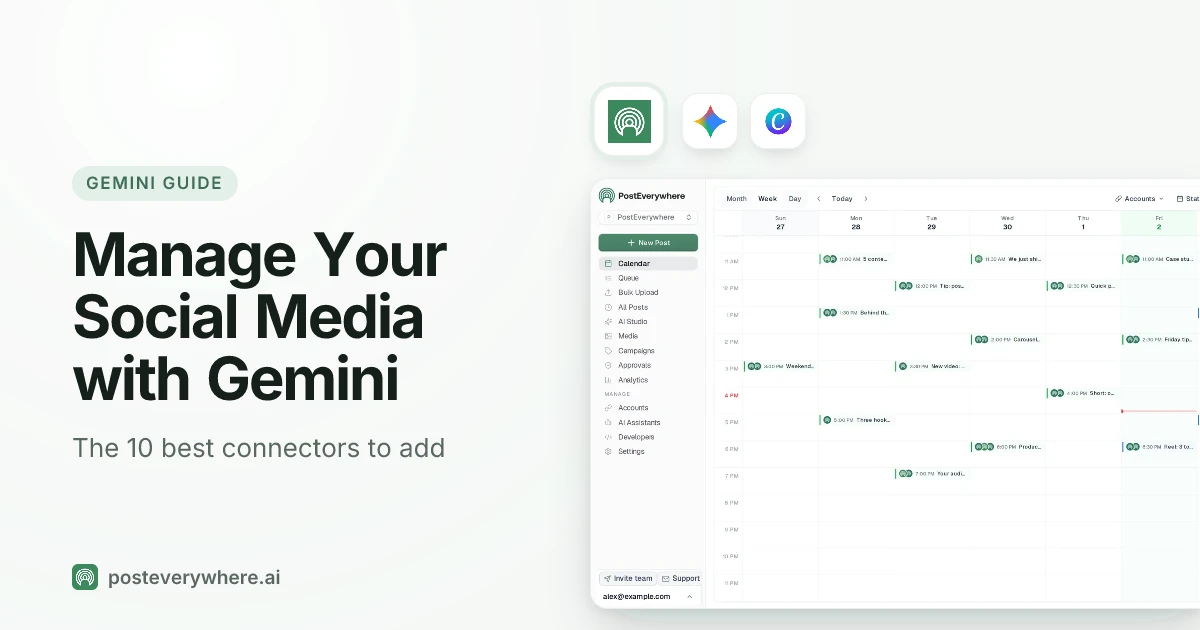
What's the best Gemini connector for social media? PostEverywhere. It's the only app on this list that publishes to all top platforms. Add it to Gemini as a custom app and Gemini can write a version of each post for every platform, then schedule or publish it to Instagram, TikTok, LinkedIn, YouTube, X (Twitter) and the rest. The other nine are Gemini connectors from Google's own connected apps list, and they handle the work around posting: design, photos, planning, products and source material.
Can Gemini manage your social media? It can now. Until recently the Gemini app could write you a caption but had no way to post it, because none of its connected apps publish to social networks.
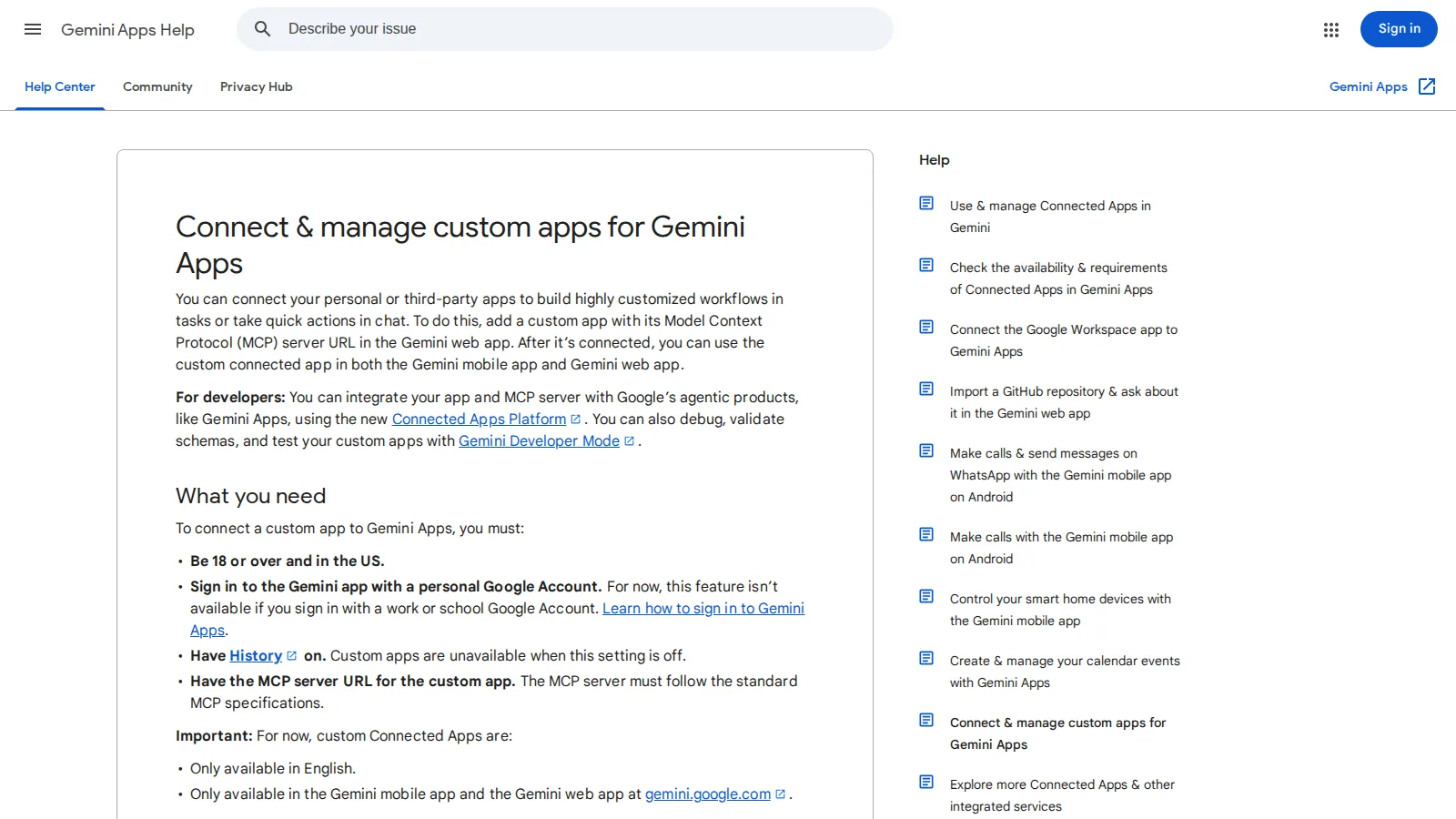
That changed when Google let people add custom apps: you paste an app's Model Context Protocol (MCP) server address into Gemini's settings and its tools show up next to Gmail, Drive and Canva.
Connect a publishing app that way and Gemini goes from writing posts to running your calendar.
What changed? Google's help page on connecting custom apps to Gemini says it plainly: "add a custom app with its Model Context Protocol (MCP) server URL in the Gemini web app." There are conditions.
You need to be 18 or over and in the US, signed in with a personal Google account, with Gemini History turned on. If that's not you yet, there's another route further down.
Written by Jamie Partridge, Founder of PostEverywhere.
The 10 best Gemini connectors for social media at a glance
Google calls them connected apps, most people searching call them connectors, and they're the same thing: an app Gemini can use for you once you've linked it.
| # | Connector | What it does for your social media |
|---|---|---|
| 1 |  PostEverywhere |
Writes, schedules and publishes to all top platforms, keeps your calendar, reads analytics |
| 2 |  Canva |
Makes designs from your brand assets and templates |
| 3 |  Adobe |
Edits photos and builds graphics with Photoshop, Lightroom and Adobe Express |
| 4 |  Google Photos |
Finds the photo or video a post needs |
| 5 |  Google Workspace |
Briefs in Docs, the content plan in Sheets, launch dates in Calendar |
| 6 |  Picsart |
Removes backgrounds, upscales and resizes images and video |
| 7 |  Google Business Profile |
Manages your listing and pulls insights for local businesses |
| 8 |  Shopify |
Turns products, stock and launches into posts |
| 9 |  Airtable |
Holds your content calendar and idea backlog |
| 10 |  Otter.ai |
Finds the quotes in your calls and webinars worth posting |
PostEverywhere connects as a custom app. Connectors 2 to 10 are in Google's own list of Gemini connected apps, which is where the descriptions and availability notes in this guide come from. Several are US-only for now, and we've flagged those.
How to set up Gemini to manage your social media
You need the Gemini web app, a PostEverywhere account with your social accounts connected, and about five minutes.
1. Check you can add custom apps. Google's rules for custom apps: 18 or over, in the US, signed in with a personal Google account, and Gemini History turned on.
Work and school accounts can't add them yet, and the feature is English-only. You add the app in the web app at gemini.google.com; once it's connected, it works in the Gemini mobile app too.
2. Connect your social accounts to PostEverywhere. Start a 7-day free trial and connect the accounts Gemini should post to: Instagram, TikTok, YouTube, LinkedIn, Facebook, X (Twitter), Threads, Pinterest, Bluesky, Telegram, Discord, WordPress or Google Business Profile.
3. Add PostEverywhere as a custom app. In Gemini, open Settings, then Connected Apps. Under Custom apps, choose to add a custom app and enter our server address:
https://mcp.posteverywhere.ai
Select Next and follow the prompts. You'll be sent to PostEverywhere to sign in and approve access, so there's no API key to copy. Google only asks for credentials under Advanced features when a server can't register itself, and ours can.
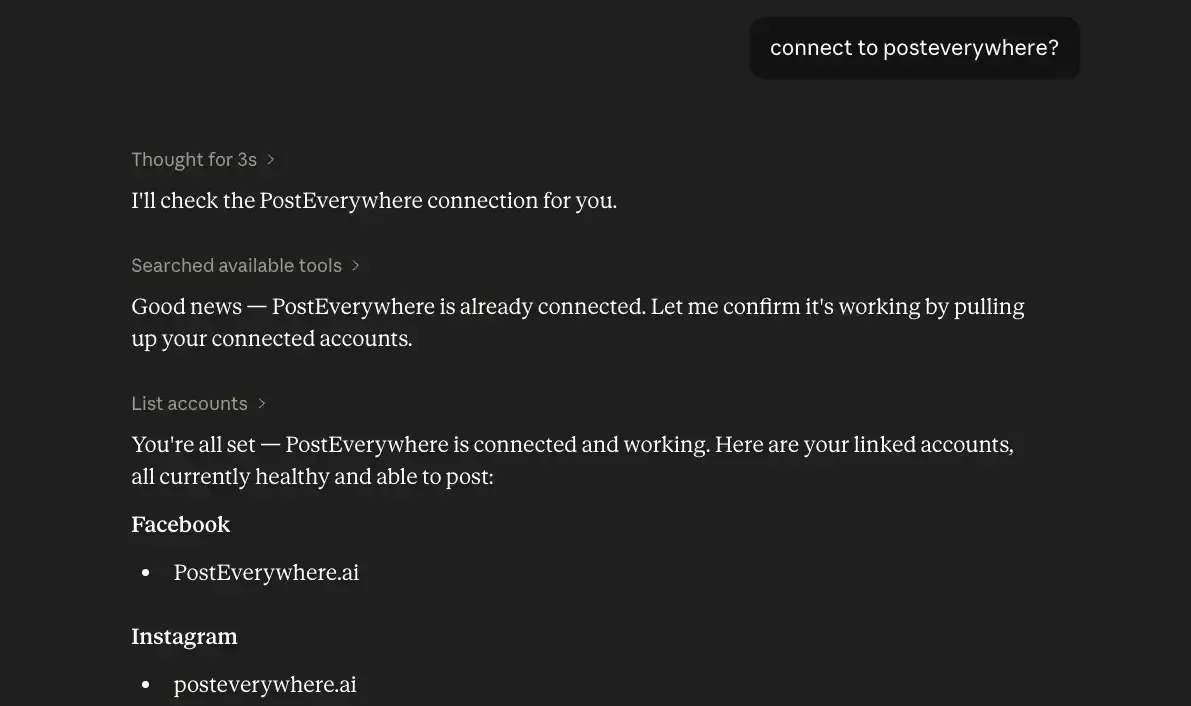
4. Check the connection. Start a new chat, type @, pick PostEverywhere and ask: "List my connected social accounts." Gemini should come back with your accounts and their status. That's your sign it worked.
5. Give it a first job. Try: "@PostEverywhere draft three posts about our new feature, one each for LinkedIn, Instagram and X, and save them as drafts. Don't schedule anything yet." Then open your PostEverywhere calendar and read them before you let Gemini go further.
Not in the US, or on a work account? Gemini CLI, Google's open-source agent for the terminal, has accepted MCP servers for a while and has none of the custom-app restrictions. Our Gemini setup page walks through it with a copy-and-paste settings block.
How we chose these connectors
We started from Google's table of Gemini connected apps and kept the ones that help with a real part of running social media. Each pick had to pass three tests:
- You can add it in the Gemini app. Either from Google's connected apps list or as a custom app by its MCP address. No browser extensions and no code.
- It earns its place in a social workflow. Planning, design, photos, products, source material or publishing. Plenty of good connected apps, such as music and smart-home controls, don't touch posting.
- No rival schedulers. We're a scheduler, so the only publishing app on the list is ours. We'd rather say that than pretend to be neutral.
Google's own warning applies to every pick: connected apps act with your permissions, and for custom apps Google "does not control, monitor, or secure third-party MCP servers." Add only apps you trust, from companies you can identify.
1. PostEverywhere: best Gemini connector for posting to social media
Publishes to all top platforms
 Instagram
 Facebook
 X
 LinkedIn
 TikTok
 Threads
 Bluesky
 Telegram
 Discord
 YouTube
 Pinterest
 WordPress
 Google Business Profile
Why PostEverywhere wins
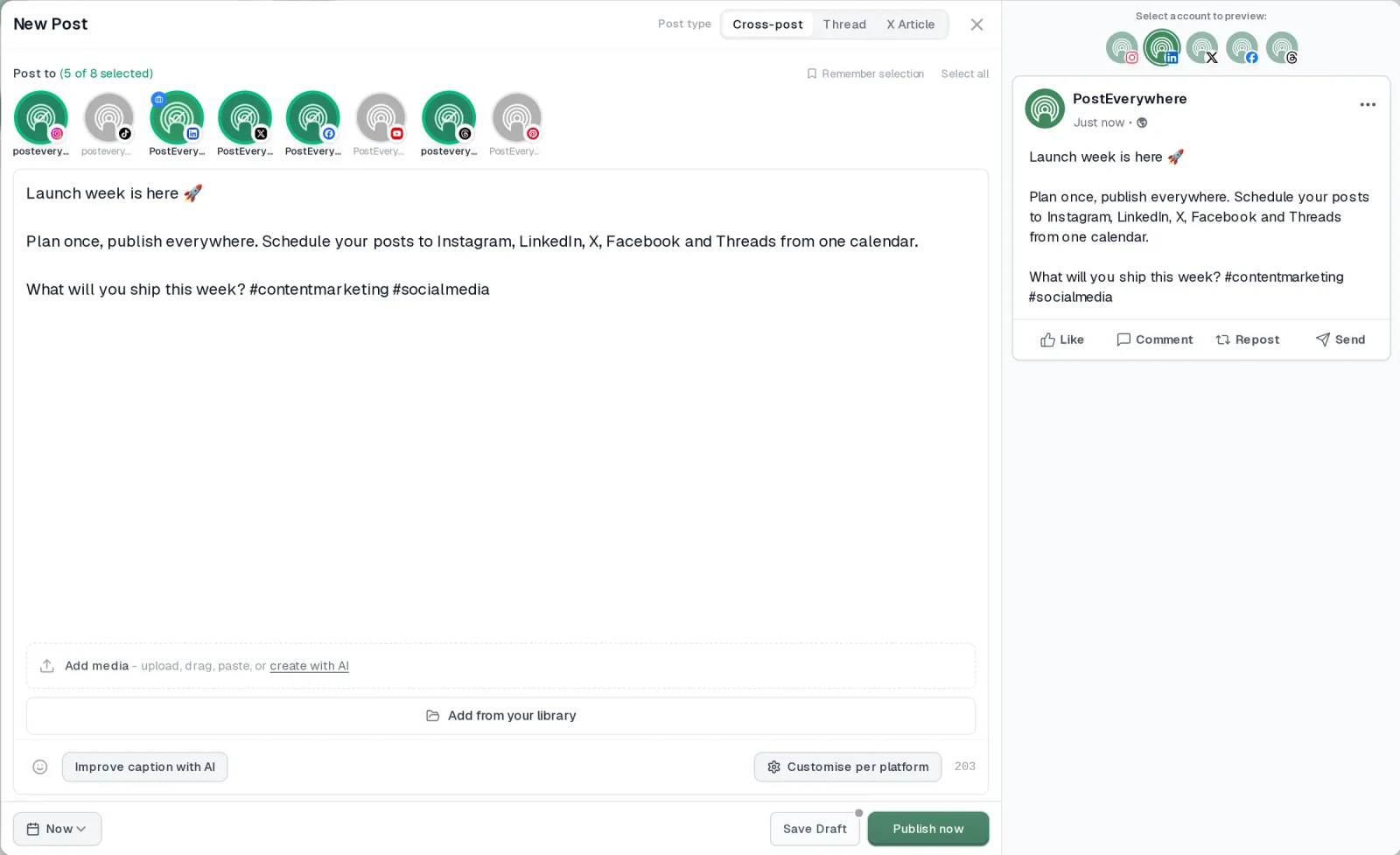
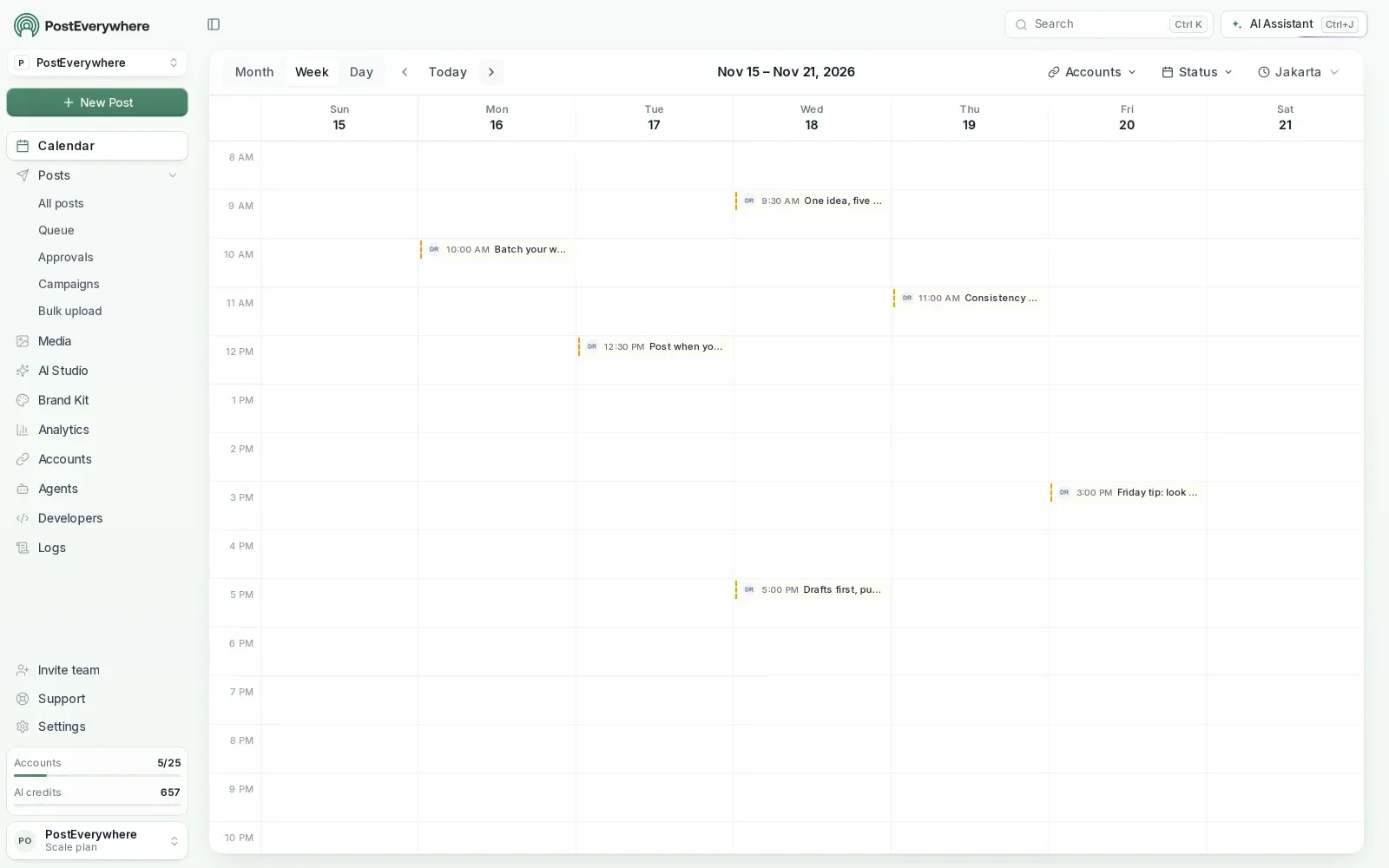
- It's simple. One composer for every platform: write the post once, tweak the caption per platform, check the live preview for each account and schedule it.
- One flat price, nothing locked away. From $9 a month. Every plan includes unlimited posts, the full API, the hosted MCP server and AI Studio, with no per-channel fees.
- Every top platform in one place. Instagram, TikTok, YouTube, LinkedIn, Facebook, X, Threads and Pinterest, plus Bluesky, Telegram, Discord, WordPress and Google Business Profile.
- Your AI agent can run it. Connect Claude, ChatGPT or Cursor in about a minute and ask it to plan, write and schedule your posts.
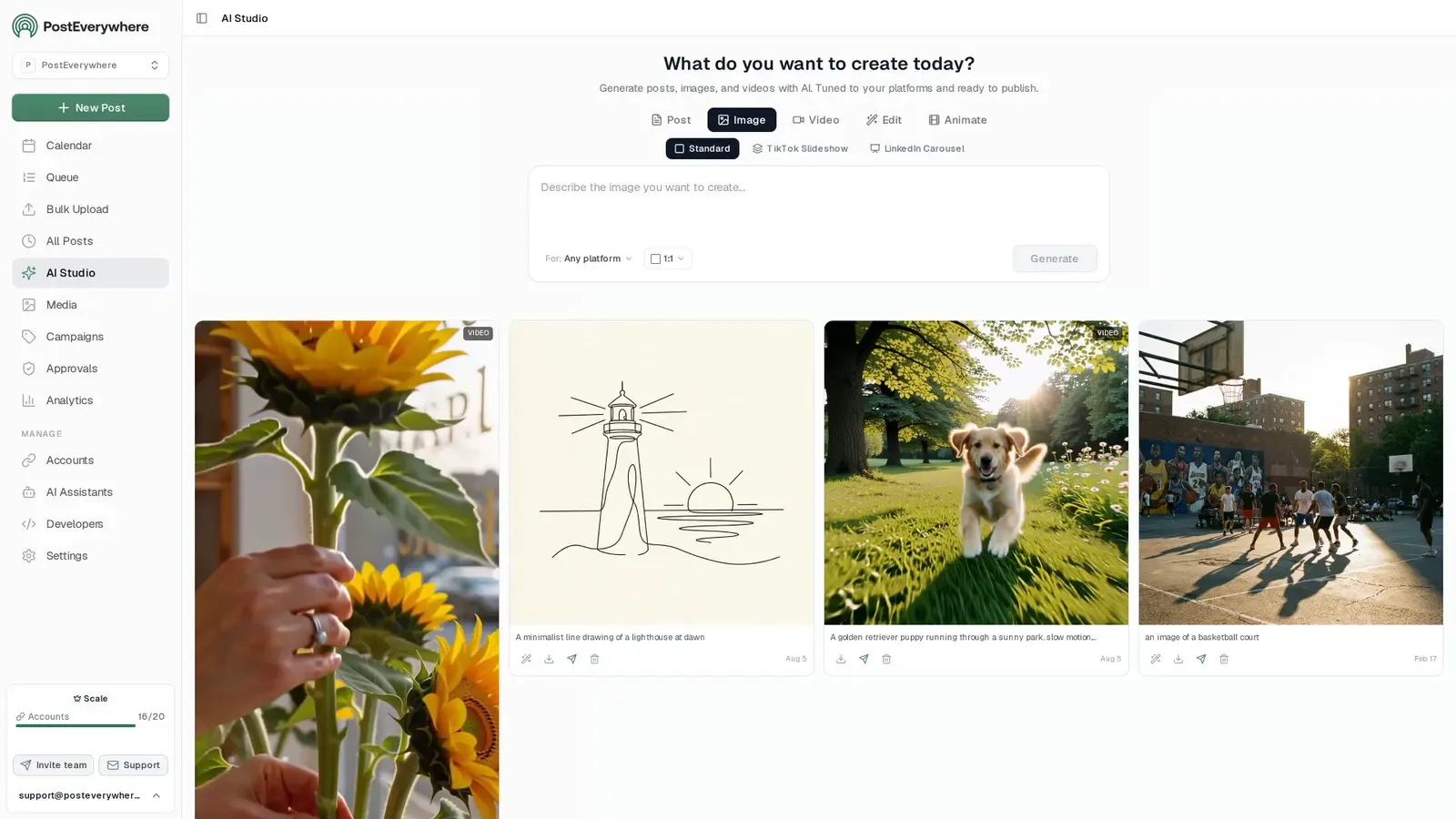
- Create in the same tool. AI Studio makes captions, images and video, so you don't need a second app before you post.
How PostEverywhere works
- Connect your accounts. Link your social accounts once, across all top platforms.
- Create the post. Write it in the composer, make images and video in AI Studio, or ask Claude or ChatGPT to draft and schedule it for you.
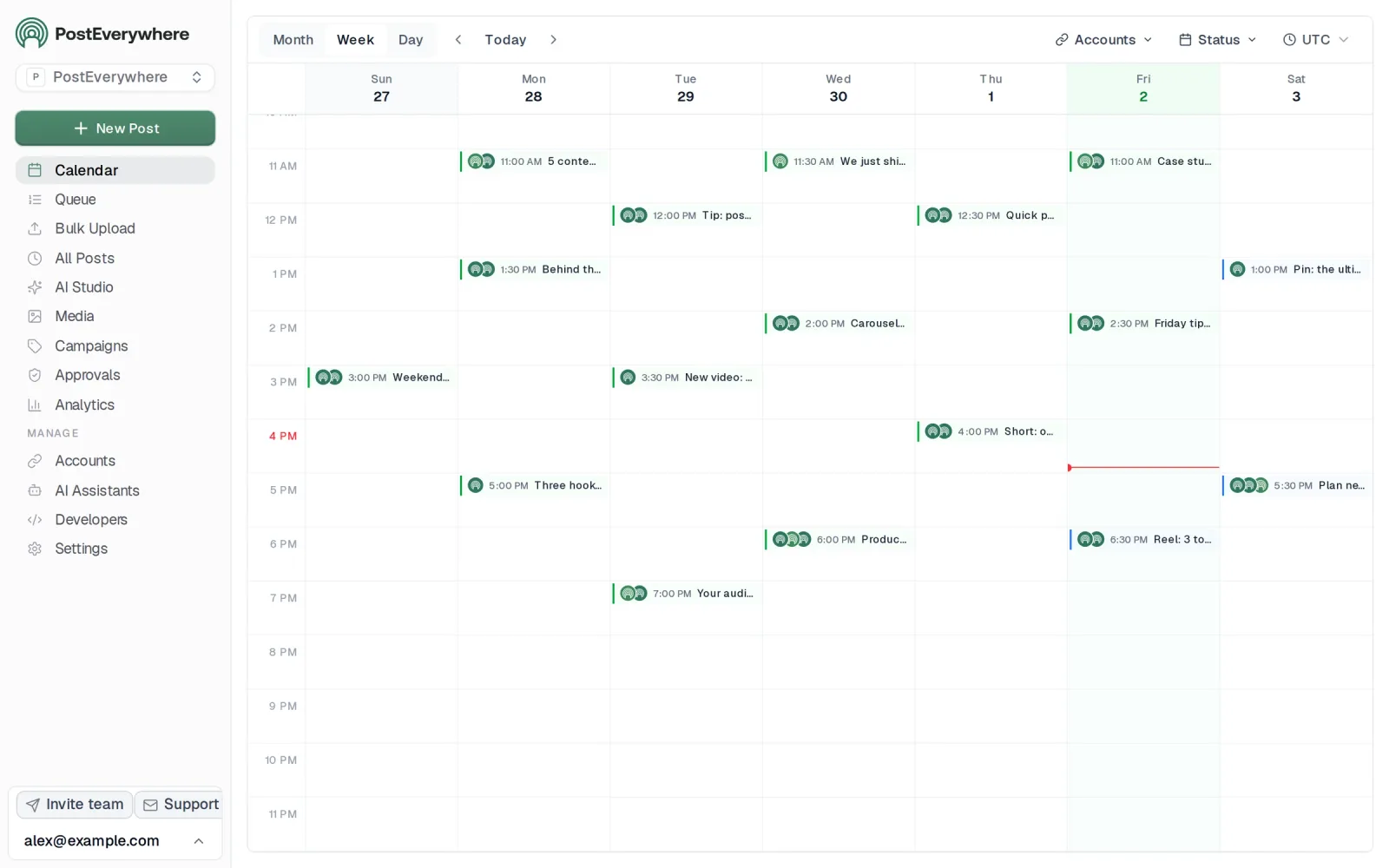
- Schedule it everywhere. Tweak the caption for each platform, check every preview, and it goes out on time from one calendar.
Built for AI agents
- Agents do the whole job. A full hosted MCP server with up to 45 tools: publish, schedule, use your queue or the best time, bulk-schedule 50 posts at once, check results, retry failures and send links to connect new accounts. Some rival MCP servers only read data or create drafts.
- $29 a month for 10 accounts, flat. Full API and agent access included, with no per-channel, per-seat or per-call fees. The same 10 accounts cost $60 a month on Buffer and $99 per user (billed annually) on Hootsuite.
- Nothing gated. API, MCP and webhooks come with every plan, from Lite. Several rivals keep their API for higher tiers or a sales call.
- Connected in a minute. One click adds PostEverywhere to Claude, with one-click installs for Cursor and VS Code. ChatGPT adds it under Plugins.
Plans: Lite $9 a month (2 accounts), Starter $19 (5), Growth $29 (10), Scale $39 (20). Every plan includes unlimited posts, the full API, the hosted MCP server and AI Studio.
“This tool has truly made my content posting so much easier, I can't work without it. I can schedule my posts days in advance while working on other projects. Set it and forget it.”
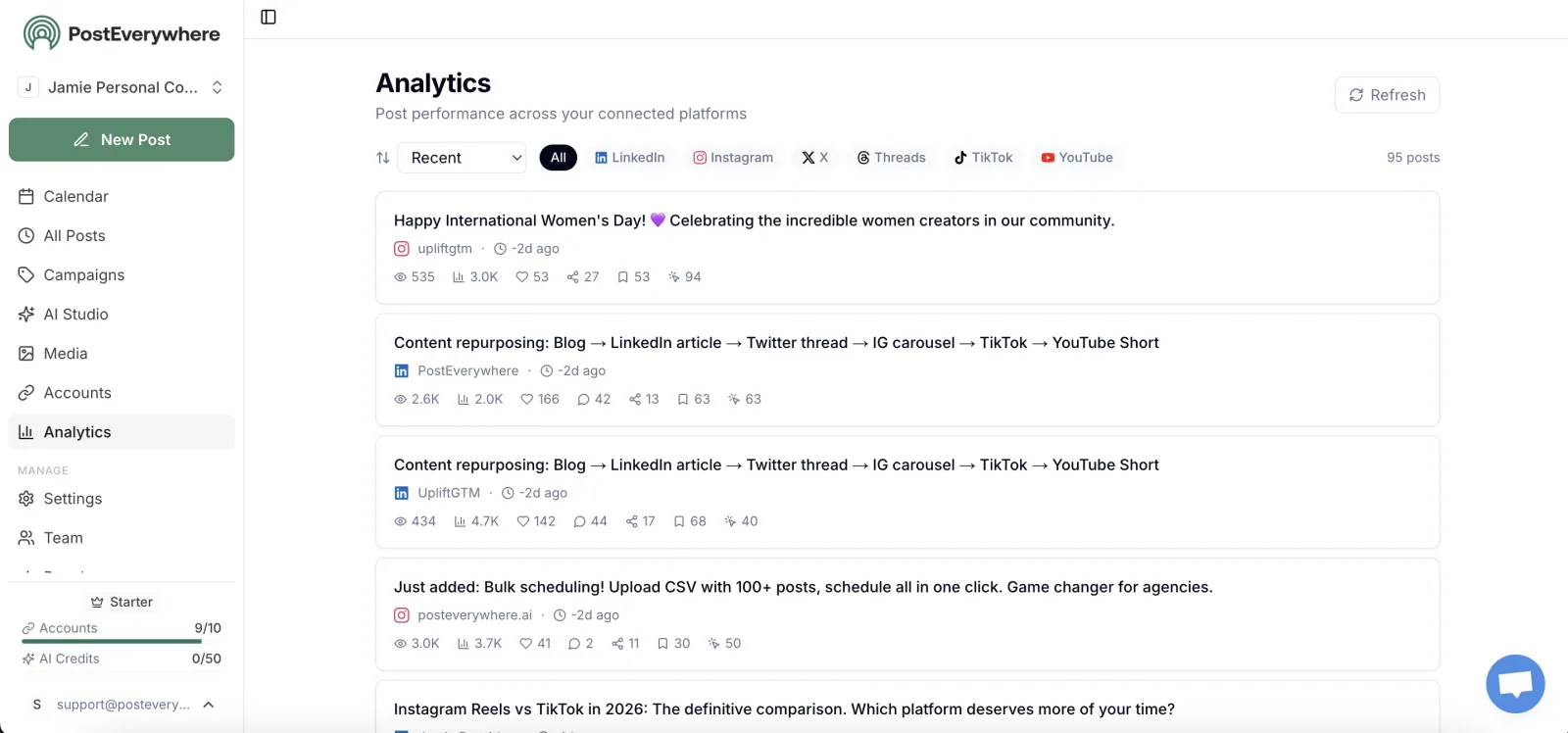
Also in PostEverywhere: a posting queue, bulk upload from CSV, approvals, analytics, an API and the iPhone app.
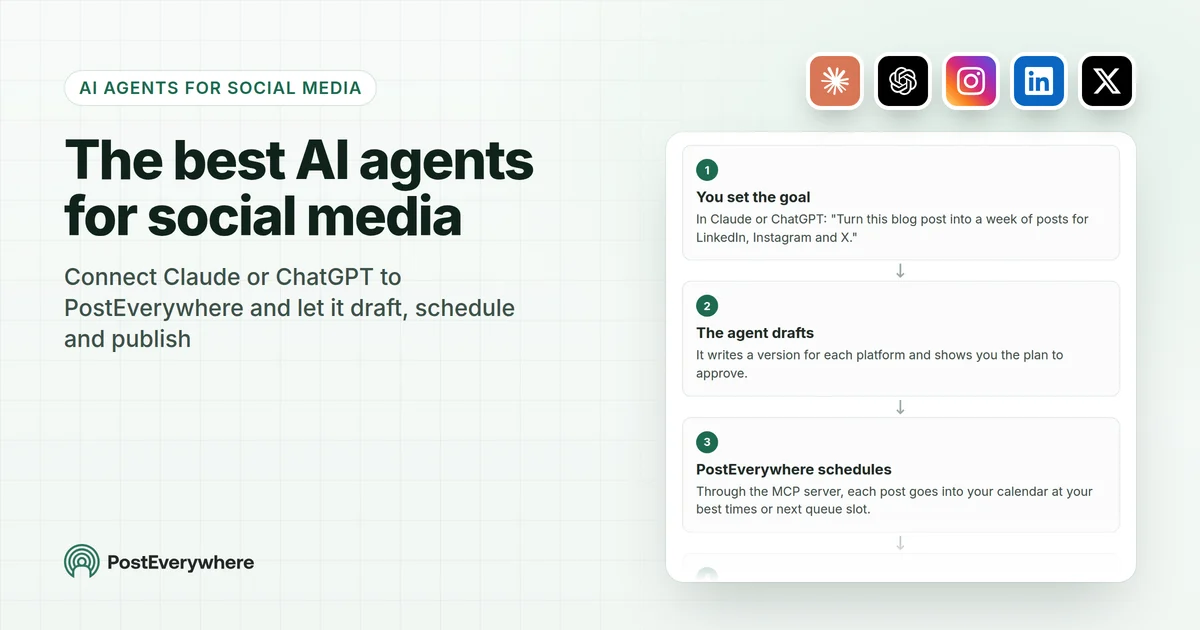
PostEverywhere's social media scheduler is built for AI agents. Add it to Gemini as a custom app and Gemini can plan, write, schedule and publish posts to every account you've connected, without you opening another app.
Best for: anyone who wants Gemini to do the posting, not just the writing.
Gemini is good at the writing. It's less good at the last step, because none of Google's connected apps post to Instagram, TikTok or LinkedIn. PostEverywhere fills that gap through our MCP server.
Once it's connected, Gemini can list your accounts, write a version of each post that fits each platform's limits, attach images or video, and schedule or publish to all top platforms at once.
It can also check what's already queued, read your analytics, suggest the best time to post and retry a post that failed.
There's a safety net built into Gemini, too. Google says Gemini currently asks you to confirm any action that writes data, so scheduling or publishing a post waits for your tap.
Treat that as a second check, not the only one: drafts first is still the better habit.
What to ask Gemini:
- "@PostEverywhere plan next week's posts for LinkedIn, Instagram and Threads from the ideas in my Content plan sheet, and save them as drafts."
- "Turn this blog post into a LinkedIn post, an Instagram caption and a thread for X, and schedule them for Tuesday at 9am my time."
- "Which of last month's posts did best, and on which platform? Suggest three to repeat in a new format."
Good to know: Gemini can write captions and make images on its own, and PostEverywhere handles the publishing, the calendar and the record of what went out. For on-brand visuals, add Canva or Adobe below, or use AI Studio in the PostEverywhere app.
Plans start at $9 a month, every plan includes the MCP server, and there's a 7-day free trial (card required).
Want Gemini to post for you, not just write? Connect your accounts to PostEverywhere, add it to Gemini as a custom app and let it draft next week in one go. Start your 7-day free trial.
2. Canva: on-brand designs from a prompt
Canva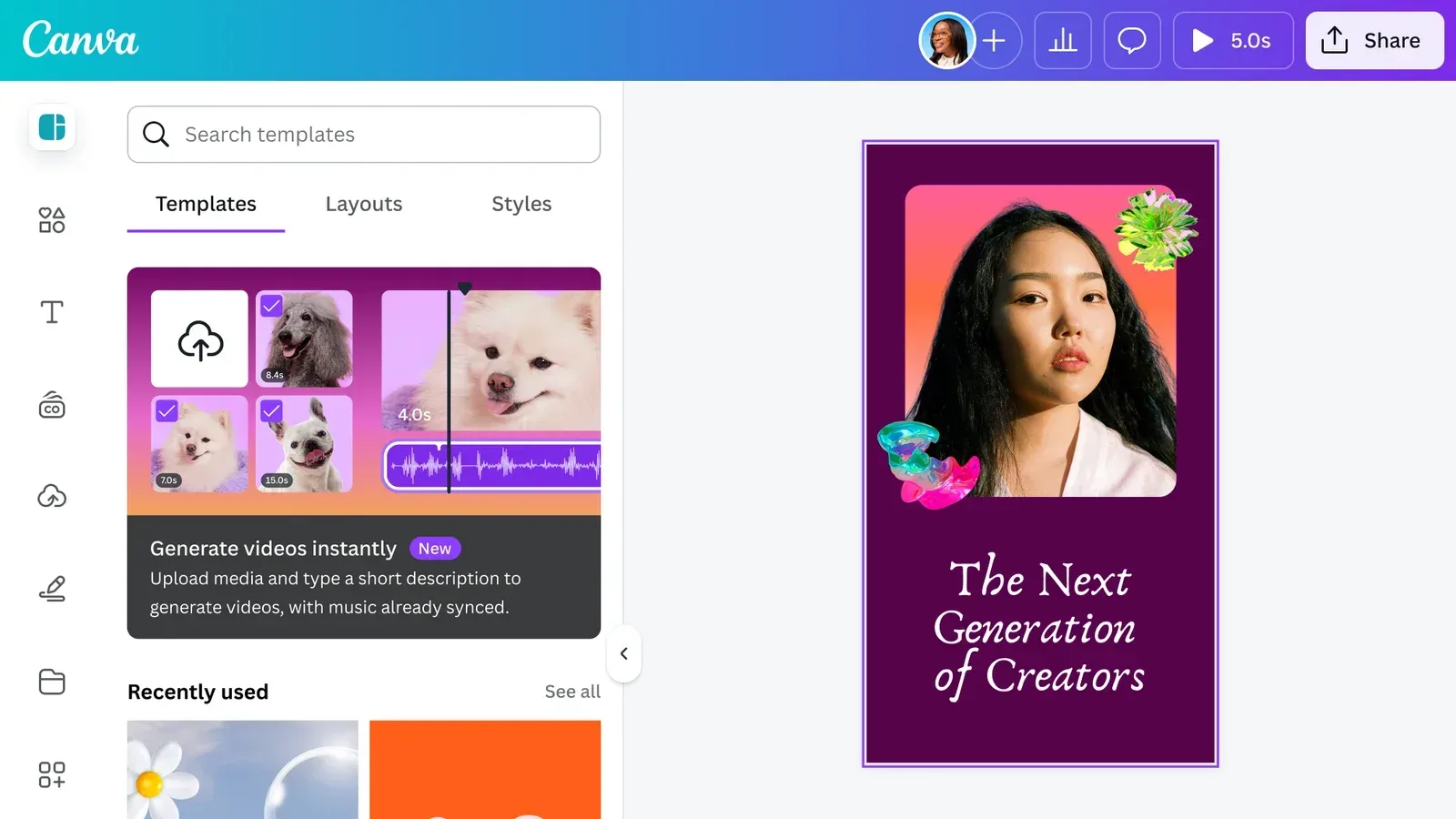
Best for: anyone whose posts need a branded graphic, not just a caption.
Google lists the Canva app as a way to "create designs, manage assets, and collaborate in Canva." For social media, that means Gemini can start a post graphic from your Canva templates and brand assets instead of inventing a look each time.
It's one of the most widely available picks here: personal accounts, 13 and over, in every country where both Gemini and Canva work, in English, French, Hindi, Indonesian and Portuguese.
What to ask Gemini: "@Canva make an Instagram post and a LinkedIn banner for our spring sale using our brand kit. Keep the headline under six words."
Then download the design and add it to the draft in PostEverywhere before it's scheduled. One design can go to every network at once with cross-posting.
3. Adobe: photo edits and quick graphics
Adobe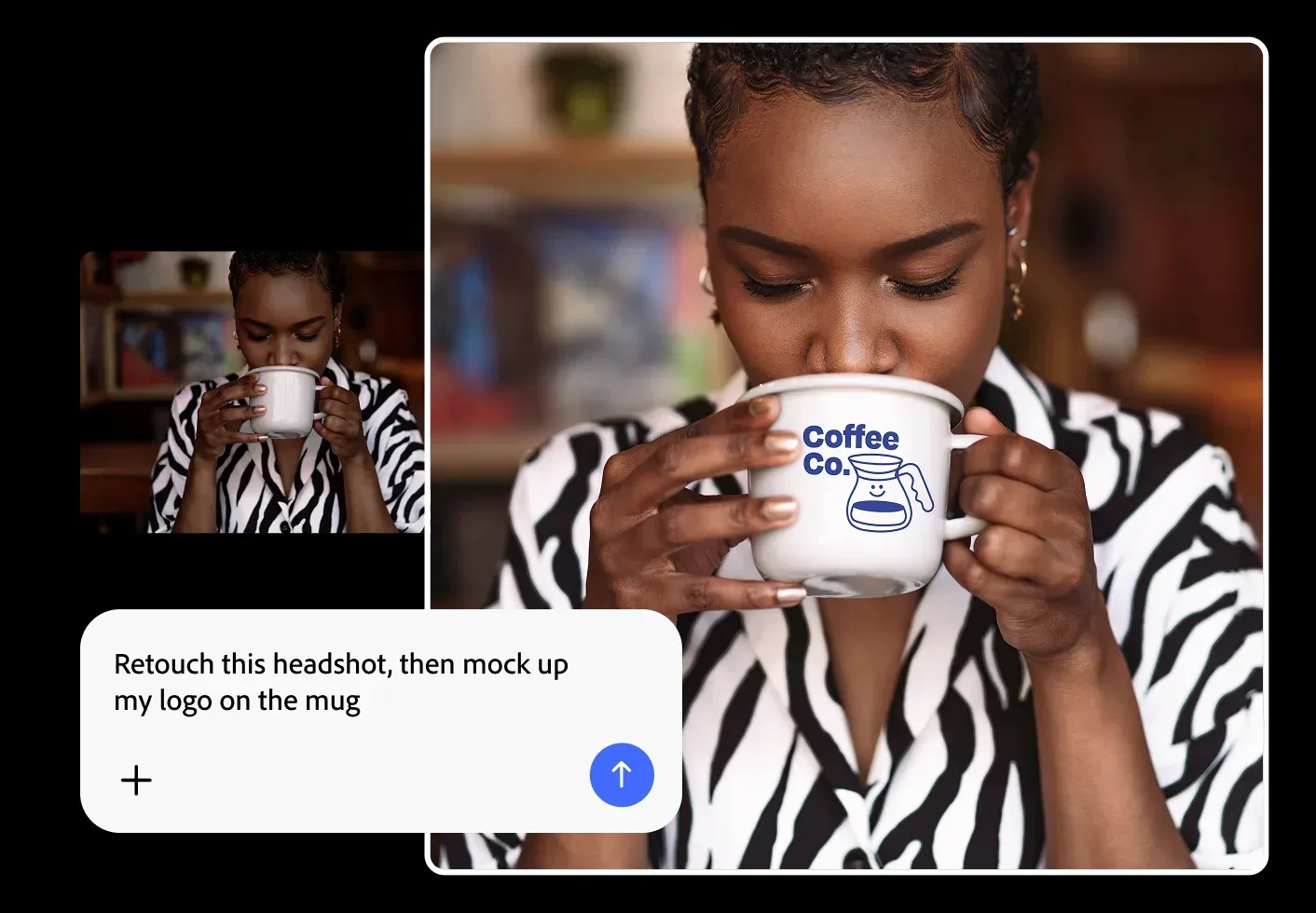
Best for: photographers, product brands and anyone already paying for Creative Cloud.
Google's description covers the whole suite: work with Creative Cloud, Adobe Express, Firefly, Lightroom and Photoshop from Gemini. The useful social jobs are the dull ones: fix the light on a product shot, cut out a background, resize one image into a square, a portrait and a story. It's English-only and for personal accounts 18 and over.
What to ask Gemini: "@Adobe brighten these three product photos, crop them to 4:5 for Instagram and 1.91:1 for LinkedIn, and keep the colors true."
If you're not sure which sizes each network wants, our social media image sizes guide has them in one table.
4. Google Photos: find the shot you already took
Google Photos
Best for: small businesses and creators whose best content is already on their phone.
The hardest part of a post is often finding the picture. Google Photos lets Gemini search your photos, videos and memories, so "the team photo from the March offsite" or "videos of the new coffee machine" becomes a request instead of ten minutes of scrolling.
It's for personal accounts, 18 and over, in the countries where Google Photos can be connected.
What to ask Gemini: "@Google Photos find the best three photos from last Saturday's market stall, then @PostEverywhere draft the caption for a carousel of them."
Gemini finds the photos, but uploading them is up to you: add them to the draft in PostEverywhere, or drop them in your media library first so they're ready for every post.
5. Google Workspace: briefs, plans and launch dates
Google Workspace
Best for: everyone. This is the one connector most Gemini users already have.
Google bundles Gmail, Calendar, Drive, Docs, Sheets, Slides, Keep and Tasks into one connected app that can "find, manage, and summarize your content." For social media, Docs holds the brief, Sheets holds the content plan, Calendar holds the launch dates, and Gmail holds the customer email that would make a great testimonial post.
It's also the only pick here that works on work and school accounts.
What to ask Gemini: "Read the launch brief in my Docs and the dates in my Calendar, then @PostEverywhere draft a two-week run of posts leading up to launch day."
If you keep your plan in a sheet, our free social media content calendar templates give Gemini a clean layout to read from.
6. Picsart: backgrounds, upscaling and resizing
Picsart
Best for: sellers and creators who need clean product cut-outs fast.
Picsart covers the fixes that eat an afternoon: background removal, upscaling a small image, editing video and audio, and turning a logo into an SVG. If Adobe feels like too much, this is the lighter option.
One catch: Google lists it for the Gemini web app and Windows only, not the phone apps.
What to ask Gemini: "@Picsart remove the background from these four product shots and put each one on plain white at 1080 by 1350."
Need a quick resize without connecting anything? Our free image resizer crops one picture to every platform's size.
7. Google Business Profile: for local businesses
Google Business Profile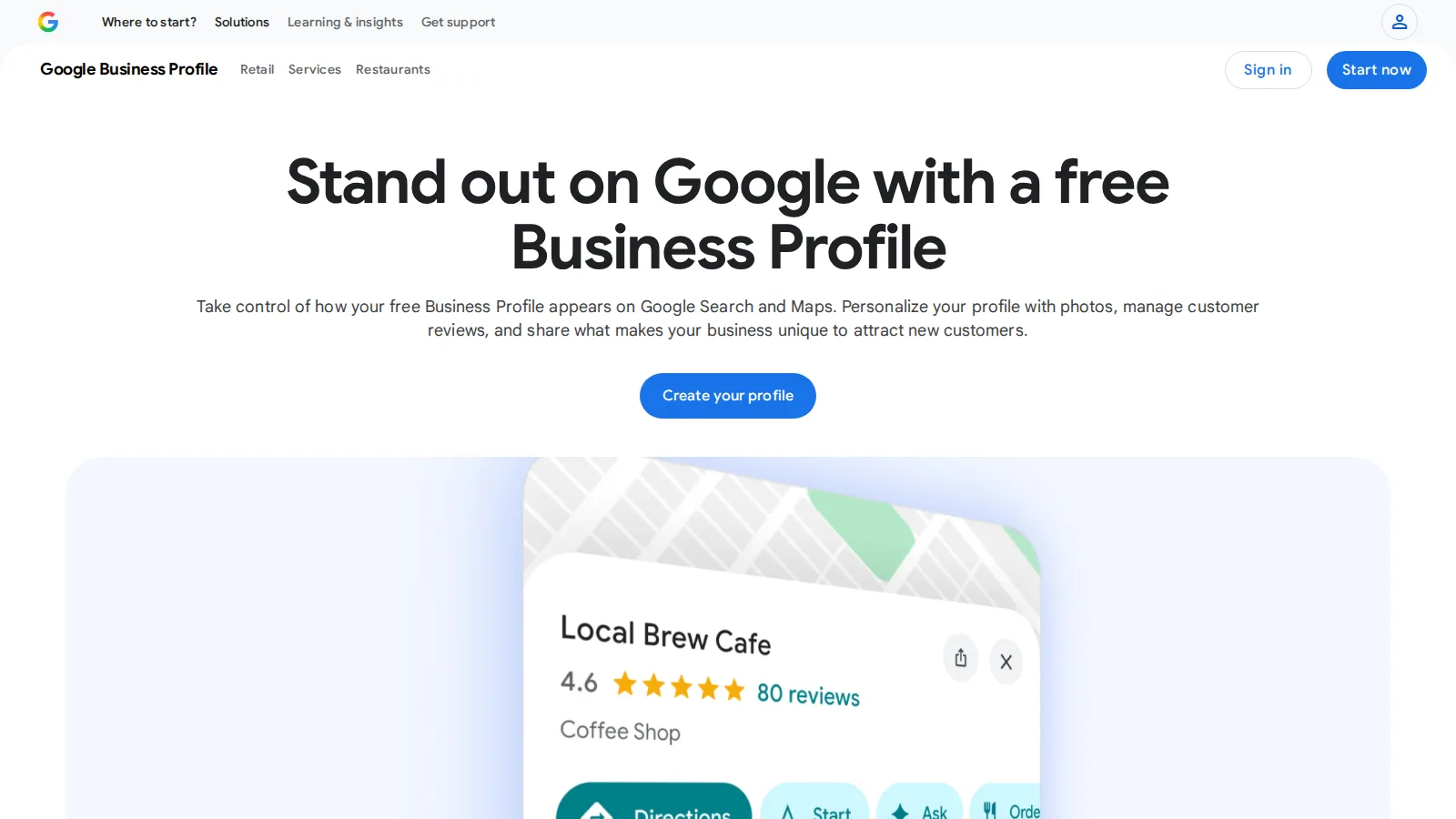
Best for: shops, cafés, clinics and anyone whose customers find them on Google Maps.
Google's own app lets Gemini manage your Business Profile and build a "Business Notebook" of insights about your business. That makes it a sensible first stop before a local post: check what's on your profile and what's changed, then write about it.
It works in chats only, on the web app and Windows.
What to ask Gemini: "Summarize my Business Profile and what's changed this month. Then @PostEverywhere draft a profile update and an Instagram post about our new opening hours."
PostEverywhere also posts to Google Business Profile, alongside your other accounts. Our guide to Google Business Profile posts with AI has prompts for updates, offers and events, including for businesses with several locations.
8. Shopify: products into posts
Shopify
Best for: online stores that post about products every week.
Shopify's app lets Gemini manage your storefront, orders, inventory and listings. The social use is simple: Gemini can see what's new, what's selling and what's nearly gone, which is most of what a product post needs. Google lists it for the US only, in English.
What to ask Gemini: "@Shopify list the five products added this month with their prices and main photo. @PostEverywhere draft an Instagram caption and a Pinterest pin description for each, and save them as drafts."
Our Instagram scheduler and Pinterest scheduler pages cover the formats each network takes, from carousels to pins.
9. Airtable: the content calendar Gemini reads from
Airtable
Best for: teams that plan content in a base rather than a sheet.
Plenty of social teams run their calendar in Airtable: one record per post, with columns for status, platform, owner and publish date. Gemini can search and query your bases and manage records, so it can read what's marked Ready, draft those posts, and update the status once they're scheduled. US only, in English, for personal accounts.
What to ask Gemini: "@Airtable find every post in my Content calendar base marked Ready for next week. @PostEverywhere draft each one for the platforms listed, then set their status to Drafted."
If a manager or client signs off each post, have them review Gemini's drafts in PostEverywhere first. Our approval workflow covers how sign-off works.
10. Otter.ai: quotes from your calls
Otter.ai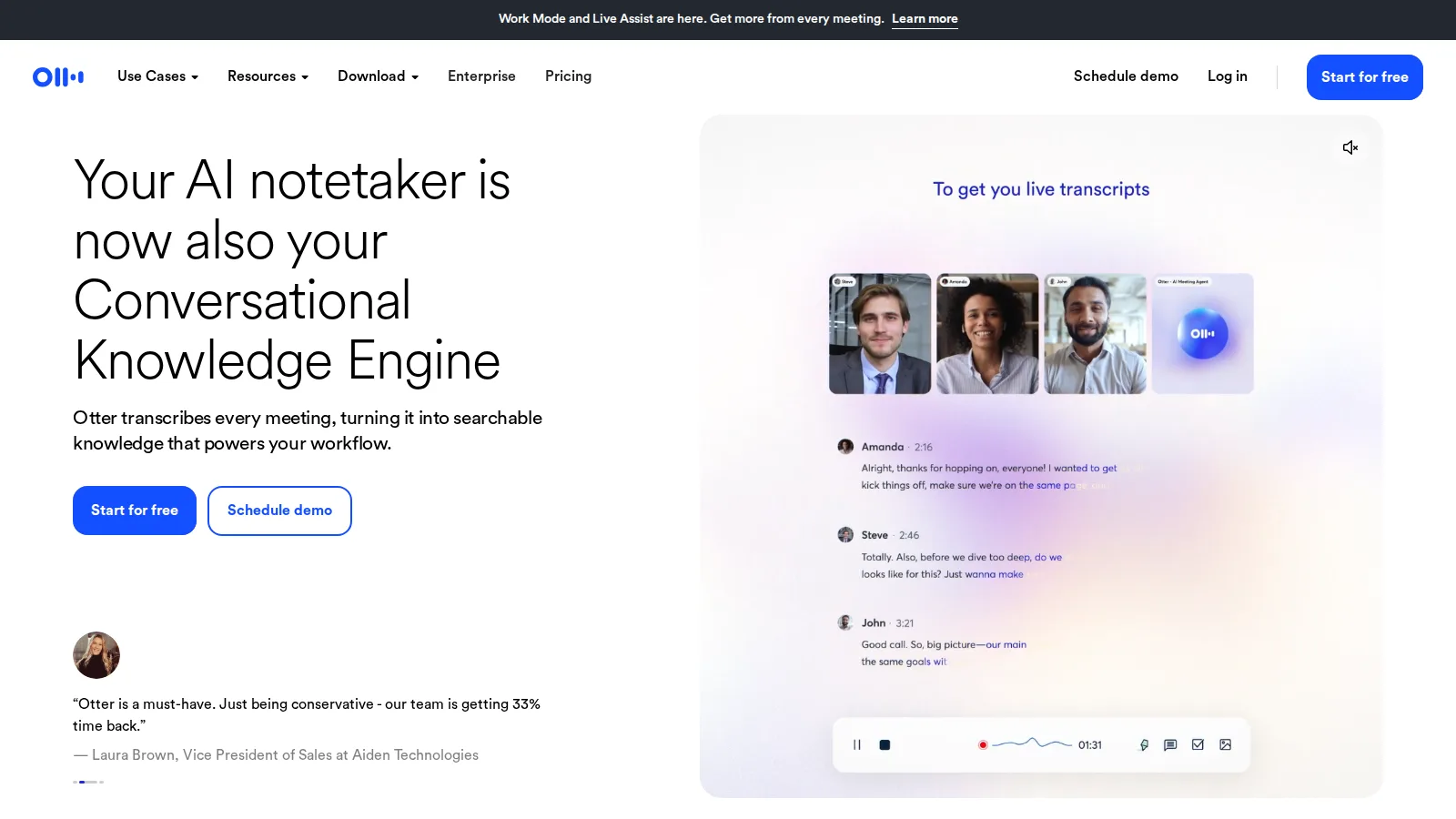
Best for: founders, coaches and B2B teams whose best ideas come out in conversation.
Your sales calls, podcast recordings and webinars are full of sentences customers would actually stop scrolling for. Otter's app lets Gemini search your meeting transcripts for quotes, summaries and themes across calls.
Ask for the three best lines from this week, and you have three LinkedIn posts that sound like a person, because they were said by one. US only, in English.
What to ask Gemini: "@Otter find the three most quotable things I said on calls this week about pricing. @PostEverywhere turn each into a LinkedIn post in my voice and save them as drafts."
For more on turning long recordings into posts, see our guide to repurposing content for social media.
Know what Gemini will and won't do on its own
Gemini is careful by default, and that suits social media. Three things worth knowing before you hand it your accounts:
| What happens | What it means for your posts |
|---|---|
| Gemini asks you to confirm write actions | Scheduling or publishing waits for your tap, for now |
| You can call an app with @ | Name the app in a prompt and Gemini uses that one (Google's guide) |
| You can switch an app off any time | Settings, Connected Apps, then turn it off or remove it |
The confirmation step is Google's, and it may change. Don't build your process around it. Tell Gemini to save everything as a draft, review the drafts in PostEverywhere, and only then ask it to schedule.
You can also remove Gemini's access from the PostEverywhere side at any time.
Let Gemini draft, and keep the final say. Every post it saves lands in your PostEverywhere calendar as a draft you can edit, schedule or delete. See how scheduling works.
Keep Gemini posting every week
Gemini can now run things on a timer. Its scheduled actions let you set up a daily, weekly or monthly prompt that runs in the background and tells you when the result is ready.
You can have up to 10 active at once, and Google says any app a schedule uses must already be connected.
Google's own advice is that schedules "work best for daily summaries and wrap-ups," and that fits social media well: a Monday plan, a Friday report. Because Gemini asks before any write action, expect to confirm the drafts when the schedule's result is ready.
Doing it in one sitting on Monday morning works well.
| When | Ask Gemini to | Apps it uses |
|---|---|---|
| Monday 8am | Read what's Ready in the content plan and draft the week's posts for each platform | Google Workspace or Airtable, PostEverywhere |
| Monday | Pull photos and make the graphics for each draft | Google Photos, Canva |
| Tuesday | You approve; Gemini schedules the approved posts | PostEverywhere |
| Friday 4pm | Report on the week and suggest what to repeat | PostEverywhere |
The schedule for your posts lives in PostEverywhere, not in Gemini. Once a post is scheduled, it goes out on time whether or not Gemini is busy, and you can change it in your calendar like any other post.
Google also notes that schedules can switch themselves off if you don't use them, so glance at the list now and then.
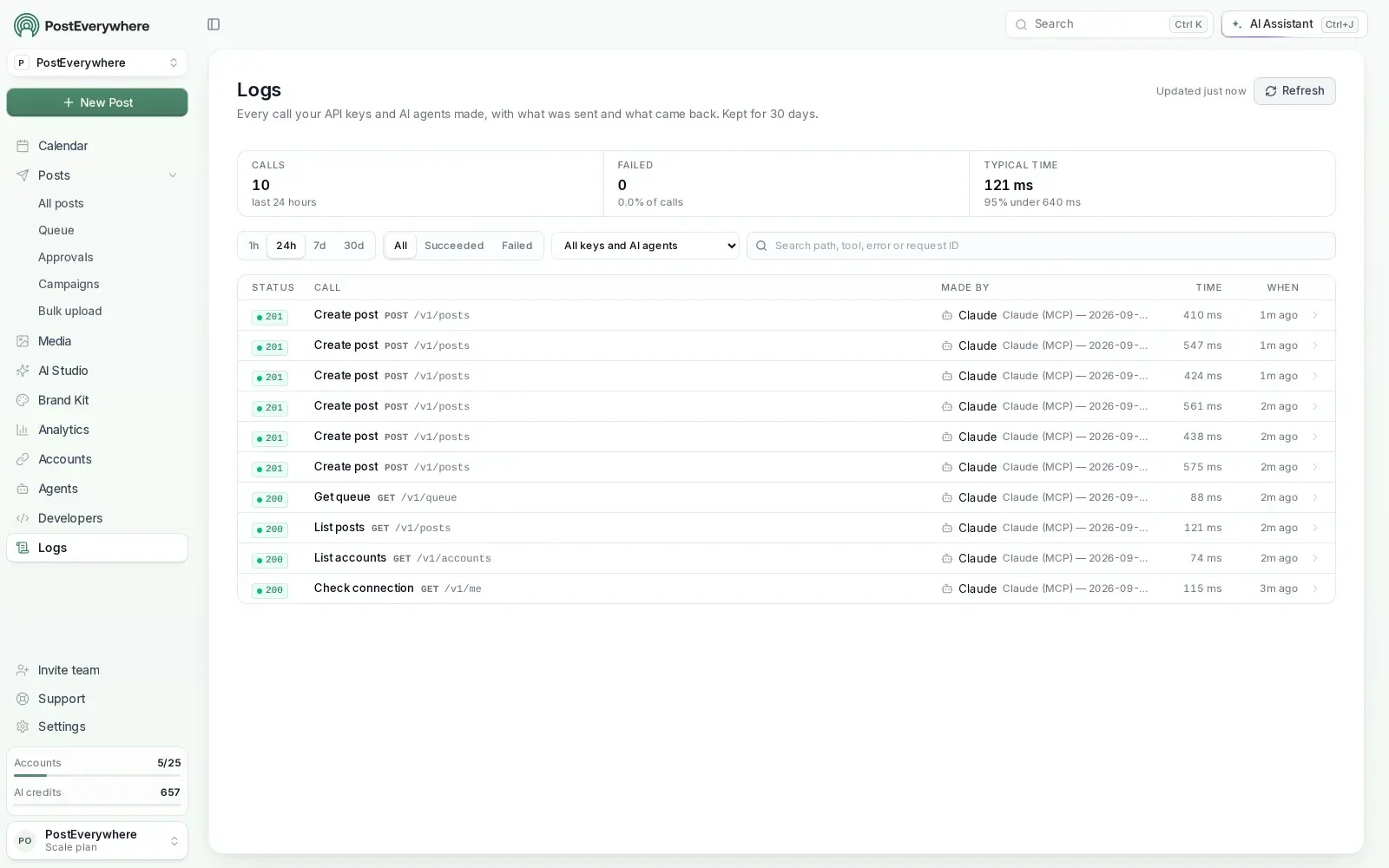
If the drafts don't sound like you yet, our guide to teaching AI your brand voice shows how to write the rules Gemini should follow, and our weekly social media routine with AI has the prompts for each day.
What Gemini can't do yet
A few limits to know before you plan around it:
- Custom apps are US-only for now. You also need to be 18 or over, use a personal Google account and write in English. Elsewhere, use Gemini CLI instead.
- No custom apps on work or school accounts. Google says that's "for now." Teams on Google Workspace can use Gemini CLI, or have one person connect from a personal account.
- You add custom apps on the web only. Once connected, they work on your phone, but the setup has to happen at gemini.google.com.
- Several picks are US-only. Shopify, Airtable and Otter.ai are listed for the US in English. Canva, Adobe, Google Photos and Google Workspace reach further.
- It can make mistakes. Google says so in the same breath as the confirmation step. That's the case for drafts first.
Gemini vs other AI agents for social media
| Gemini | OpenAI Dots | Meta Muse | Grok Bot | |
|---|---|---|---|---|
| What it is | Google's assistant, with connected apps and scheduled actions | Always-on agents inside ChatGPT | Meta's personal agent with its own cloud computer | xAI's agent app with Bots, skills and routines |
| Where you talk to it | Gemini web and mobile apps | ChatGPT, Slack, calls | The Muse app and muse.ai | The Grok Bot app |
| Built-in social connections | Google Business Profile, YouTube search | None for posting | Instagram analytics, Facebook Pages, Meta ads | X |
| How PostEverywhere connects | Custom app (MCP address) | Plugin in ChatGPT (guide) | Custom connector (guide) | Connector (guide) |
| Best for | People who live in Google's apps | Teams already working in ChatGPT and Slack | Small businesses on Instagram and Facebook | Handing off a weekly routine |
They all post through the same PostEverywhere account, so you can use whichever agent suits the job and see everything in one calendar. Our list of the best AI agents for social media compares them in more detail, and if you're choosing between the big chat apps, our ChatGPT vs Claude vs Perplexity tests show how each one writes.
Ready to let Gemini run your social media? Connect your accounts, add PostEverywhere to Gemini and let it plan next week. Start your 7-day free trial.
FAQ
What's the best Gemini connector for social media?
PostEverywhere, because it's the only app on this list that publishes to all top platforms. Added to Gemini as a custom app, it lets Gemini write, schedule and publish posts to Instagram, TikTok, LinkedIn, YouTube, X (Twitter) and more, read analytics and retry failed posts.
Add Canva or Adobe for visuals, Google Photos for pictures and Google Workspace or Airtable for planning.
How do I connect PostEverywhere to Gemini?
In the Gemini web app, open Settings, then Connected Apps, and under Custom apps add a custom app with the address https://mcp.posteverywhere.ai. Select Next, sign in to PostEverywhere and approve.
Then type @ in a chat, pick PostEverywhere and ask it to list your social accounts to check the connection.
Can Gemini post to Instagram, TikTok or LinkedIn?
Not with Google's own apps. None of Gemini's built-in connected apps publish to social networks. With PostEverywhere added as a custom app, Gemini can schedule or publish to Instagram, TikTok, LinkedIn, YouTube, Facebook, X, Threads, Pinterest and the other top platforms, or save posts as drafts for you to approve.
Who can add custom apps to Gemini?
Google's requirements are that you're 18 or over and in the US, signed in with a personal Google account, with Gemini History turned on. The feature is English-only and isn't available on work or school accounts yet.
If that rules you out, Gemini CLI can connect to the same PostEverywhere server from your terminal.
Are Gemini connectors the same as connected apps?
Yes. Google calls them connected apps. Some are built in, like Google Workspace, Canva and Adobe. Custom apps are the ones you add yourself by pasting an MCP server address, which is how PostEverywhere connects.
Will Gemini post without asking me?
Not at the moment. Google says Gemini currently asks you to confirm any write action, so scheduling or publishing waits for you. Don't rely on that alone: tell Gemini to save every post as a draft, check the drafts in your PostEverywhere calendar, and only then ask it to schedule.
How much does it cost to manage social media with Gemini?
Connected apps are part of the Gemini app, and Google doesn't list a paid plan as a requirement for custom apps. PostEverywhere starts at $9 a month, every plan includes the MCP server Gemini connects to, and there's a 7-day free trial (card required).

Founder & CEO of PostEverywhere. Writing about social media strategy, publishing workflows, and analytics that help brands grow faster.