


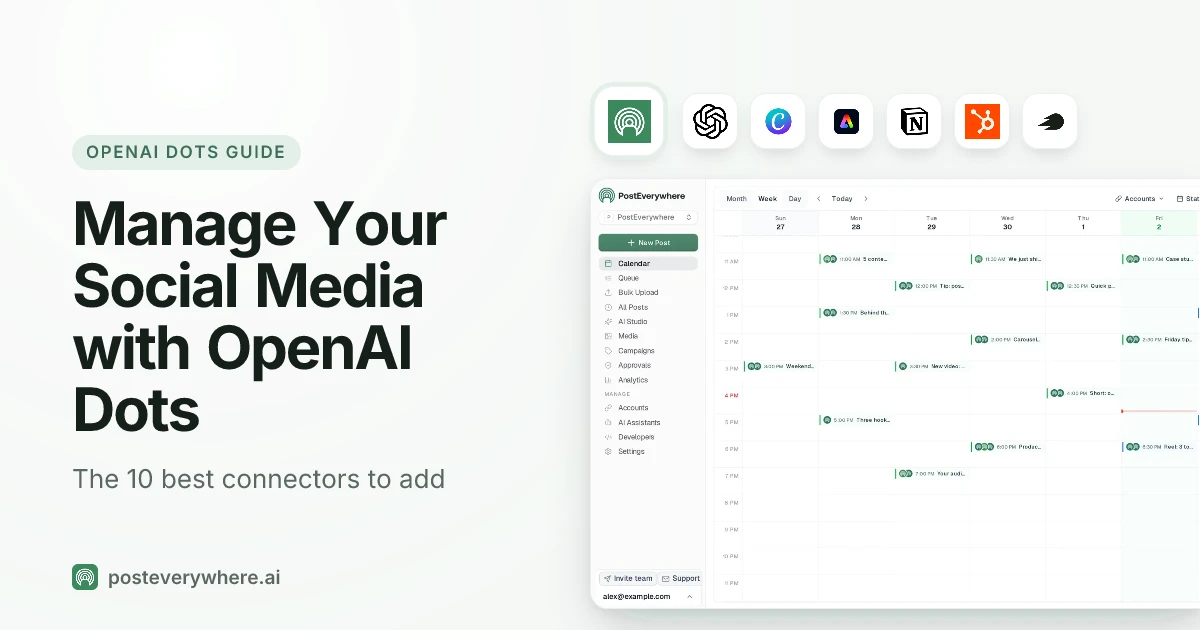
What's the best OpenAI Dots connector for social media? PostEverywhere. It's the only plugin on this list that publishes to all top platforms. With it installed, your dot can write a post for each platform, schedule it or publish it to Instagram, TikTok, LinkedIn, YouTube, X (Twitter) and the rest, and tell you how it did. The other nine handle the work around posting: design, planning, assets, approvals and research.
Can OpenAI Dots manage your social media? Yes, if you give it the right plugins and a few clear rules. A dot is an always-on agent that keeps working between conversations, so it suits the parts of social media that never stop: next week's posts, this week's approvals, last week's results. It can't post anywhere on its own.
It needs a publishing plugin, and it needs you to decide which actions it takes without asking.
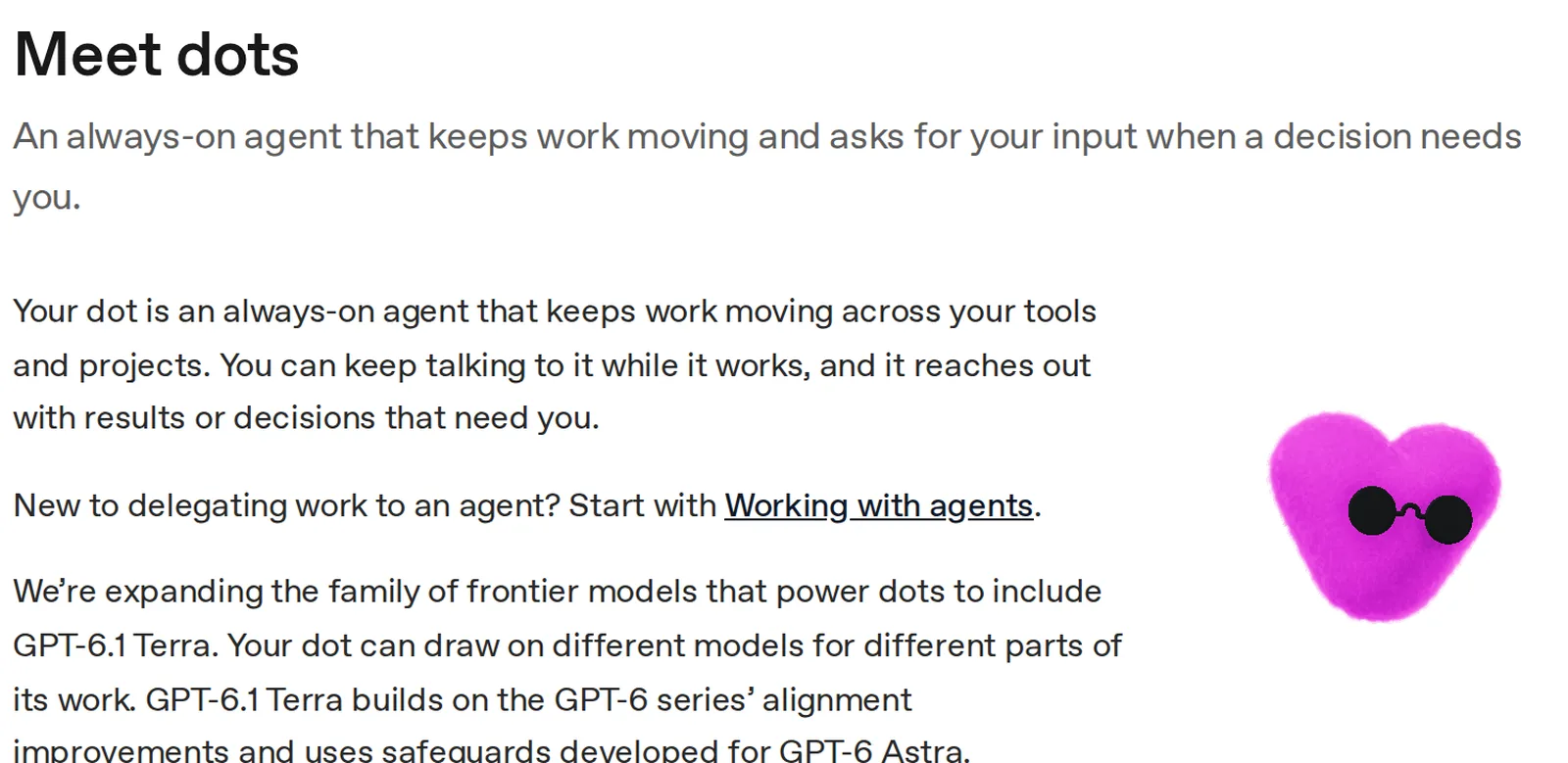
What is OpenAI Dots? Dots are agents that live inside ChatGPT. OpenAI announced them on 29 September 2026 as "always-on agents" with their own cloud computer and browser that "can work towards your goals 24/7".
You talk to your dot in ChatGPT, in Slack or on a call, and it messages you back with results or with decisions it needs from you. It reaches other apps through ChatGPT's plugins, which is what this guide is about.
Written by Jamie Partridge, Founder of PostEverywhere.
The 10 best OpenAI Dots connectors for social media at a glance
ChatGPT calls them plugins, most people searching call them connectors, and they're the same thing: an app your dot can use with your permission.
| # | Connector | What it does for your social media |
|---|---|---|
| 1 |  PostEverywhere |
Writes, schedules and publishes to all top platforms, keeps your calendar, reads analytics |
| 2 |  Canva |
Makes social posts from your templates and resizes them for each platform |
| 3 |  Adobe Express |
Quick social graphics and ad sets from templates |
| 4 |  Notion |
Holds your content calendar, ideas and campaign plans |
| 5 |  Slack |
Where your team sees drafts, and where your dot can reach you |
| 6 |  Google Drive |
Briefs, brand guidelines and source material for posts |
| 7 |  HubSpot |
Customer stories and campaign context from your CRM |
| 8 |  Shopify |
Turns products, launches and sales into posts |
| 9 |  Semrush |
Shows what your audience is searching for and what competitors rank for |
| 10 |  Asana |
Tracks creative requests, deadlines and who owns what |
Every one of them is in ChatGPT's Plugins directory, and connectors 2 to 10 each have a public page on OpenAI's plugins site describing what they do. That's where the descriptions in this guide come from.
How to set up OpenAI Dots to manage your social media
You need a dot, a PostEverywhere account with your social accounts connected, and about five minutes.
1. Check you can get a dot. OpenAI is rolling dots out gradually to ChatGPT Pro and Business Premium, and to Enterprise, Edu and Healthcare workspaces whose admin allows it.
One catch for some readers: the Pro plans are for adults outside the European Economic Area, the UK and Switzerland. Business Premium is available in ChatGPT's supported regions. You create your dot in the ChatGPT desktop app, the mobile app or a desktop browser; the mobile website isn't supported.
2. Connect your social accounts to PostEverywhere. Start a 7-day free trial and connect the accounts your dot should post to: Instagram, TikTok, YouTube, LinkedIn, Facebook, X (Twitter), Threads, Pinterest, Bluesky, Telegram, Discord, WordPress or Google Business Profile.
3. Install PostEverywhere from ChatGPT's Plugins. Open Plugins in ChatGPT, search for PostEverywhere ("Post to every social network") and select Connect. Sign in to PostEverywhere, choose the workspace and approve. There's no API key to copy.
If you've already connected PostEverywhere to ChatGPT, you can skip this step: OpenAI says your dot can use the supported plugins installed and enabled on your account, with the connections and permissions you already set up.
4. Tell your dot the rules. Before the first task, tell it how you work: which accounts to use, your time zone, your brand voice, and that every post starts as a draft.
Then add a custom rule (Settings, Personalization, Custom rules on desktop) so publishing always waits for you. More on that below.
5. Give it a first job. Try: "Using PostEverywhere, list my connected social accounts. Then draft three posts about our new feature for LinkedIn, Instagram and X, and save them as drafts.
Don't schedule anything yet." Check the drafts in your PostEverywhere calendar before you let it go further.
Our OpenAI Dots setup page and ChatGPT setup guide have more detail. On a Business or Enterprise workspace, your admin may need to allow the plugin first.
How we chose these connectors
We started from the marketing plugins in ChatGPT's directory and kept the ones that help with a real part of running social media. Each pick had to pass three tests:
- It's in ChatGPT's Plugins directory. No browser workarounds and no "connect it with code" options. If your dot can't install it from the directory, it isn't here.
- It earns its place in a social workflow. Planning, design, assets, approvals, publishing or research. Plenty of good plugins, such as accounting and payments, don't touch posting.
- No rival schedulers. We're a scheduler, so the only publishing plugin on the list is ours. We'd rather tell you that than pretend to be neutral.
Plugins act in your accounts with your permissions, so install only ones you trust and give each the least access it needs.
1. PostEverywhere: best Dots connector for posting to social media
Publishes to all top platforms
 Instagram
 Facebook
 X
 LinkedIn
 TikTok
 Threads
 Bluesky
 Telegram
 Discord
 YouTube
 Pinterest
 WordPress
 Google Business Profile
Why PostEverywhere wins
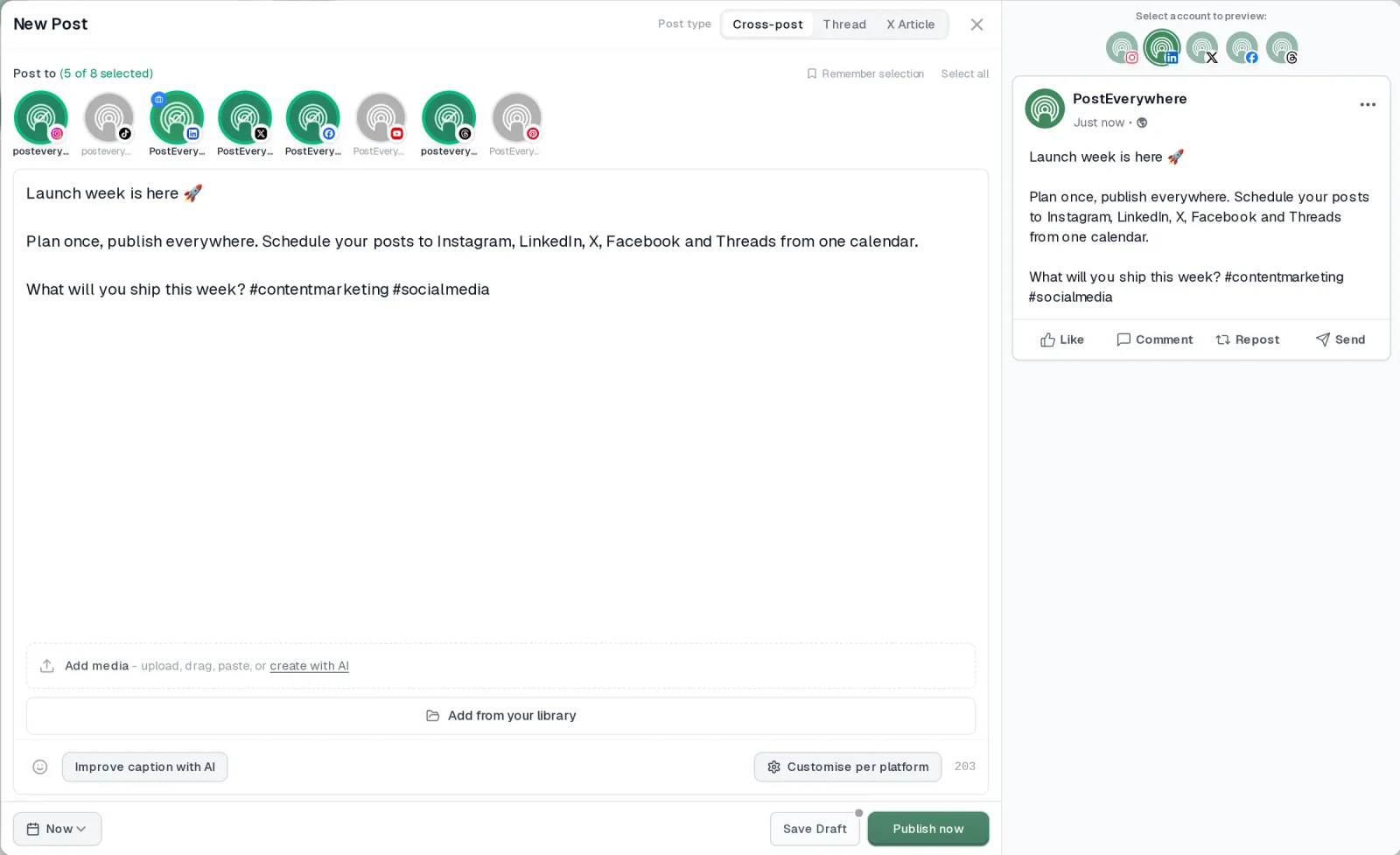
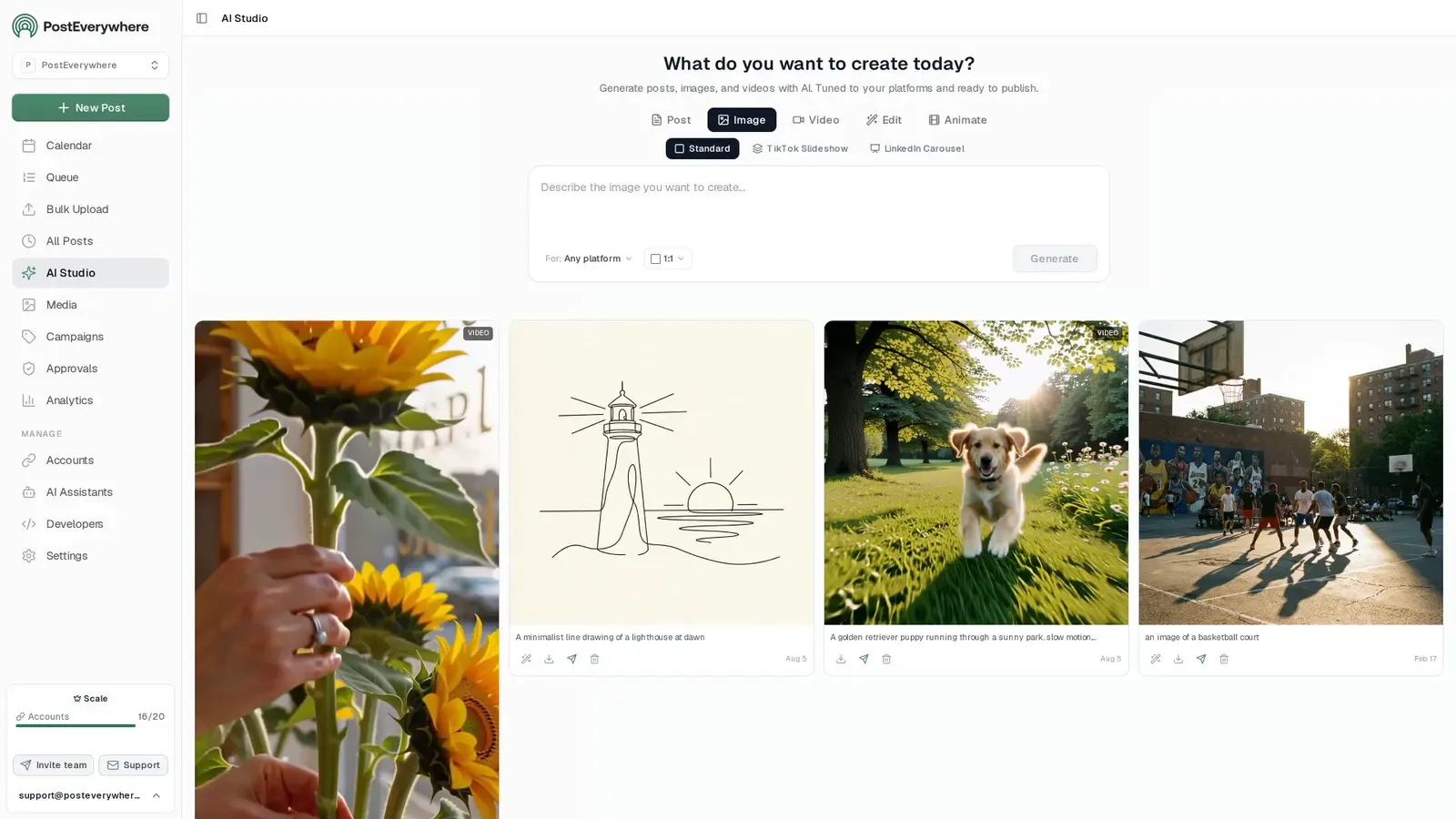
- It's simple. One composer for every platform: write the post once, tweak the caption per platform, check the live preview for each account and schedule it.
- One flat price, nothing locked away. From $9 a month. Every plan includes unlimited posts, the full API, the hosted MCP server and AI Studio, with no per-channel fees.
- Every top platform in one place. Instagram, TikTok, YouTube, LinkedIn, Facebook, X, Threads and Pinterest, plus Bluesky, Telegram, Discord, WordPress and Google Business Profile.
- Your AI agent can run it. Connect Claude, ChatGPT or Cursor in about a minute and ask it to plan, write and schedule your posts.
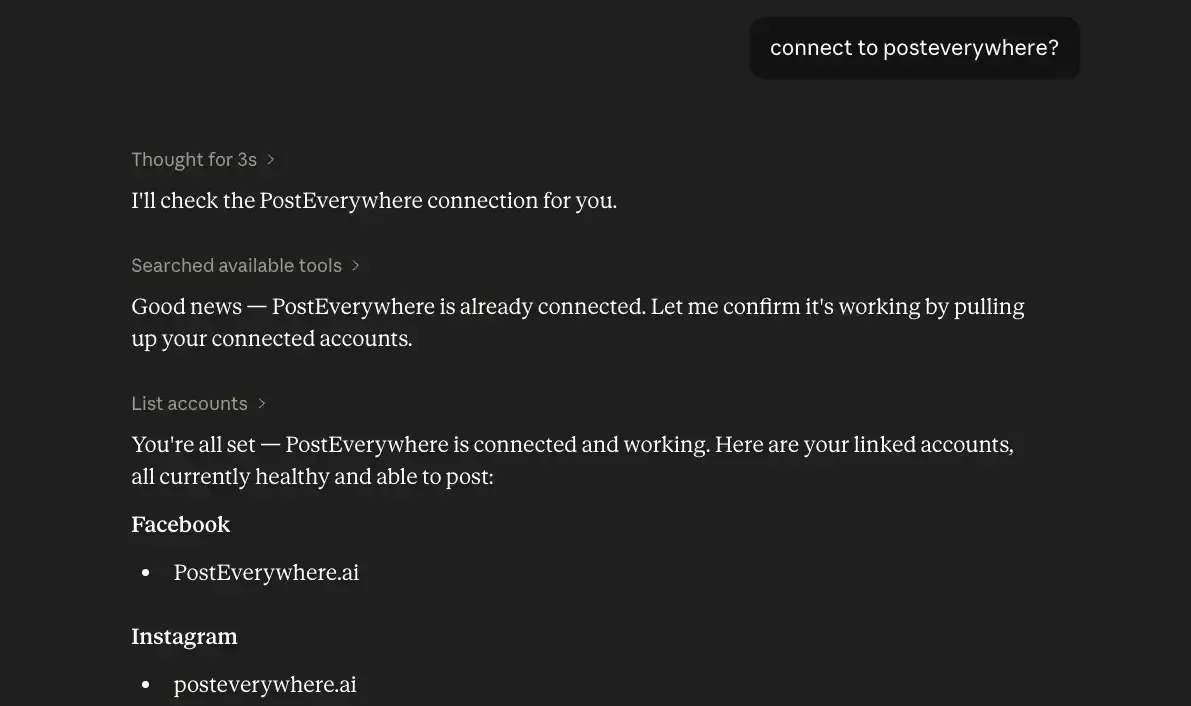
- Create in the same tool. AI Studio makes captions, images and video, so you don't need a second app before you post.
How PostEverywhere works
- Connect your accounts. Link your social accounts once, across all top platforms.
- Create the post. Write it in the composer, make images and video in AI Studio, or ask Claude or ChatGPT to draft and schedule it for you.
- Schedule it everywhere. Tweak the caption for each platform, check every preview, and it goes out on time from one calendar.
Built for AI agents
- Agents do the whole job. A full hosted MCP server with up to 45 tools: publish, schedule, use your queue or the best time, bulk-schedule 50 posts at once, check results, retry failures and send links to connect new accounts. Some rival MCP servers only read data or create drafts.
- $29 a month for 10 accounts, flat. Full API and agent access included, with no per-channel, per-seat or per-call fees. The same 10 accounts cost $60 a month on Buffer and $99 per user (billed annually) on Hootsuite.
- Nothing gated. API, MCP and webhooks come with every plan, from Lite. Several rivals keep their API for higher tiers or a sales call.
- Connected in a minute. One click adds PostEverywhere to Claude, with one-click installs for Cursor and VS Code. ChatGPT adds it under Plugins.
Plans: Lite $9 a month (2 accounts), Starter $19 (5), Growth $29 (10), Scale $39 (20). Every plan includes unlimited posts, the full API, the hosted MCP server and AI Studio.
“This tool has truly made my content posting so much easier, I can't work without it. I can schedule my posts days in advance while working on other projects. Set it and forget it.”
Also in PostEverywhere: a posting queue, bulk upload from CSV, approvals, analytics, an API and the iPhone app.
PostEverywhere's social media scheduler is built for AI agents. Install it in ChatGPT and your dot can plan, write, schedule and publish posts to every account you've connected, without you opening another app.
Best for: anyone who wants their dot to do the posting, not just the writing.
A dot is a good writer and a tireless planner, but on its own it can't put a post on Instagram, because ChatGPT has no built-in way to publish to social networks. PostEverywhere is that missing step.
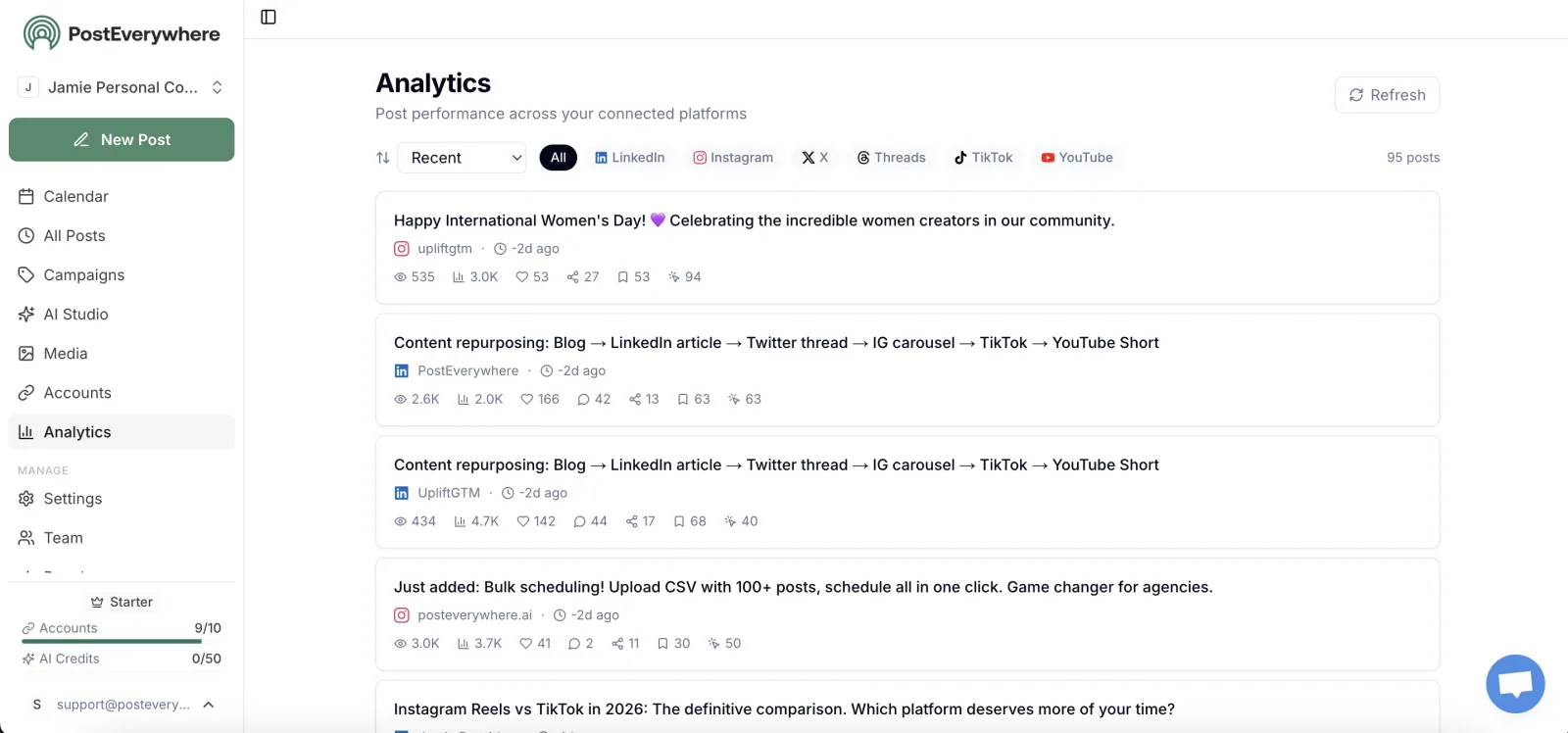
With it, your dot can list your accounts, write a version of each post to fit every platform's rules, attach images or video, and schedule or publish to all top platforms at once.
It can also check what's in the queue, read your analytics, suggest the best time to post and retry a post that failed.
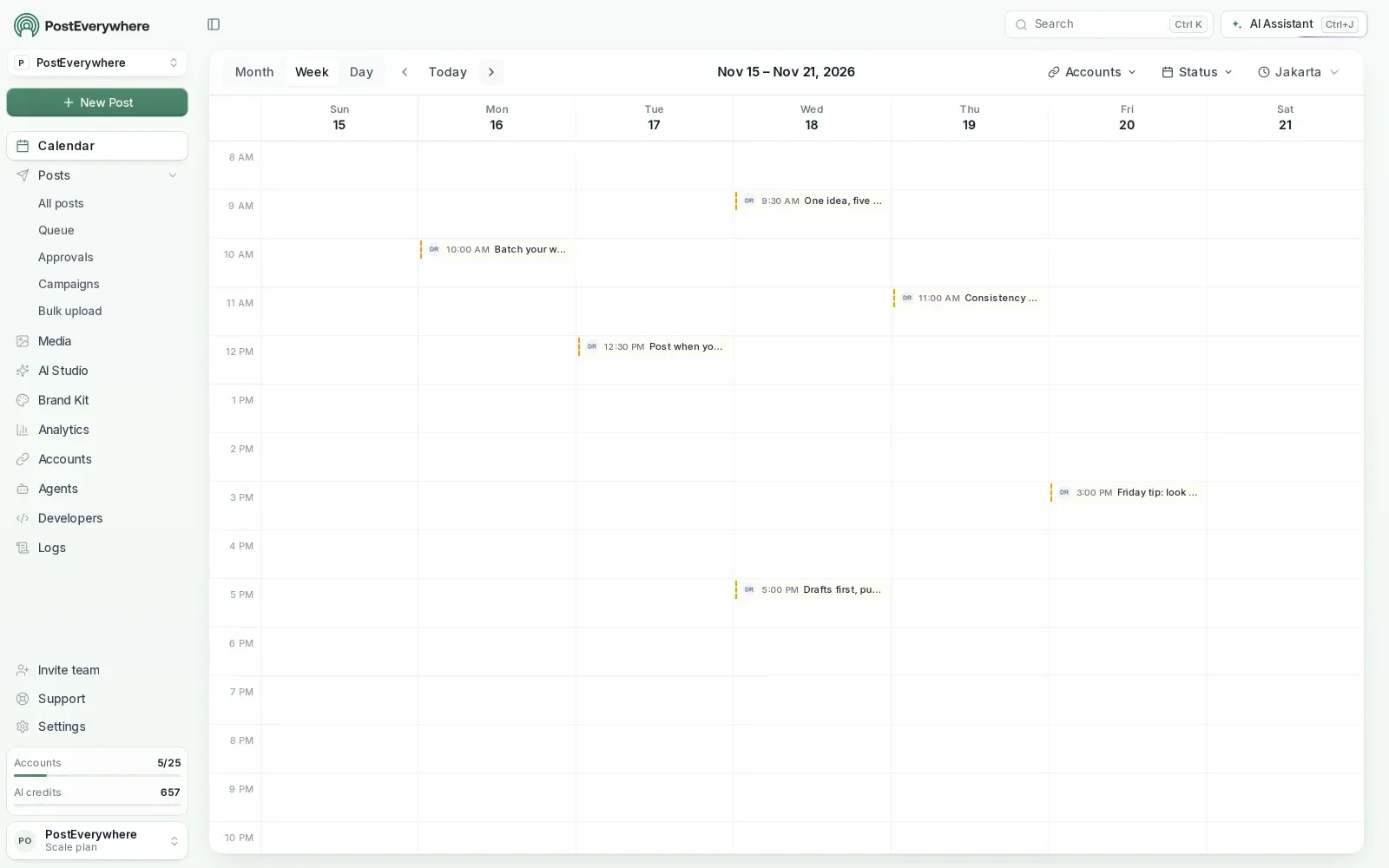
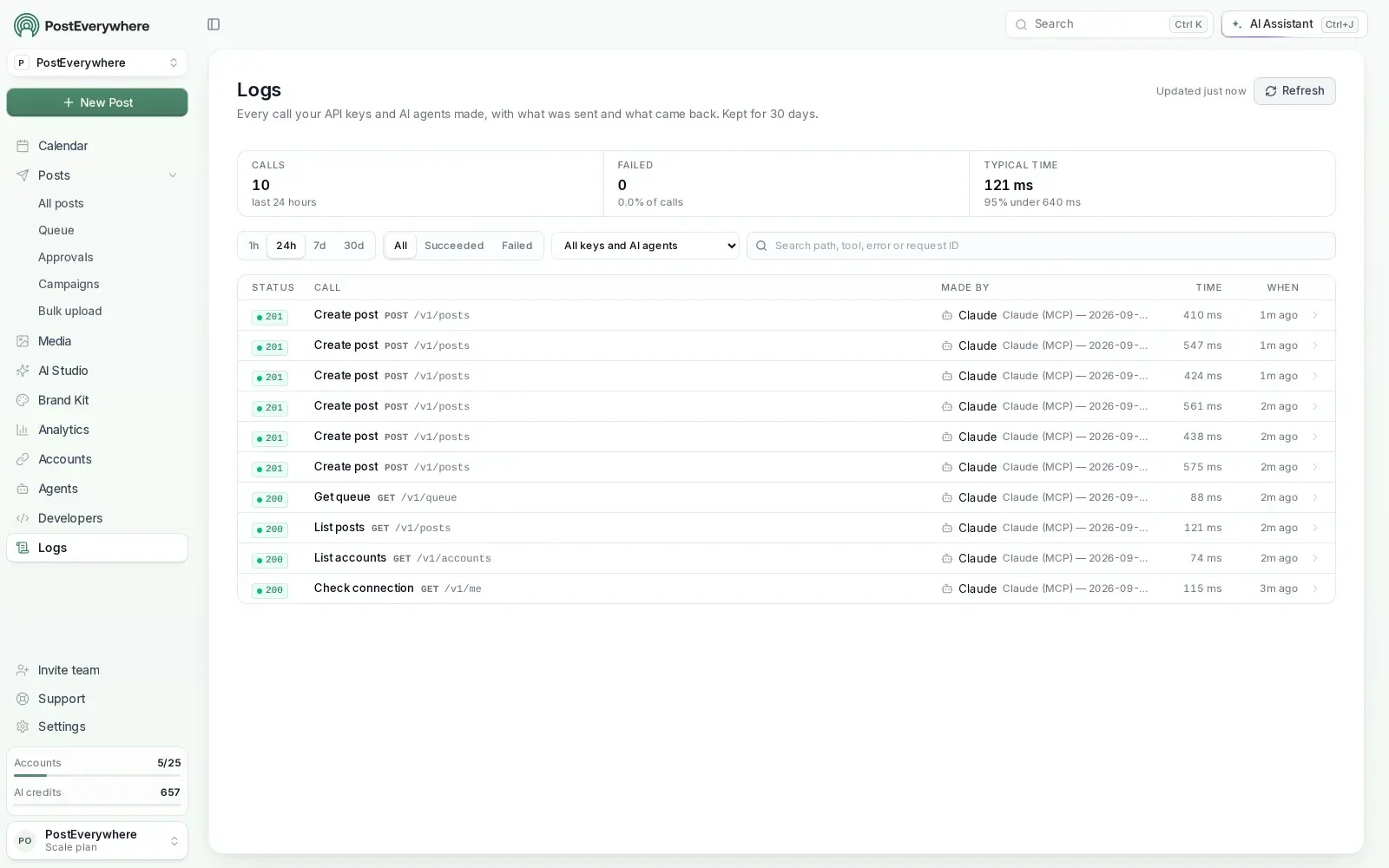
One thing we noticed in our own connection logs: dots don't show up as a separate app. That fits how OpenAI describes them. A dot uses the plugins on your ChatGPT account, so it reaches PostEverywhere through the connection you already approved, and there's nothing extra to set up.
What to ask your dot:
- "Every Monday, plan the week's posts for LinkedIn, Instagram and Threads from the ideas in Notion and save them as drafts in PostEverywhere. Tell me in Slack when they're ready."
- "Turn this blog post into a LinkedIn post, an Instagram caption and a thread for X, and schedule them for Tuesday at 9am my time."
- "Which of last month's posts did best, and on which platform? Suggest three to repeat in a new format."
Good to know: the ChatGPT plugin publishes and schedules, but it doesn't make images inside ChatGPT. Use Canva or Adobe Express for visuals, or PostEverywhere's own AI Studio in the app.
Plans start at $9 a month, every plan includes the plugin and our MCP server, and there's a 7-day free trial (card required).
Want your dot to post for you, not just write? Install PostEverywhere in ChatGPT, connect your accounts and let your dot draft next week in one go. Start your 7-day free trial.
2. Canva: social posts from your own templates
 Canva
Canva's plugin page says you can "ask Canva to create social posts, presentations, marketing materials, or other visual assets" from the conversation you're already having. For a dot, that means the graphic gets made in the same task as the post.
Canva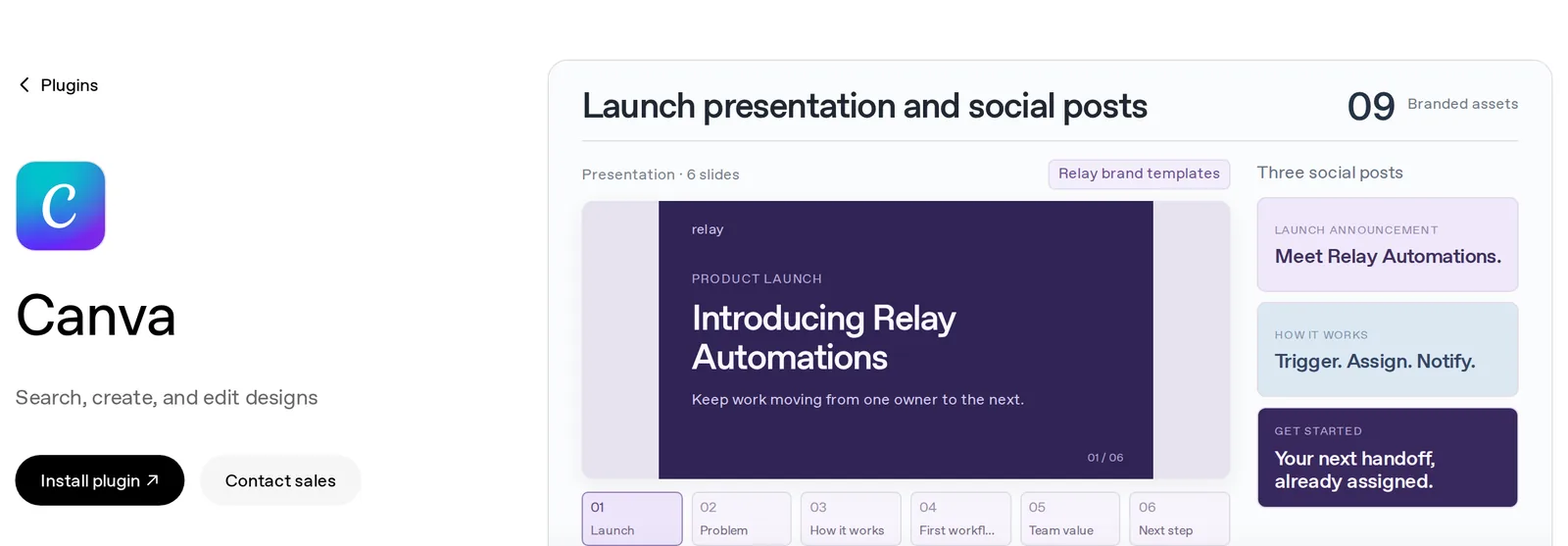
Good for: keeping visuals on brand, and resizing one design for every platform. OpenAI's own example asks Canva to "resize my existing design into versions for LinkedIn feed, Instagram story, and email header".
What to ask your dot:
- "Make this week's three quote graphics in Canva from our brand template, sized for Instagram and LinkedIn."
- "Turn the launch brief into a carousel and attach it to the Instagram draft in PostEverywhere."
3. Adobe Express: quick graphics when you don't have templates yet
 Adobe Express
If your team already works in Adobe, or you haven't set up a Canva brand kit, Adobe Express is a quick way in. Its plugin builds "business and marketing visuals in ChatGPT using professional templates", and OpenAI's example is a request for "a set of 3 social ads for a gym January promo using bold typography and a consistent style".
Adobe Express
Good for: one-off promos, event graphics and small teams without a designer. Pick Canva or Adobe Express, not both: two design tools just gives your dot two places to look.
What to ask your dot:
- "Make three square graphics for Saturday's open day in our brand colours and add them to the drafts."
4. Notion: the content calendar your dot reads from
 Notion
The Notion plugin lists "plan marketing campaigns and content calendars" among the things it can do. Keep your ideas, briefs and campaign dates there, and your dot has one place to check before it writes anything.
Notion
Good for: teams that already plan in Notion and don't want a second calendar. Your dot plans in Notion; PostEverywhere holds what's actually scheduled.
What to ask your dot:
- "Read the ideas marked Ready in our content database, draft next week's posts from them and mark each one Drafted."
5. Slack: approvals your team can see
Slack does two jobs here. It's a plugin, so your dot can read channel discussions and draft replies with context. It's also one of the places you can talk to your dot, so drafts and questions can come to you where your team already works.
Slack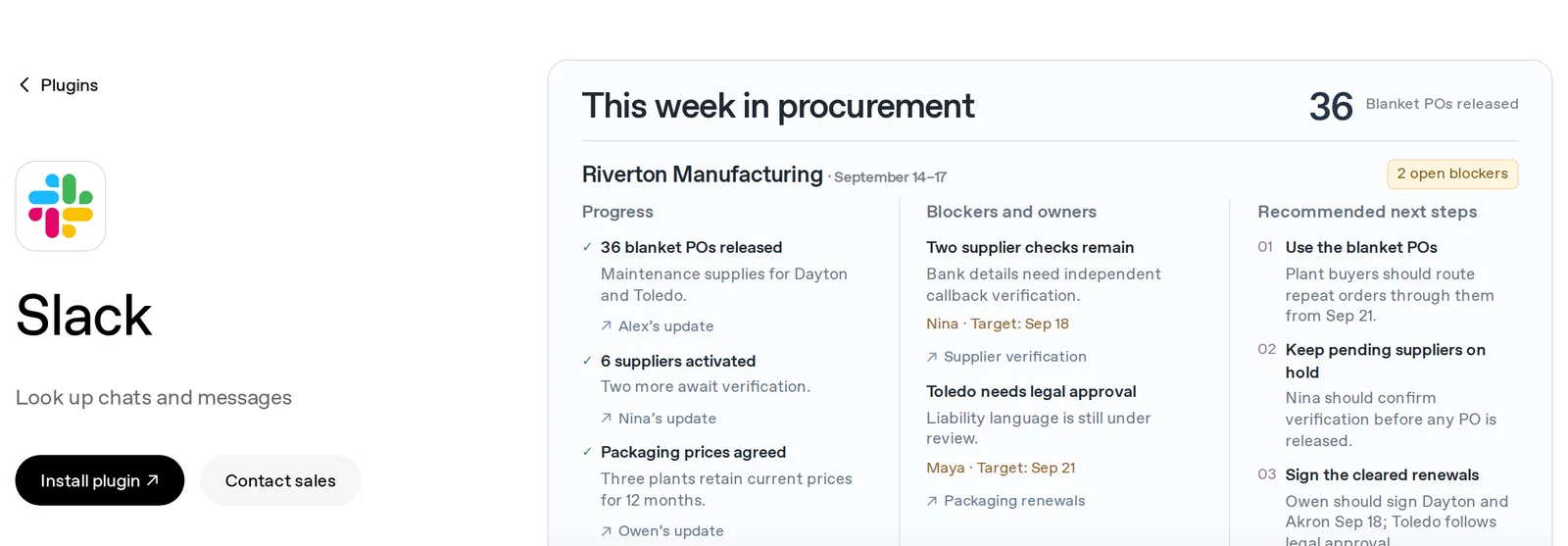
Good for: getting a yes from your manager or client before anything is scheduled. OpenAI notes that adding your dot to a channel doesn't make it watch that channel; you have to tell it what to look for.
What to ask your dot:
- "Share next week's drafts in #social for review. When I reply 'approved' under a draft, schedule it in PostEverywhere."
6. Google Drive: the briefs and brand rules behind each post
Most posts start from something that already exists: a launch brief, a product sheet, last quarter's report. The Google Drive plugin lets your dot search Docs, Slides and PDFs and "pull context into new drafts without manually switching between documents".
Google Drive
Good for: keeping posts accurate. One of OpenAI's examples uses a brand guidelines doc to rewrite copy "to match the approved voice". Point your dot at yours once and tell it to check every draft against it.
What to ask your dot:
- "Use the launch brief in our Marketing folder to write five posts for launch week. Check each one against our brand guidelines doc."
7. HubSpot: customer stories and campaign context
 HubSpot Breeze
The HubSpot plugin works with your CRM data "to uncover patterns, prepare reports, and answer everyday questions about your pipeline or customer base". For social, that's a source of the posts that do best on LinkedIn: real customers, real results, and what people keep asking your sales team.
HubSpot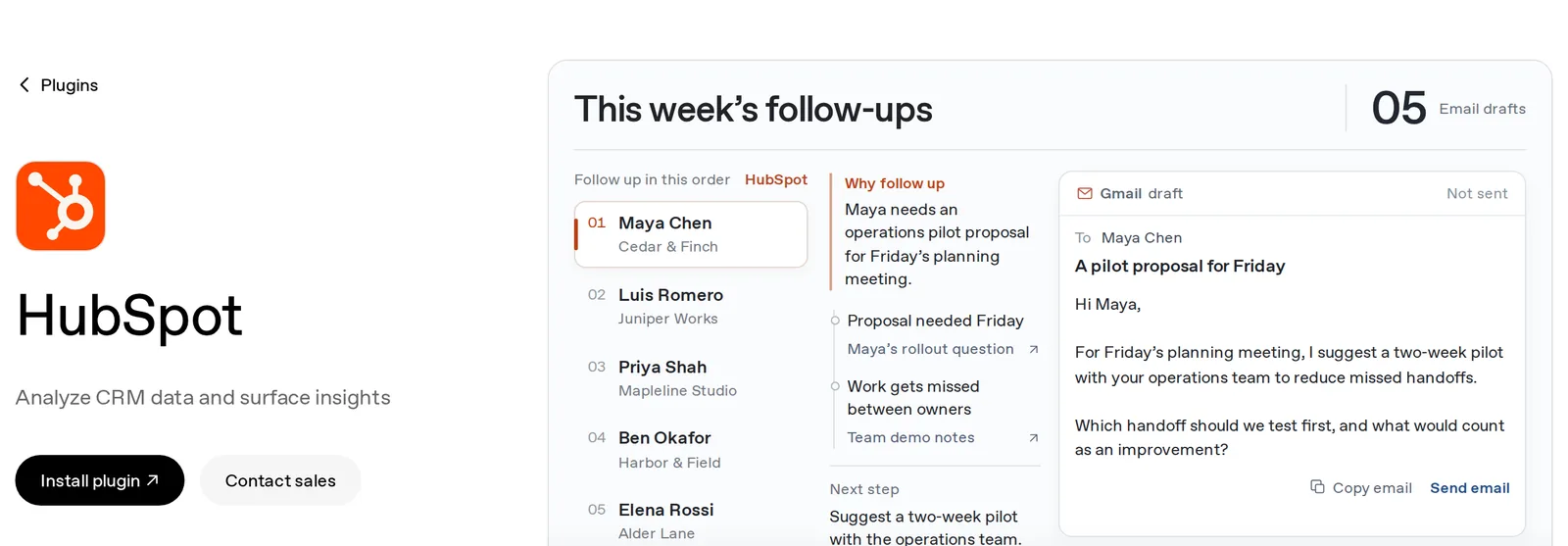
Good for: B2B teams. Ask for themes, not names: never let a dot put a customer in a post without their permission.
What to ask your dot:
- "Look at deals we won this quarter. What problem did customers mention most? Draft two LinkedIn posts about it without naming anyone."
8. Shopify: products, launches and sales into posts
The Shopify plugin can "create discount codes, review orders and customer details, and pull analytics on your store's performance". That gives a shop's social media its two best sources: what's new and what's selling.
Shopify
Good for: online shops. Product launches and sales are where an always-on agent earns its keep, because the posts have to go out on time.
What to ask your dot:
- "When we add a new product, draft an Instagram post, a TikTok caption and a Pinterest pin for it and save them as drafts."
- "Which products sold best last week? Plan three posts featuring them for this week."
9. Semrush: what your audience is searching for
 Semrush
The Semrush plugin returns keyword, traffic and competitor data. It's an SEO tool first, but search data is a good test of a social idea: if lots of people are searching a question, it's worth a post.
Semrush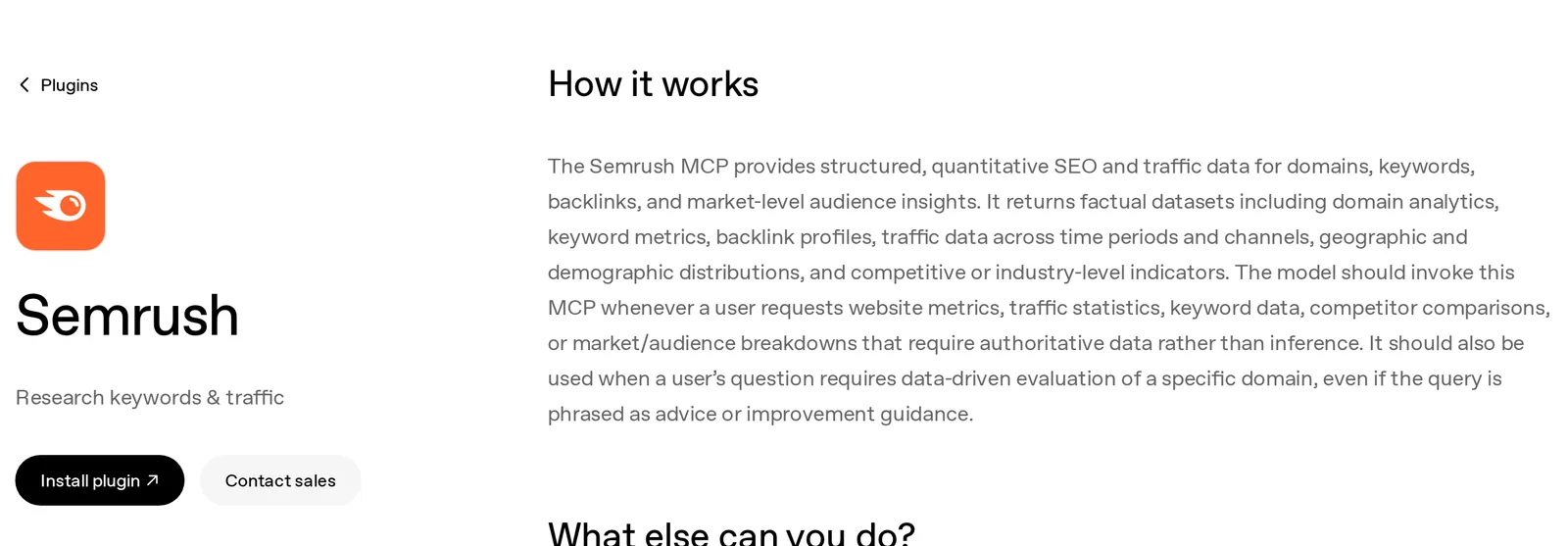
Good for: content-led brands and anyone writing for LinkedIn or YouTube, where posts keep getting found long after they go out. You need a Semrush account.
What to ask your dot:
- "Find five questions people search about our product category this month and turn the best two into posts."
10. Asana: creative requests and deadlines
If social is one part of a bigger marketing team, the work usually lives in a project tool. The Asana plugin reads tasks, comments and due dates, and OpenAI's example is "Create a project to track creative requests".
Asana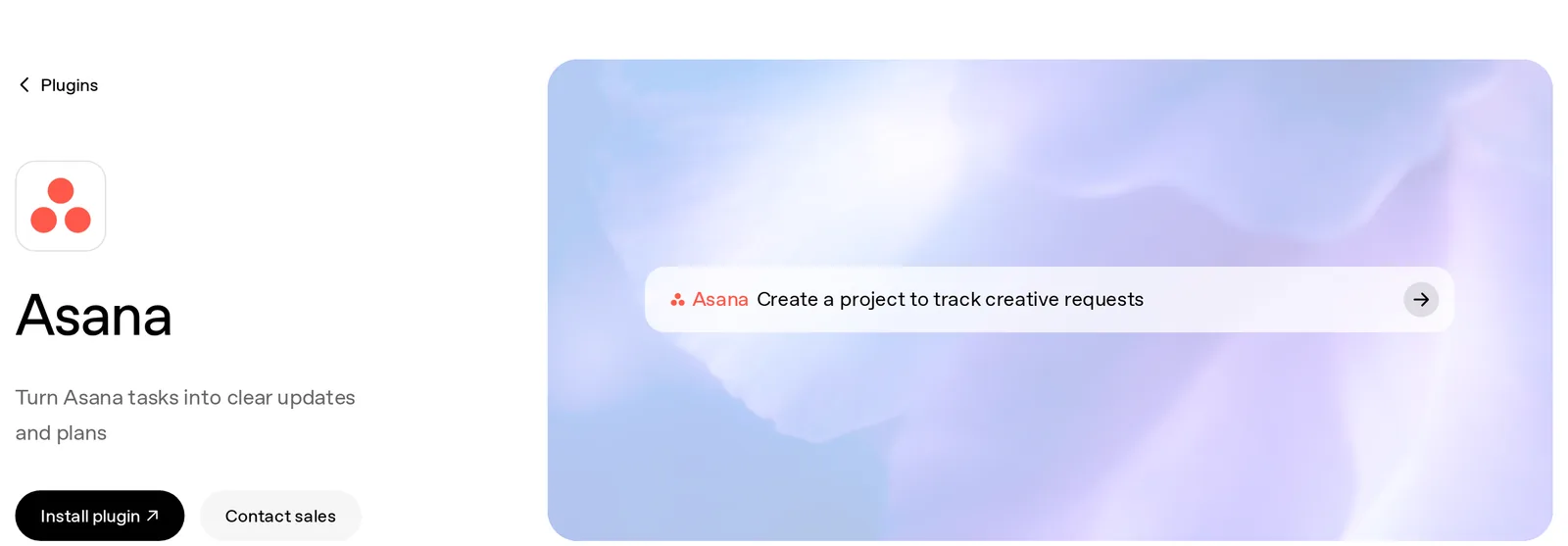
Good for: catching the request that arrives on Thursday for a post on Friday.
What to ask your dot:
- "Check the Social requests project every morning. Draft any post that's due in the next three days and tell me what's blocked."
Set the rules before you hand over the keys
The thing that makes a dot different from asking ChatGPT for a caption is also the thing to be careful with: it keeps going without you. OpenAI's own wording is that asking your dot to draft replies "doesn't give it permission to send them", and the same logic should apply to your posts.
Every action that could affect your accounts goes through an automatic review against your instructions, permissions and custom rules. Custom rules give you four choices for any action:
| Custom rule | What it means for social media |
|---|---|
| Take action without asking | Fine for saving drafts and reading analytics |
| Take action when you say so | Good for scheduling: it waits for your "go" |
| Ask before taking action | The safe default for publishing anything |
| Hand off to you | For anything you'd rather do yourself, like replying to a complaint |
A sensible place to start: drafts without asking, scheduling when you say so, and publishing always asks. Once you trust the drafts, loosen one rule at a time.
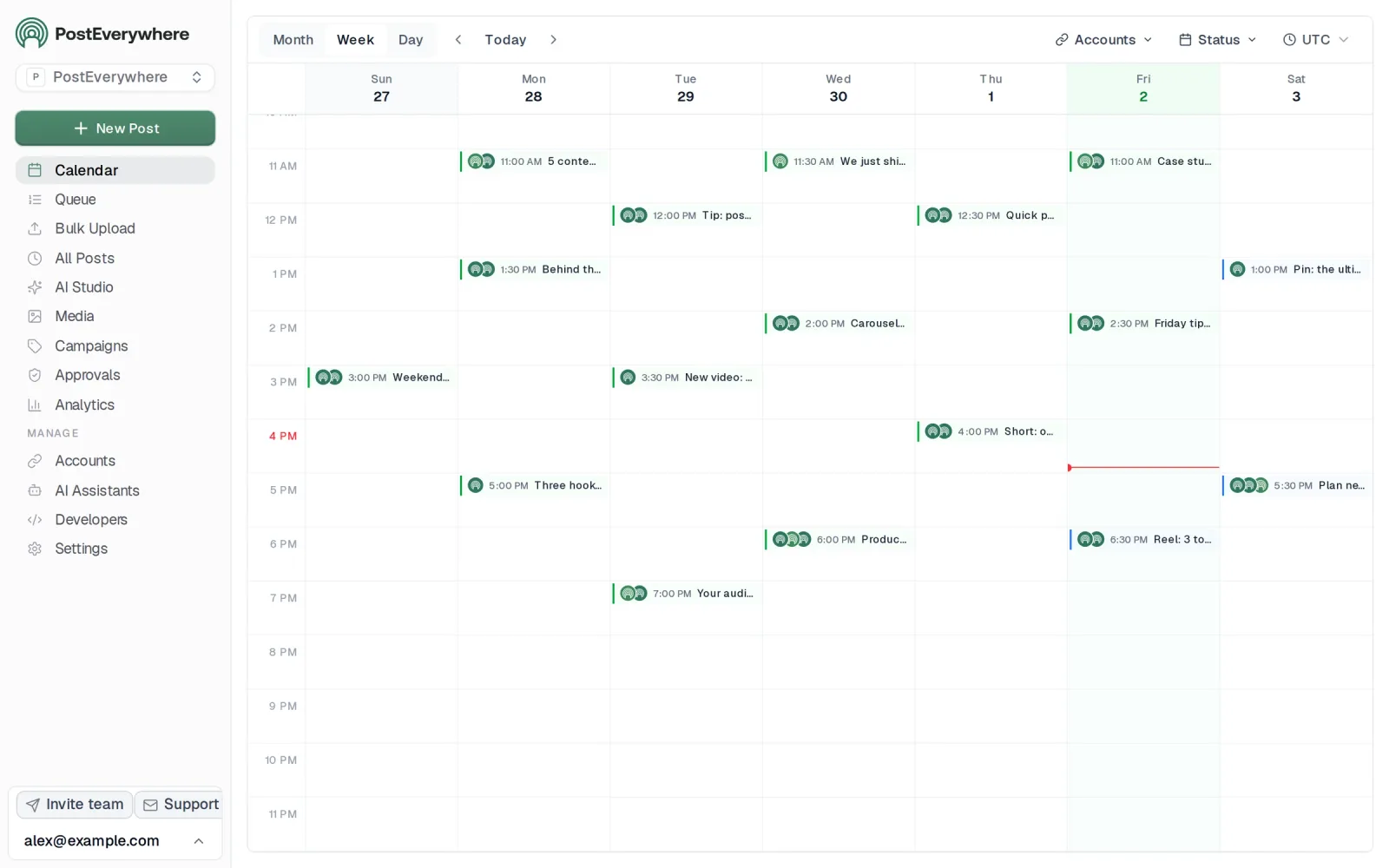
Let your dot draft, and keep the final say. Every post it saves lands in your PostEverywhere calendar as a draft you can edit, schedule or delete. See how scheduling works.
Keep your dot posting every week
A dot without a routine waits to be asked. Give it a weekly rhythm and it starts to behave like the person who looks after your social media.
It can decide for itself when to wake up and follow up, but posting works better on fixed days. OpenAI's tip is to include a time zone and an end date and ask the dot to confirm the schedule.
You can review anything recurring under Scheduled in your dot's profile.
| When | Ask your dot to | Plugins it uses |
|---|---|---|
| Monday 9am | Read the Ready ideas in Notion, draft the week's posts for each platform, save them as drafts | Notion, PostEverywhere |
| Monday | Share the drafts in #social for approval | Slack |
| Tuesday | Add visuals and schedule the approved posts | Canva, PostEverywhere |
| Friday | Report on the week and suggest what to repeat | PostEverywhere |
The schedule lives in PostEverywhere, not in the chat. Once a post is scheduled, it goes out on time whether or not your dot is busy with something else, and you can open and change it in your calendar like any other post.
If you'd rather run the same routine without a dot, our weekly social media routine with AI works with plain ChatGPT too.
If the posts don't sound like you yet, our guide to teaching AI your brand voice shows how to write the rules your dot should follow.
What dots can't do yet
A few limits worth knowing before you build your week around one:
- No first-party Meta or Google ads plugin. The Keyword found neither in ChatGPT's directory when dots launched, so paid social still needs its own tools.
- Not every country, not every plan. The Pro plans exclude the EEA, the UK and Switzerland, so in Europe you'll need Business Premium or an Enterprise workspace.
- No mobile website. You can message your dot from the ChatGPT apps, Slack or a call, but not from ChatGPT in a phone browser.
- It can make mistakes. OpenAI says so directly, and stopping a task doesn't undo what it has already done. That's the case for drafts first.
OpenAI Dots vs other AI agents for social media
| OpenAI Dots | Meta Muse | Grok Bot | |
|---|---|---|---|
| What it is | Always-on agents inside ChatGPT | Meta's personal agent with its own cloud computer | xAI's agent app with Bots, skills and routines |
| Where you talk to it | ChatGPT, Slack, calls | The Muse app and muse.ai | The Grok Bot app |
| Built-in social connections | None for posting | Instagram analytics, Facebook Pages, Meta ads | X |
| How PostEverywhere connects | Plugin in ChatGPT (setup) | Custom connector (guide) | Connector (guide) |
| Best for | Teams already working in ChatGPT and Slack | Small businesses on Instagram and Facebook | Handing off a weekly routine |
They all post through the same PostEverywhere account, so you can use whichever agent suits the job. Our list of the best AI agents for social media compares them in more detail, and if you mostly use plain ChatGPT, start with our ChatGPT skills for social media.
Ready to hand your social media to a dot? Install PostEverywhere in ChatGPT, connect your accounts and let your dot plan next week. Start your 7-day free trial.
FAQ
What's the best OpenAI Dots connector for social media?
PostEverywhere, because it's the only plugin on this list that publishes to all top platforms. With it, your dot can write, schedule and publish posts to Instagram, TikTok, LinkedIn, YouTube, X (Twitter) and more, read analytics and retry failed posts.
Add Canva or Adobe Express for visuals, Notion for planning and Slack for approvals.
How do I connect PostEverywhere to OpenAI Dots?
Install PostEverywhere from the Plugins directory in ChatGPT: search for it, select Connect, sign in to PostEverywhere and approve. Your dot can use the supported plugins installed on your ChatGPT account, so if PostEverywhere is already connected to ChatGPT, there's nothing else to install. Ask it to list your social accounts to check.
Can OpenAI Dots post to Instagram, TikTok or LinkedIn?
Not on its own. ChatGPT has no built-in way to publish to social networks. With PostEverywhere installed, your dot can schedule or publish to Instagram, TikTok, LinkedIn, YouTube, Facebook, X, Threads, Pinterest and the other top platforms, or save posts as drafts for you to approve.
Which ChatGPT plans include Dots?
OpenAI is rolling dots out to ChatGPT Pro and Business Premium, and to Enterprise, Edu and Healthcare workspaces that allow them. The Pro plans are for adults outside the EEA, the UK and Switzerland.
PostEverywhere starts at $9 a month, every plan includes the ChatGPT plugin, and there's a 7-day free trial (card required).
Are Dots connectors the same as ChatGPT plugins?
Yes. ChatGPT and Codex share one Plugins directory, and OpenAI says your dot can use the supported plugins installed and enabled on your account, with the connections and permissions you already gave them. You don't install anything separately for your dot.
Will my dot post without asking me?
Only if you let it. Every action that could affect your accounts is checked against your instructions and custom rules first. Set publishing to Ask before taking action and tell your dot to save every post as a draft, and nothing goes live until you say so.
You can also remove the plugin, or your dot's access in PostEverywhere, at any time.
What's the difference between Dots and ChatGPT?
ChatGPT answers when you ask. A dot keeps working between conversations: it tracks a responsibility, decides when to follow up and comes back to you with results or decisions. For social media, that's the difference between asking for this week's captions and having someone who plans every week.

Founder & CEO of PostEverywhere. Writing about social media strategy, publishing workflows, and analytics that help brands grow faster.