


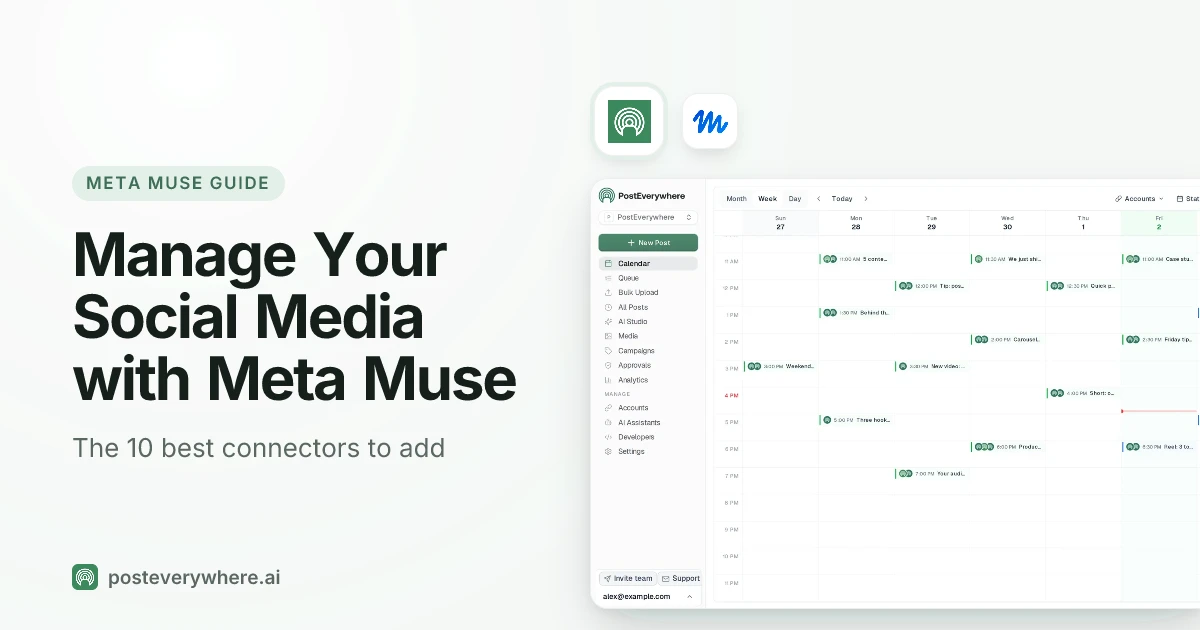
What's the best Meta Muse connector for social media? PostEverywhere. It's the only connector on this list that publishes to all top platforms: with it, Muse can write your posts, schedule them, publish them to Instagram, TikTok, LinkedIn, YouTube, X and the rest, and check how they did, all from one conversation. The other nine help with the jobs around posting.
Can Meta Muse manage your social media? Yes, once you connect it to the right apps. Meta's own connectors give Muse your Instagram analytics, your Facebook Pages and your ad accounts.
Add PostEverywhere and it can schedule and publish to every platform, not just Meta's. Add Canva and Figma for visuals, Notion for the content plan, Slack for approvals and Dropbox for your files, and one agent can run the whole week.
What is Meta Muse? Muse is Meta's personal AI agent. Meta describes it as an agent that "doesn't just answer questions, it actually does the work": it runs on its own cloud computer, keeps working after you close the app and comes back to you when it needs an approval.
It launched in September 2026 in the US on iOS, Android and muse.ai, and has since reached Canada, Singapore and Australia. What it can do for you depends on the apps you connect, which is what this guide is about.
Written by Jamie Partridge, Founder of PostEverywhere.
The 10 best Meta Muse connectors for social media at a glance
| # | Connector | What it does for your social media |
|---|---|---|
| 1 |  PostEverywhere |
Writes, schedules and publishes to all top platforms, keeps your calendar, reads analytics |
| 2 |  Instagram, Facebook Pages and Meta ads |
Meta's own connectors: Instagram analytics, your Pages and your ad accounts |
| 3 |  Canva |
Brings your designs and brand into Muse |
| 4 |  Notion |
Holds your content calendar, ideas and briefs |
| 5 |  Slack |
Gets drafts in front of your team for approval |
| 6 |  Figma |
Campaign designs for teams whose brand lives in Figma |
| 7 |  Dropbox |
Finds the photos and videos your posts need |
| 8 |  Shopify |
Turns products, launches and sales into posts |
| 9 |  Asana |
Tracks campaign tasks and deadlines |
| 10 |  Granola |
Turns meeting notes into post ideas |
Every connector from 2 to 10 is on the list Meta published when it launched Muse for Small Business. PostEverywhere is a custom connector you add yourself in a couple of minutes, as the setup steps below show.
How to set up Meta Muse to manage your social media
You need three things: Muse, a PostEverywhere account with your social accounts connected, and a few minutes.
1. Get Muse. Muse is on iOS, Android and the web at muse.ai. Meta says it's "free for most of what people need", with paid subscription plans for heavier use.
It's available in the US, Canada, Singapore and Australia so far, and Meta is still rolling it out, so some screens may look different on your account.
2. Connect your social accounts to PostEverywhere. Sign up for a 7-day free trial and connect the accounts you want Muse to post to: Instagram, TikTok, YouTube, LinkedIn, Facebook, X (Twitter), Threads, Pinterest, Bluesky, Telegram, Discord, WordPress or Google Business Profile.
3. Add PostEverywhere as a custom connector. Meta says Muse "supports custom connectors so you can plug in services we don't support yet". Open Muse's settings and go to Connectors (on the web and Mac, Command or Ctrl and the comma key opens settings, according to Zapier).
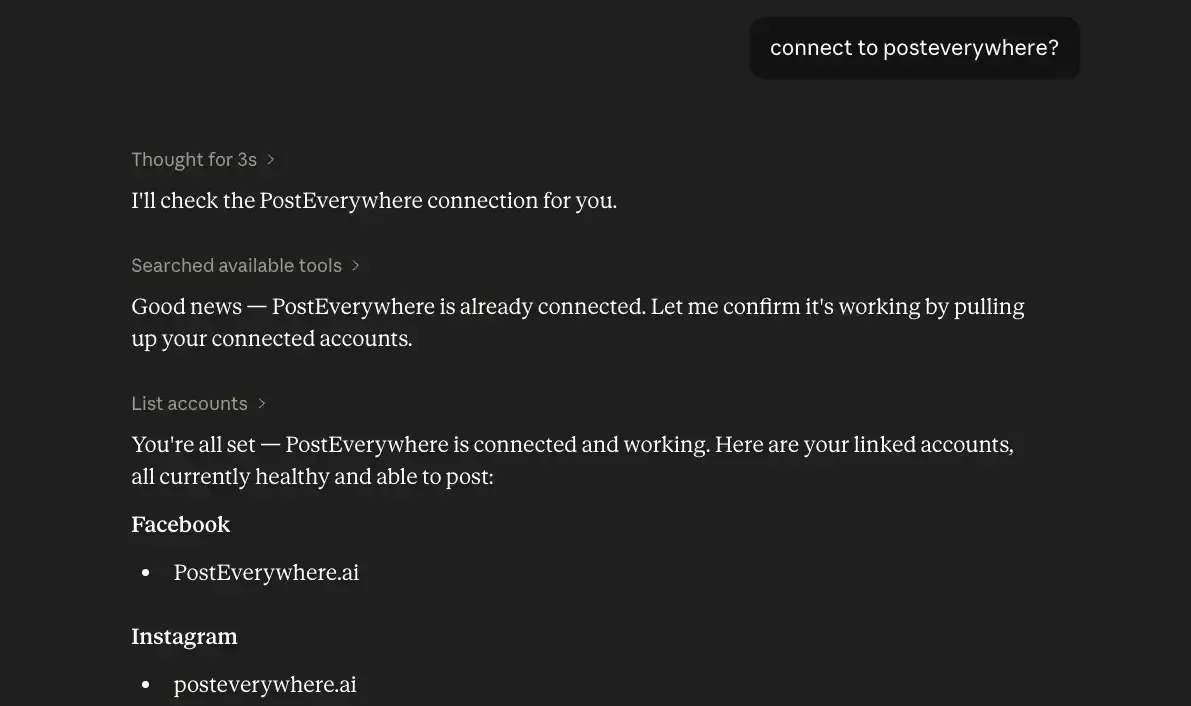
Add a custom connector, name it PostEverywhere and give it this server address: https://mcp.posteverywhere.ai. You can also just ask Muse in the chat: "Add PostEverywhere as a custom connector. The server is https://mcp.posteverywhere.ai."
4. Sign in and approve. Muse opens PostEverywhere's sign-in. Log in, choose which workspace Muse can use and approve. There's no API key to copy. If your Muse asks for a key instead, create one on the Developers page in PostEverywhere's sidebar and paste it into Muse's credential prompt, never into the chat. Our Muse setup page has the details.
5. Ask Muse to post. Try: "List my social accounts in PostEverywhere, then draft three posts about our weekend sale for Instagram, Facebook and LinkedIn. Save them as drafts." Check the drafts in your PostEverywhere calendar before you let Muse schedule anything.
You choose how much access each connector gets, and you can change it or disconnect at any time, from Muse or from PostEverywhere.
How we chose these connectors
We started from the connectors Meta announced for Muse and kept the ones that help with a real part of social media: planning, design, assets, approval, publishing or reporting. Each one had to pass three tests:
- It's real and named by Meta. Every pick from 2 to 10 appears in Meta's own Muse for Small Business announcement, not in a third-party roundup.
- It earns its place in a social workflow. We left out connectors that are useful for a business but don't touch posting, such as accounting and payments.
- No rival schedulers. We're a scheduler, so the only publishing connector here is ours. We'd rather say so than pretend otherwise.
Connectors act in your accounts, so add only ones you trust and give each the least access it needs.
1. PostEverywhere: best Muse connector for posting to social media
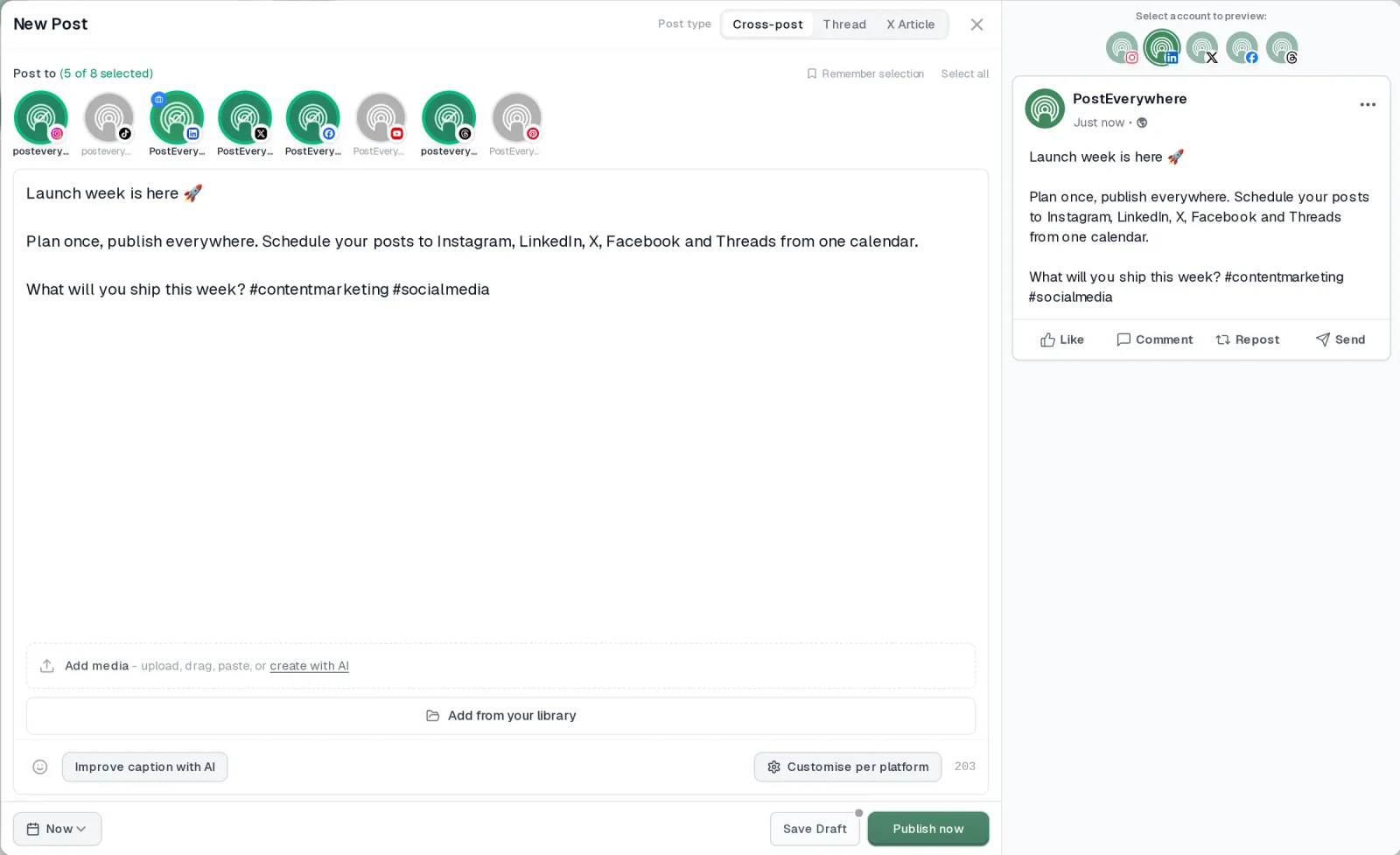
Publishes to all top platforms
 Instagram
 Facebook
 X
 LinkedIn
 TikTok
 Threads
 Bluesky
 Telegram
 Discord
 YouTube
 Pinterest
 WordPress
 Google Business Profile
Why PostEverywhere wins
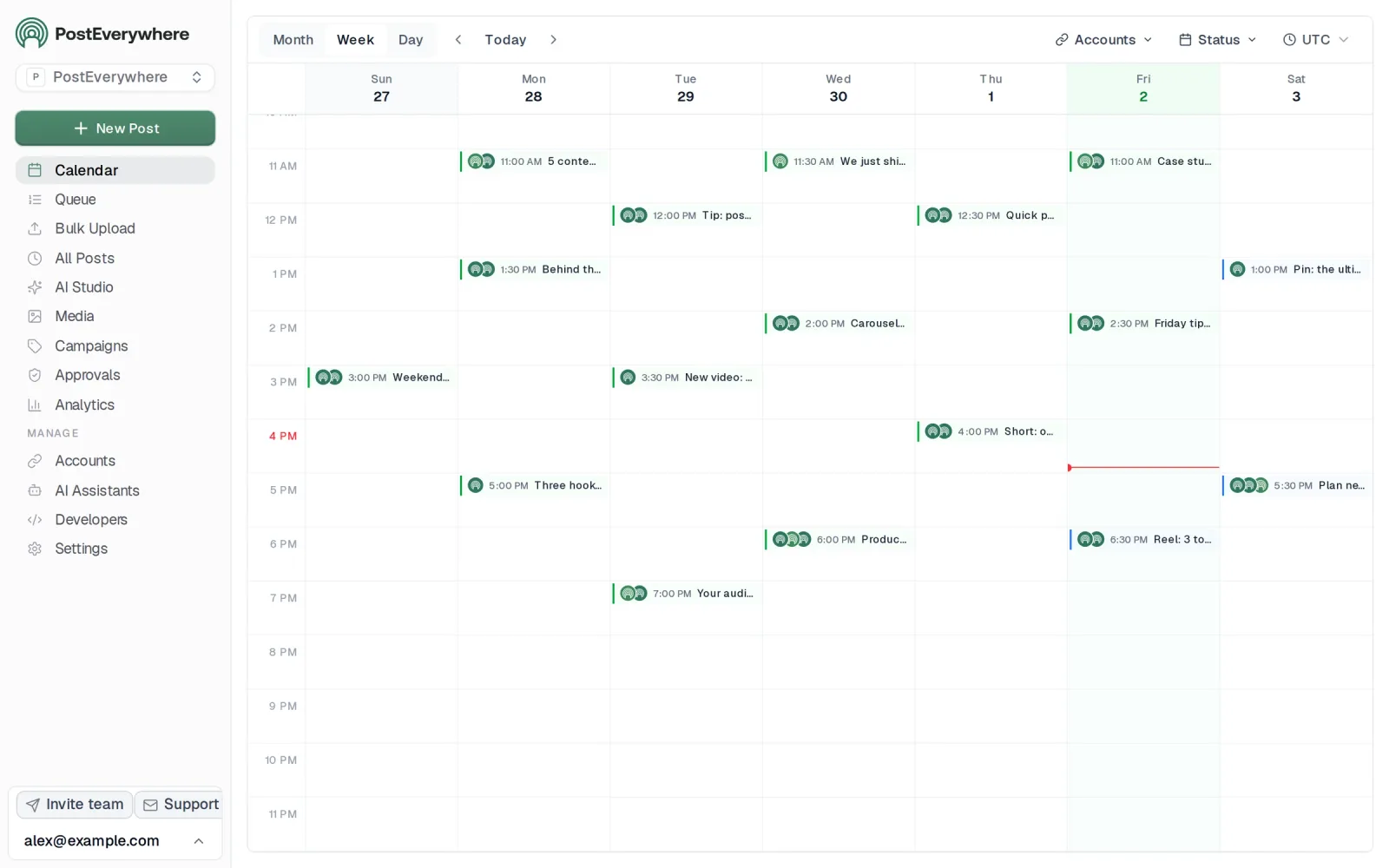
- It's simple. One composer for every platform: write the post once, tweak the caption per platform, check the live preview for each account and schedule it.
- One flat price, nothing locked away. From $9 a month. Every plan includes unlimited posts, the full API, the hosted MCP server and AI Studio, with no per-channel fees.
- Every top platform in one place. Instagram, TikTok, YouTube, LinkedIn, Facebook, X, Threads and Pinterest, plus Bluesky, Telegram, Discord, WordPress and Google Business Profile.
- Your AI agent can run it. Connect Claude, ChatGPT or Cursor in about a minute and ask it to plan, write and schedule your posts.
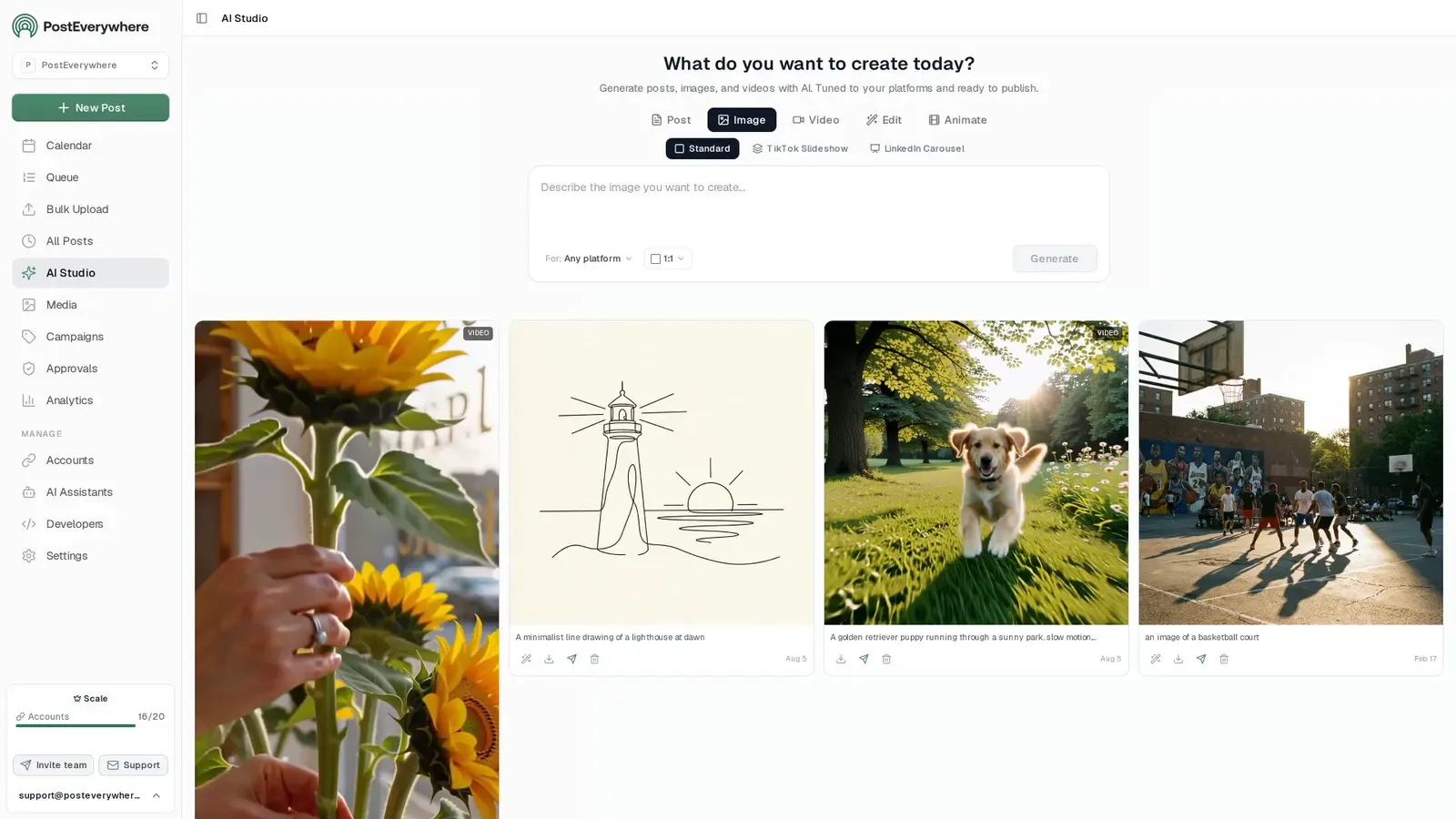
- Create in the same tool. AI Studio makes captions, images and video, so you don't need a second app before you post.
How PostEverywhere works
- Connect your accounts. Link your social accounts once, across all top platforms.
- Create the post. Write it in the composer, make images and video in AI Studio, or ask Claude or ChatGPT to draft and schedule it for you.
- Schedule it everywhere. Tweak the caption for each platform, check every preview, and it goes out on time from one calendar.
Built for AI agents
- Agents do the whole job. A full hosted MCP server with up to 45 tools: publish, schedule, use your queue or the best time, bulk-schedule 50 posts at once, check results, retry failures and send links to connect new accounts. Some rival MCP servers only read data or create drafts.
- $29 a month for 10 accounts, flat. Full API and agent access included, with no per-channel, per-seat or per-call fees. The same 10 accounts cost $60 a month on Buffer and $99 per user (billed annually) on Hootsuite.
- Nothing gated. API, MCP and webhooks come with every plan, from Lite. Several rivals keep their API for higher tiers or a sales call.
- Connected in a minute. One click adds PostEverywhere to Claude, with one-click installs for Cursor and VS Code. ChatGPT adds it under Plugins.
Plans: Lite $9 a month (2 accounts), Starter $19 (5), Growth $29 (10), Scale $39 (20). Every plan includes unlimited posts, the full API, the hosted MCP server and AI Studio.
“This tool has truly made my content posting so much easier, I can't work without it. I can schedule my posts days in advance while working on other projects. Set it and forget it.”
Also in PostEverywhere: a posting queue, bulk upload from CSV, approvals, analytics, an API and the iPhone app.
PostEverywhere's social media scheduler is built for AI agents. Connect it to Muse and your agent can plan, write, schedule and publish posts to every account you've connected, without you opening another app.
Best for: anyone who wants Muse to do the posting, not just the writing, on every platform rather than only Meta's.
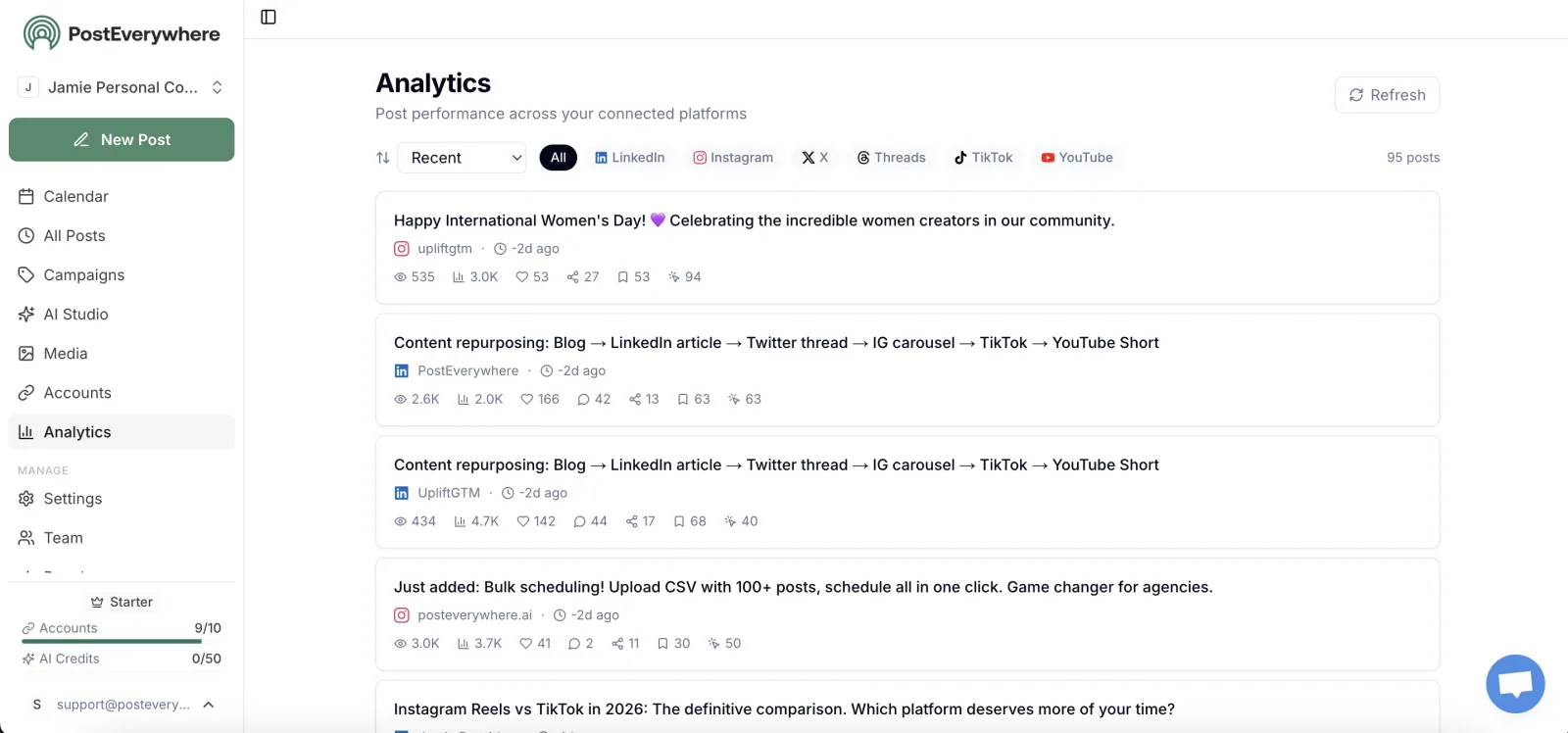
Muse can write a great caption, and Meta's connectors give it your Instagram and Facebook data. PostEverywhere is the step that gets the post out, everywhere. Once it's connected, Muse can list your accounts, write a version of each post for every platform's rules, attach images or video, and schedule or publish to all top platforms at once, including TikTok, LinkedIn, YouTube, X, Threads and Pinterest.
It can also tell you what's in the queue, read your analytics and retry a post that failed.
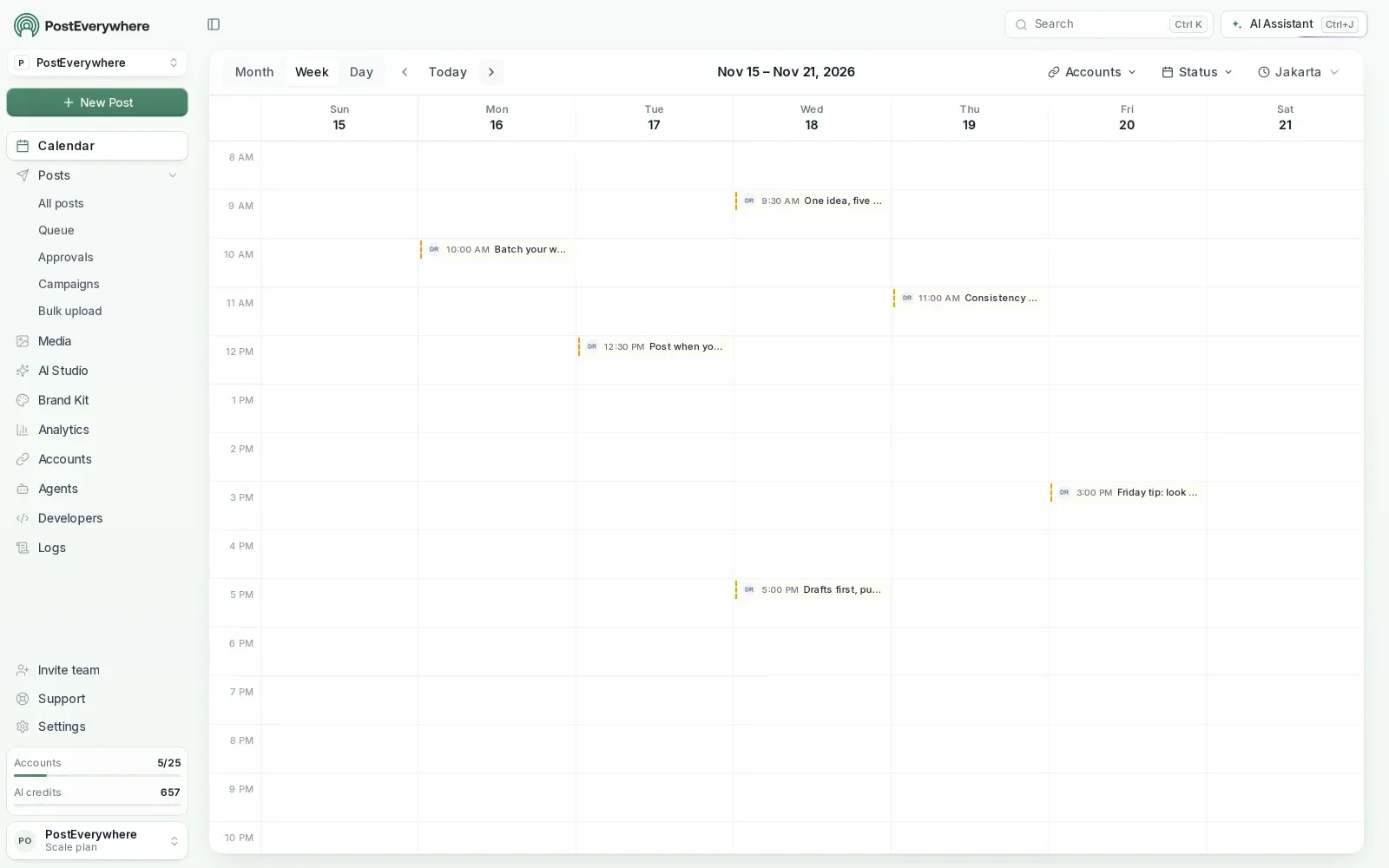
What to ask Muse:
- "Turn this article into a LinkedIn post, an Instagram caption and a Threads post, and schedule them for Tuesday at 9am with PostEverywhere."
- "Plan next week's posts for Instagram, TikTok and LinkedIn and save them as drafts in PostEverywhere."
- "Which of last month's posts did best, and on which platform?"
Good to know: PostEverywhere is a custom connector you add yourself; it isn't listed in Muse's connector directory. Plans start at $9 a month, every plan includes the connector, and there's a 7-day free trial (card required).
Want Muse to post for you, not just write? Connect PostEverywhere, link your accounts and let Muse schedule a week of posts in one go. Start your 7-day free trial.
2. Instagram, Facebook Pages and Meta ads: Meta's own connectors
These are the connectors only Muse has. Meta says Muse "can connect your Instagram professional account analytics, Facebook Pages, and Meta ad accounts in a few clicks", and that nothing "publishes, sends, or spends" without your approval.
Instagram, Facebook Pages and Meta ads
What it does for social media: Muse can read your Instagram analytics and your Facebook Pages and suggest what to post next. Meta's examples include asking Muse to analyse your "social" and to check "what's trending".
With your ad account connected, it can help you see what's working in your campaigns.
What to ask Muse:
- "Look at my Instagram analytics for the last 30 days. Which three posts did best, and what do they have in common?"
- "Which of this month's organic posts would be worth turning into an ad?"
How it fits with PostEverywhere: Meta's connectors cover Meta's apps. Use them to learn what works on Instagram and Facebook, then have Muse schedule the next round with PostEverywhere on Instagram, Facebook and every other platform you're on, from one calendar.
3. Canva connector: bring your designs and brand into Muse
Canva is one of the connectors Meta announced for Muse. Canva's chief product officer says it brings your "existing work, context, and brand" into Muse.
Canva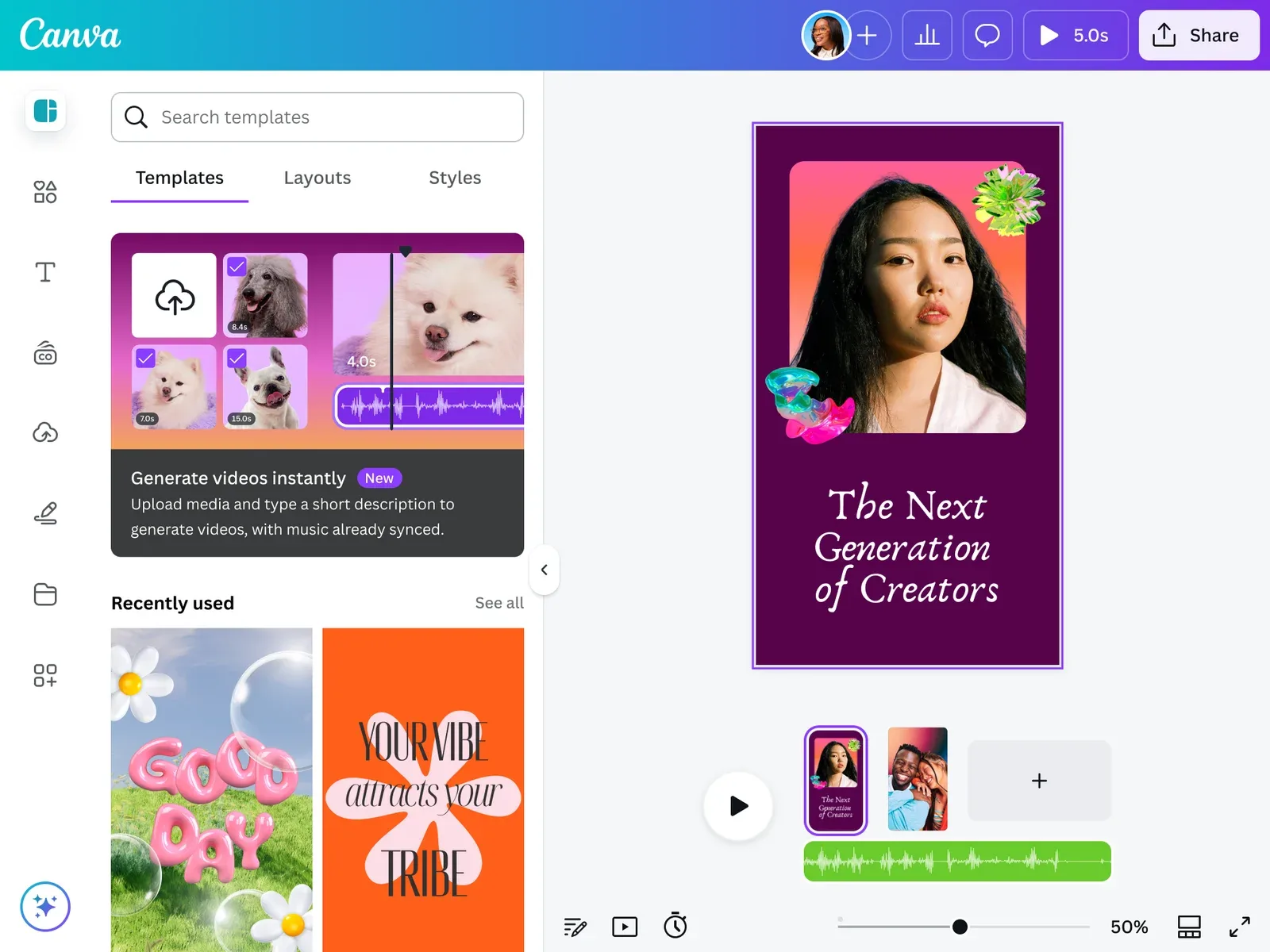
Good for: finding the right design for a post, keeping visuals on brand and getting graphics ready for each platform.
What to ask Muse:
- "Find our launch graphic in Canva and get it ready for an Instagram post and a LinkedIn post."
- "Use our Canva brand kit for this week's quote graphics."
Pair it with PostEverywhere: once the design is ready, Muse can attach it to the post and schedule it to every platform in the same task.
4. Notion connector: keep your content calendar in one place
If your team plans content in Notion, connect it and Muse can read the plan instead of you pasting it into the chat.
Notion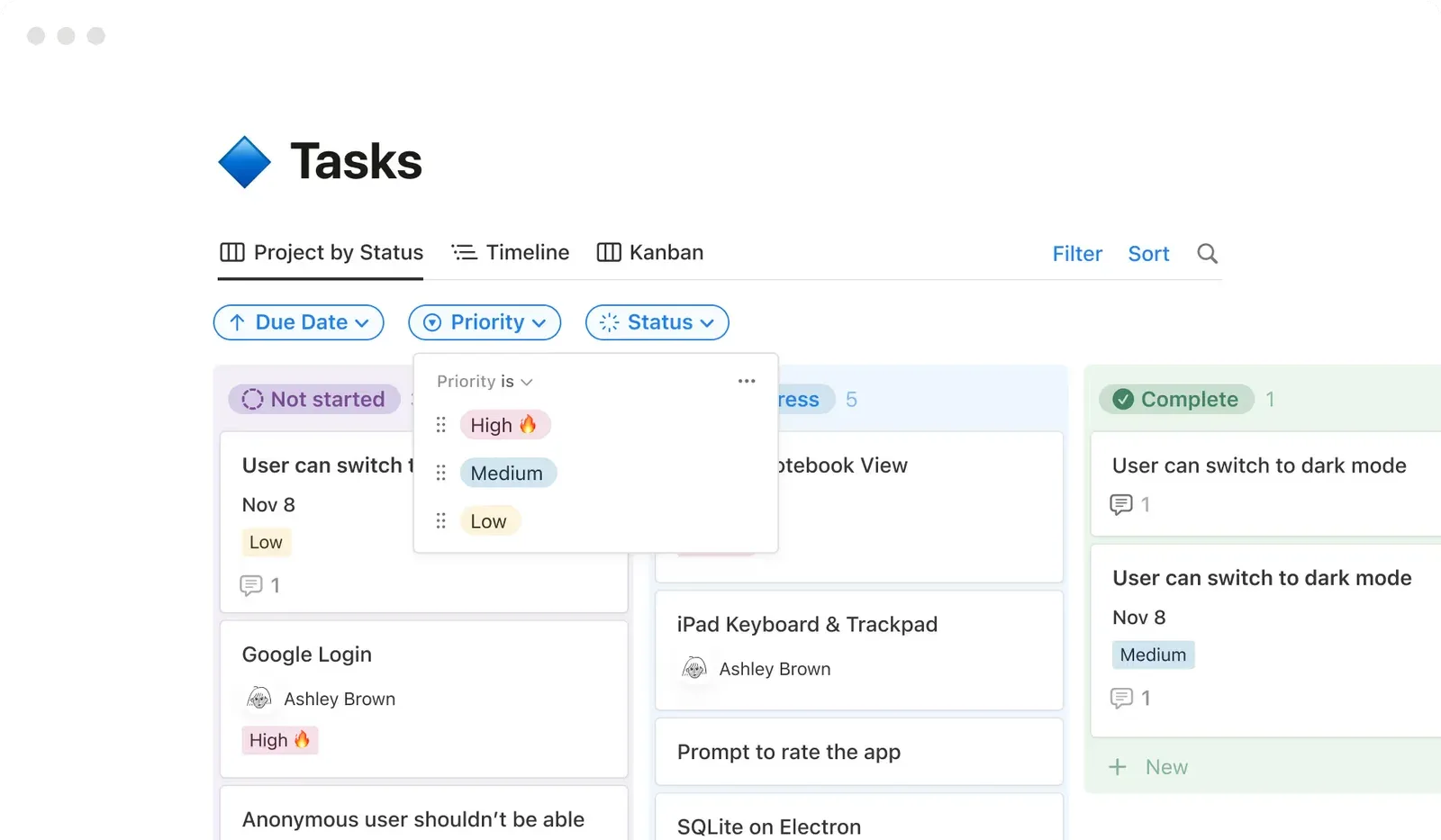
Good for: content ideas, briefs and a calendar your whole team already uses.
What to ask Muse:
- "Take every idea in our Content database marked 'Ready', write the posts and schedule them next week with PostEverywhere. Then mark each one as scheduled."
- "Add a page to our Content database for each post that went out this week."
5. Slack connector: approvals your team can see
For a social media team, Slack does one important job: it gets drafts in front of the people who need to approve them.
Slack
What to ask Muse:
- "Post this week's drafts in #social for review, then schedule the ones that get a thumbs up."
- "Read #product-updates and turn anything worth announcing into posts for LinkedIn and X."
6. Figma connector: campaign designs for design-led teams
Figma is the better pick than Canva if your brand and templates live in Figma.
Figma
Good for: reading a campaign's design file so posts match the look, and pulling the right frames for each platform.
What to ask Muse:
- "Look at the 'Spring campaign' file in Figma and write captions that match each design."
7. Dropbox connector: pull in your photos and videos
Most posts need an image or a video, and for many small businesses those live in Dropbox.
Dropbox
What to ask Muse:
- "Find the photos in the 'November products' folder and schedule one a day on Instagram and Facebook with PostEverywhere."
If you'd rather keep your files inside PostEverywhere, its media library imports from Google Drive and holds everything your posts use.
8. Shopify connector: turn products and sales into posts
For an online store, Shopify is where the post ideas are: new products, restocks, best sellers and sales.
Shopify
What to ask Muse:
- "What were our five best sellers last month? Write a post for each and schedule them across next week."
- "We're running 20% off this weekend. Write a teaser for Thursday, a launch post for Saturday morning and a last-chance post for Sunday afternoon."
Our social media guide for ecommerce brands covers what to post around product launches and sales.
9. Asana connector: keep campaigns on schedule
If your launches and campaigns are planned in Asana, connect it so Muse knows what's coming and what's due.
Asana
What to ask Muse:
- "Check the 'Q1 launch' project in Asana and plan a teaser, a launch-day post and a follow-up for each milestone."
- "Which tasks in the 'Q1 launch' project still don't have social posts scheduled in PostEverywhere?"
10. Granola connector: turn meetings into post ideas
Granola takes notes in your meetings. Plenty of good posts start in a meeting: a customer story, a product decision, a question you keep getting asked.
Granola
What to ask Muse:
- "Read my notes from this week's customer calls and suggest three LinkedIn posts based on what customers asked about."
Keep Muse posting every week
Connectors give Muse access. What turns it into someone who manages your social media is a routine you can trust.
Meta says Muse keeps working after you close the app and comes back when something changes or when it needs your approval. It also remembers what matters to you, so tell it your rules once: which accounts to use by default, your time zone, your brand voice and that every post starts as a draft.
A simple weekly rhythm looks like this:
| When | Ask Muse to | Connectors it uses |
|---|---|---|
| Monday | Read the Ready ideas in Notion, write next week's posts for each platform and save them as drafts | Notion, PostEverywhere |
| Monday | Share the drafts in #social for approval | Slack |
| Tuesday | Schedule the approved drafts, with images from Dropbox or Canva | PostEverywhere, Dropbox, Canva |
| Friday | Report on the week's posts and what to repeat next week | PostEverywhere, Instagram analytics |
The schedule itself lives in PostEverywhere, not in the chat. Once Muse has scheduled a post, it goes out at the right time whether or not Muse is running, and you can open and change it in your calendar like any other post.
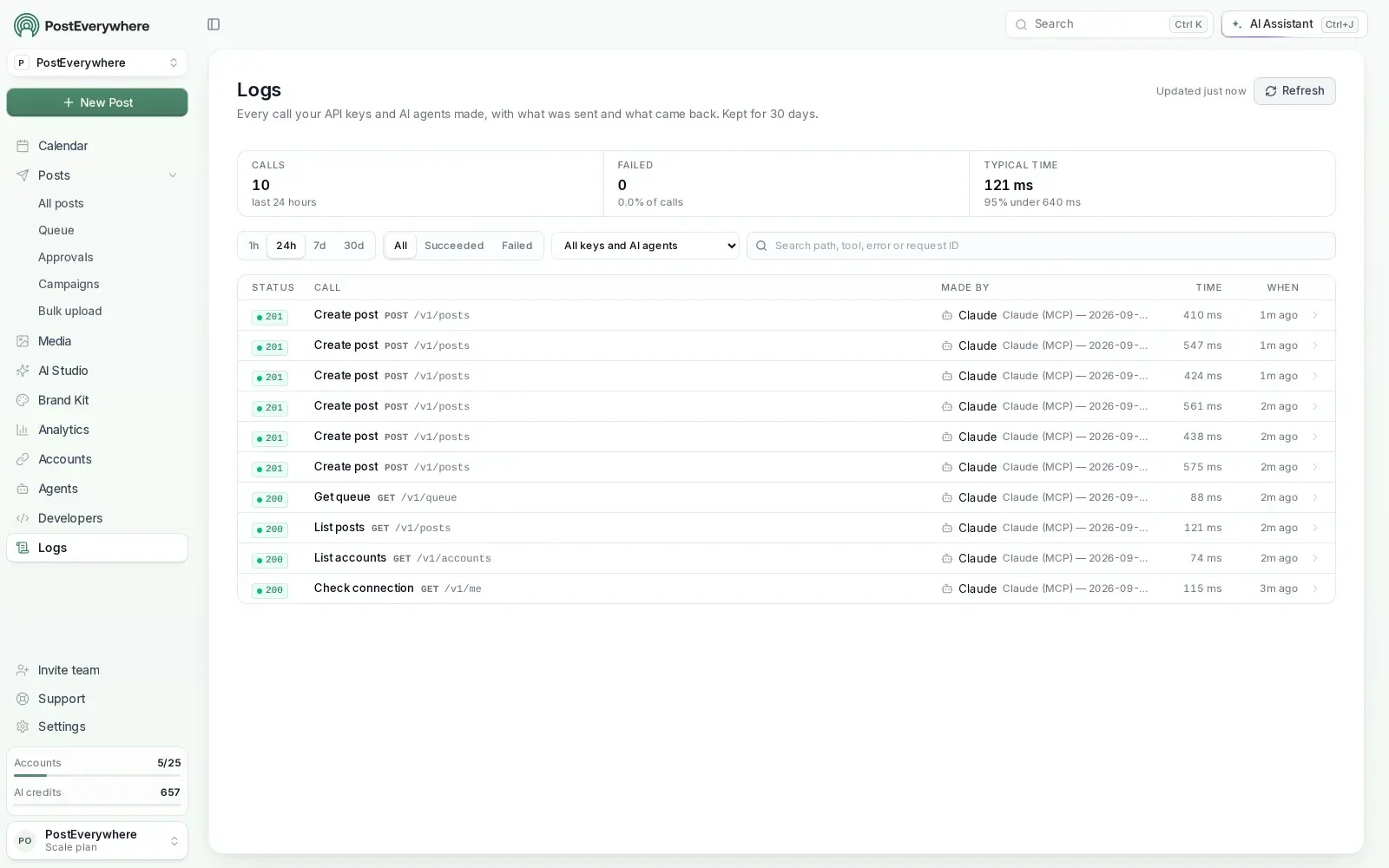
Start with drafts. Let Muse save posts as drafts for a week or two, check them in your calendar, and only let it schedule straight away once you trust the results.
If your posts don't sound like you yet, our guide to teaching AI your brand voice shows how to write the rules Muse should follow.
Meta Muse vs other AI agents for social media
| Meta Muse | Grok Bot | Claude and ChatGPT | |
|---|---|---|---|
| What it is | Meta's personal agent on its own cloud computer | xAI's agent app with Bots, skills and routines | Chat assistants, plus Claude Cowork for longer tasks |
| Built-in social connectors | Instagram analytics, Facebook Pages, Meta ads | X | None for posting |
| How PostEverywhere connects | Custom connector | Custom connector (guide) | Claude and ChatGPT apps |
| Best for | Small businesses already on Instagram and Facebook | Handing off a weekly routine | Writing, planning and one-off tasks |
They all post through the same PostEverywhere account, so you can use whichever agent suits the job. Our list of the best AI agents for social media compares them in more detail.
Ready to hand your social media to Muse? Connect PostEverywhere, link your accounts and let Muse plan next week. Start your 7-day free trial.
FAQ
What's the best Meta Muse connector for social media?
PostEverywhere, because it's the only connector on this list that publishes to all top platforms. With it, Muse can write, schedule and publish posts to Instagram, TikTok, LinkedIn, YouTube, X and more, read analytics and retry failed posts.
Add Meta's own connectors for Instagram and Facebook insights, Canva for design and Notion for planning.
Can Meta Muse post to TikTok, LinkedIn or YouTube?
Not with Meta's own connectors, which cover Instagram analytics, Facebook Pages and Meta ad accounts. To post to TikTok, LinkedIn, YouTube, X, Threads, Pinterest and the other top platforms, add PostEverywhere as a custom connector.
Muse can then schedule or publish to every account you've connected, or save posts as drafts for you to approve.
How do I connect PostEverywhere to Meta Muse?
Open Muse's settings, go to Connectors and add a custom connector with the server address https://mcp.posteverywhere.ai, or ask Muse in the chat to add it for you. Sign in to PostEverywhere when asked and approve.
Then ask Muse to list your social accounts to check it worked.
Is Meta Muse free?
Meta says Muse is free for most of what people need, with paid subscription plans for heavier use. PostEverywhere starts at $9 a month, every plan includes the connector, and there's a 7-day free trial (card required).
Some connectors, such as Shopify or Asana, also need their own account with that company.
Where is Meta Muse available?
Meta launched Muse in the US in September 2026 on iOS, Android and muse.ai, and has since brought it to Canada, Singapore and Australia. Meta is still rolling it out, so features and connector screens can differ between accounts.
Will Muse post without asking me?
Not unless you let it. Meta says Muse checks with you before sensitive actions and that nothing publishes, sends or spends without your approval. You can also tell Muse to save every post as a draft, so nothing goes live until you schedule it in PostEverywhere.
You can disconnect PostEverywhere from Muse, or remove Muse's access from PostEverywhere, at any time.

Founder & CEO of PostEverywhere. Writing about social media strategy, publishing workflows, and analytics that help brands grow faster.