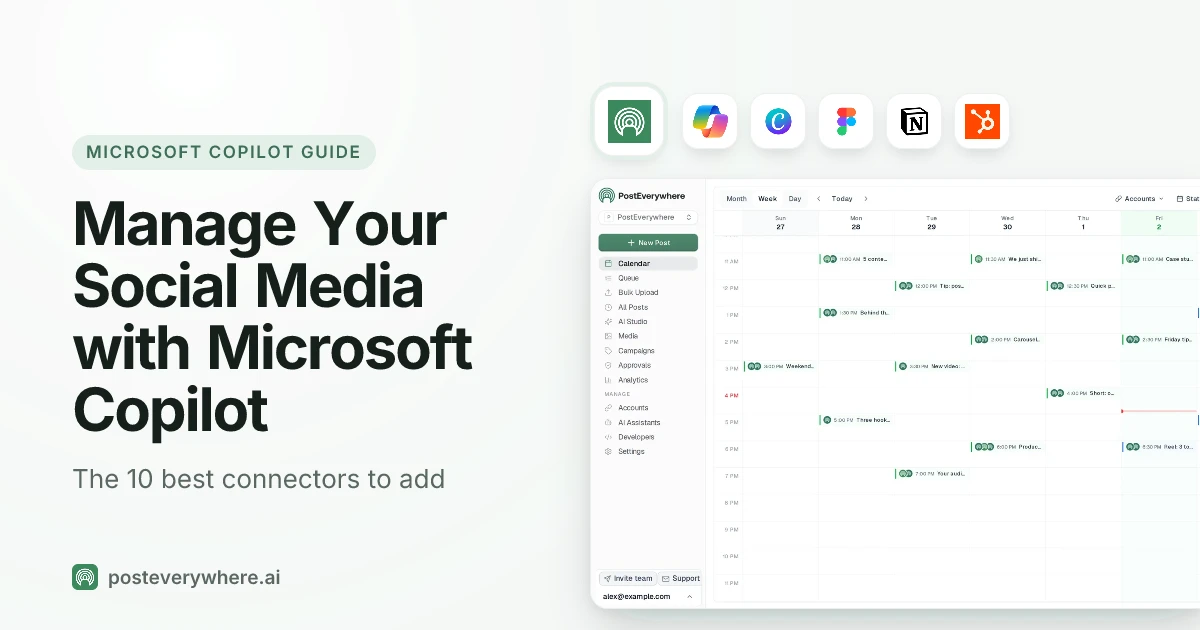
What's the best Copilot connector for social media? PostEverywhere. It gives Microsoft Copilot the one thing Microsoft's own catalog can't: the power to publish. We went through every connector Microsoft lists for Microsoft 365 Copilot and found Canva, Notion, HubSpot and Shopify, but no social media scheduler and no social network. Add PostEverywhere through a Copilot Studio agent and Copilot can write a version of each post for every platform, then schedule or publish it to Instagram, TikTok, LinkedIn, YouTube, X (Twitter) and the rest. The other nine Copilot connectors on this list handle the work around posting.
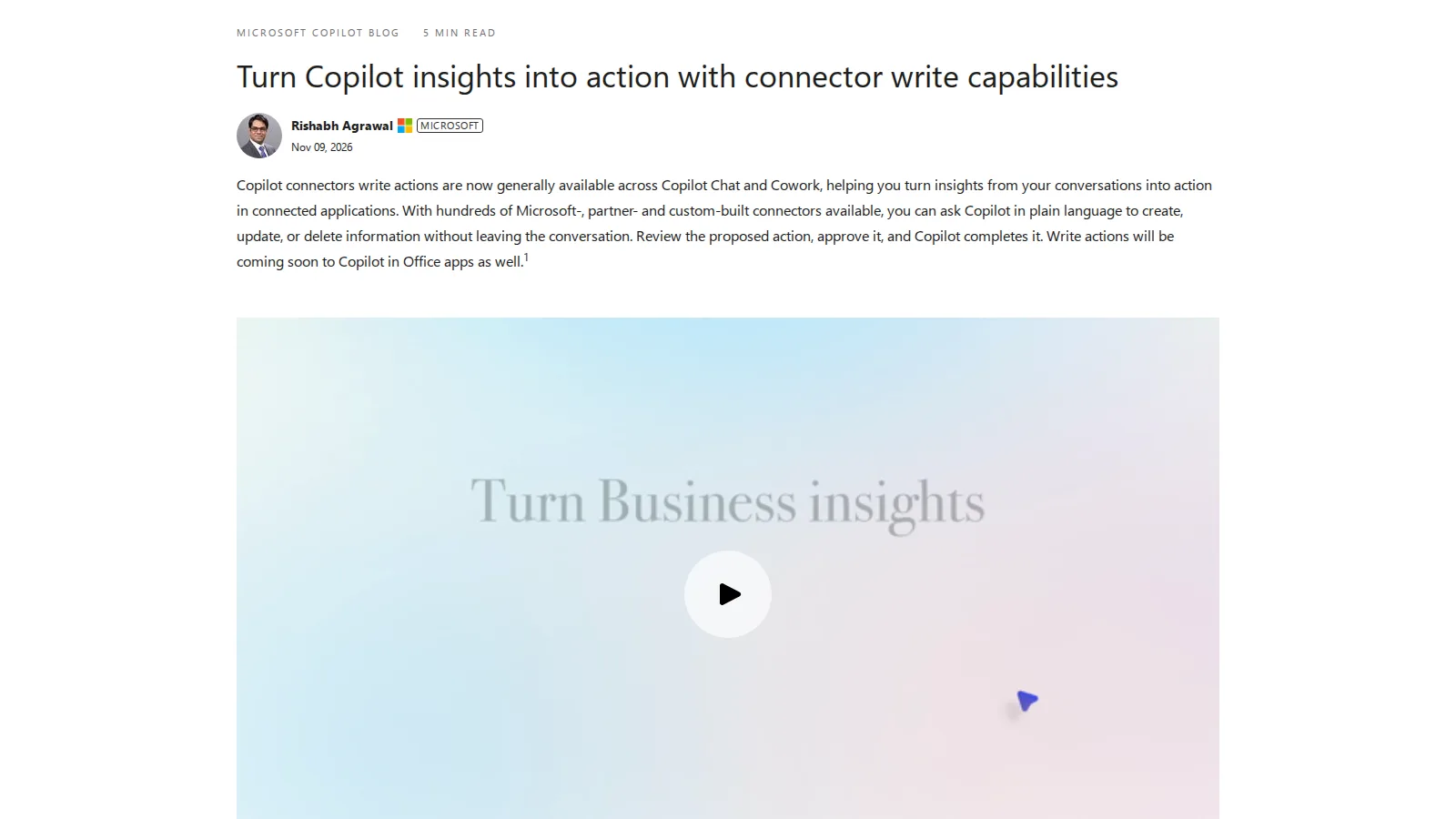
Can Microsoft Copilot manage your social media? Since November, yes. On 9 November 2026 Microsoft made connector write actions generally available in Copilot Chat and Cowork. Copilot used to search your connected apps and summarize what it found.
Now it can create and update things in them, and it asks your permission before each write. One of Microsoft's own examples is a social post: "Create an Instagram post announcing our spring product launch using warm colors, minimal text."
Which Copilot does this guide mean? Microsoft 365 Copilot, the work version in Teams, Outlook and the Microsoft 365 Copilot app, with a work account. The free consumer Copilot app can't add these connectors.
If that's the one you use, our Copilot setup page covers the other routes, and our guides to Gemini and ChatGPT's dots cover assistants that do take outside apps.
Written by Jamie Partridge, Founder of PostEverywhere.
The 10 best Copilot connectors for social media at a glance
| # | Connector | What it does for your social media |
|---|---|---|
| 1 |  PostEverywhere |
Writes, schedules and publishes to all top platforms, keeps your calendar, reads analytics |
| 2 |  Canva |
Turns a sentence in chat into a branded graphic |
| 3 |  Figma |
Brings your design team's files into the conversation |
| 4 |  Notion |
Reads and updates your content calendar and briefs |
| 5 |  Airtable |
Queries and manages a post-by-post planning base |
| 6 |  monday.com |
Finds the campaign tasks, owners and deadlines behind each post |
| 7 |  HubSpot |
Customer and deal context for case studies and launch posts |
| 8 |  Shopify |
Products, stock and launches, live from your store |
| 9 |  Meltwater |
What the press and social web are saying about you |
| 10 |  Bitly |
Short links and the clicks behind every post |
Connectors 2 to 10 are all in Microsoft's connector gallery for Microsoft 365 Copilot or its partner gallery, as federated connectors: Copilot reaches them live over the Model Context Protocol (MCP), instead of copying their data into Microsoft 365.
Your admin turns each one on, and you connect your own account to it.
How to set up Microsoft Copilot to manage your social media
This takes longer than the other agents in our series, because Microsoft doesn't let you paste a connector address into Copilot Chat. A Copilot Studio agent is how an outside tool gets in. Budget 15 minutes, and possibly a conversation with your IT admin.
1. Check what your organization has. You need a Microsoft 365 Copilot licence (Microsoft lists it as a condition for seeing federated connectors) and access to Copilot Studio, Microsoft's agent builder.
If you're not sure about either, ask your admin first. It's the step most people get stuck on.
2. Connect your social accounts to PostEverywhere. Start a 7-day free trial and connect the accounts Copilot should post to: Instagram, TikTok, YouTube, LinkedIn, Facebook, X (Twitter), Threads, Pinterest, Bluesky, Telegram, Discord, WordPress or Google Business Profile.
3. Add PostEverywhere to a Copilot Studio agent. Microsoft's guide to adding an existing MCP server has the current screens. In short: open your agent, go to Tools, select Add a tool, then New tool, then Model Context Protocol.
Give it a name, a short description and our server address:
https://mcp.posteverywhere.ai
For authentication, choose OAuth 2.0 and then Dynamic discovery. Our server supports the automatic sign-up that option relies on, so each person signs in to PostEverywhere themselves and there's no key to share.
(If your organization prefers keys, Copilot Studio's API key option is the alternative, with a key from PostEverywhere's Developers page; our Copilot setup page has the details.) Select Create, create a new connection, then Add to agent.
4. Test it. Microsoft says generative orchestration must be on for an agent to use MCP tools. In the agent's test pane, ask: "Show me my connected social accounts on PostEverywhere." You should get your accounts and their status back.
5. Put it where your team works. Under Channels, add Microsoft 365 and Microsoft Teams and tick Make agent available in Microsoft Copilot. Without that box, Microsoft says, the agent only shows up in Teams.
Share it with your teammates directly, or submit it to your org catalog, which sends it to your admin for approval.
Then turn on the connectors below from Settings, Sources in Copilot Chat, once your admin has enabled them.
Why Microsoft's catalog has no social media connector
It surprised us too. Microsoft's connector galleries list hundreds of apps across CRM, design, files, finance and project management. As of 28 November 2026, they list no social media scheduler (no Hootsuite, Buffer, Sprout Social or Later) and no social network you can post to.
The closest entries index Twitter or Viva Engage content for search, which doesn't help you publish.
That's the gap this guide fills. Copilot can now draft a post, make the graphic in Canva and pull the launch date from Notion, then stop, because nothing in the catalog can put the post on LinkedIn.
A Copilot Studio agent with PostEverywhere's MCP server is the last step.
How we chose these connectors
We started from Microsoft's two connector galleries and kept the federated connectors that help with a real part of running social media. Each pick had to pass three tests:
- It's in Microsoft's gallery. Microsoft-published or partner-built, but listed by Microsoft. PostEverywhere is the exception, and it connects through Copilot Studio instead.
- It earns its place in a social workflow. Design, planning, customers, products, reputation or links. Accounting, legal and IT connectors are good, but they don't touch posting.
- No rival schedulers. There aren't any in the gallery, and we're a scheduler, so we'd have left them out anyway. We'd rather say so.
1. PostEverywhere: best Copilot connector for posting to social media
Publishes to all top platforms
 Instagram
 Facebook
 X
 LinkedIn
 TikTok
 Threads
 Bluesky
 Telegram
 Discord
 YouTube
 Pinterest
 WordPress
 Google Business Profile
Why PostEverywhere wins
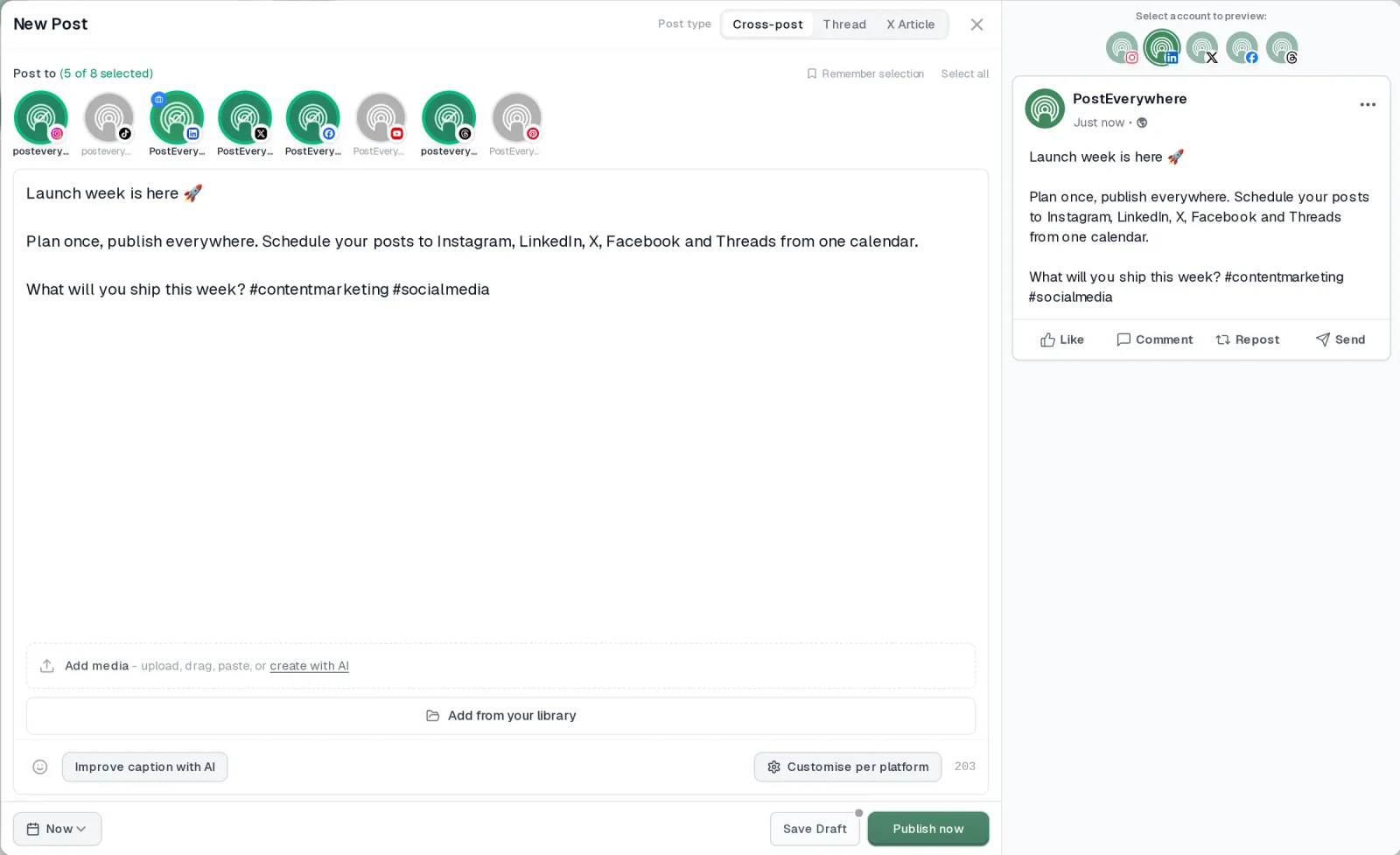
- It's simple. One composer for every platform: write the post once, tweak the caption per platform, check the live preview for each account and schedule it.
- One flat price, nothing locked away. From $9 a month. Every plan includes unlimited posts, the full API, the hosted MCP server and AI Studio, with no per-channel fees.
- Every top platform in one place. Instagram, TikTok, YouTube, LinkedIn, Facebook, X, Threads and Pinterest, plus Bluesky, Telegram, Discord, WordPress and Google Business Profile.
- Your AI agent can run it. Connect Claude, ChatGPT or Cursor in about a minute and ask it to plan, write and schedule your posts.
- Create in the same tool. AI Studio makes captions, images and video, so you don't need a second app before you post.
How PostEverywhere works
- Connect your accounts. Link your social accounts once, across all top platforms.
- Create the post. Write it in the composer, make images and video in AI Studio, or ask Claude or ChatGPT to draft and schedule it for you.
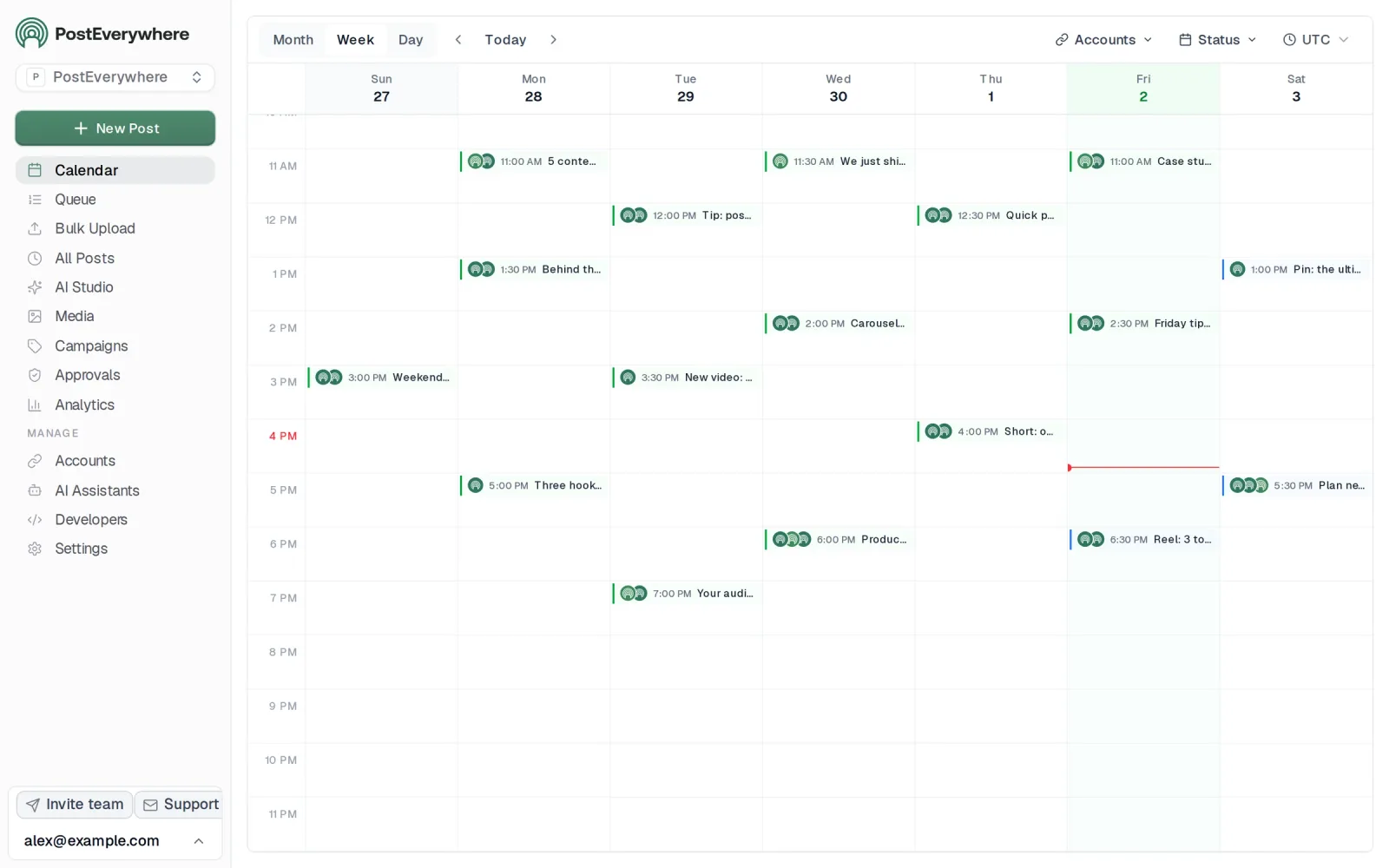
- Schedule it everywhere. Tweak the caption for each platform, check every preview, and it goes out on time from one calendar.
Built for AI agents
- Agents do the whole job. A full hosted MCP server with up to 45 tools: publish, schedule, use your queue or the best time, bulk-schedule 50 posts at once, check results, retry failures and send links to connect new accounts. Some rival MCP servers only read data or create drafts.
- $29 a month for 10 accounts, flat. Full API and agent access included, with no per-channel, per-seat or per-call fees. The same 10 accounts cost $60 a month on Buffer and $99 per user (billed annually) on Hootsuite.
- Nothing gated. API, MCP and webhooks come with every plan, from Lite. Several rivals keep their API for higher tiers or a sales call.
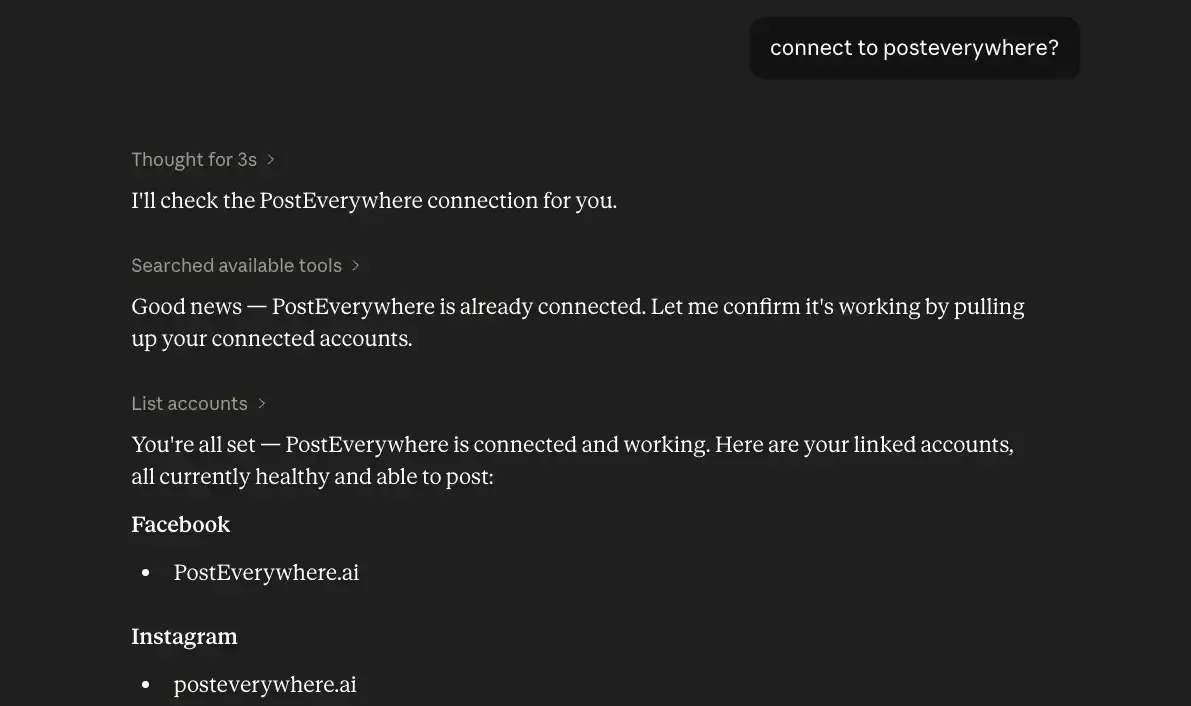
- Connected in a minute. One click adds PostEverywhere to Claude, with one-click installs for Cursor and VS Code. ChatGPT adds it under Plugins.
Plans: Lite $9 a month (2 accounts), Starter $19 (5), Growth $29 (10), Scale $39 (20). Every plan includes unlimited posts, the full API, the hosted MCP server and AI Studio.
“This tool has truly made my content posting so much easier, I can't work without it. I can schedule my posts days in advance while working on other projects. Set it and forget it.”
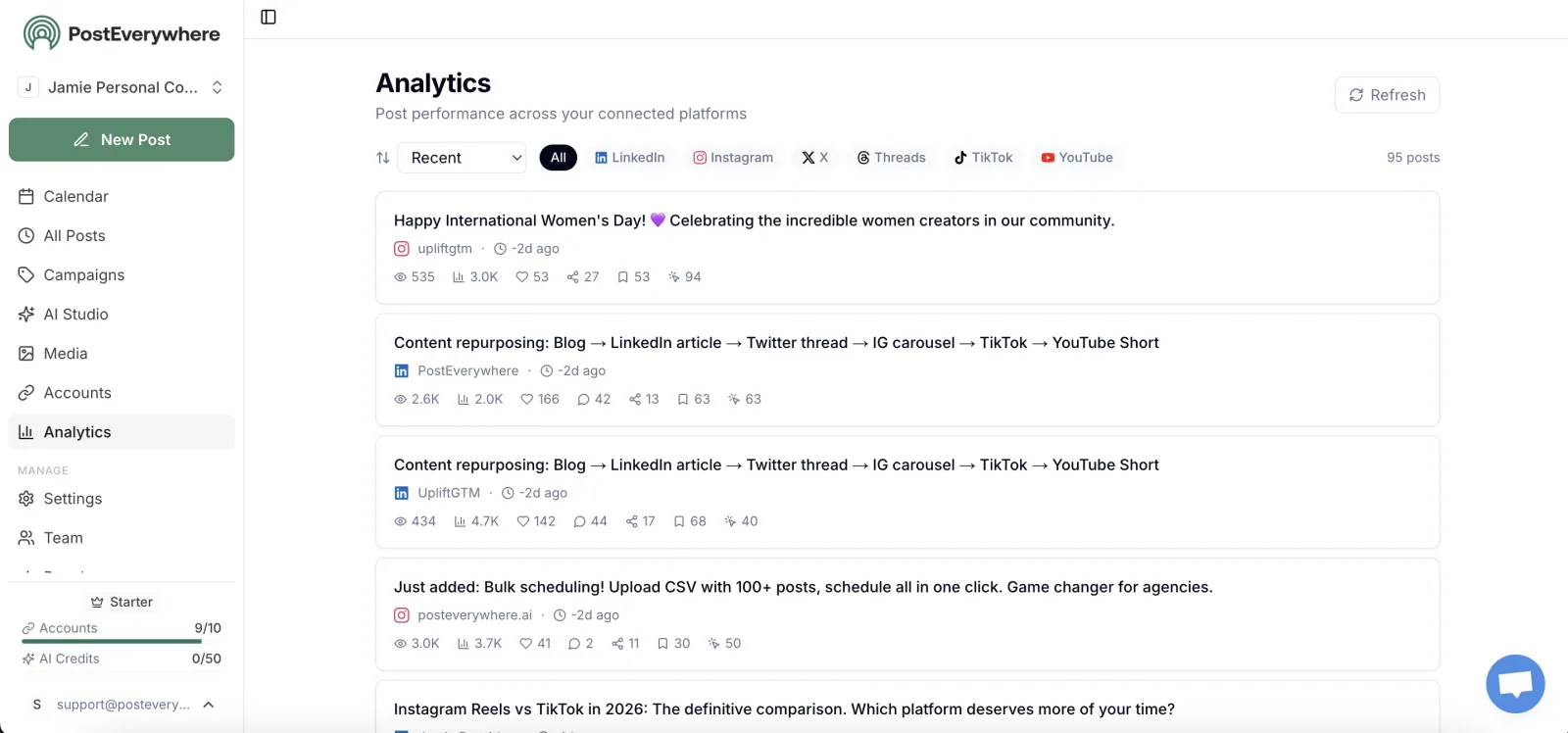
Also in PostEverywhere: a posting queue, bulk upload from CSV, approvals, analytics, an API and the iPhone app.
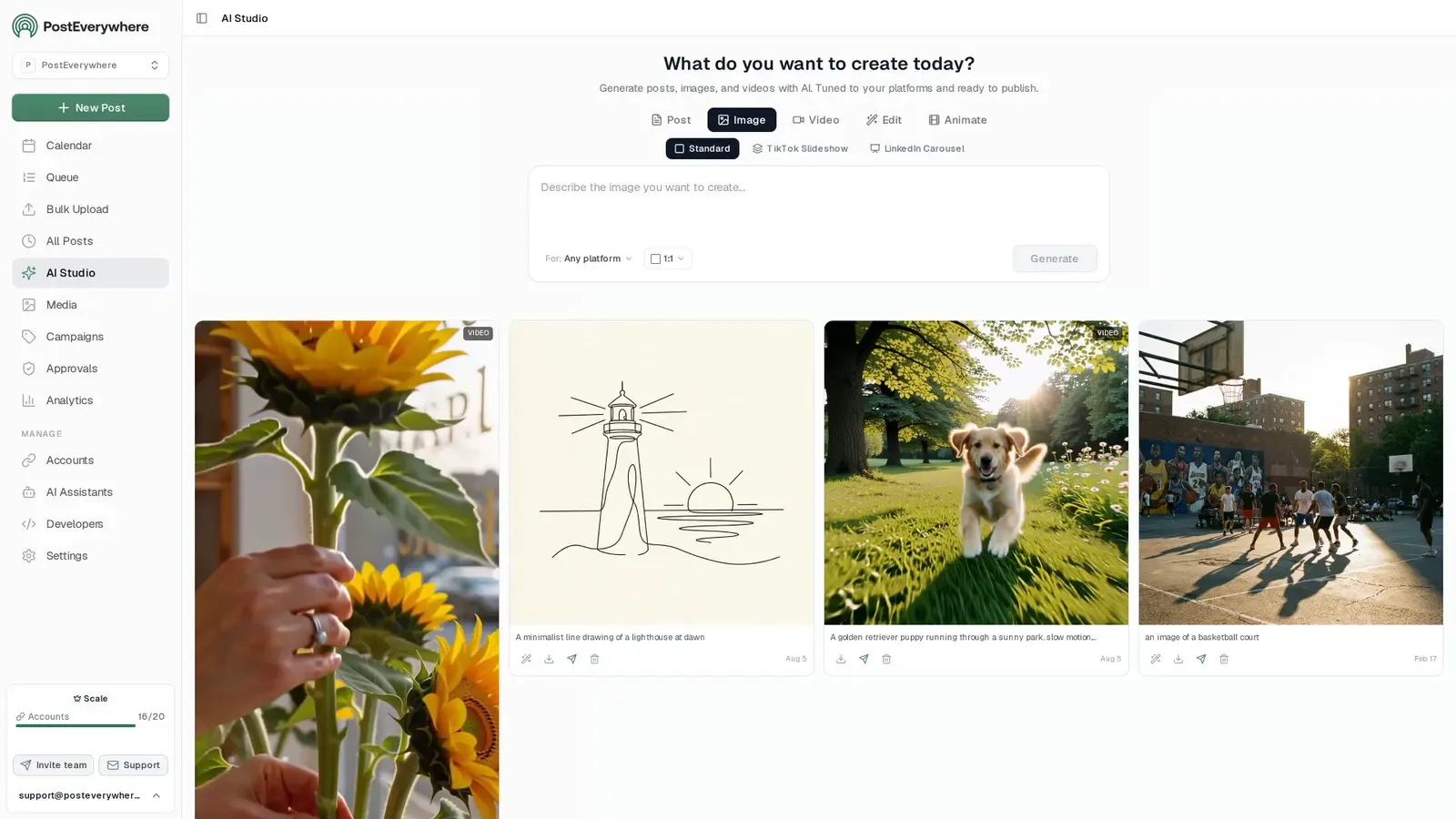
PostEverywhere's social media scheduler is built for AI agents. Add it to a Copilot Studio agent and Copilot can plan, write, schedule and publish posts to every account you've connected, from Teams or Copilot Chat.
Best for: teams on Microsoft 365 who want Copilot to do the posting, not just the writing.
Copilot is a strong writer, and with Canva it can make the graphic. It still can't post, because no connector in Microsoft's catalog publishes to social networks. PostEverywhere fills that gap through our MCP server.
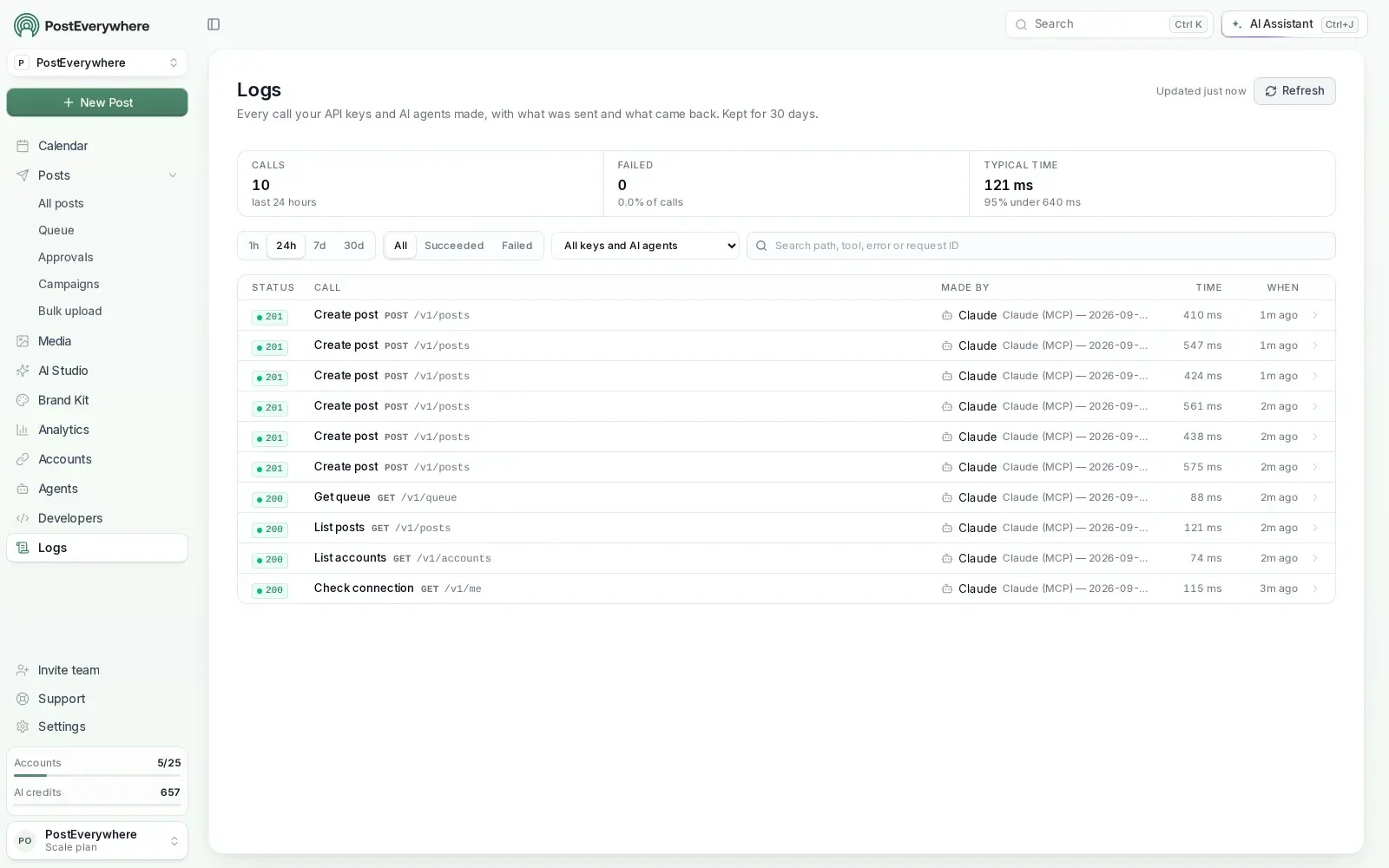
Once it's in your agent, Copilot can list your accounts, write a version of each post that fits each platform's limits, attach images or video, and schedule or publish to all top platforms at once.
It can also check what's queued, read your analytics, suggest the best time to post and retry a post that failed.
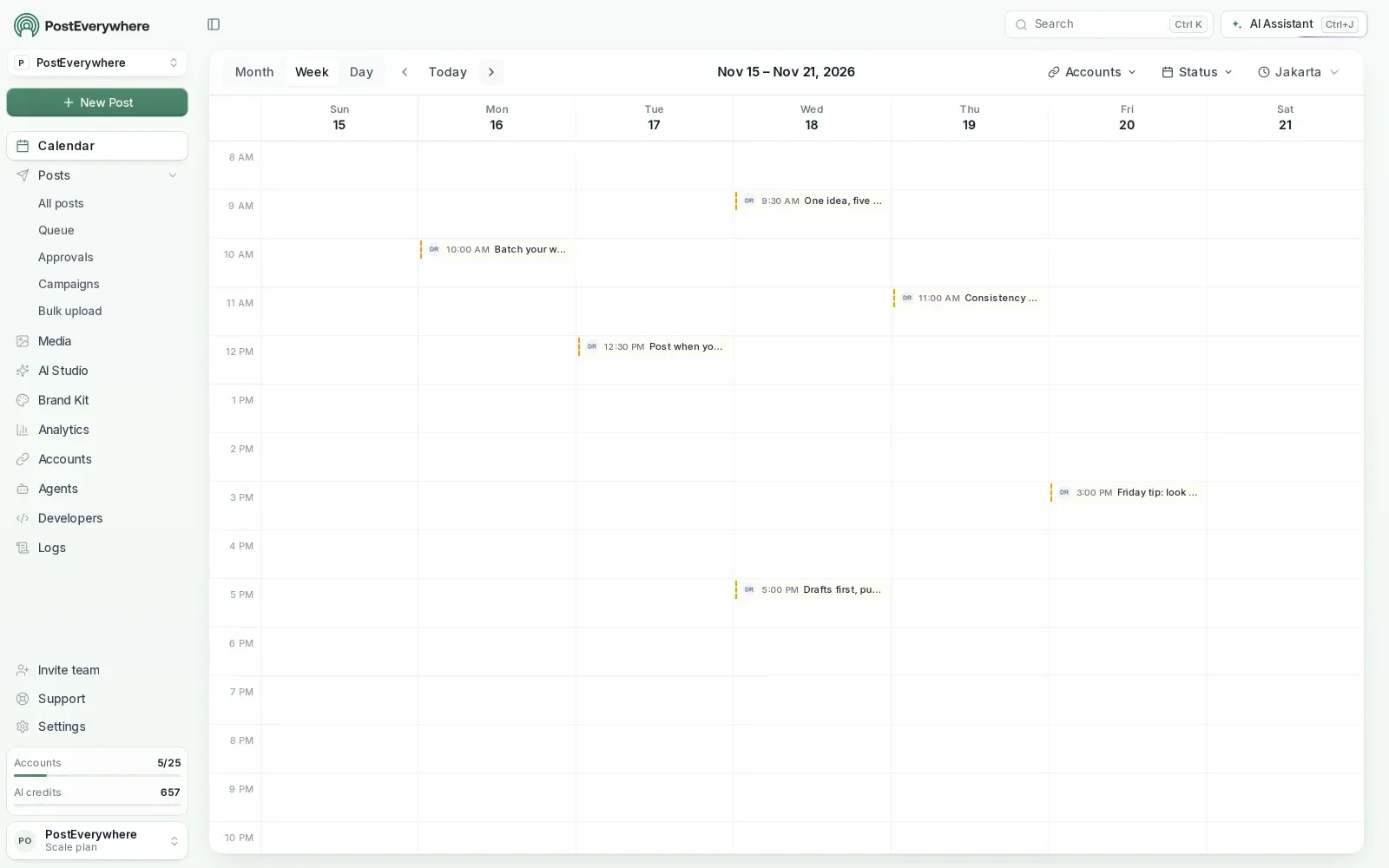
Teams get one thing the solo agents don't. Anyone with access to your PostEverywhere workspace can open a post the agent scheduled and change it before it goes out, so the social lead stays the editor even when five people are asking Copilot for posts.
Write the safety rule into the agent itself. In Copilot Studio, the agent's instructions might say: "Save every post as a draft. Only schedule or publish when the person asks you to by name and time." Microsoft's approval cards are documented for gallery connectors, so don't count on one appearing before your agent publishes. Test the agent with drafts before you share it.
What to ask Copilot:
- "Here are our launch notes. Plan next week's LinkedIn posts from them and save them to PostEverywhere as drafts."
- "Turn this press release into a LinkedIn post, an Instagram caption and a thread for X, and schedule them for Tuesday at 9am our time."
- "Which of last month's posts did best, and on which platform? Suggest three to repeat in a new format."
Good to know: plans start at $9 a month, every plan includes the MCP server, and there's a 7-day free trial (card required). If you'd rather a person signs off every post, have the agent save drafts and let your team schedule them: posts made by an agent don't go through PostEverywhere's approval workflow on their own.
Want Copilot to post for you, not just write? Connect your accounts to PostEverywhere, add it to a Copilot Studio agent and let it draft next week from Teams. Start your 7-day free trial.
2. Canva: a graphic from a sentence
Canva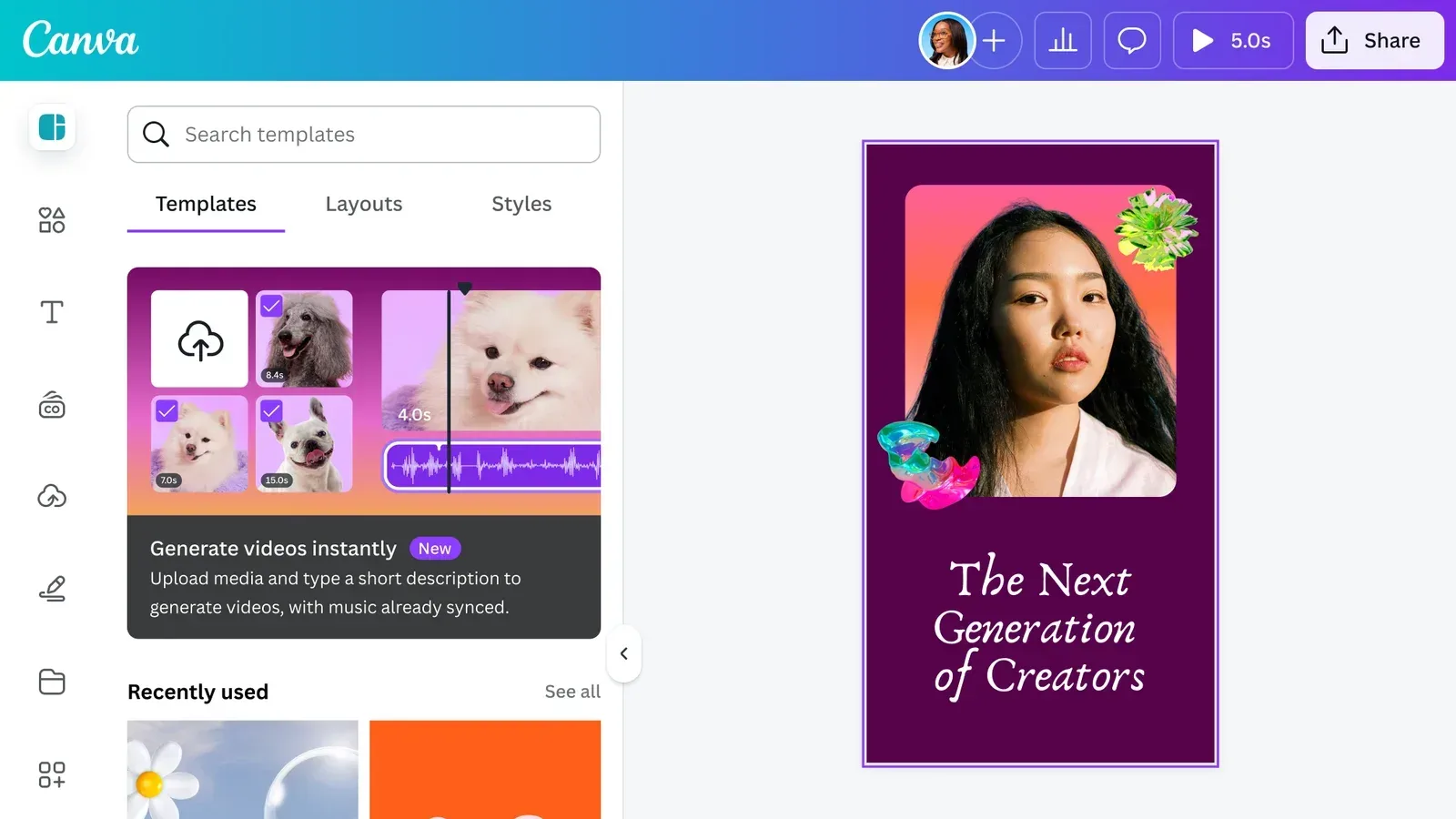
Best for: anyone whose posts need a branded graphic.
Microsoft's gallery describes Canva's connector as a way to "find your designs, presentations, whiteboards, and brand assets," and since November it can make them too. Microsoft's own write-action examples are almost a social media brief: an Instagram post for a product launch, a quote graphic for each key stat in a report, and a design updated with the team's feedback from Friday.
What to ask Copilot: "Take the three key stats from this report and create a quote graphic for each in Canva, using our brand kit."
Then download the designs and add them to the drafts in PostEverywhere, where one graphic can go to every network at once with cross-posting.
3. Figma: your design team's source files
Figma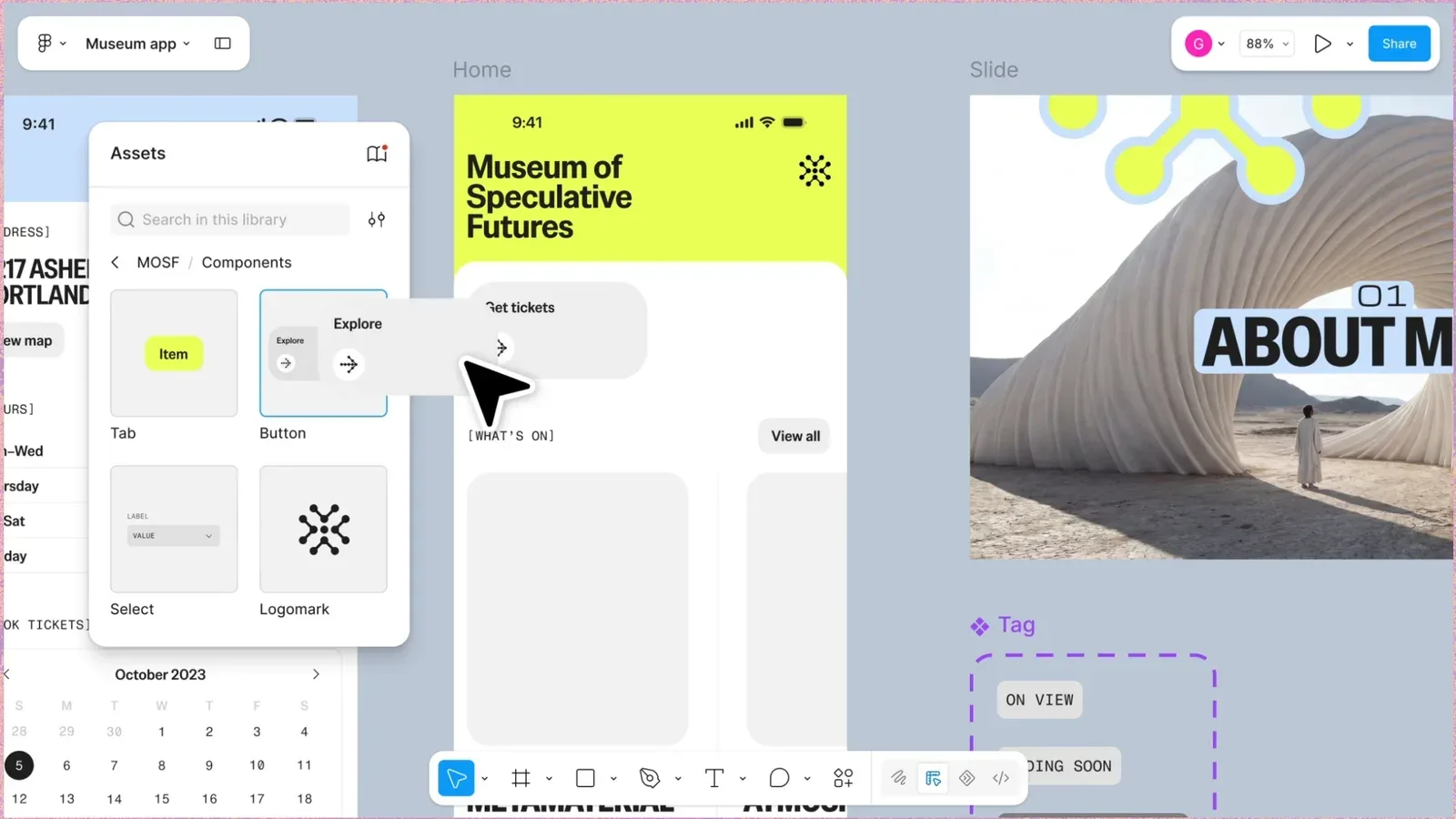
Best for: brands whose social templates live with the design team, not the marketing team.
Figma's partner-built connector gives Copilot live access to Figma data. That matters when your launch assets, campaign frames and approved social templates sit in Figma: Copilot can find the right file and the right frame name before it writes the post that goes with it, instead of someone digging through a shared project.
What to ask Copilot: "Find the spring campaign file in Figma and list the social frames that are marked ready. Draft a LinkedIn post for each."
If your designers export at the wrong size, our social media image sizes guide has every platform's dimensions in one table.
4. Notion: the content calendar Copilot can update
Notion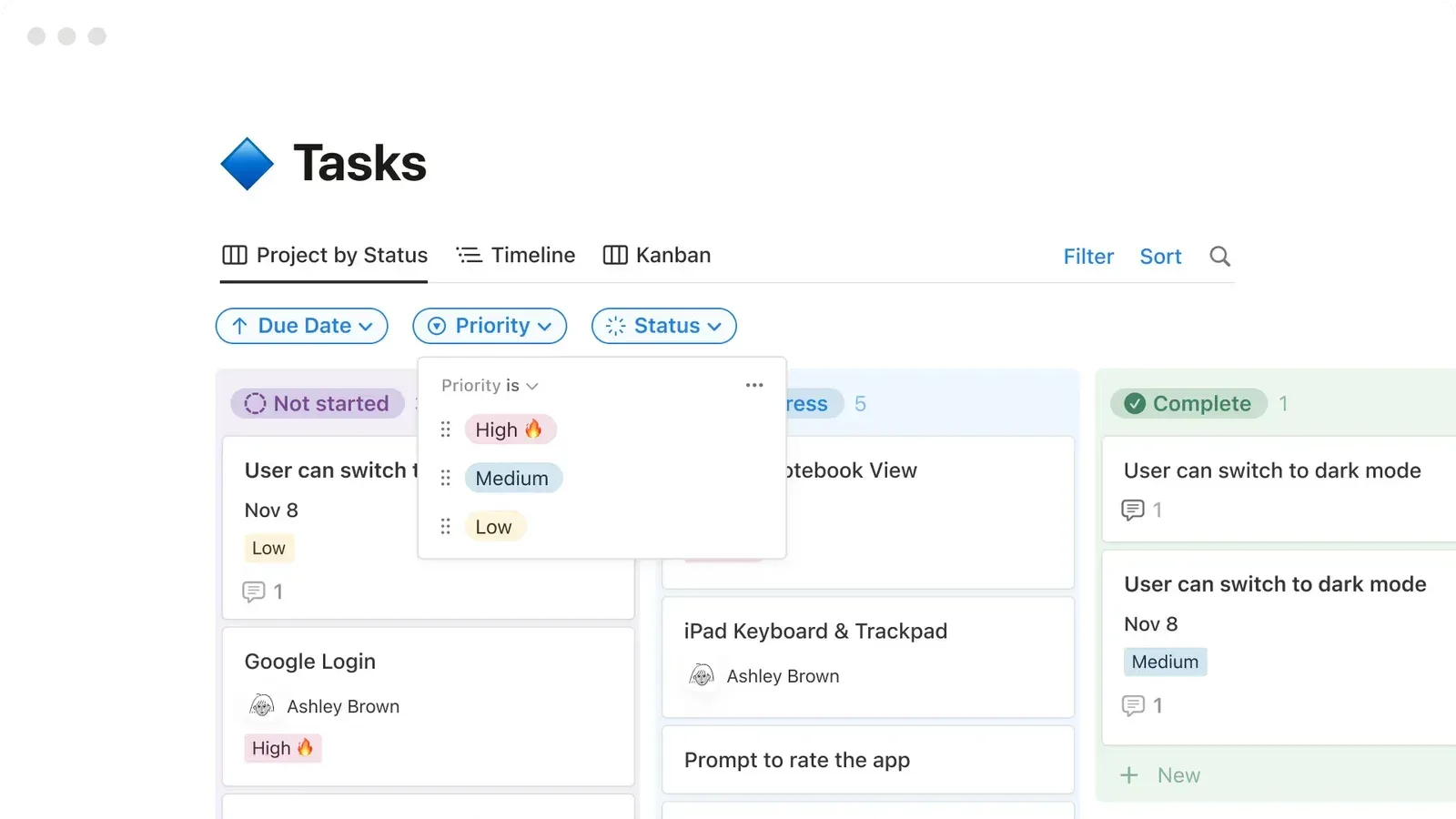
Best for: teams that plan content in Notion.
Notion's connector searches "your docs, wikis, notes, tasks, and databases," and it's one of the first connectors Microsoft named for write actions: Copilot can update Notion documents and databases as work happens. For social media that closes the loop.
Copilot reads the briefs marked Ready, drafts the posts, and then marks the rows as drafted, so the calendar in Notion matches what's actually queued.
What to ask Copilot: "Find every post in our Notion content calendar marked Ready for next week and summarize each brief." Hand the summary to your PostEverywhere agent to draft the posts, then ask Copilot to set those rows to Drafted.
Need a calendar structure to start from? Our free social media content calendar templates give Copilot a clean layout to read.
5. Airtable: a planning base, one record per post
Airtable
Best for: teams that need more structure than a doc, with fields for platform, owner, status and publish date.
Microsoft lists Airtable's federated connector as able to "query and manage your Airtable bases." If your calendar is a base, Copilot can pull next week's records, draft the posts, and help you keep the base tidy as they move from idea to scheduled.
What to ask Copilot: "Show me every record in our Social calendar base due next week that has no caption yet, and draft one for each."
Once the drafts are in PostEverywhere, the same week shows up in your social media calendar, so the base and the queue never drift apart.
6. monday.com: the tasks and deadlines behind each post
monday.com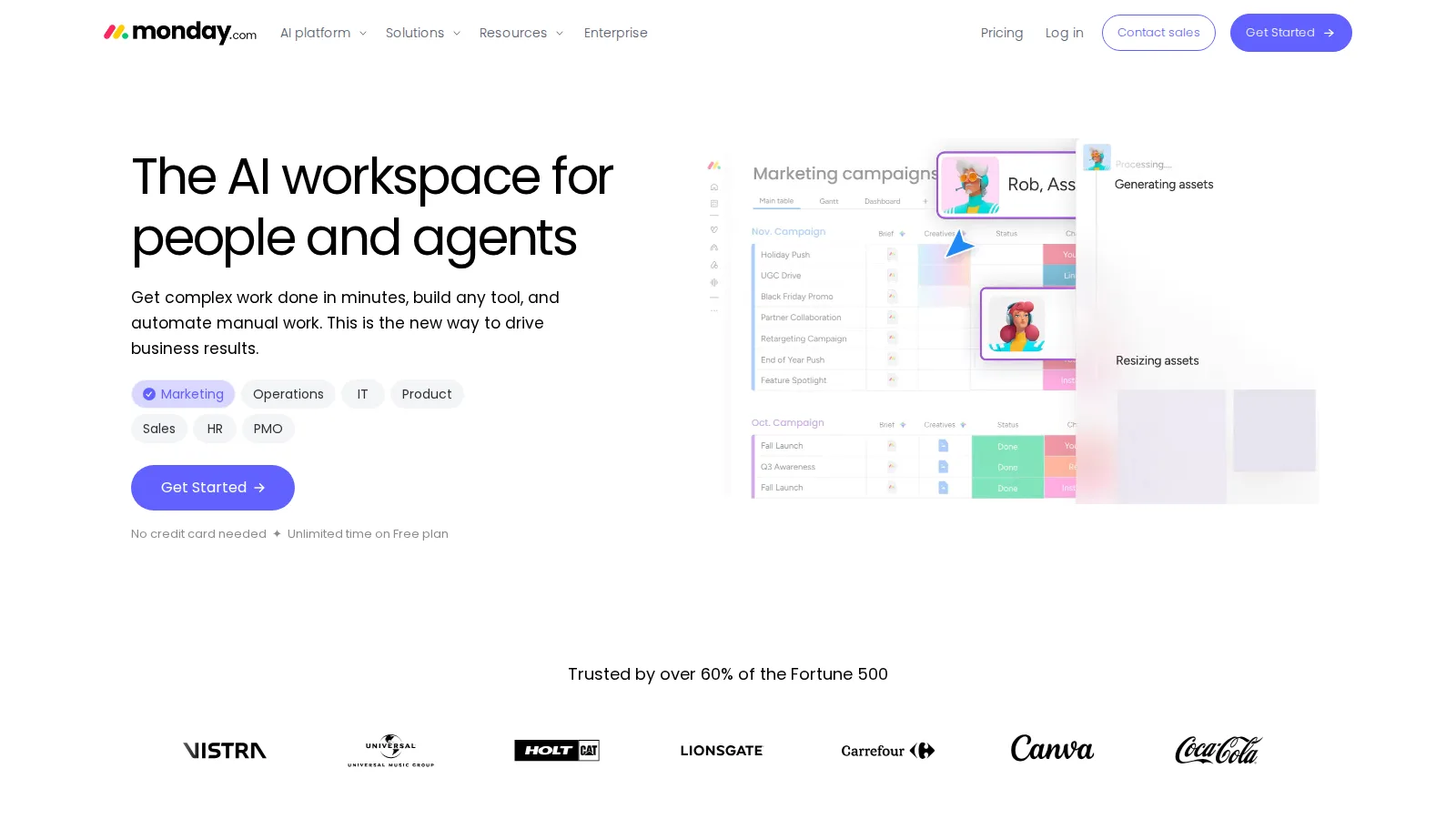
Best for: marketing teams that run campaigns as projects, with owners and due dates.
monday.com's own connector searches "your boards, items, tasks, updates, and docs." For social, that's the context a post usually lacks: who owns the launch, whether the landing page is live, and which date legal signed off.
Ask Copilot to check the board before it schedules anything that depends on it.
What to ask Copilot: "Check the Q1 launch board on monday.com. For every item marked Done this week, draft a short LinkedIn update."
7. HubSpot: customer stories and launch context
HubSpot
Best for: B2B teams whose best posts are about customers.
HubSpot's connector lets Copilot "manage customer data and sales pipelines." The useful social angle is proof. Copilot can find the deals that closed this quarter, the industries they came from and the customers who agreed to be named, which is most of what a good case-study post needs.
Always check with the customer before you post about them; Copilot won't know who said yes.
What to ask Copilot: "Which industries did we win the most deals in this quarter? Draft a LinkedIn post about what those customers have in common, without naming anyone."
Our LinkedIn scheduler page covers the post formats that suit customer stories.
8. Shopify: products into posts
Shopify
Best for: online stores that post about products every week.
Shopify's partner-built connector gives Copilot live access to your store data. That's what a product post needs: what's new, what's selling and what's about to run out. A "last few left" post written from real stock levels does more than a generic "shop now."
What to ask Copilot: "List the five products added to our Shopify store this month with their prices. Draft an Instagram caption and a Pinterest pin description for each."
Our Instagram and Pinterest scheduler pages cover the formats each network takes.
9. Meltwater: what people are saying about you
Meltwater
Best for: brands and comms teams that already pay for media monitoring.
Meltwater tracks news and social coverage, and its partner-built connector brings that data into Copilot in real time. Use it before you post, not after: check what's being said about your brand and your category this week, so a scheduled post doesn't land badly in the middle of a story you didn't know about.
What to ask Copilot: "Summarize this week's coverage of our brand in Meltwater. Is there anything we should avoid or respond to in next week's posts?"
10. Bitly: links you can measure
Bitly
Best for: anyone who needs to show which posts sent traffic.
Microsoft's own Bitly connector gives Copilot real-time access to your Bitly data. Pair it with PostEverywhere's analytics and you can answer the question your boss actually asks: not which post got likes, but which one got clicks.
What to ask Copilot: "Which of our Bitly links from last month's LinkedIn posts got the most clicks? Suggest two follow-up posts on those topics."
Keep Copilot's approval cards on
Microsoft built approvals into connector write actions, and they suit social media well. When Copilot wants to change something in an app connected from the gallery, such as Canva or Notion, it shows a card naming the tool and the connector, with the details it's about to send. You choose Allow once or Always allow.
| Setting | What it means for your posts |
|---|---|
| Read tools start on Always allow | Searching Notion or reading analytics happens without a prompt |
| Write tools start on Needs approval | Copilot asks before it creates or changes anything |
| Allow once | You review this action, and Copilot asks again next time |
| Always allow | No more prompts for that tool. Avoid it for anything that publishes |
You can change these any time in Copilot Chat under Settings, Sources, Tools. Admins can review which tools can create, update or delete data for the whole organization in the Microsoft 365 admin center.
Those cards cover the gallery connectors. For publishing, the safety net is the instruction in your PostEverywhere agent to save drafts first. A draft in your PostEverywhere calendar costs nothing to fix. A published post usually can't be recalled.
Let Copilot draft, and keep the final say. Every post it saves lands in your PostEverywhere calendar as a draft your team can edit, schedule or delete. See how scheduling works.
Keep Copilot posting every week
A weekly rhythm works well with Copilot, as long as you treat it as two places: Copilot Chat with the gallery connectors for research and graphics, and your PostEverywhere agent for drafting and scheduling.
Microsoft doesn't say a Copilot Studio agent can call the gallery connectors in the same conversation, so plan for a hand-off.
| When | Where | Ask it to |
|---|---|---|
| Monday | Copilot Chat (Notion or Airtable) | Summarize what's Ready in the content calendar |
| Monday | PostEverywhere agent | Draft the week's posts from that summary, saved as drafts |
| Monday | Copilot Chat (Canva) | Make the graphics for each draft |
| Tuesday | Copilot Chat (Meltwater), then PostEverywhere agent | Check the week's coverage, then schedule the approved posts |
| Friday | PostEverywhere agent, Copilot Chat (Bitly) | Report on results and clicks, and suggest what to repeat |
Microsoft's newer agent, Cowork, is built for this kind of delegation. Microsoft describes it as able to "carry out tasks on your behalf," from sending emails to posting in Teams, and says "you approve each action before it happens." Cowork is generally available for work accounts, and connector write actions work there as well as in Copilot Chat.
If the posts don't sound like your brand yet, our guide to teaching AI your brand voice shows how to write the instructions to paste into your Copilot Studio agent.
What Copilot can't do yet
- The consumer Copilot app can't add connectors. This is a Microsoft 365 Copilot feature for work accounts. Our Copilot setup page covers the other Copilots.
- No social connector in Microsoft's catalog. Publishing needs a Copilot Studio agent, which takes some setup and may need your admin.
- Write actions aren't in Word, Excel or PowerPoint yet. Microsoft says they're "coming soon" to Copilot in Office apps. Use Copilot Chat or Cowork for now.
- Researcher is read-only. Microsoft's deep-research agent can read your connectors but can't create, update or delete anything.
- What each connector can write varies. Microsoft notes that capabilities depend on the connector, its configuration and your permissions, so a connector that reads today may not write.
Copilot vs other AI agents for social media
| Microsoft Copilot | Gemini | OpenAI Dots | Meta Muse | |
|---|---|---|---|---|
| What it is | Microsoft 365's assistant, with connectors and Cowork | Google's assistant, with connected apps | Always-on agents inside ChatGPT | Meta's personal agent with its own cloud computer |
| Where you use it | Teams, Outlook and the Microsoft 365 Copilot app, on work accounts | Gemini web and mobile apps (custom apps are US-only) | ChatGPT, Slack, calls | The Muse app and muse.ai |
| How PostEverywhere connects | Copilot Studio agent (setup) | Custom app (guide) | Plugin in ChatGPT (guide) | Custom connector (guide) |
| Best for | Teams that live in Microsoft 365 and Teams | People who live in Google's apps | Teams already in ChatGPT and Slack | Small businesses on Instagram and Facebook |
They all post through the same PostEverywhere account, so different people on your team can use different agents and everything lands in one calendar. Our list of the best AI agents for social media compares them in more detail.
Ready to let Copilot run your social media? Connect your accounts, add PostEverywhere to a Copilot Studio agent and let it plan next week from Teams. Start your 7-day free trial.
FAQ
What's the best Copilot connector for social media?
PostEverywhere, because Microsoft's connector catalog has no social media scheduler and no connector that publishes to social networks. Added to a Copilot Studio agent, it lets Copilot write, schedule and publish posts to Instagram, TikTok, LinkedIn, YouTube, X (Twitter) and more, read analytics and retry failed posts.
Add Canva for graphics, Notion or Airtable for planning and Bitly for link tracking.
How do I connect PostEverywhere to Microsoft Copilot?
Through Copilot Studio. Open your agent, go to Tools, then Add a tool, New tool and Model Context Protocol. Enter https://mcp.posteverywhere.ai as the server URL, choose OAuth 2.0 with Dynamic discovery, create a connection and add it to the agent.
Then publish the agent to the Microsoft 365 and Microsoft Teams channel with Make agent available in Microsoft Copilot ticked.
Can Microsoft Copilot post to LinkedIn or Instagram?
Not with Microsoft's own connectors. None of them publish to social networks. With PostEverywhere added to a Copilot Studio agent, Copilot can schedule or publish to LinkedIn, Instagram, TikTok, YouTube, Facebook, X, Threads, Pinterest and the other top platforms, or save posts as drafts for your team to approve.
What are Copilot connector write actions?
Since 9 November 2026, connectors in Copilot Chat and Cowork can create, update and delete data in the apps they connect, where the connector provides those tools. Read tools are allowed by default.
Write tools start on Needs approval, so Copilot shows a card and asks before each one unless you choose Always allow.
Does the free Copilot app work with connectors?
No. Connectors and write actions are Microsoft 365 Copilot features for work and school accounts, and Microsoft lists a Microsoft 365 Copilot licence as a condition for seeing federated connectors. Publishing through PostEverywhere also needs a Copilot Studio agent, which your organization needs access to.
Will Copilot post without asking me?
Connectors from Microsoft's gallery ask first: their write tools start on Needs approval. A Copilot Studio agent follows its instructions instead, so tell your PostEverywhere agent to save every post as a draft and only schedule when asked.
Your team can then check the drafts in the PostEverywhere calendar before anything goes out.
How much does it cost to manage social media with Copilot?
Microsoft 365 Copilot and Copilot Studio are priced by Microsoft, so check your organization's plan. PostEverywhere starts at $9 a month, every plan includes the MCP server Copilot Studio connects to, and there's a 7-day free trial (card required).

Founder & CEO of PostEverywhere. Writing about social media strategy, publishing workflows, and analytics that help brands grow faster.