You can now add photos and videos from Google Drive directly into PostEverywhere. In New Post or on the Media page, click Add from Google Drive, choose your Google account and pick your files. They are copied into your post, ready to publish or schedule to every account you have connected, and we only see the files you pick.
It works on the web, on desktop and phone browsers, on every plan including the 7-day free trial.
Written by Jamie Partridge, Founder of PostEverywhere.
What's new: Google Drive import in PostEverywhere
Until today, getting a photo from Drive into a scheduled post meant downloading it first. On a laptop that is a detour through your Downloads folder. On a phone it is worse: open the Drive app, save the file to your camera roll, then upload it again somewhere else.
Plenty of teams keep their finished assets in Drive. The designer exports there, the video editor drops the final cut there, the client shares a folder of product shots there.
So the most common first step before scheduling anything was moving a file out of Drive and back in again.
Now New Post has two buttons side by side: Add from your library, which works as it always has, and the new Add from Google Drive.
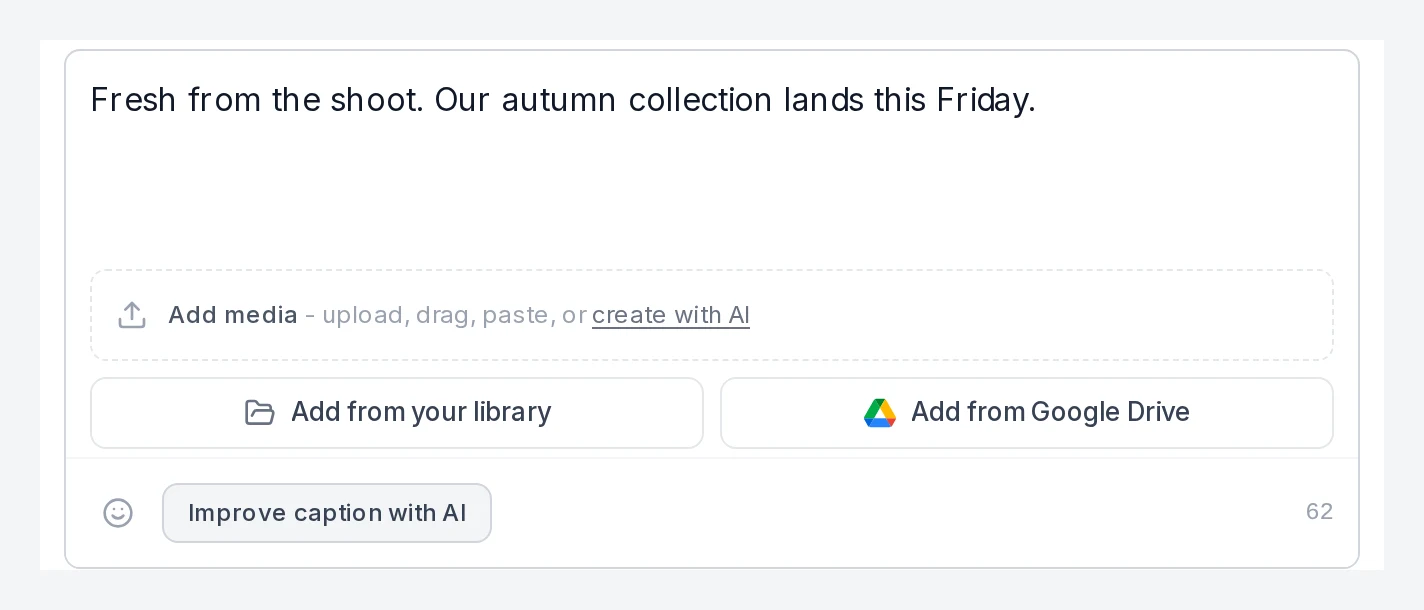
How to add photos and videos from Google Drive
- Open New Post (or the Media page, if you want to stock your library first).
- Click Add from Google Drive. On a phone browser the composer buttons are shorter, so look for Google Drive next to Your library. On the Media page it sits next to Upload (on a phone it shows as an icon).
- Choose your Google account. Google asks every time, so it is easy to switch between a personal Drive and a work one. The Google account does not have to be the one you signed up to PostEverywhere with.
- Allow access the first time. Google's consent screen asks you to let PostEverywhere see "only the specific Google Drive files you use with this app". That is the whole permission.
- Pick your files in Google's file picker. You can browse folders and shared drives, then select the photos and videos you want.
- Wait for "Importing…" to finish. The files appear in your post (or your Media library), and from there it is a normal post: write the caption, pick your accounts, choose Publish now or Schedule.
{/* SCREENSHOT: Google file picker open over the PostEverywhere composer */}
How to post from Google Drive to Instagram, TikTok and more
The search we see most often is some version of "google drive to instagram". Instagram has no Drive button of its own, and neither do TikTok, LinkedIn or YouTube. The usual workaround is to download to your phone and upload again, the same transfer step we wrote about in posting to Instagram from a desktop.
In PostEverywhere it is one flow:
- Open New Post and click Add from Google Drive.
- Pick your photo, carousel images or video from Drive.
- Select the accounts you want, for example your Instagram, TikTok and LinkedIn accounts.
- Use Customise per platform if a caption or title should differ on one network.
- Choose Publish now or Schedule.
Because the file is copied into PostEverywhere, the same Drive photo can go to Instagram, Facebook, X (Twitter), Threads, Pinterest and the rest of your accounts in one post. That is the same cross-posting workflow as any upload, just without the download step.
If you mostly post video, our guide to posting Reels from a computer covers the format side, and the Instagram scheduler page covers carousels, Reels and Stories.
{/* SCREENSHOT: A post in the composer with a photo imported from Google Drive, ready to schedule */}
Want to try it on your own Drive? Start a 7-day free trial on any plan, open New Post and click Add from Google Drive. Card required, cancel any time.
Where Google Drive import works
- New Post and the Media page. Those are the two places with an Add from Google Drive button. Add files in New Post to use them right away, or add them on Media to build up a library for later.
- On the web, on desktop and on phone browsers. Open PostEverywhere in the browser on your laptop or your phone.
- On every plan, including the trial. There is no plan check. Imported files count toward your normal storage, the same as anything you upload.

It is not in the iPhone app. Google does not allow its sign-in inside an app's embedded browser, so on an iPhone, open PostEverywhere in Safari instead. Files you import there go into your Media library like any other upload.
What you can import from Google Drive
| Supported | |
|---|---|
| Photos | JPG, PNG, GIF, WebP, HEIC and HEIF, up to 25 MB each |
| Videos | MP4 and MOV, up to 4 GB each |
| Files per pick on the Media page | Up to 20 |
| Files per pick in New Post | Up to the free media slots left in that post (10 on a normal post) |
| Shared drives | Yes |
| Whole folders | No. Browse into a folder and select the files themselves |
The platform you post to still has the final say. X allows 4 images per post, for example, and each network has its own video limits. Our media requirements reference lists them per platform, and the image size guide covers dimensions.
What PostEverywhere can see in your Google Drive
This is the question I would ask first, so here is the plain answer: we only see the files you pick. Nothing else in your Drive.
That comes from the permission we ask Google for. It is one of Google's most limited Drive permissions (the drive.file scope), which only covers the specific files you open with PostEverywhere through the picker.
We cannot list your folders, read your documents or see anything you did not select. Google's documentation on Drive scopes explains how it works.
There is also no saved connection to manage. You choose your Google account each time you import, and nothing runs in the background between imports.
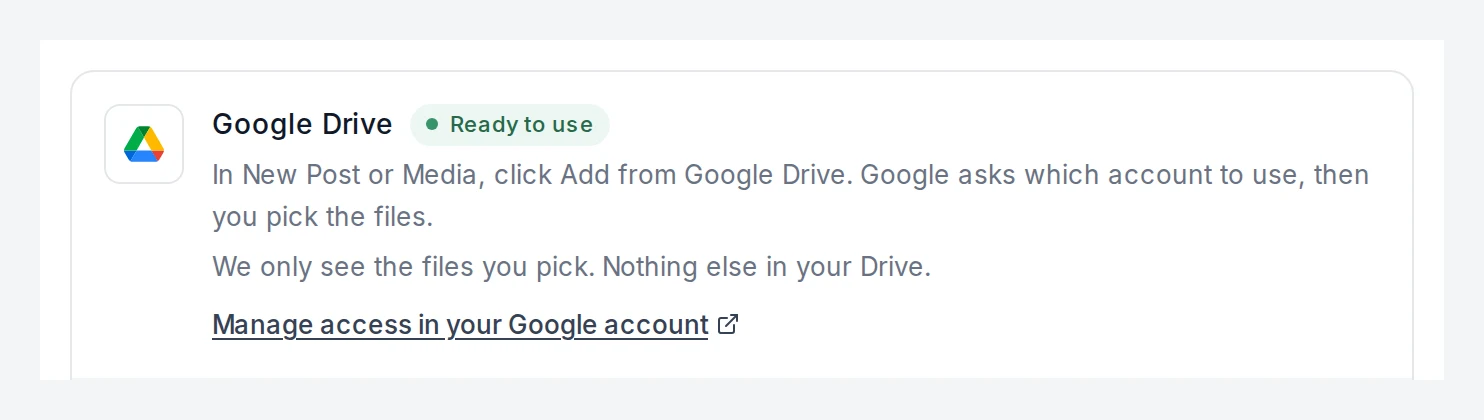
In PostEverywhere, Settings → Integrations shows Google Drive as "Ready to use", with a Manage access in your Google account link. That link takes you to your Google account's connections page, where you can remove PostEverywhere's access whenever you like.
Posting the same asset to several networks? Import it once from Drive and send it to every account in one post. See how the social media scheduler handles the rest.
What Google Drive import doesn't do
Short list, because it is better to know now than to find out later:
- It is a one-off copy, not a sync. Editing or replacing the file in Drive afterwards does not change what you already imported. Import the new version if the file changes.
- It imports files, not folders. You can browse folders in the picker, but you select individual files.
- It is photos and videos only. No Google Docs, Sheets or Slides, and it is Google Drive, not Google Photos.
- It is on the web only for now. Not in the iPhone app (see above).
- It is in New Post and Media only. AI Studio and Bulk Upload do not pull from Drive. For a CSV bulk upload, add your files to Media from Drive first, then reference them by filename as usual.
- AI agents cannot fetch files from Drive. Nothing changed in the API or the MCP server, and Drive share links do not work as media URLs.
FAQ
Does it work in the iPhone app?
No. Add from Google Drive is not in the iPhone app, because Google does not allow its sign-in inside an app's embedded browser. Open PostEverywhere in Safari on your iPhone to import from Drive; the files go into your Media library like any other upload.
Does it sync with Google Drive?
No. Each import is a one-off copy of the files you pick. Changes you make in Drive later are not reflected in PostEverywhere, and nothing is saved back to your Drive.
Can my AI agent use files from my Google Drive?
Not directly. Agents connected through the MCP server or the API cannot open your Drive, and Drive share links are not accepted as media URLs. Import the files on the Media page first; once they are in your Media library they are ordinary PostEverywhere media.
Which plans include Google Drive import?
Every plan, including the 7-day free trial. Imported files count toward your plan's normal storage.
Can I import a whole folder?
No. You can browse folders and shared drives in Google's picker, but you select individual files: up to 20 at a time on the Media page, or as many as the post has room for in New Post.
What can PostEverywhere see in my Google Drive?
Only the files you pick. We use Google's drive.file permission, so nothing else in your Drive is visible to us, and you can remove access from your Google account at any time.
Post from Google Drive today
This is a small feature that removes a step people repeat dozens of times a week. Drive is where a lot of finished work already lives, so the shortest path from "the designer sent it" to "it is scheduled" should not go through a Downloads folder or a camera roll.
If you post the same assets to several networks, it pairs well with one post going to every account, and with the iPhone app for checking what went out.
Ready to post from Drive? Plans start at $9/month, with a 7-day free trial on every plan. Card required, cancel any time.

Founder & CEO of PostEverywhere. Writing about social media strategy, publishing workflows, and analytics that help brands grow faster.