ChatGPT skills for social media are instruction files that teach ChatGPT one social media job, such as planning a week of posts or writing a client report. We publish 15 of them for PostEverywhere. They don't end with a draft for you to copy into another tool. They work through the PostEverywhere app in ChatGPT, so ChatGPT can schedule the post, publish it, check how it did and retry it if it failed.
One thing is worth knowing up front. Uploading skills is a business-plan feature in ChatGPT right now: OpenAI lists it for Business, Enterprise, Edu and Healthcare workspaces. If you're on Free, Plus or Pro, you can still run the same method with the PostEverywhere app and a single prompt.
This guide covers both routes, all 15 skills and what to say to each one.
Written by Jamie Partridge, Founder of PostEverywhere.
What are skills in ChatGPT?
A skill is a folder with a SKILL.md file inside. The top of the file holds a name and a short description of when to use it, and the rest is the method.
ChatGPT reads the descriptions, and when your request matches one, it loads that skill and follows it. You can also pick a skill yourself by typing @ and its name, as OpenAI's Academy guide to skills explains.
That means you don't have to remember fifteen commands. Ask "how did my posts do last month?" and the performance skill does the work, the same way a colleague who knows your setup would.
Four facts to know before you start:
- It's the same format Claude uses. ChatGPT skills follow the open Agent Skills format, which Anthropic released and which Codex, Claude and a long list of other agents now read. OpenAI says a skill can be exported from one product and imported into another. If you already use our Claude skills for social media, these are the same 15 jobs.
- Uploads are for business plans, for now. OpenAI's help centre lists skills for ChatGPT Business, Enterprise, Edu and Healthcare (Skills in ChatGPT). They became generally available on 9 July 2026, according to the ChatGPT Business release notes. In a managed workspace, an owner decides who can create, upload and share them.
- ChatGPT checks every upload. It scans a skill before the skill becomes available. OpenAI is clear that the scan doesn't replace your own review, which is one reason ours are public: you can read every file first.
- A skill can only use what you've connected. It can't reach an account or a tool you don't already have access to. That's the reason a social media skill is only half the job, which brings us to apps.
ChatGPT skills vs apps: why social media needs both
A skill is know-how. An app is access. ChatGPT needs both to run your social media.
On its own, a skill can teach ChatGPT to write a strong LinkedIn post, a thread with a hook in the first line, or a weekly report in a fixed format.
But it can't see your accounts, your calendar or your numbers. That's why most of the "ChatGPT skills for social media" you'll find online end with text for you to paste somewhere else.
The PostEverywhere app is the other half. It's the app that connects ChatGPT to your accounts, and you'll find it in ChatGPT's Plugins directory, where apps have lived since OpenAI merged the two in July (Plugins in ChatGPT).
Once it's connected, ChatGPT can list your accounts, create and schedule posts, import media, read your analytics and retry failed posts. You sign in to PostEverywhere and approve the connection, with no API key to copy, and it works on the free ChatGPT plan too. Our ChatGPT setup page shows every screen.
Our skills join the two together. Each one is the method for a job, written for the PostEverywhere tools. The scheduling skill, for example, checks that the account is healthy and reads each platform's rules before it writes anything, then saves a draft, shows it to you and only schedules once you say yes.
The ChatGPT versions of the skills are written around three differences from Claude:
- One workspace. ChatGPT works inside one PostEverywhere workspace: the one that was active when you connected it. It can't switch workspaces from the chat.
- Videos come from a link. To post a video, you give ChatGPT a public link to the MP4 file, and PostEverywhere imports it from there. Images can come from your media library.
- Some tools stay in PostEverywhere. The app doesn't include PostEverywhere's AI image and caption tools, webhooks or Brand Kit. ChatGPT writes the captions itself. Bluesky, Telegram, Discord and self-hosted WordPress connect with an app password, bot token or webhook, so you add those in PostEverywhere rather than in the chat.
Want ChatGPT to post for you, not just write? Every PostEverywhere plan includes the ChatGPT app, from $9 a month. Start your 7-day free trial, connect your accounts, then add the skills. Card required, cancel any time.
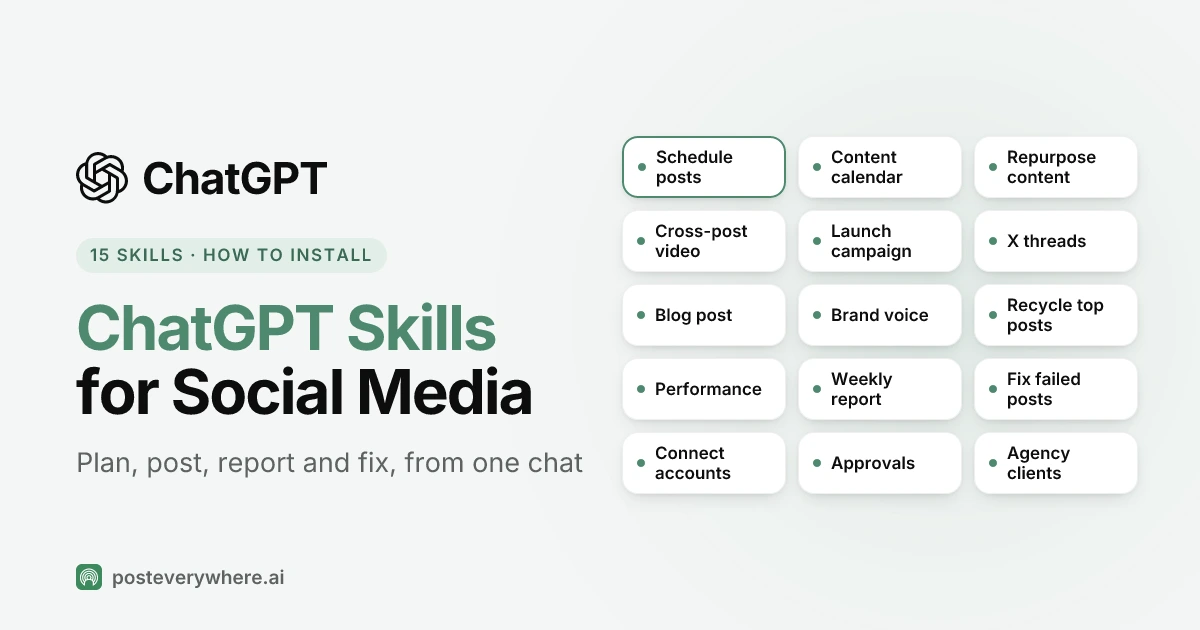
The 15 PostEverywhere skills for ChatGPT
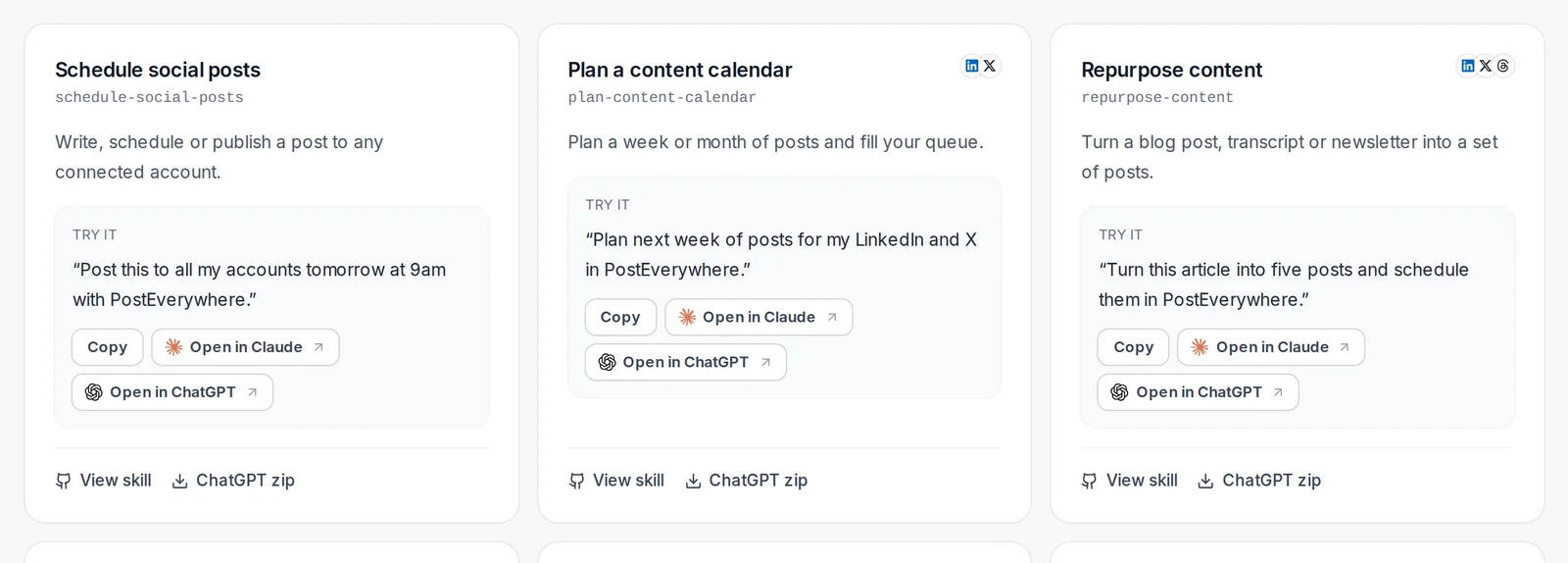
Here's the full set. You don't need the exact wording in the right-hand column. It's a typical request that triggers the skill.
| Skill | What it does | Try saying |
|---|---|---|
| Schedule social posts | Writes each platform's version, shows you a draft, then schedules or publishes it | "Post this to LinkedIn and X tomorrow at 9am." |
| Plan a content calendar | Plans a week or month of posts and fills your queue | "Plan two weeks of Instagram and Facebook posts around our autumn menu." |
| Repurpose content | Turns an article, transcript or newsletter into a set of posts | "Turn this newsletter into four LinkedIn posts for next week." |
| Cross-post a video | Sends one video to TikTok, Reels, Shorts and more, with a caption for each | "Post the video at this link to TikTok, Reels and Shorts on Friday." |
| Launch announcement | Teaser, launch-day, reminder and last-call posts for a launch, event or sale | "Plan the posts for our webinar on the 20th, starting a week before." |
| Write an X thread or Article | Writes a real linked X (Twitter) thread, or a long-form X Article | "Make this blog post into an X thread for tomorrow morning." |
| Write a blog post | Writes a WordPress post and publishes it or saves it as a draft | "Write a WordPress post from these notes and save it as a draft." |
| Brand voice | Reads your published posts and writes a short guide to how you sound | "Read my recent posts and tell me how I write." |
| Recycle top posts | Finds your best past posts and schedules fresh versions, spaced out | "Find my three best posts from the summer and schedule new versions." |
| Review post performance | Shows how posts did and which platform works best | "Which platform got the most engagement last month?" |
| Weekly report | Writes a short weekly or monthly report, ready to paste into an email | "Write this week's social media report for my manager." |
| Fix failed posts | Finds posts that didn't go out, explains why and fixes what it safely can | "Did anything fail this week? Fix what you can." |
| Connect social accounts | Sends a sign-in link for Instagram, TikTok, LinkedIn and the rest, and tells you where to add the others | "I want to add our TikTok account." |
| Approval workflow | Drafts posts for a client or manager to approve before they go live | "Draft next week's posts and send them for approval." |
| Agency clients | Keeps each client's accounts and posts apart inside your workspace | "Show me what's queued for Acme next week." |
All 15 are open source under the MIT licence. The ChatGPT downloads are versions written for the ChatGPT app's tools, and the originals live in our public repository, so you can read exactly what ChatGPT will be told before you install anything.
How to install ChatGPT skills for social media
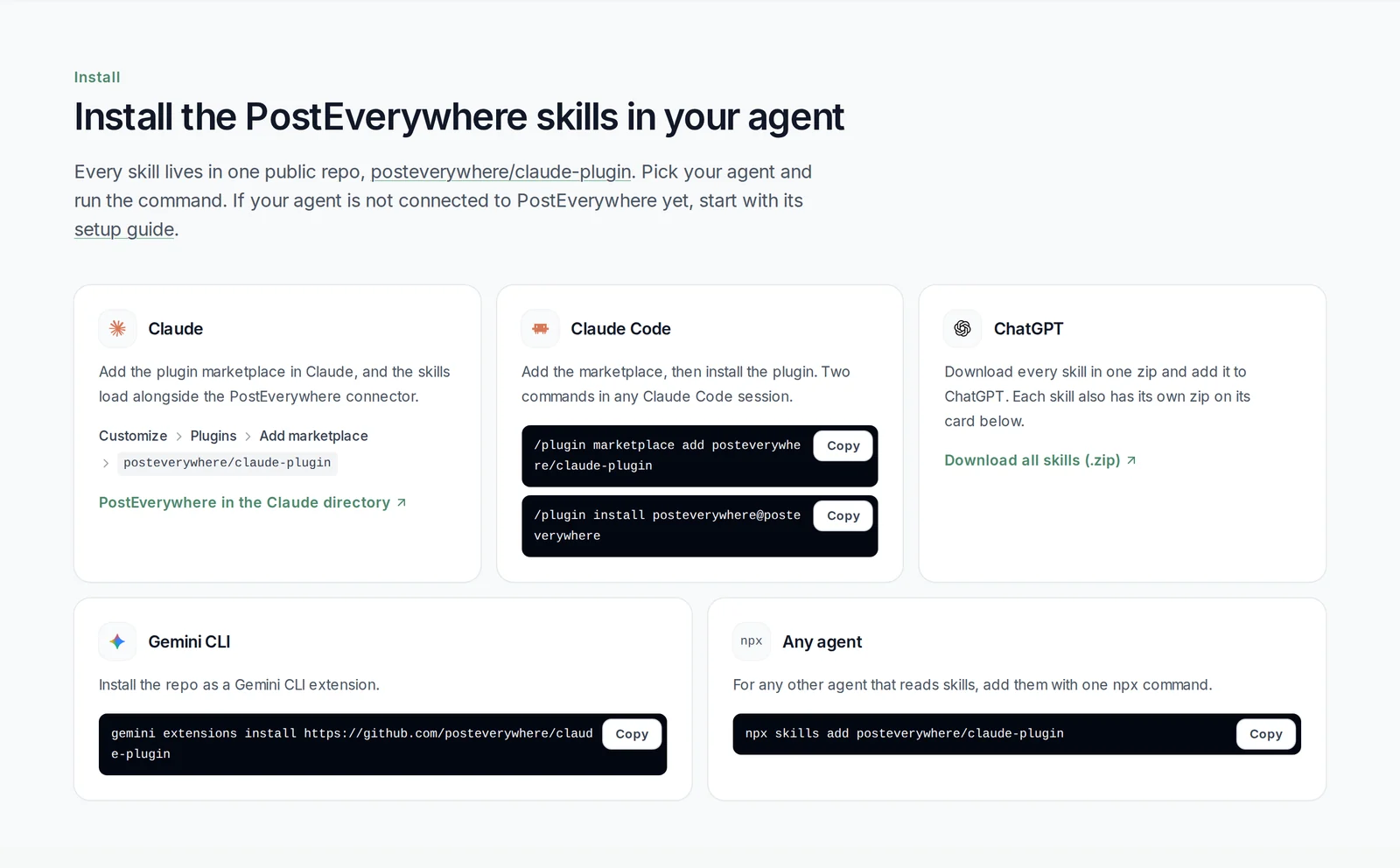
Whichever plan you're on, start by connecting the PostEverywhere app. Then either upload the skills, on a business plan, or use the one-prompt route on Free, Plus and Pro.
Setting up the skills in ChatGPT
About five minutes, once. After that you just ask.
- Every planConnect the PostEverywhere appFind it under Plugins, select Connect, sign in to PostEverywhere and approve.
- Business, Enterprise, EduUpload the skillsSkills, then Create, then Upload from your computer. On Free, Plus and Pro, use the one-line prompt instead.
- Every dayAsk in plain EnglishChatGPT picks the matching skill, or type @ to choose one. Drafts come first.
Step 1, on every plan: connect PostEverywhere
- In ChatGPT, open Plugins in the sidebar and search for PostEverywhere.
- Select Connect, or Install plugin first if you see it. Sign in to PostEverywhere and approve the connection.
- Check it worked by asking: "Which social accounts do I have connected in PostEverywhere?"
On ChatGPT Business, apps are switched on by default. Enterprise and Edu workspaces start with them off, so if the button says "Disabled by admin", your workspace admin has to allow the app first. OpenAI's page on connected apps in ChatGPT covers these settings.
Step 2 on Business, Enterprise and Edu: upload the skills
- Download the skills from our skills page. Each skill has its own ChatGPT zip. I'd start with the three most people use every week: scheduling, the content calendar and the weekly report.
- In ChatGPT, open Skills, which sits under Plugins in the sidebar. Choose Create, then Upload from your computer, and pick the zip.
- Wait for ChatGPT's scan to finish. Most skills are ready straight after it.
- Repeat for each skill you want.
There's also a zip with all 15 skills inside, which saves fourteen downloads. If your workspace only accepts one skill per upload, use the single zips instead. And if you can't see Skills or the upload option at all, your workspace owner controls who can create and upload them.
Step 2 on Free, Plus and Pro: one prompt instead
You can't upload skills on these plans yet, but you can connect the PostEverywhere app, and the app is what does the posting. With the app connected, paste this into a new chat:
Read https://posteverywhere.ai/SKILL.md and help me plan
and schedule next week's social media posts.
ChatGPT reads our skill file and uses its method in that chat: it checks your accounts, writes a version for each platform, saves drafts and asks before it schedules anything.
For a job you repeat, such as the weekly report, open that skill's SKILL.md from our skills page and paste it into a project's instructions in ChatGPT. Every chat you start in that project then begins with the method, which is close to having the skill installed.
In Codex
Codex, OpenAI's coding agent, reads the same skill format (Codex skills documentation). One command adds all 15:
npx skills add posteverywhere/claude-plugin
Then connect Codex to the PostEverywhere MCP server. The MCP server docs have the address, and our Codex setup page walks through the connection.
Prefer to do some of it yourself? Every post ChatGPT schedules can be edited, moved or written by hand in PostEverywhere's social media scheduler, on every plan from $9 a month. Start your 7-day free trial, card required.
What each skill does in ChatGPT
The table gives you the one-line version. Here's what happens when each skill runs, grouped by the job.
Publishing
Schedule social posts is the one you'll use most. It checks the account is connected and healthy, reads the platform's rules (character limits, which posts need media, video lengths), writes a version for each network and saves it as a draft.
You see the draft, and it schedules only after you say yes, unless you already said "publish now" or gave a time for that exact post.
Cross-post a video takes a public link to the MP4 file, imports it into PostEverywhere and waits until it's ready. Then it compares the video with each platform's limits and writes a separate caption for TikTok, Instagram Reels, YouTube Shorts, LinkedIn and Facebook. It's cross-posting without one caption copied five times.
Write an X thread or Article builds a real linked thread, not one long post cut into pieces, or a long-form X Article if you'd rather. Write a blog post does the same for WordPress, as a draft or published.
Planning
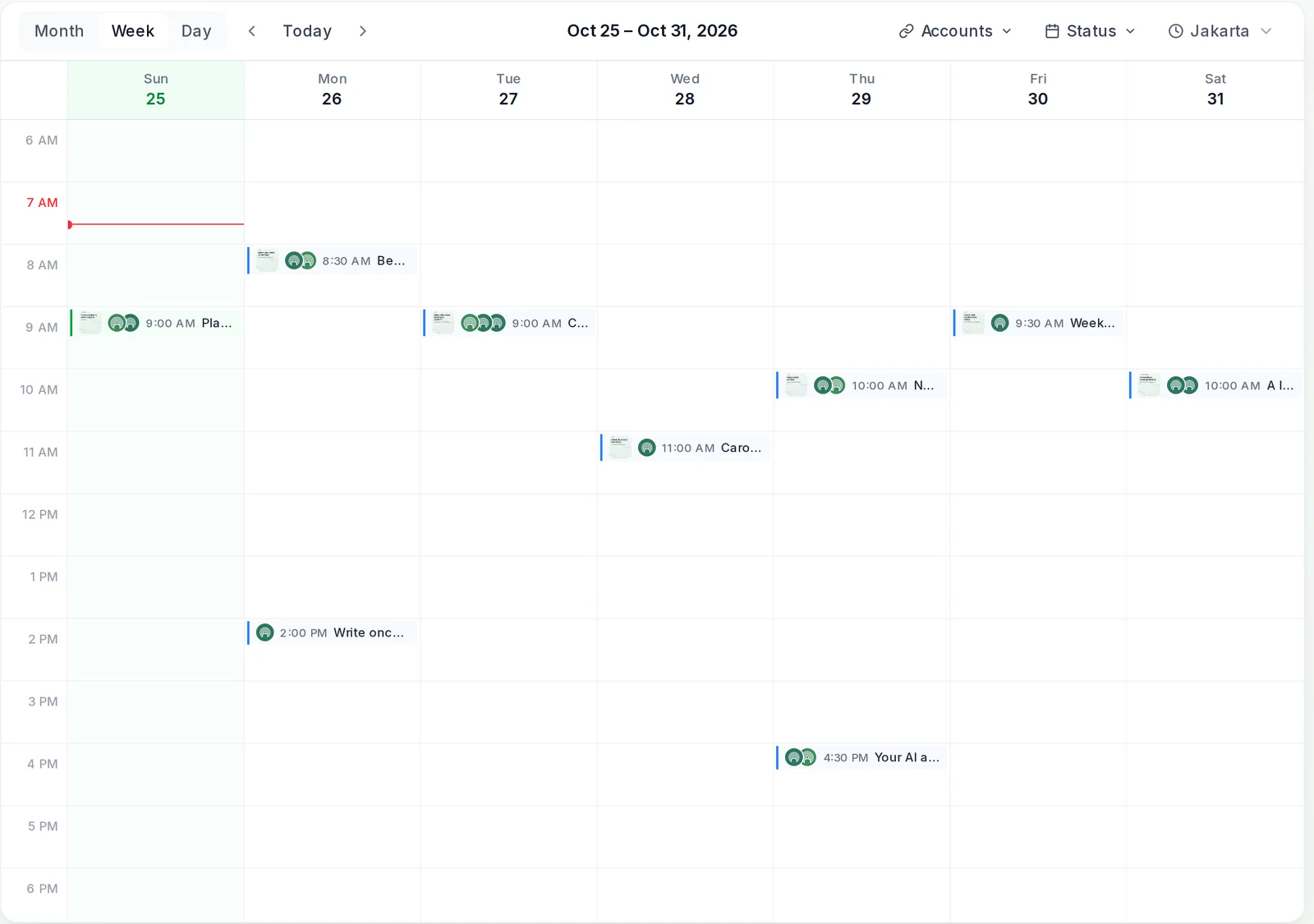
Plan a content calendar asks what you're promoting and how often you post, drafts the week or month, and either fills your posting queue or gives each post an exact time.
Launch announcement handles the run-up to a date: a teaser, the launch-day post, a reminder and a last call. Repurpose content turns one article or transcript into a set of posts for different platforms.
Recycle top posts reads your analytics, finds the posts that did best and schedules fresh versions spaced well apart, so your feed doesn't repeat itself.
Voice and results
Brand voice reads up to 50 of your published posts and writes a short guide to how you sound: how posts open and end, sentence length, what you never say.
PostEverywhere has nowhere to store the guide, so save it in a ChatGPT project's instructions and the other skills will follow it.
Review post performance answers questions like "which platform works best for us?" from your social media analytics. Weekly report turns the same numbers into a short summary you can paste into an email, with anything that failed flagged at the bottom.
Fixing and accounts
Fix failed posts finds every post that didn't go out, reads the reason each platform gave and sorts them: retry, reconnect, redraft, or "this one needs you". If you want the common causes first, our guide to scheduled posts not publishing explains each one.
Connect social accounts creates a sign-in link for Instagram, Facebook, LinkedIn, X, YouTube, TikTok, Threads and Pinterest. The link works for about ten minutes in any browser. For Bluesky, Telegram, Discord and WordPress, it tells you to add them in PostEverywhere, and it never asks for a password in the chat.
Teams and clients
Approval workflow drafts posts and sends them for review, so nothing goes live until a manager or client approves it in PostEverywhere's approval workflow. Agency clients keeps work for different clients apart: it starts by naming the workspace, maps each account to its client and labels every post.
Because ChatGPT works in one workspace, agencies with a workspace per client will find this smoother in Claude, which can be given several.
Using the skills day to day
You don't call skills by name unless you want to. Say what you need, and ChatGPT picks the matching skill.
Example conversation
The content calendar skill, with the PostEverywhere app connected.
- You
Plan next week's posts for LinkedIn and X. We're running a webinar on Thursday at 4pm, so build the week around it.
- ChatGPT
Your LinkedIn page and X account are both connected and healthy. I've saved six drafts:
- Monday: a LinkedIn post on the problem the webinar solves, and a short X post.
- Wednesday: a reminder on both, with the sign-up link.
- Thursday: "Starting in an hour" at 3pm on both.
Want me to schedule them as they are, or change anything first?
A normal week for me looks like this. On Monday I ask for the week's plan, as above. Midweek I paste an article and ask for four posts from it, spread across the following week.
On Friday I ask for the weekly report and send it on.
Three habits make it work better:
- Keep your voice guide where ChatGPT can see it. Run the brand voice skill once, correct anything that sounds off, and save the guide in your project's instructions. Every post after that starts from it.
- Let drafts be the default. The skills save drafts and ask before anything goes live. Keep it that way until you trust the output on each platform, then say "schedule it" in the same message when you want to skip the check.
- Check what your agent did. Every request ChatGPT makes through the app shows up in Logs in PostEverywhere, so you can see which posts it created and when.
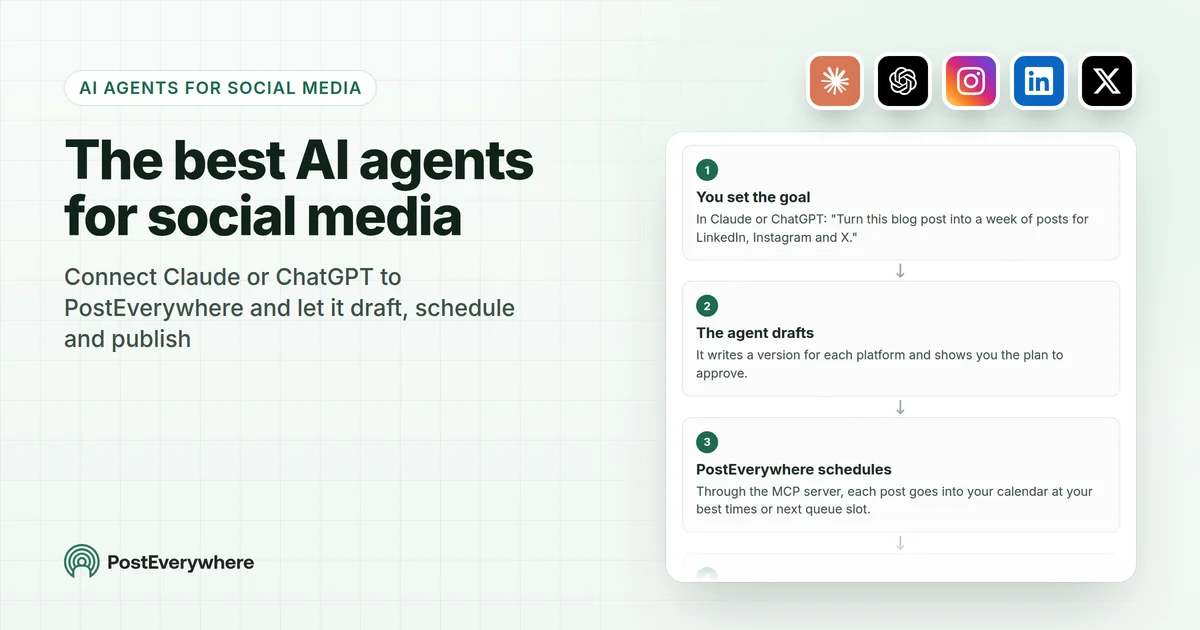
If you're still choosing which agent to run all this through, our roundup of the best AI agents for social media compares the setup for each. For the writing side of ChatGPT (prompts, long captions, voice), my guide to using ChatGPT for social media goes deeper.
ChatGPT skills vs Claude skills
The skill files are the same format, so the difference is in where you can use them and how you add them.
| ChatGPT | Claude | |
|---|---|---|
| Who can add skills | Business, Enterprise, Edu and Healthcare | Every plan, including Free, with code execution turned on |
| File format | Agent Skills (SKILL.md) |
Agent Skills (SKILL.md) |
| How you add ours | Upload the zips under Skills | Add our plugin marketplace, or upload the zips |
| How a skill is chosen | Automatically, or with @ | Automatically, or by name |
| What reaches your accounts | The PostEverywhere app | The PostEverywhere connector |
| PostEverywhere workspaces | One, the one active when you connected | All of them, or the ones you choose |
The Claude column comes from Anthropic's guide to using skills in Claude and our Claude skills guide. If your team uses both, install both: a post scheduled from either one lands in the same calendar.
Are the skills safe to give access to your accounts?
It's a fair question, because posting is public and hard to undo. The skills are built to keep you in control:
- Drafts first. Every skill that creates posts saves drafts and shows them to you, unless you said "publish now" or gave a time for that exact post.
- No invented facts. The skills tell ChatGPT not to make up prices, links, statistics or claims, and to work only from the facts you give it.
- No passwords in the chat. Accounts connect through the platform's own sign-in. Accounts that need an app password or token are added in PostEverywhere, never pasted into ChatGPT.
- Instructions only. The skills are text. They run no code on your computer, and ChatGPT scans each one when you upload it.
- Easy to switch off. Remove a skill in ChatGPT, disconnect the app in Settings under Plugins, or remove ChatGPT's access in PostEverywhere.
Our guide to safe AI agent access to social media covers the permission model in more detail.
Ready to hand ChatGPT the busywork? Plans start at $9 a month, and every plan includes the ChatGPT app. Start your 7-day free trial, card required, cancel any time.
FAQ
What are ChatGPT skills for social media?
They're instruction files that teach ChatGPT one social media job, such as scheduling a post, planning a calendar or writing a report. ChatGPT loads the right one when your request matches it.
Ours work through the PostEverywhere app, so ChatGPT can schedule and publish, not just write the text.
Which ChatGPT plans can use skills?
OpenAI lists skills for ChatGPT Business, Enterprise, Edu and Healthcare. In managed workspaces, an owner controls who can create, upload and share them. On Free, Plus and Pro you can't upload skills yet, but you can connect the PostEverywhere app and paste our one-line prompt to get the same method.
Can I use Claude skills in ChatGPT?
Yes. Both read the open Agent Skills format, so a SKILL.md that works in Claude can be uploaded to ChatGPT. Ours come as separate ChatGPT downloads because the ChatGPT app has a slightly different set of tools, and the ChatGPT versions are written for it.
How do I install a skill in ChatGPT?
Download the skill's zip, then in ChatGPT open Skills under Plugins in the sidebar, choose Create, then Upload from your computer. ChatGPT scans the skill, and most are ready straight after.
For PostEverywhere skills, connect the PostEverywhere app first, or the skill will have nothing to post with.
Can ChatGPT post to Instagram and TikTok with these skills?
Yes, once the PostEverywhere app is connected and your accounts are added in PostEverywhere. The skills cover all top platforms, including Instagram, TikTok, LinkedIn, Facebook, YouTube, X, Threads, Pinterest, Bluesky and Google Business Profile.
Will ChatGPT publish anything without asking me?
Not with these skills. They save drafts and ask before scheduling or publishing, unless you tell ChatGPT to publish now or give a time for that exact post. Everything it creates shows up in your PostEverywhere calendar, where you can edit or delete it before it goes out.
Do I need a paid PostEverywhere plan?
Yes. The skills are free to download, but posting runs through your PostEverywhere account. Plans start at $9 a month, and every plan includes the ChatGPT app and a 7-day free trial. The PostEverywhere app works on any ChatGPT plan, including Free.
Sources
Outside facts in this guide come from the pages below. PostEverywhere's behaviour comes from the app and the skill files themselves.
- OpenAI Help Center: Skills in ChatGPT
- OpenAI Academy: Skills
- OpenAI Help Center: ChatGPT Business release notes
- OpenAI Help Center: Plugins in ChatGPT and Codex
- OpenAI Help Center: Connected apps in ChatGPT
- OpenAI for Developers: Build skills (Codex)
- Agent Skills: Overview of the open format
- Claude Help Center: Use skills in Claude
- Model Context Protocol
- PostEverywhere skills on GitHub: posteverywhere/claude-plugin

Founder & CEO of PostEverywhere. Writing about social media strategy, publishing workflows, and analytics that help brands grow faster.