How do you use ChatGPT for social media? Tell it your audience, your voice and the platform, ask for a specific format (a 150-word LinkedIn post, a 7-post thread, ten hooks), then edit the draft until it sounds like you. Use it to plan a week of posts from one message and turn one post into a version for every network. The step most people miss: connect ChatGPT to a scheduler so it books the posts itself, instead of you copying and pasting them.
TL;DR
- ChatGPT is a fast first-draft machine. It is not a strategist and it is not a fact checker.
- Brief it like a freelancer: who it's for, what voice, which platform, how long, what to avoid.
- Keep your brand voice in a project or custom instructions so you stop re-explaining it.
- Plan the week in one prompt, then repurpose each idea per platform.
- Check every number, name and claim. It can sound sure and still be wrong.
- Skip the copy-paste: connect PostEverywhere to ChatGPT and ChatGPT schedules straight to your calendar, confirming with you before anything changes.
I run a social media scheduler, so I watch a lot of people use ChatGPT for social media. Almost everyone stops at the same point: they get a decent caption, copy it, open another tab, paste it into a scheduler, pick a time, and repeat for the next platform.
The guides that rank for this topic stop there too. This one keeps going until ChatGPT is putting the posts on your calendar.
For the wider picture, read our guide to using AI for social media.
What ChatGPT is good at (and bad at) for social media
Where it earns its keep:
- Options. Ask for ten hooks and you get ten. Picking two out of ten beats a blank box.
- Changing register. The same idea as a punchy X (Twitter) post, a calm LinkedIn post and a casual Instagram caption, in one reply.
- Structure. Carousels, threads, scripts and content calendars as tables, if you spell the format out.
- Repurposing. Paste a blog post or transcript and ask for platform versions. The biggest time saver of the lot.
- Images in the same chat. Quick quote cards and simple graphics without opening another tool.
Where it lets you down:
- Facts. OpenAI's help center says ChatGPT can produce incorrect or misleading outputs, including "fabricated quotes, studies, citations or references to non-existent sources". Never post a statistic from ChatGPT without finding the source yourself.
- Default voice. Unbriefed, it writes like every other brand: exclamation marks, "Ready to take your X to the next level?", emoji confetti.
- Platform rules. Its sense of character limits and hashtag norms can lag behind the platforms.
- Your audience. It has never read your comments or DMs. You have.
My rule: ChatGPT writes the first 80%. I write the last 20%, which is where the posts that work come from.
How to use ChatGPT for social media posts on each platform
One pattern works everywhere: role, audience, voice, platform, format, length, what to avoid. Here's one prompt per platform and the kind of first draft it gives back. Swap the brackets for your details.
Instagram captions
Write an Instagram caption for [brand], a [business] for [audience]. Voice: [3 adjectives]. The post is a carousel about [topic]. Hook in the first line. 80 to 120 words, short lines, max two emojis, end with a question people can answer in a word or two. Give me three versions.
Example output, for a bakery's carousel about slow-proved sourdough:
Our sourdough takes 36 hours. On purpose.
Slide 2 is the dough at hour one. Slide 5 is the same dough at hour 30. That gap is the flavour.
If you bake at home, which step do you rush?
Finish it, then send it to the Instagram scheduler.
LinkedIn posts
Write a 150 to 200 word LinkedIn post from me, [role] at [company], for [audience]. Topic: [topic]. Open with one plain sentence stating a strong opinion, not a question. Short paragraphs. One concrete example: [example].
No hashtags in the body, no "Let that sink in". End with a line that invites disagreement.
Example opening:
Most small businesses don't need more content. They need to post the content they already have.
Last month a florist showed me 40 finished photos sitting in her camera roll.
If the middle goes generic, reply: "Paragraph three is generic. Use this real example instead: [example]." Then queue it in the LinkedIn scheduler.
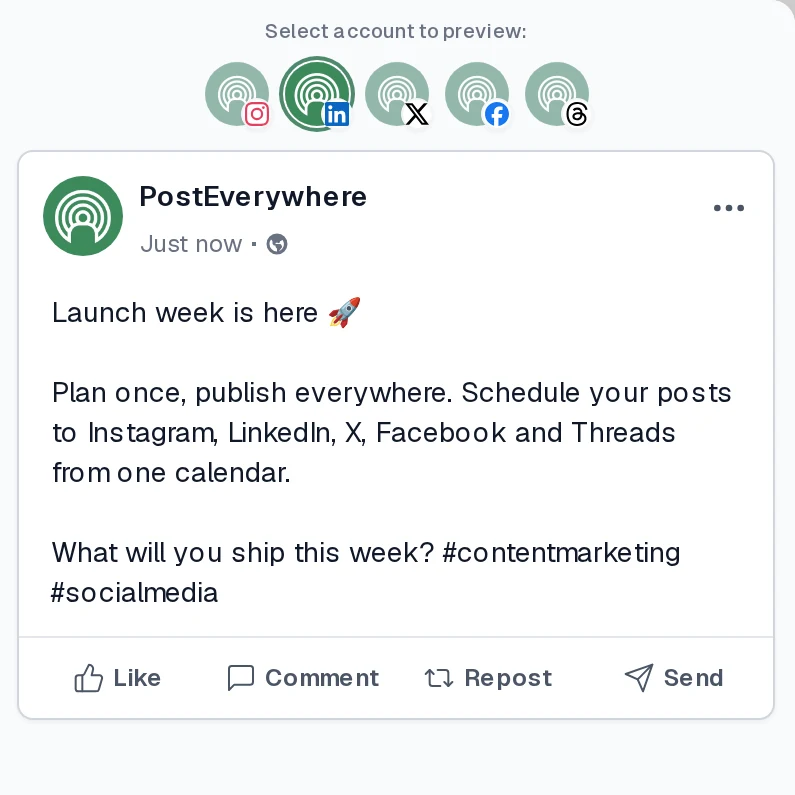
The composer previews a post as it will look on each network before it goes out.
TikTok hooks and scripts
Write five TikTok opening lines about [topic] for [audience]. Each must work spoken in under three seconds, with no greeting and no "In this video". Then write a 30-second script for the strongest: hook, three quick beats, one-line payoff, with on-screen text in [brackets].
Example hook: "You're watering your houseplants on a schedule. That's why they're dying." Read every hook out loud and keep the one you'd actually say. Post the finished video through the TikTok scheduler.
X (Twitter) posts and threads
Write a 7-post X (Twitter) thread about [topic]. Each post under 280 characters including spaces. Post 1 states one surprising claim. Posts 2 to 6 give one point each with an example. Post 7 restates the claim in new words. No hashtags, no question at the end.
Example first post: "Posting every day didn't grow my account. Replying every day did. Here's what changed in 90 days." Posts on X can be up to 280 characters, emojis count as two and every link counts as 23, and ChatGPT doesn't always count right.
Check the long ones, then use the X scheduler.
Facebook posts
Write a Facebook post for [local business] announcing [news], for locals who already know us. Friendly and plain, like a note on the shop door. 60 to 90 words. Date, time and address on separate lines. One call to action. No hashtags.
Example output: "We're open late this Thursday. Pop in after work for 20% off all candles. Thursday, 5pm to 8pm, 14 High Street." Facebook rewards posts that read like a person. The Facebook scheduler handles Pages.
Threads posts
Write three Threads posts about [topic], conversational and slightly opinionated. Each is one short post that could start a reply chain. Under 300 characters each. No hashtags.
Example output: "Unpopular opinion: most brand accounts would do better posting less and replying more. Who's actually tried it?" Short and slightly unfinished works on Threads. Schedule with the Threads scheduler.
Want a dedicated tool for captions? See our AI caption generators roundup. For hashtags, our free hashtag generator is less likely than ChatGPT to invent tags nobody uses.
Plan a week of content with ChatGPT
One prompt replaces an hour of planning:
I run [business] for [audience]. Goals this month: [goals]. I post on [platforms]. Plan Monday to Friday, one post a day, mixing formats (carousel, short video, text post, behind the scenes, offer).
Return a table: day, platform, format, topic, hook, call to action. Don't write the captions yet.
Table first, captions second. You can kill weak rows and swap formats before ChatGPT spends words on drafts you won't use. Then: "Write the captions for rows 1, 2 and 4 in my voice."
ChatGPT will also suggest posting times, but from general advice. PostEverywhere looks at when your posts have done best and suggests those times. New accounts start with what works across PostEverywhere on each platform. More on our best time to post page.
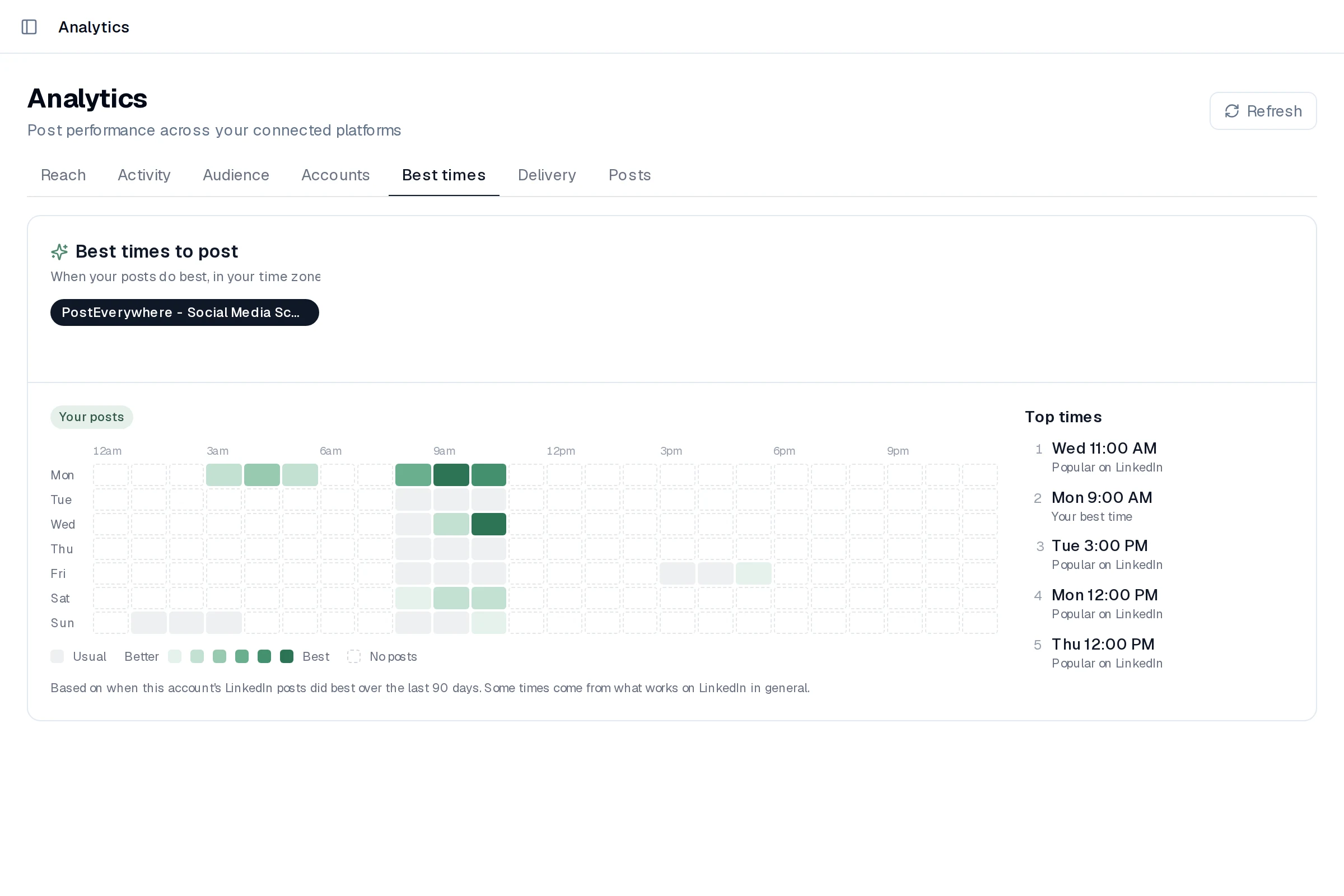
The Best times tab in PostEverywhere Analytics for one account.
If you'd rather not pick times at all, set up a posting queue once and each new post takes the next opening.
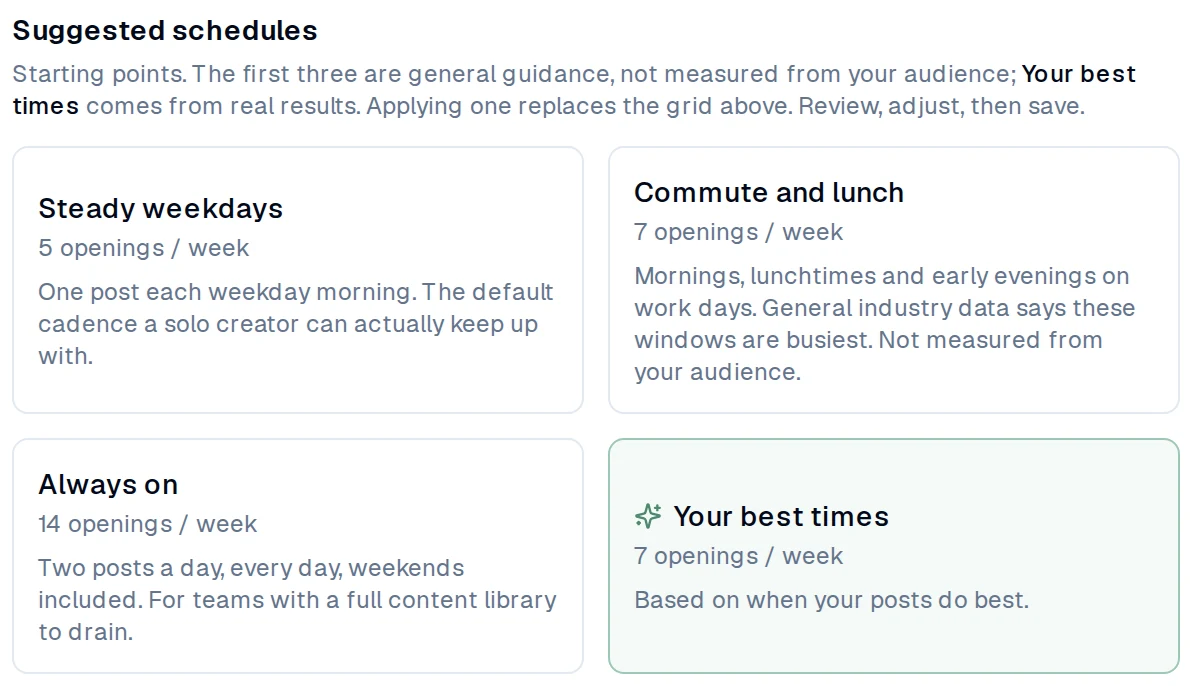
Suggested queue schedules. The first three are general starting points; Your best times comes from your own results.
Prefer a spreadsheet? Our free content calendar templates pair well with the table prompt.
Repurpose one post for every network
Here is my best LinkedIn post: [paste]. Rewrite it as (1) an X (Twitter) post under 280 characters, (2) an Instagram caption with the hook in the first line, (3) a 30-second TikTok script, (4) a Threads post ending on an open question, (5) a Facebook post for locals. Keep the core argument.
Each version should feel written for that platform, not shortened from LinkedIn.
That last sentence is the difference between five summaries and five posts.
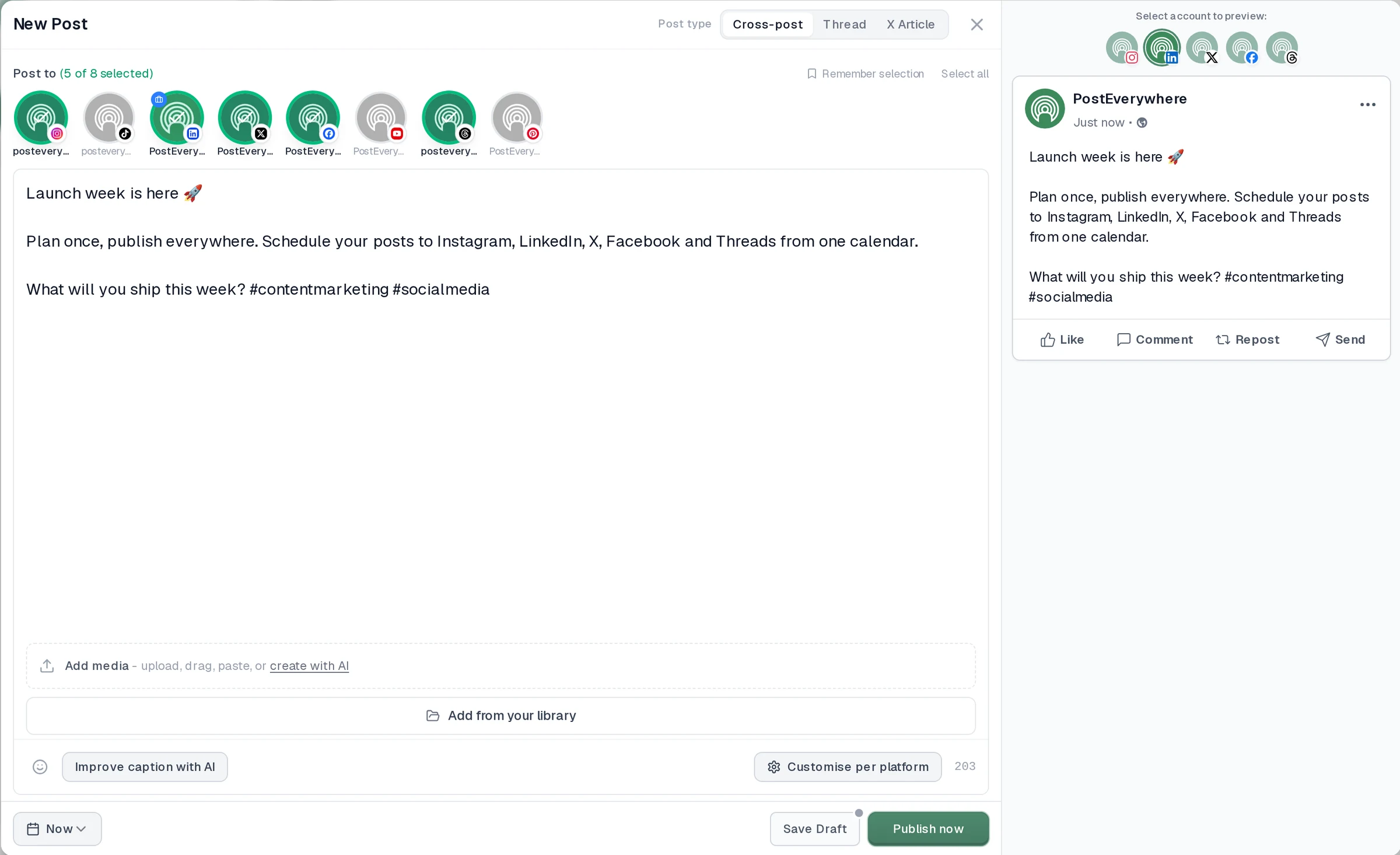
One cross-post to five accounts. "Customise per platform" gives each network its own caption.
Paste the versions into one cross-post and use Customise per platform, or let ChatGPT do the pasting (below). Comparing tools for this step? See our best cross-posting tools and the cross-posting feature.
Teach ChatGPT your brand voice: projects, custom instructions and memory
The biggest quality jump comes from never starting cold.
Projects. OpenAI describes projects as a way to "keep related chats, files, and instructions together". Make a "Social media" project, add your voice guide and a few of your best posts, and put rules in Project settings.
Project instructions "apply only within that project and override your global custom instructions". ChatGPT's pricing page lists projects on Free as well as paid plans.
Custom instructions. Under Settings > Personalization, custom instructions apply to every chat: up to 1,500 characters on Free and Go, 5,000 on Plus, Pro, Business, Enterprise and Edu. Use them for rules you never want broken.
Memory. With Memory on, ChatGPT can remember preferences from past chats, but it decides what to keep. Write your voice rules down where you can see them.
A voice guide that works is specific:
- First person, founder voice. Short sentences. Contractions always.
- Start with what people assume, then say why it's wrong.
- One real number or example per post, sourced if it's a stat.
- Banned: hype words, "next level", rhetorical questions as openers, more than two emojis.
- End plainly. No "Thoughts?" and no "Follow for more".
Skip the custom GPT. Older guides say to build one. OpenAI's GPTs help page now says new GPT creation "is not available on personal ChatGPT accounts, including Free, Go, Plus, and Pro", and that OpenAI plans to retire custom GPTs in favour of Plugins. Use a project.
Want ChatGPT to learn your voice from what you've actually posted? The Brand voice skill (below) reads your recent PostEverywhere posts and writes a short voice guide.
ChatGPT images for social media graphics
OpenAI's Images help page says ChatGPT Images is available on all tiers, can add text, make the background transparent and generate "in any aspect ratio". Ask for the size up front: 4:5 for an Instagram feed post, 9:16 for a Story.
Good for: quote cards, announcement graphics, simple illustrations for text-heavy posts, and edits to a photo you upload.
Be careful with:
- Text in images. Check every word. A typo on a graphic is worse than one in a caption.
- Your brand. It doesn't know your fonts or exact colours unless you describe them each time.
- People and products. Don't generate real people, and don't pass off a generated product shot as the real thing.
- Labels. Meta said it would label AI-generated images on Facebook, Instagram and Threads and asks people to disclose photorealistic AI video and audio. Plan for labels rather than hide from them.
If you'd rather make images and video next to your scheduler, PostEverywhere's AI Studio does that inside the app.
The step everyone misses: let ChatGPT schedule the posts
Nearly every guide to using ChatGPT for social media ends with "copy your caption into your scheduler". That's the slowest part of the job.
ChatGPT talks to outside tools through custom MCP servers, which are remote Model Context Protocol (MCP) servers. MCP is "an open-source standard for connecting AI applications to external systems". PostEverywhere is an agentic social media scheduler with an MCP server, so once it's connected, ChatGPT can see your accounts, write posts for each platform and book them. Everything it schedules shows up in your PostEverywhere calendar.
Connect PostEverywhere to ChatGPT in 4 steps
These match our ChatGPT setup page, which we keep current.
- Open Plugins. On chatgpt.com, open Plugins. You don't need to turn on Developer mode first. On Business and Enterprise workspaces an admin may need to give you permission to add custom MCP servers.
- Add the PostEverywhere MCP server. Select the + button, then Add custom MCP server. Call it PostEverywhere, paste
https://mcp.posteverywhere.aiand accept the warning ChatGPT shows for every custom server. There's no client ID or secret to find. - Sign in and approve. Follow ChatGPT's prompt to sign in to PostEverywhere and approve access. If it asks for a key instead, create one on the Developers page in PostEverywhere and paste it. Either way you can revoke it from your dashboard.
- Check the connection. In a new chat, choose PostEverywhere from the tools and ask: "Show me my connected social accounts on PostEverywhere." ChatGPT should list your profiles and whether each is healthy.
If your menus look different: older accounts may still show the previous path (Settings, Apps, Advanced settings, Developer mode). OpenAI's guide to custom MCP servers describes the current Plugins flow. Use the same address either way.
What you need: a paid ChatGPT plan; Free accounts can't add custom MCP servers. It's web only (OpenAI: "Can I connect custom MCP servers on mobile? No - web only."), so set it up at chatgpt.com.
OpenAI is still rolling out what each plan can do with custom servers: its help centre lists full support, including write actions like creating and scheduling posts, on Business and Enterprise/Edu.
So if ChatGPT lists your accounts but won't schedule, plan in ChatGPT and schedule through Claude or in PostEverywhere. Claude connects to PostEverywhere on every Claude plan, including free (how to use Claude for social media).
On the PostEverywhere side you need at least one social profile connected under Accounts.
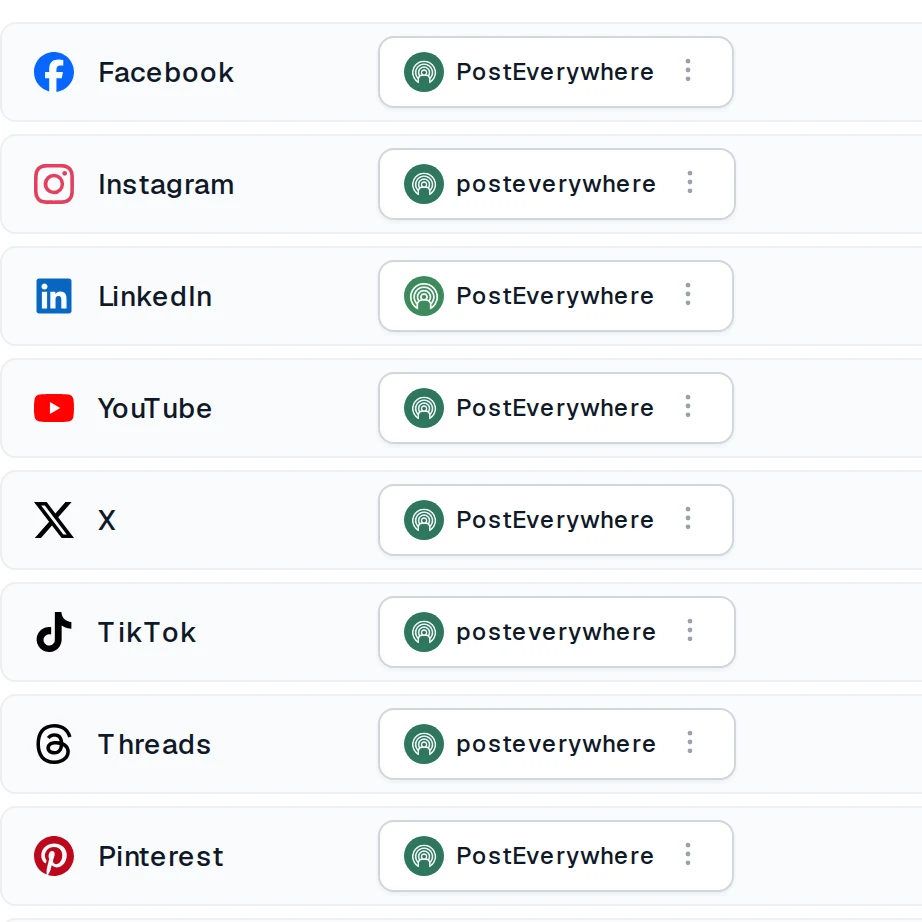
Connected accounts in PostEverywhere: the profiles ChatGPT lists when you check the connection.
Let ChatGPT do the posting. Connect once and ChatGPT schedules what you write together straight to your calendar. See the ChatGPT setup.
What to ask once it's connected
These are action prompts, not writing tips. Each one makes ChatGPT call a PostEverywhere tool:
Take the five ideas above, write a caption for each and schedule them Monday to Friday at 10am on LinkedIn and Facebook.
Draft a launch post, make a short X (Twitter) version and a longer LinkedIn one, and book both for tomorrow at 9am Eastern.
Which of my accounts have I not posted to in the last two weeks?
Did anything fail to publish this week? If so, retry it.
Import the image at this link and schedule it to Instagram on Friday at noon with the caption we wrote.
Save these as drafts. I will look at them in the calendar before anything goes out.
Two habits: always say the time zone ("9am Eastern"), and if you don't want to pick times, ask for "my best time" or "the next queue opening".
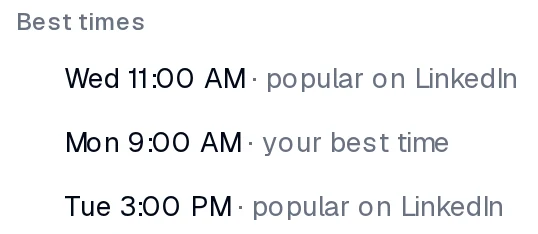
The Best times options in the composer. Your best time is based on when that account's posts have done best.
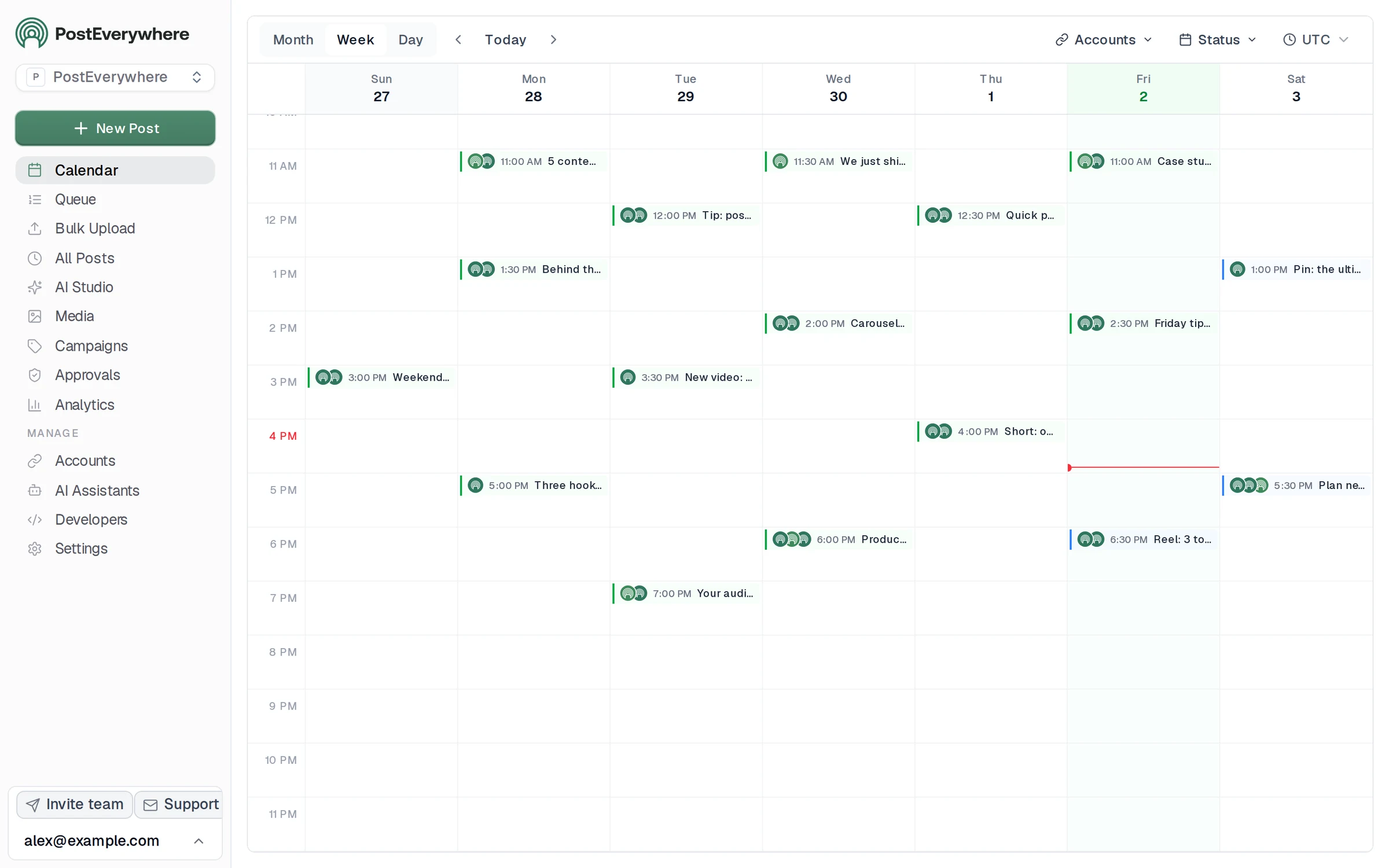
Everything ChatGPT schedules lands in this calendar, where you can open, edit or move it.
It asks before it acts
ChatGPT asks you to confirm before anything that changes your schedule runs, so you see exactly what it's about to do. OpenAI's apps help page explains that app permissions decide when ChatGPT asks first, with options including Always ask. For social accounts, leave it there.
If someone else must sign off, use the drafts prompt: nothing publishes until you schedule the drafts yourself.
There's also a shortcut for ChatGPT and most other assistants:
Read https://posteverywhere.ai/SKILL.md and help me plan and schedule next week's social media posts.
That file tells the assistant what PostEverywhere is, how to connect, and how to do the common jobs. For time zones and scheduling rules in depth, read how to schedule social media posts with MCP.
To compare assistants that can post, see best AI agents for social media or the agents page.
PostEverywhere skills for ChatGPT
A connector gives ChatGPT the tools. A skill tells ChatGPT which PostEverywhere tools to call for one job, and in what order. Skills pair with the custom MCP server: ChatGPT follows the skill to plan and write, then the server does the publishing.
How to add them: download every skill in one zip, posteverywhere-skills-all.zip, and add it to ChatGPT. Only want one or two? Each skill has its own zip, linked in the table. Install steps for other assistants are on our skills and prompts page.
| Skill | What it does | Try saying |
|---|---|---|
| Schedule social posts | Write, schedule or publish a post to any connected account. | "Post this to all my accounts tomorrow at 9am with PostEverywhere." |
| Plan a content calendar | Plan a week or month of posts and fill your queue. | "Plan next week of posts for my LinkedIn and X in PostEverywhere." |
| Repurpose content | Turn a blog post, transcript or newsletter into a set of posts. | "Turn this article into five posts and schedule them in PostEverywhere." |
| Cross-post a video | One video to TikTok, Reels, Shorts and more, with the right caption for each. | "Post this video everywhere with PostEverywhere." |
| Launch announcement | Teaser, launch-day, reminder and last-call posts for a launch, event or sale. | "Plan a launch campaign for our new feature next Tuesday in PostEverywhere." |
| Write an X thread or Article | Write an X thread or long-form X Article and post it. | "Turn this blog post into an X thread and schedule it with PostEverywhere." |
| Write a blog post | Write a WordPress post and publish or save it as a draft. | "Write a WordPress blog post from these notes and save it as a draft in PostEverywhere." |
| Brand voice | Learn how you write from your own posts and keep new posts in your voice. | "Read my recent posts in PostEverywhere and write me a short voice guide." |
| Recycle top posts | Find your best past posts and schedule fresh versions. | "Find my best posts from the last 3 months in PostEverywhere and schedule new versions." |
| Review post performance | See how posts did and which platform works best. | "How did my posts do this month? Use PostEverywhere analytics." |
| Weekly report | A short weekly or monthly report, ready to paste into an email. | "Write my weekly social media report from PostEverywhere." |
| Fix failed posts | Find posts that didn't go out, explain why, and fix them. | "Did any of my PostEverywhere posts fail this week? Fix them." |
| Connect social accounts | Add Instagram, TikTok, LinkedIn and the rest when a post needs one. | "Connect my Bluesky account to PostEverywhere." |
| Approval workflow | Draft posts for a client or manager to review before they go live. | "Draft next week of posts in PostEverywhere and send them for review." |
| Agency clients | Work across several clients or brands without mixing them up. | "Switch to my Acme client in PostEverywhere and show their queue." |
Ten ready prompts that use the skills
From our skills library. Paste one into a chat with PostEverywhere selected:
- Plan next week: "Use PostEverywhere to plan next week of posts for all my connected accounts. Suggest one post a day, show me the plan, then schedule it when I say yes."
- Fill the gaps in your queue: "Look at my PostEverywhere queue for the next two weeks and tell me where the gaps are. Then suggest posts to fill them."
- Launch post for LinkedIn and X: "Write a launch post for LinkedIn and a shorter one for X about [your news]. Schedule both in PostEverywhere for Tuesday at 9am."
- Image post for Instagram: "Write an Instagram caption for this announcement and schedule it with PostEverywhere tomorrow at noon, using the latest image in my PostEverywhere media library: [your announcement]."
- One article, five posts: "Turn this article into five posts for LinkedIn, X and Threads, and spread them across next week in PostEverywhere: [paste link or text]."
- One video, every short-form feed: "Post this video to TikTok, Instagram Reels and YouTube Shorts with PostEverywhere. Write the right title and caption for each: [video link]."
- What worked last month: "How did my posts do last month? Use PostEverywhere analytics and tell me which platform and which kind of post worked best."
- Weekly report for your team: "Write a short weekly report from my PostEverywhere data that I can paste into an email to my team."
- Fix failed posts: "Check PostEverywhere for posts that failed this week. Tell me why each one failed, then retry the ones that can go out now."
- Drafts for client review: "Draft next week of posts for my client in PostEverywhere as drafts for review. Do not publish anything until they approve."
Prompt 4 is the clean way to use a ChatGPT image: save it, add it to your PostEverywhere media library, then ask ChatGPT to use the latest image there.
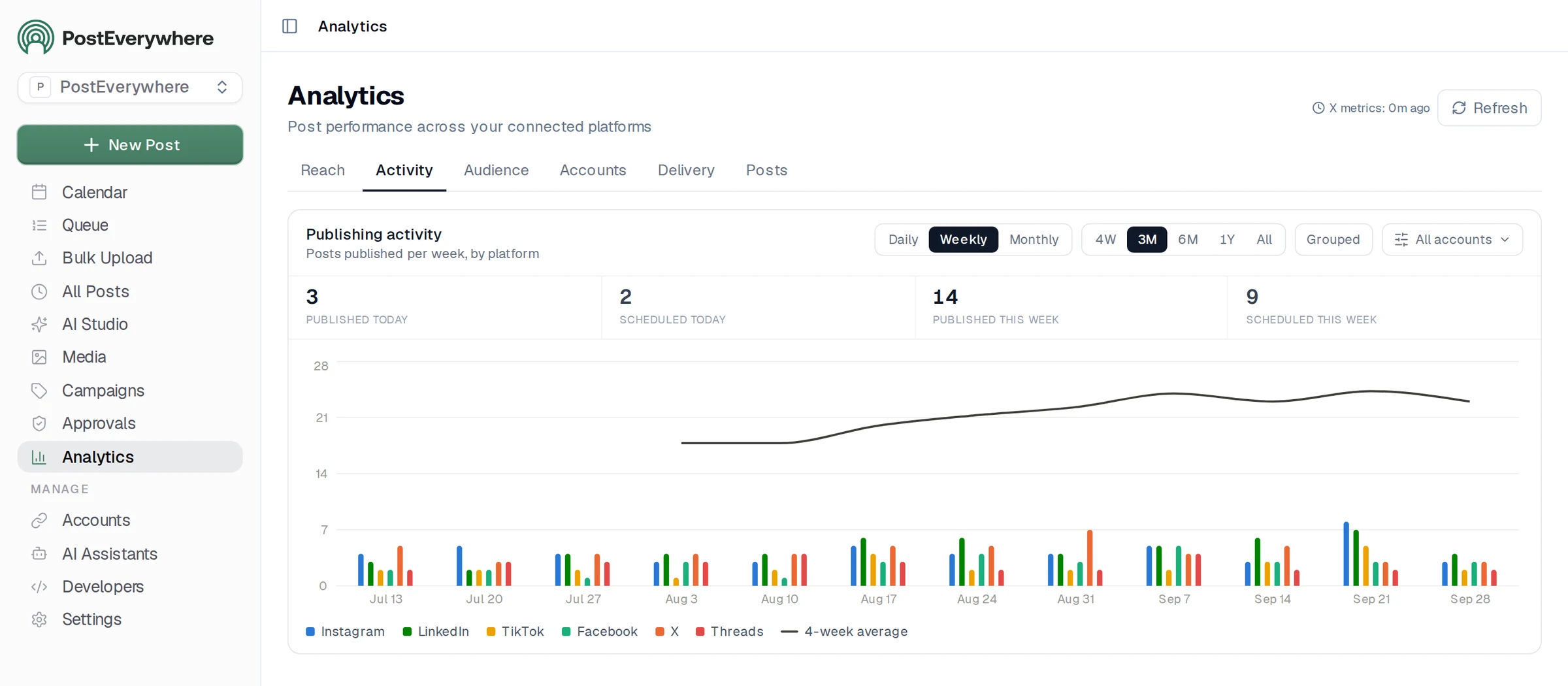
The Analytics view that the "What worked last month" and weekly report prompts read from.
Try the whole workflow free for 7 days. Plans start at $9 a month, every plan connects to ChatGPT, and you can cancel any time. See pricing.
A copy-paste library of ChatGPT prompts for every post
Ten writing prompts I use, with or without the connector. For far more, see our AI prompts for social media library.
- Hook bank: "Write 10 opening lines for a post about [topic] for [audience]. No questions. Each uses a different approach: a number, a confession, a contrarian claim, a short story, a customer quote, a mistake, a before and after, a prediction, a one-word line, a direct instruction."
- Voice match: "Here are three of my posts: [paste]. Describe my voice in 8 bullets: sentence length, words I use, words I avoid, how I open, how I end. Then write a post about [topic] in that voice."
- Week plan: "Plan Monday to Friday for [platforms] as a table: day, platform, format, topic, hook, call to action. Goals: [goals]. No captions yet."
- Caption from a photo: "[Upload photo] Write three Instagram captions for this photo for [brand]. Hook in the first line, under 100 words, max two emojis."
- LinkedIn opinion post: "Write a 180-word LinkedIn post arguing that [opinion]. Open with the opinion as a plain statement. One real example: [example]. No hashtags in the body."
- Thread: "Turn this into a 7-post X (Twitter) thread, each post under 280 characters, one idea per post: [paste]."
- TikTok script: "30-second TikTok script about [topic]: a hook under three seconds, three quick beats, a payoff, on-screen text in [brackets]."
- Reply drafts: "Here are five comments on my post: [paste]. Draft a short, friendly reply to each in my voice."
- Tighten: "Cut this by 30% without losing any argument. Don't add new claims: [paste]."
- Fact check yourself: "List every factual claim, number and name in this draft and say which need a source. Don't invent sources: [paste]."
Number 10 is the one people skip. Run it before anything with a statistic goes out.
ChatGPT for social media: free vs paid
You can do a lot on ChatGPT Free. You can't do the last step.
| What you need | ChatGPT Free | ChatGPT Plus |
|---|---|---|
| Captions, hooks, threads | Yes | Yes, higher limits |
| Projects | Yes | Yes |
| Custom instructions | Up to 1,500 characters | Up to 5,000 characters |
| Memory | Limited | Expanded |
| Image creation | Limited | Yes |
| Add a custom MCP server (to connect a scheduler) | No | Yes (OpenAI lists full write support on Business and Enterprise/Edu) |
Sources: ChatGPT's pricing page and the OpenAI help articles linked above. OpenAI lists ChatGPT Plus at $20 a month. Plans change often, so check the pricing page before you upgrade.
One thing that confuses people: Plus includes "scheduled tasks". Those run a ChatGPT prompt at a set time. They don't publish to Instagram or LinkedIn. To post, ChatGPT needs a scheduler connected.
My take: if you write more than a few posts a week, Plus pays for itself in time saved. If you only need the odd caption, Free is fine.
Mistakes to avoid when using ChatGPT for social media marketing
Posting invented numbers. ChatGPT will write "73% of consumers prefer..." with total confidence. If you can't find the source in two minutes, delete the number. OpenAI tells users to "verify important information from reliable sources".
Accepting the default voice. If any brand in your industry could have posted it, it isn't finished. Add one thing only you could say.
Copying one caption everywhere. A LinkedIn post pasted on X (Twitter) gets cut off. Repurpose, don't duplicate.
Trusting its platform rules. Limits and posting advice go stale. Check the platform, and check the preview before anything goes out.
Worrying about AI penalties instead of quality. Google says "appropriate use of AI or automation is not against our guidelines" and rewards high-quality content however it is produced. Meta's Community Standards apply to content "regardless of how it is created". The real risk is samey posts nobody engages with.
Letting it post unsupervised. Keep confirmations on for anything that changes your schedule, and use drafts when someone else signs off.
Write in ChatGPT, publish everywhere. PostEverywhere schedules to all top platforms from one calendar, and ChatGPT can drive it for you. See the social media scheduler.
FAQ
Can ChatGPT post to social media or schedule posts?
Not on its own. ChatGPT writes; it needs a connected scheduler to publish. Add PostEverywhere to ChatGPT as a custom MCP server and ChatGPT can schedule posts to your accounts, asking you to confirm before anything changes your schedule.
If your plan doesn't allow write actions yet, use Claude to schedule.
Is ChatGPT free for social media?
ChatGPT Free is enough for captions, hooks, ideas and some images. Connecting ChatGPT to a scheduler needs a paid plan, because Free accounts can't add custom MCP servers. OpenAI lists Plus at $20 a month.
What are the best ChatGPT prompts for social media?
The best prompts state the audience, voice, platform, format, length and what to avoid, then ask for several options. Start with the hook bank, week plan and repurpose prompts above, and keep your voice rules in a project so every chat starts from them.
Will platforms penalise AI-generated content?
Not for being AI written. Google says appropriate use of AI is not against its guidelines, and Meta applies its rules to content regardless of how it's made. Some platforms do label AI-generated images and ask you to disclose realistic AI video and audio, so follow those rules.
Is ChatGPT or Claude better for social media?
It depends on the job. In our experience ChatGPT is quicker for short hooks, variety and images, and Claude is stronger on long posts and holding a voice. Both can schedule through PostEverywhere.
We compared them side by side in ChatGPT vs Claude vs Perplexity for social media.
Can ChatGPT make images for Instagram?
Yes. ChatGPT Images is on all plans, can add text and transparent backgrounds, and generates in any aspect ratio, so ask for 4:5 for feed posts or 9:16 for Stories. Check any text in the image before posting.
Does ChatGPT remember my brand voice?
It can, if you set it up. Put your voice guide and example posts in a project, add must-follow rules to custom instructions, and don't rely on memory alone for rules that matter.
Wrap-up: write in ChatGPT, ship from ChatGPT
Using ChatGPT for social media well comes down to three habits: brief it properly, keep your voice in one place, and check every fact.
Then close the gap everyone else leaves open. Connect PostEverywhere to ChatGPT, add the skills, and ask it to plan and schedule next week. You approve the plan, ChatGPT books it, and it all shows up on your social media calendar.

Founder & CEO of PostEverywhere. Writing about social media strategy, publishing workflows, and analytics that help brands grow faster.