


Claude Cowork can run the planning side of your social media on a schedule. Set up one weekly task, and every Monday morning Claude reads your calendar, writes the week's posts in your voice and saves them in PostEverywhere as drafts. You open the calendar, approve what you like, and the week is done.
This guide shows the exact setup we use: connecting PostEverywhere, creating the task, choosing the approval mode that keeps you in control, and three scheduled tasks worth copying.
Written by Jamie Partridge, Founder of PostEverywhere.
What Claude Cowork is
Cowork is the mode in Claude where it works through a task on its own instead of answering one message at a time. Anthropic describes it as using "the same agentic architecture that powers Claude Code, with no terminal required" (Anthropic's Cowork guide).
It is on every paid Claude plan: Pro, Max, Ultra, Team and Enterprise.
The part that matters for social media is scheduled tasks. You give Cowork a prompt and a frequency (hourly, daily, weekly or on weekdays), and it runs that prompt on its own.
Per Anthropic's scheduled tasks article, each run has the same tools as a normal Cowork task, including your connectors, skills and plugins, and tasks run remotely, so they keep going when your computer is asleep or Claude is closed.
Put those together and you have a social media assistant that turns up every Monday without being asked. Claude does the thinking. PostEverywhere does the posting, to every platform, at the right time.
What you need
- A paid Claude plan with Cowork. On Team and Enterprise, an admin may need to switch Cowork on.
- A PostEverywhere account with your social accounts connected. Every plan includes the Claude connector, from $9 a month.
- Optional, but worth it: the PostEverywhere skills, which teach Claude the method for planning a calendar, writing in your voice and reporting, and a short brand voice guide. Our brand voice guide for AI shows how to write one in ten minutes.
Step 1: Connect PostEverywhere to Claude
The quickest way is PostEverywhere's listing in Claude's connector directory: open it while signed in to Claude and click to add it. Or open Customize, then Connectors, and search for PostEverywhere.
Either way, you sign in to PostEverywhere and approve the connection. There is no API key to copy.
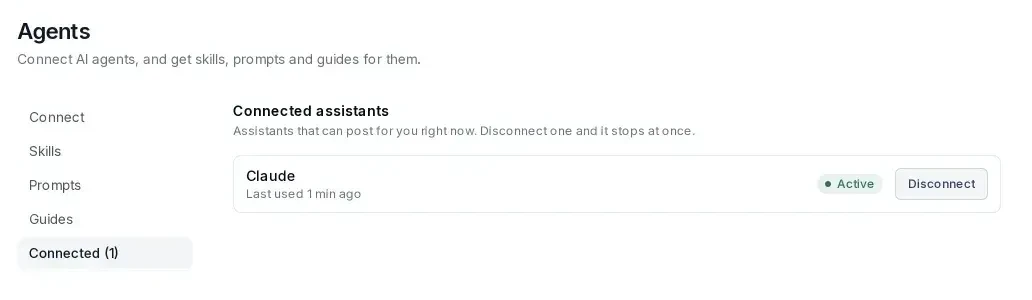
Once you've approved it, Claude shows up in PostEverywhere under Agents, on the Connected tab, and you can disconnect it there at any time.
If you want the skills too, open Customize, then Plugins, add the marketplace posteverywhere/claude-plugin and install the PostEverywhere plugin. It brings the connector with it, and a plugin you add works in Cowork, chat and Claude Code alike.
Our Claude setup page covers both routes, including Team and Enterprise.
Before you schedule anything, test the connection in a normal Cowork task: "List my PostEverywhere accounts and show what's scheduled this week." If Claude lists your accounts, you're ready.
Step 2: Create the weekly task
Click Scheduled in the left sidebar, then New task, then Set up manually. Fill in the form:
- Name: Weekly social posts
- Frequency: Weekly, Monday at 9:00
- Prompt: the one below
- Approval mode: see step 3
Here is the prompt we use. Change the platforms, topics and number of posts to suit you:
Look at my PostEverywhere calendar
for the next 7 days and note what is
already scheduled. Then write 3
LinkedIn posts and 3 X posts for the
days that are empty, about social
media scheduling tips for small
teams. Follow my brand voice guide.
Vary the angle: one tip, one mistake
to avoid, one question to the
audience. No made-up statistics or
links. Save every post in
PostEverywhere as a draft, spread
across the week at sensible times.
Do not schedule or publish anything.
Finish with a table of what you
drafted and when.
Two lines in that prompt do most of the work. "Look at my calendar first" stops Claude doubling up on days you've already filled. "Save as a draft, do not schedule or publish" means nothing reaches your followers until you've read it.
Want Claude to plan your week for you? Every PostEverywhere plan includes the Claude connector and skills, from $9 a month. Start your 7-day free trial, card required.
Step 3: Choose the approval mode
Each scheduled task has an approval mode. Anthropic lists three:
| Mode | What Claude does | When to use it |
|---|---|---|
| Manually approve | Pauses and asks before each action | While you test the task |
| Automatically approve | Keeps going, with a safety review that blocks unsafe actions | Once the task has run cleanly a few times |
| Skip all approvals | Nothing pauses, nothing checks | We don't use it for anything that touches your accounts |
A task that only saves drafts is low risk, because a draft isn't public. That is why the draft-first prompt matters more than the mode: even on Automatically approve, the worst a bad run can do is leave you a few drafts to delete.
Start on Manually approve for the first run or two, watch what Claude does, then switch to Automatically approve.
Step 4: Run it once and check the result
You don't have to wait until Monday. Open the task from Scheduled and run it now.
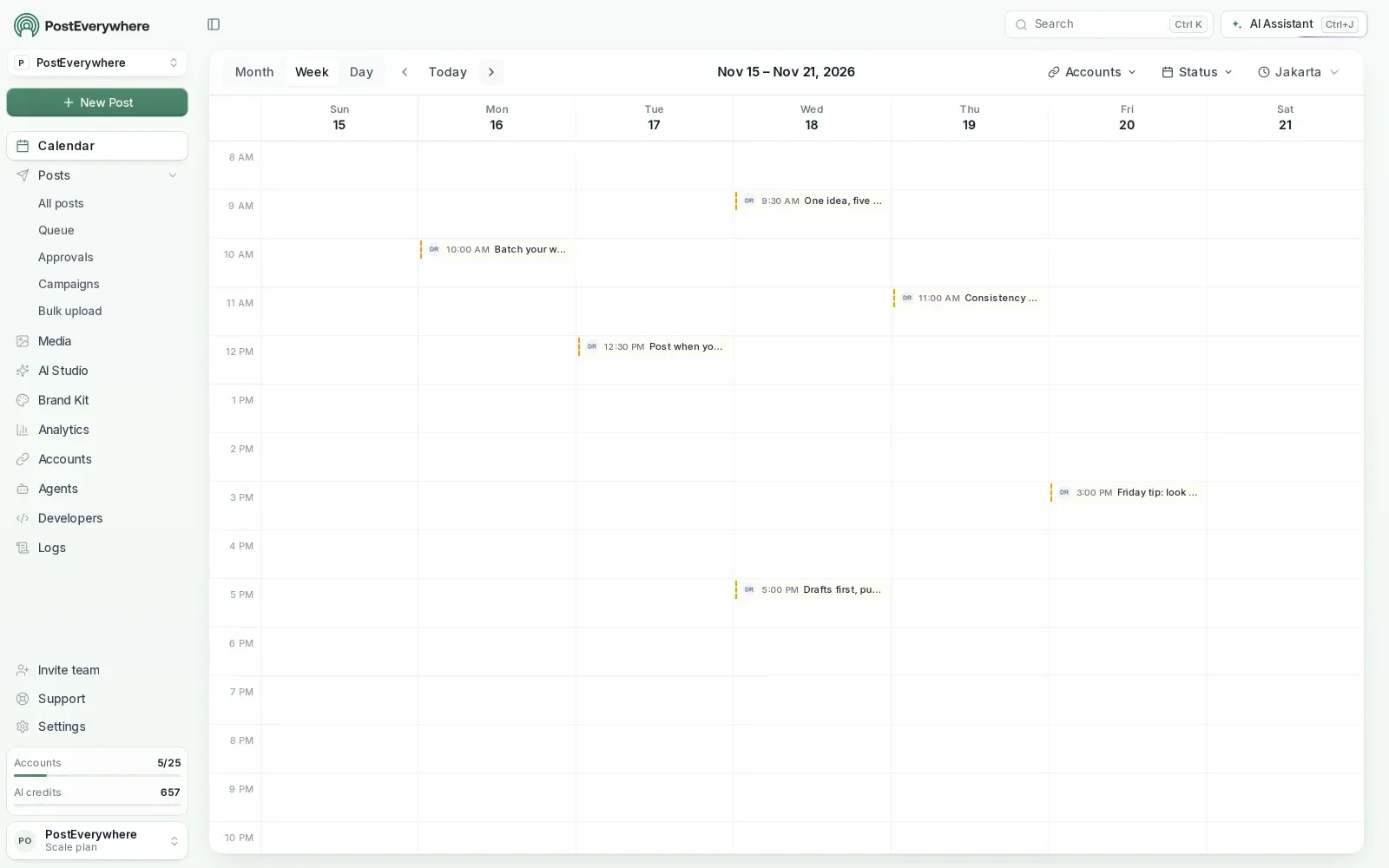
Claude reads your calendar, writes the posts and saves each one in PostEverywhere. When it finishes, open your content calendar and the drafts are there, on the days and times Claude chose, as amber cards marked DR so you can tell them apart from scheduled posts.
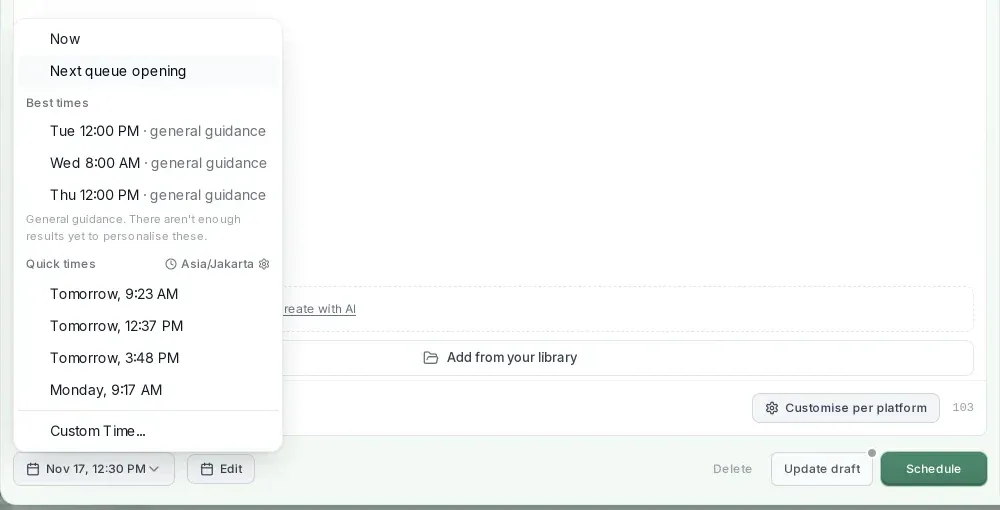
Click a draft and it opens in the composer as "Edit draft". Read it, fix anything that's off, and click Schedule. If you use our posting queue, choose "Next queue opening" in the time picker instead, and the post takes your next free slot.
The calendar's status filter has a Drafts option if you want to see only what Claude wrote.
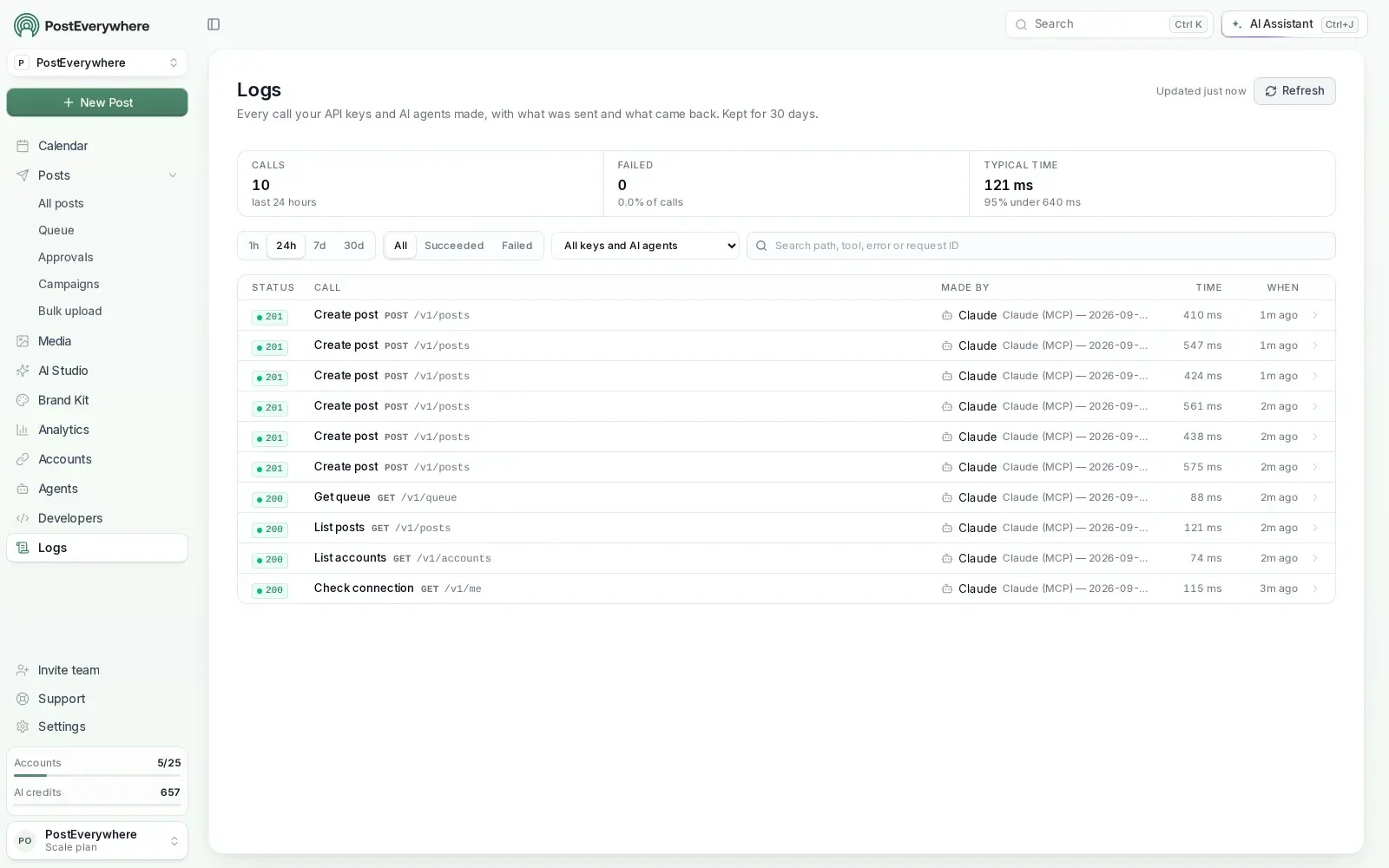
Every past run stays under Scheduled as its own session, so you can see exactly what Claude did each week. On the PostEverywhere side, every request Claude makes through the connector is recorded in Logs for 30 days.
Three scheduled tasks worth copying
Once the weekly plan works, these three cover most of the rest of a social media week.
1. Friday report (weekly, Friday 16:00). A summary you can paste straight into an email.
Using PostEverywhere analytics,
write my weekly social media report
for this week: the three best posts
with links and why they worked,
anything that failed and whether it
was fixed, and what is scheduled for
next week. Keep it under 200 words.
2. Failed post check (weekdays, 10:00). Catches problems before your audience notices the gap.
Check PostEverywhere for any posts
that failed in the last 24 hours.
For each one, explain the cause in
one line. If an account needs
reconnecting, give me the link. Do
not retry anything without telling
me first.
3. Repurpose the latest blog post (weekly, Tuesday 9:00). Turns long content into posts while it's fresh.
Read the newest post on [your blog
URL]. Write 2 LinkedIn posts and an
X thread from its key points, using
only facts from the article, and
save them in PostEverywhere as
drafts for later this week. List
what you drafted.
If you'd rather do this by hand, our 30-minute weekly routine covers the same jobs as prompts you run yourself. Cowork just takes the "remember to do it" part off your plate.
Drafts or straight into the queue?
We keep weekly tasks on drafts, and I'd recommend you do too, at least for the first month. A scheduled task runs when you're not watching, and social posts are public and hard to take back.
Once you trust the output on a platform, you can change one line of the prompt from "save as a draft" to "add each post to my posting queue". PostEverywhere then places each post in your next free queue slot.
Keep the "no made-up statistics or links" line either way.
For teams, drafts double as a review step: a manager reads the week's drafts in PostEverywhere and only the approved ones get scheduled. Our post approval workflow page explains how reviews work for the rest of the team.
A few things to know
- Time zones. Tell Claude your time zone in the prompt ("times are in New York time") so posts don't land at 3am.
- Connected accounts only. Claude can only draft for accounts connected in PostEverywhere. Instagram and TikTok posts need an image or video, so for those, ask for a caption plus a note of what media to add.
- Workspaces. The connector works in the PostEverywhere workspace that was active when you connected it. If you manage several brands, connect once per workspace and name the brand in each task.
- Disconnected accounts. If a social account needs reconnecting, PostEverywhere refuses posts for it and tells Claude why. Add "tell me about any account that needs reconnecting" to your prompt and you'll hear about it on Monday, not when a post goes missing.
- Keep the prompt specific. "Write some posts" gives you generic posts. Topics, audience, platforms, number and format give you posts you'd actually publish.
For more on what Claude can do with your social accounts outside Cowork, see how to use Claude for social media and our overview of Claude connectors.
Let Claude handle Monday's planning. PostEverywhere publishes to all top platforms, and every plan includes the Claude connector, the skills and an MCP server for other AI agents. Start your 7-day free trial.
FAQ
What is Claude Cowork?
Claude Cowork is the mode in Claude where it works through a whole task on its own, using the same agentic setup as Claude Code without a terminal. It is available on paid Claude plans (Pro, Max, Ultra, Team and Enterprise) in the desktop app, and on web and mobile for most plans.
Can Claude Cowork post to social media?
Yes, through a connector. With the PostEverywhere connector added, Cowork can read your calendar, write posts and save them as drafts, schedule them or publish them on Instagram, TikTok, LinkedIn, X, Facebook, YouTube and every other top platform PostEverywhere supports.
Do Claude Cowork scheduled tasks run when my computer is off?
According to Anthropic, scheduled tasks run remotely, so they keep to schedule when your computer is asleep or Claude Desktop is closed. A task that needs local files or apps only runs locally.
The PostEverywhere connector is remote, so a social media task doesn't need your computer on.
Will Claude publish posts without asking me?
Not if you tell it not to. The prompts in this guide save every post as a draft, so nothing goes live until you schedule it in PostEverywhere. You can also set the task to Manually approve, so Claude asks before each action.
Which approval mode should I use for a social media task?
Start with Manually approve for the first run or two, then switch to Automatically approve once the task behaves. Avoid Skip all approvals for anything that can post to your accounts.
How much does it cost?
Cowork needs a paid Claude plan. PostEverywhere starts at $9 a month, and every plan includes the Claude connector and skills, with a 7-day free trial (card required).

Founder & CEO of PostEverywhere. Writing about social media strategy, publishing workflows, and analytics that help brands grow faster.