


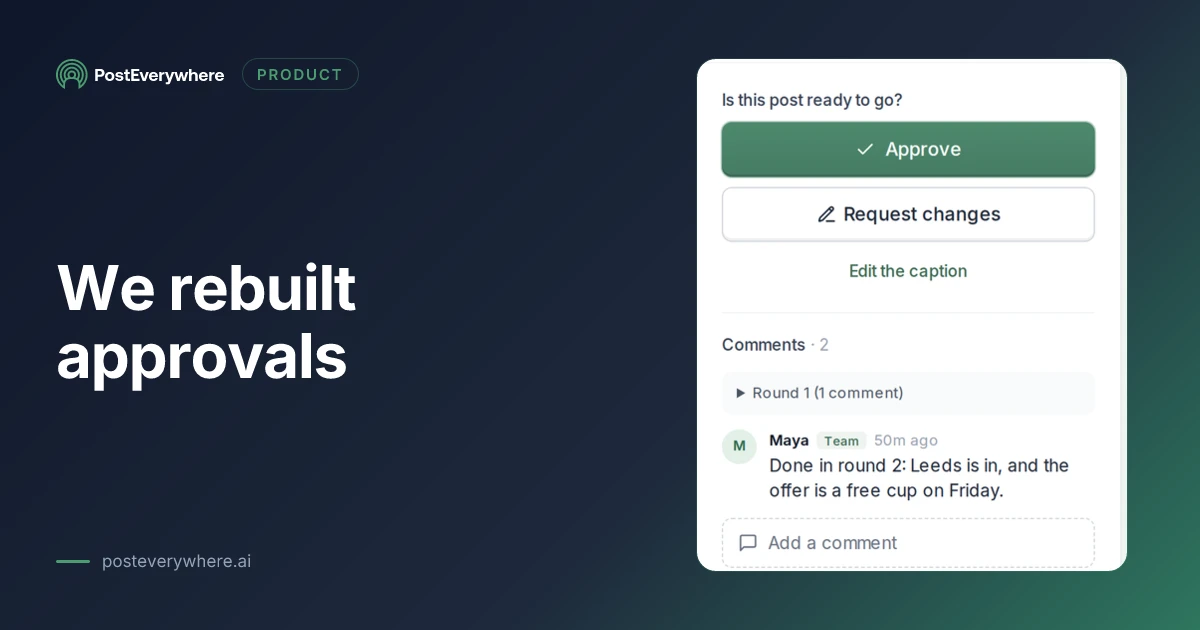
We rebuilt approvals in PostEverywhere. Your client gets one email link. They do not need a login. They comment, you edit, you send it back, and they are told exactly what changed. When they approve, the post can schedule itself.
Written by Jamie Partridge, Founder of PostEverywhere.
The problem: approvals happen in email
If you run social media for clients, you know this week.
You send the client 12 posts in a document. They reply with notes on four of them. A colleague replies to a different email with a fifth note. You copy the changes into your scheduler by hand. You ask the client to log in and approve. They do not log in.
On Friday, one post goes out with the old caption, because the newest note was in a different email.
Most approval tools stop at two buttons: approve or reject. But the real work is in the middle. It is the comments, the edits and the second look. So we rebuilt approvals around that middle part.
The loop
Here is the full loop, from first draft to a scheduled post.
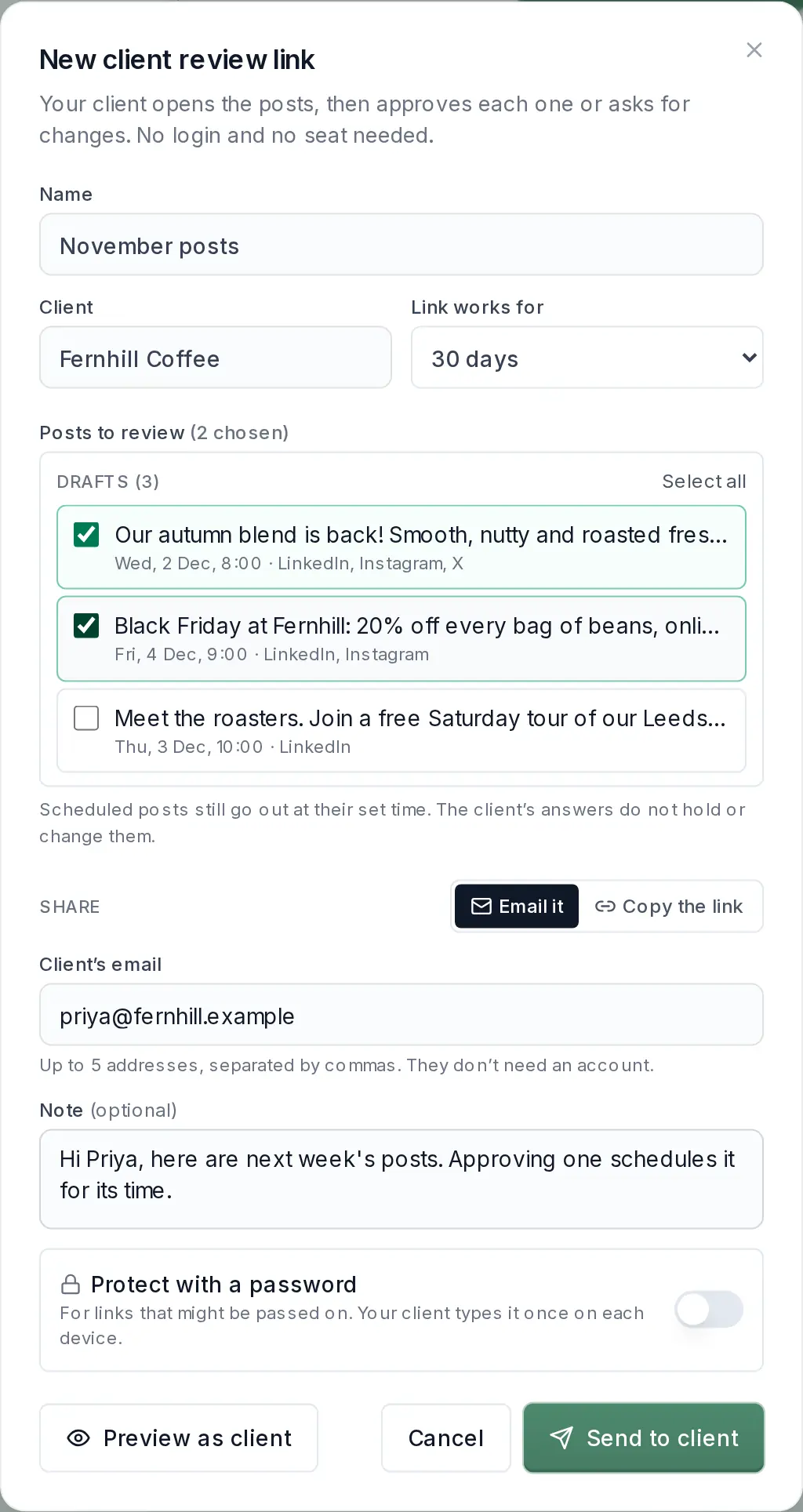
- Send. You email the client a review link. They do not need an account or a seat.
- Comment. The client comments on a post, or asks for changes.
- Edit. You make the changes.
- Send back. You click Send back for approval. The client gets an email that lists what changed.
- Approve. The client approves.
- Schedule. If you switched it on for that link, the post schedules itself.
One link. One thread. No copy and paste.
Clients approve from one email link
This part was already live, and it is still the core. Your client gets an email with a link. They do not need a PostEverywhere account, a login or a seat. You can add a password, set how long the link works, and send reminders.
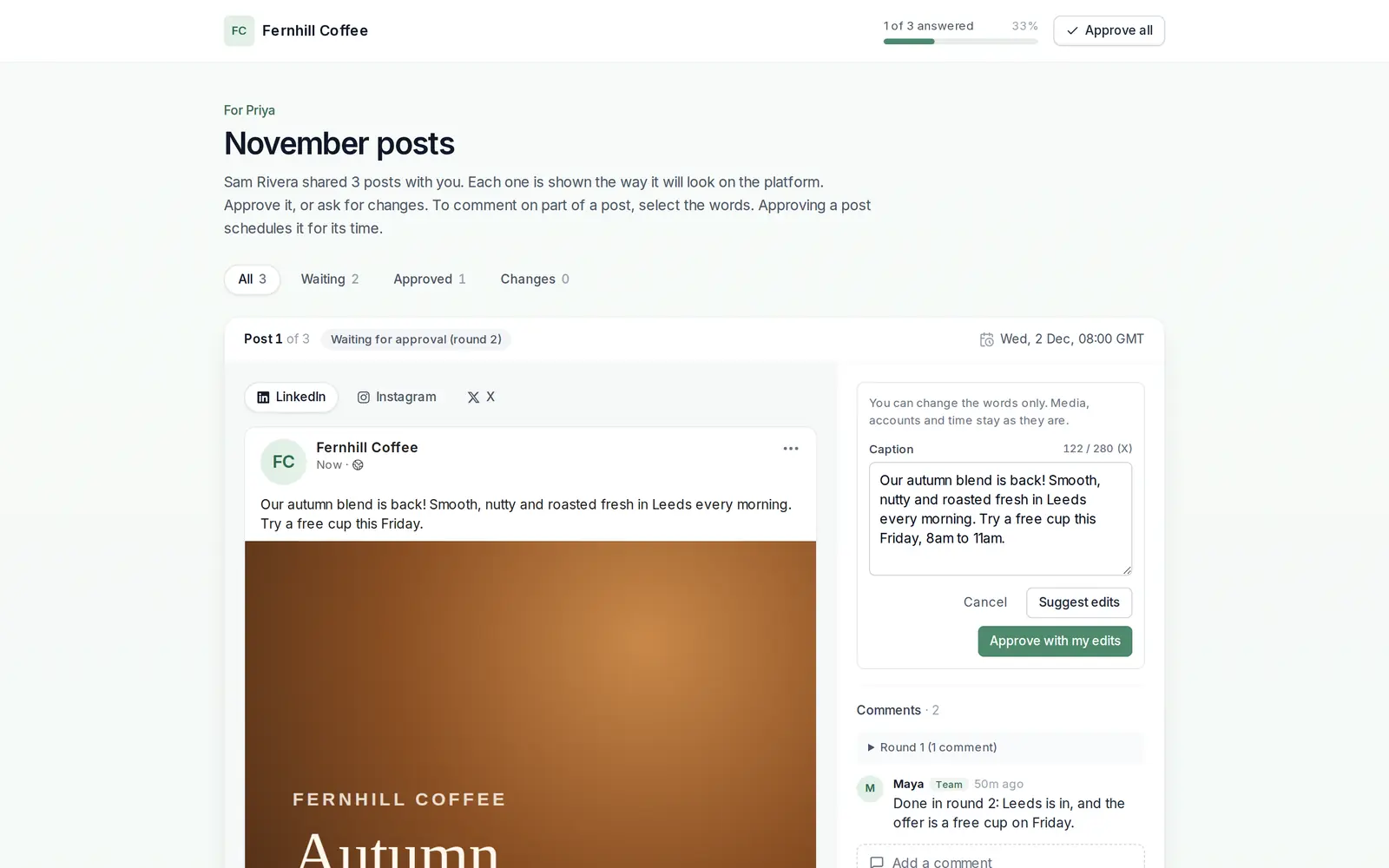
The client sees each post the way it will look on LinkedIn, Instagram or X. They click Approve or Request changes, or they edit the caption. To comment on part of a post, they select the words.
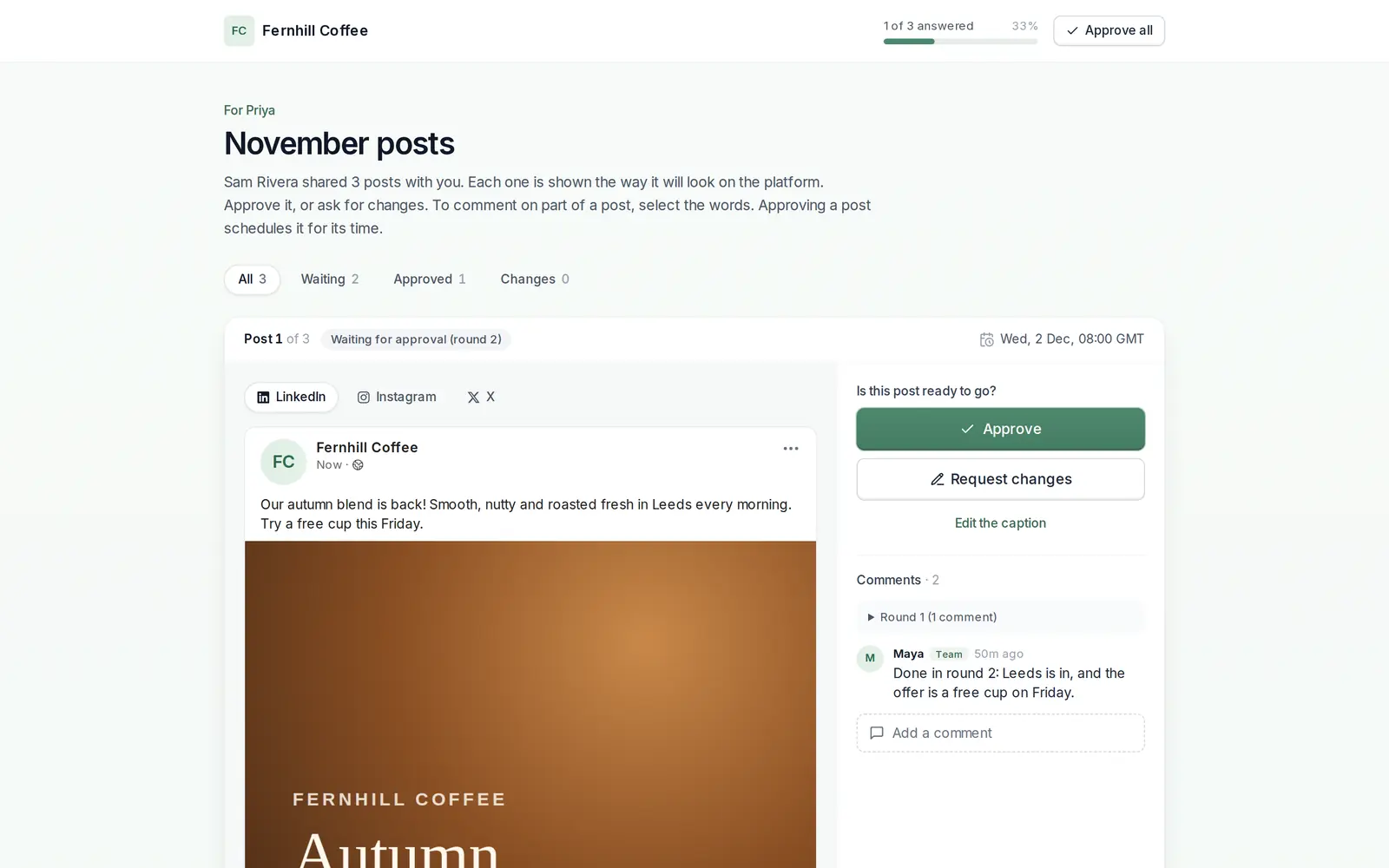
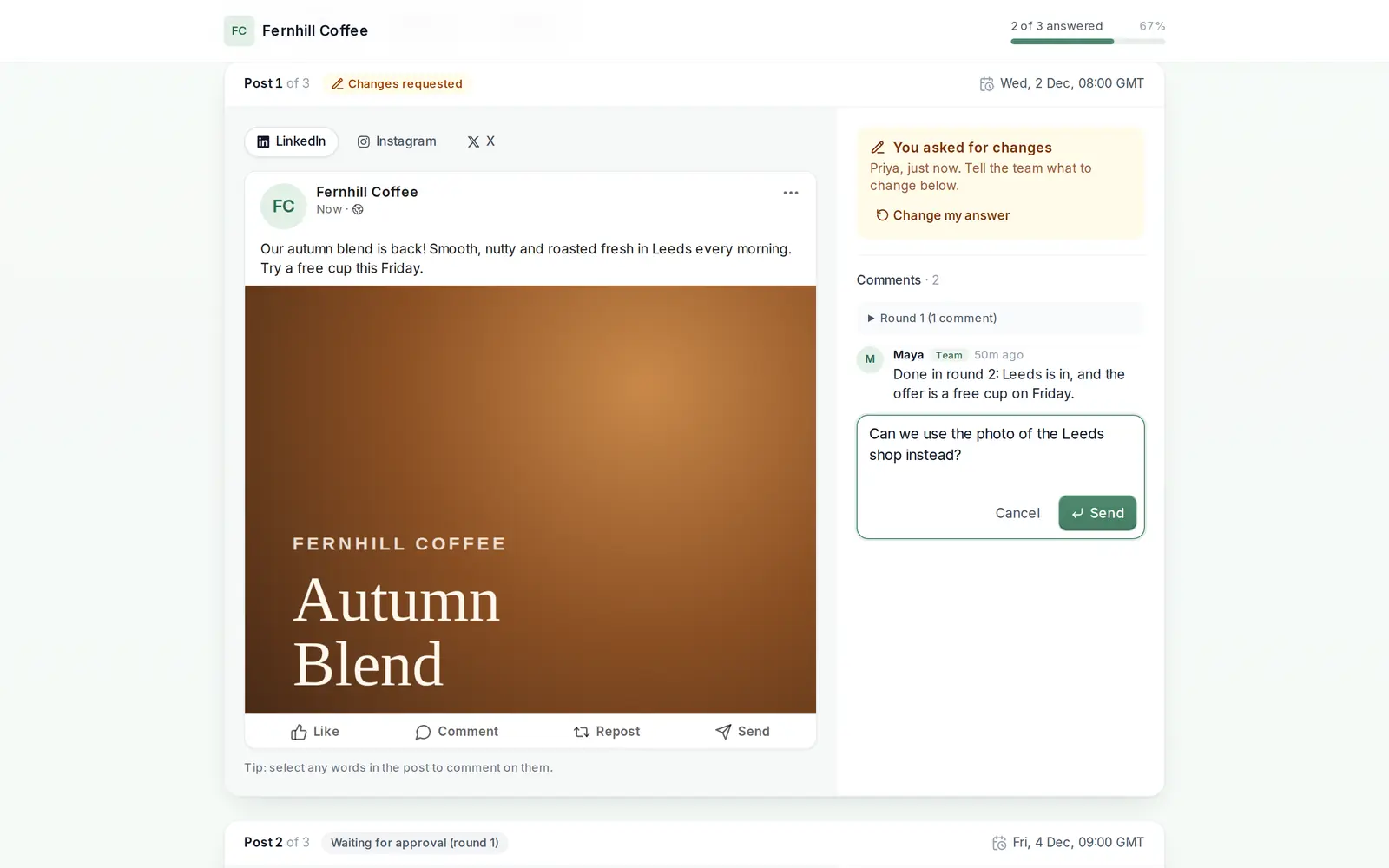
What is new is the conversation around each post.
One comment thread per post. Your team and the client write in the same thread, grouped by round, so you can see what was said about each version. Your team's comments stay internal until an owner or admin turns on Show to client.
When someone comments, the post's author gets an email, one an hour at most for each post. A client gets an email only about a comment shown to them, one a day at most, so a busy review day does not fill their inbox.
Send your next batch to a client with one link. See how the post approval workflow works, or read the step-by-step help page.
"Send back for approval" shows what changed
Here is the old pain. A client asks for one change in one caption. You fix it. Now they must read all 12 posts again to find your fix.
Now, after you edit a post, you click Send back for approval. If the client suggested a new caption, you click Accept or Reject first. Before you send, you see exactly what your reviewers will see.
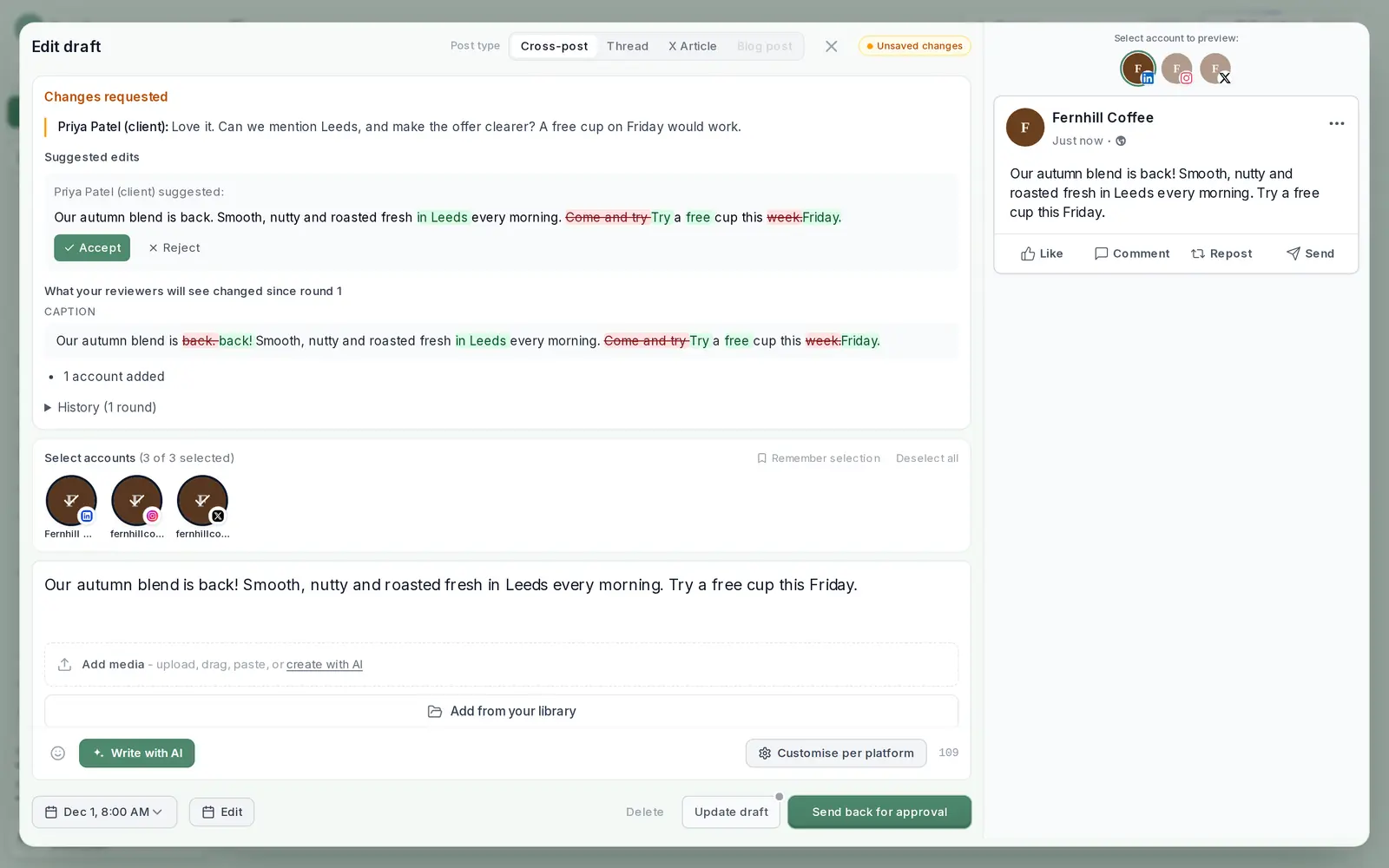
Your client gets an email that lists what changed. In your Approvals page, the reviewer sees What changed since round 1:
- the caption, with the words you removed struck through and the words you added in green
- the media you added or removed
- the accounts you added or removed
- the old time and the new time
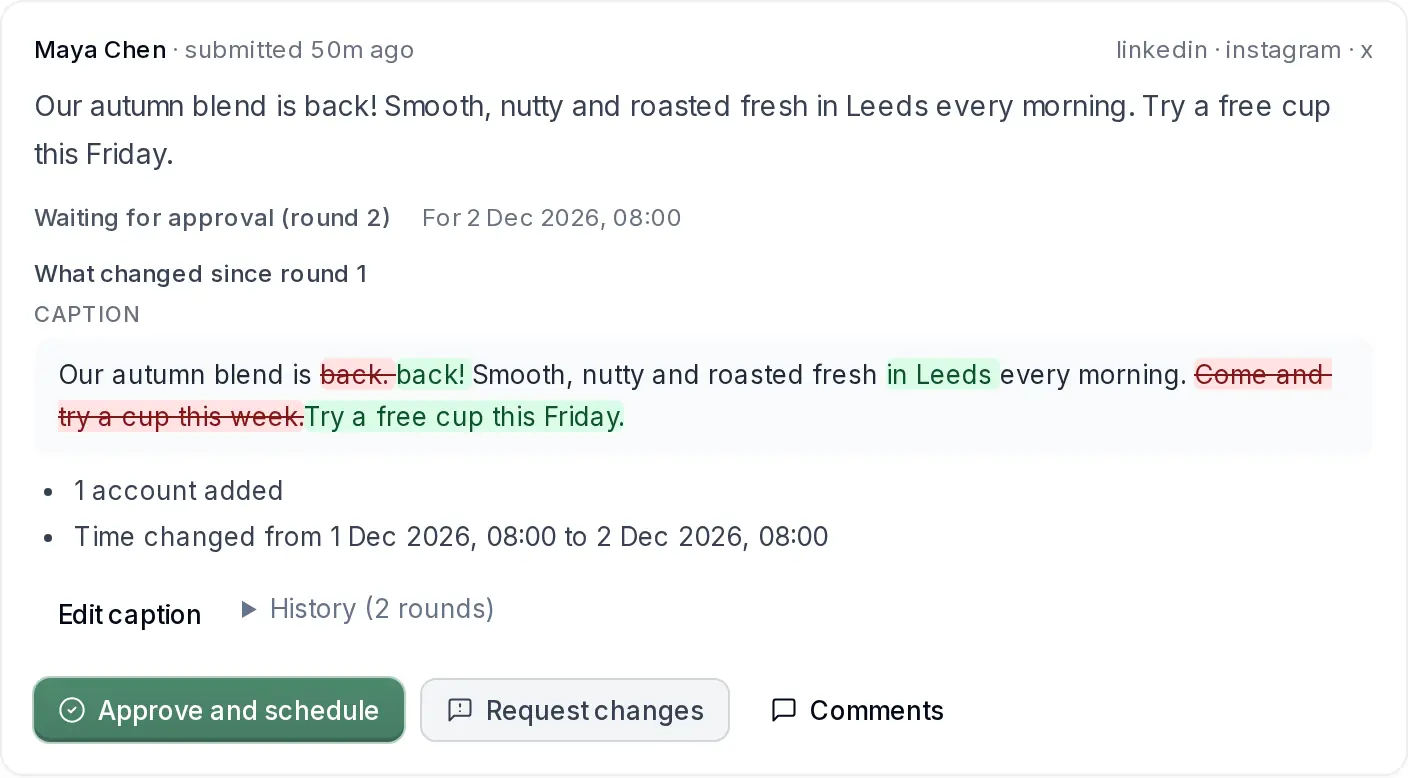
Each round is kept under History. So you can see who asked for what, and when, without a search through email.
Approve with my edits, or suggest edits
Some feedback is one word. That should not take a full round.
Your client and your own approvers both get two buttons when they edit a caption:
- Approve with my edits: fix the caption and approve in one step.
- Suggest edits: write a new caption for the author. The post does not change until your team accepts it.
They can change the words only. Media, accounts and time stay as they are. The caption shows the limit of the strictest platform on the post, for example 280 characters for X, and a caption over the limit cannot be saved.
A client uses Approve with my edits on a link you emailed to them, because it asks for the 6-digit code.
Let the approval schedule the post
Until now, a client's approval was only recorded. Your team then scheduled the post. That is still the default.
Now you can switch on Schedules when approved for a review link. Then, when the client approves a post that has a time, it is scheduled for that time. Nobody on your team has to do it.
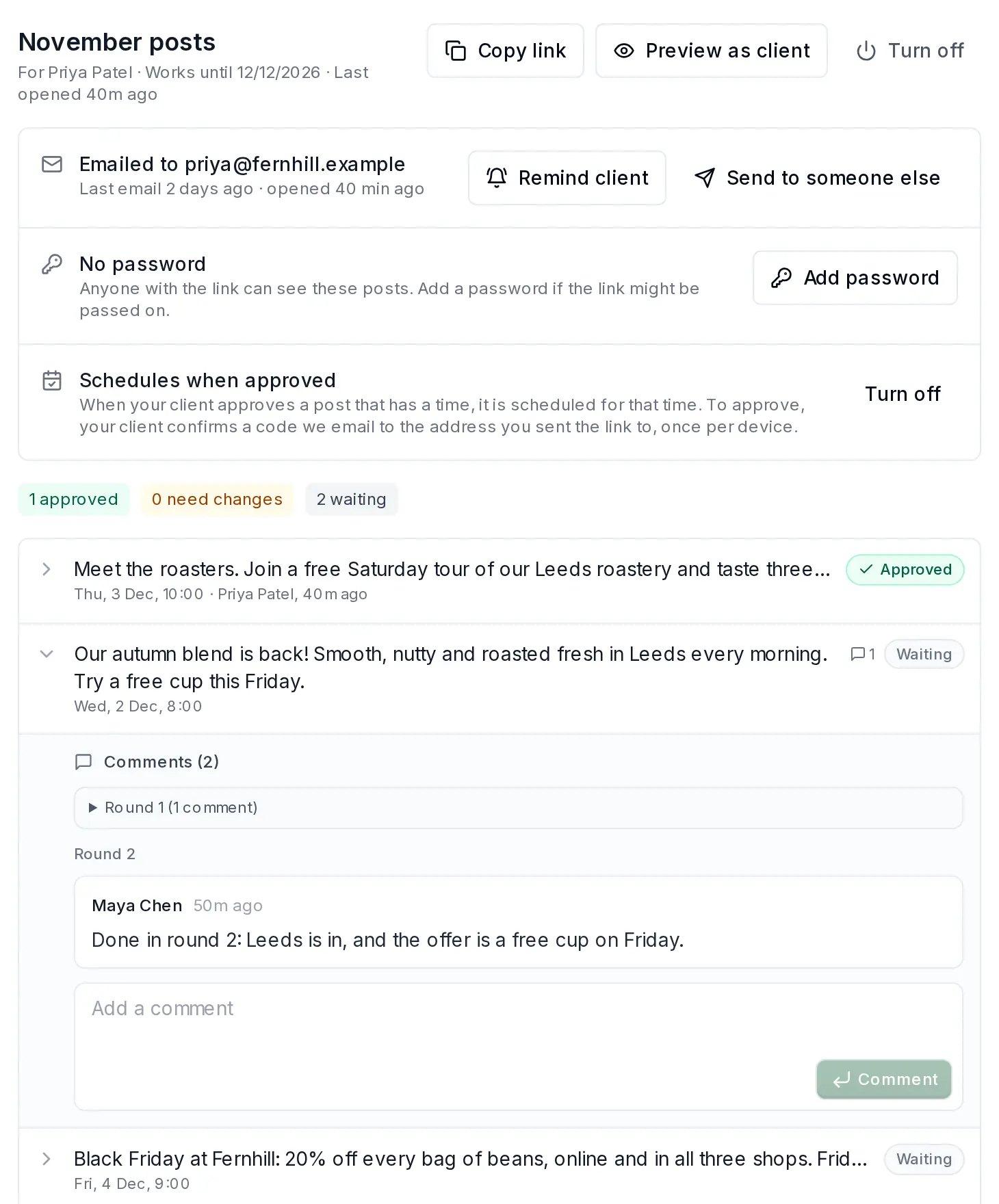
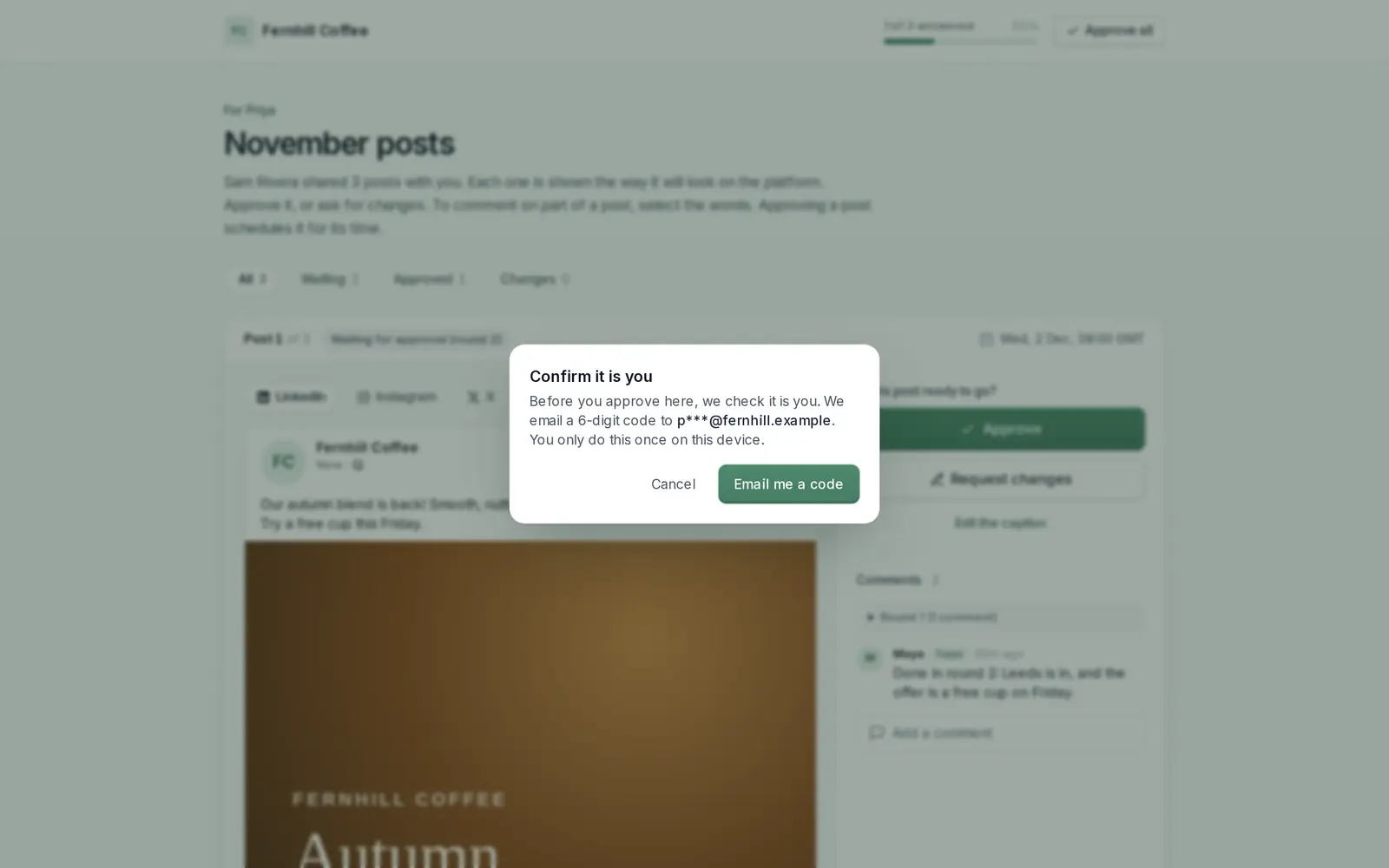
We built this with one rule in mind: only the right person can schedule a post. So the first time a client approves on a device, they confirm a 6-digit code.
We email it to the address you sent the link to, and the device is remembered for 30 days. Each person you email gets their own link, so every decision shows who made it, what they decided and when.
If the link is forwarded, the other person can see the posts and comment. They cannot approve without the code. Approve with my edits always asks for it.
A post that is already scheduled still goes out at its set time. The client's answers do not hold or change it. In your Approvals page, a post the client approved this way shows Scheduled automatically.

One rule for your team, everywhere
Inside your own team, approval now works the same way from every place a post can start.
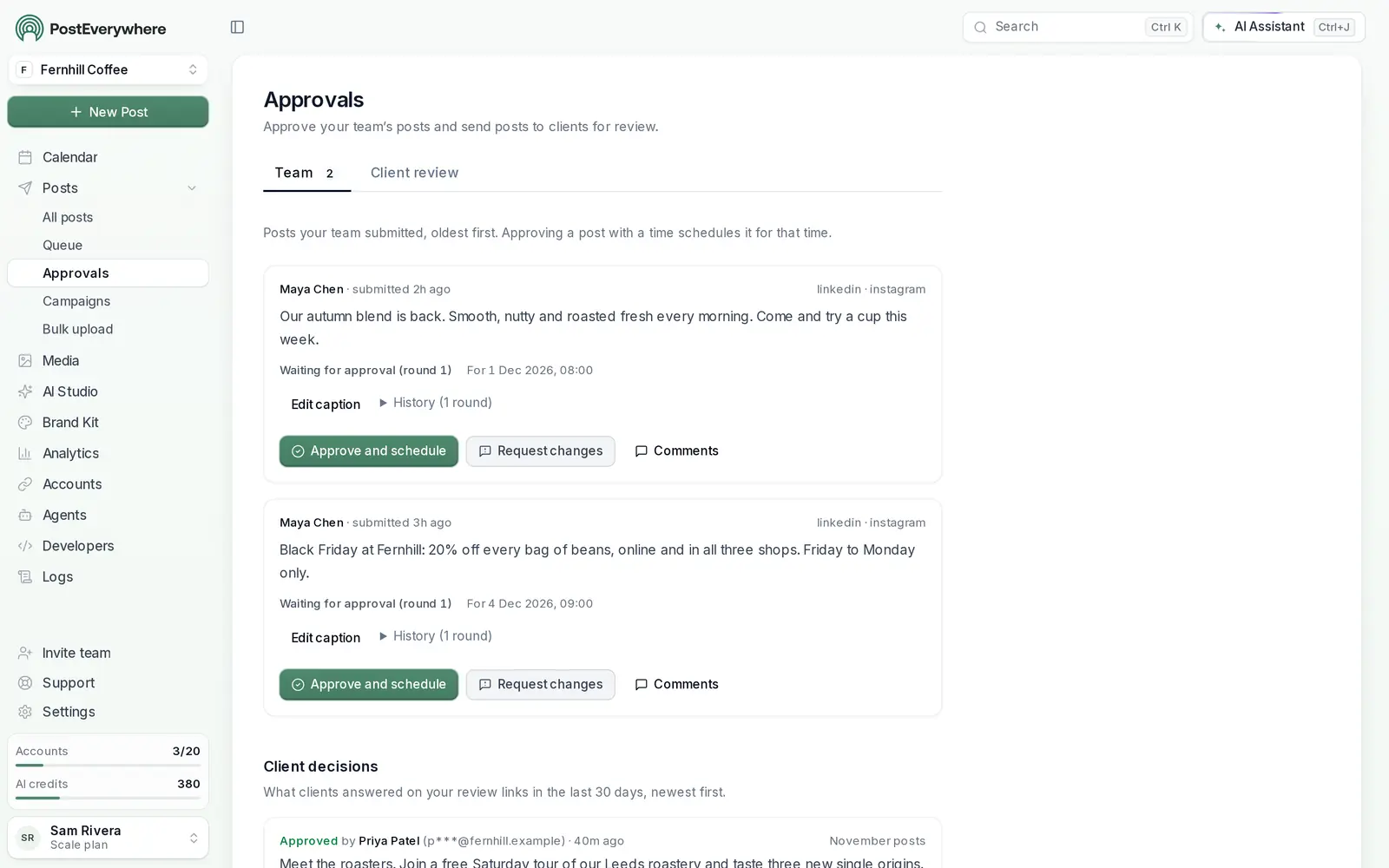
Turn on Require approval for a workspace. Then every post a member makes waits for an owner or admin. This is true from the composer, the calendar, bulk upload, the API and MCP. Owners and admins still publish directly.
In the composer, a member sees Submit for approval. An owner or admin opens Approvals and clicks Approve and schedule. A post with a future time is then scheduled for that time.
Two more rules make approval mean something:
- When a member edits the text, media or accounts of an approved post, it goes back for approval. A scheduled post goes back to drafts until it is approved again.
- Change only the time, and the post stays approved.
And every screen uses the same five words: Draft, Waiting for approval (with the round, for example "round 2"), Changes requested, Approved and Scheduled.
Running more than one client? Team workspaces keep each client separate, each with its own approval setting. See team roles and permissions for who can approve.
For developers and AI agents
Most posts in PostEverywhere come through our API and MCP server, so this matters.
In a workspace that requires approval, a member's POST /v1/posts now returns 201. The post is saved with status: "draft" and approval_status: "pending", and the response has a note that says so. Before, the same call returned 403.
After the post is approved, schedule it with POST /v1/posts/{id}/schedule.
The REST API now has the rest of the workflow too. Approve and schedule in one call with POST /v1/posts/{id}/approve and schedule: true. Send a post back after changes with POST /v1/posts/{id}/submit.
Read every round and what changed, comment, and send posts to a client on a review link. See the Approvals API. The MCP tools have not changed yet: approve_post approves only, so schedule the post after that.
Read the help page for agents and the API and the API changelog.
FAQs
Does my client need a PostEverywhere account?
No. Your client gets a link by email. They do not need a login or a seat.
Can a client's approval publish a post by itself?
Only if you switch on "Schedules when approved" for that link. Then a post that has a time is scheduled for that time. It is off by default. When it is off, the approval is only recorded, and your team schedules the post.
What stops someone with a forwarded link from approving?
On a link with "Schedules when approved" on, the first approval on a device needs a 6-digit code that we email to the address you sent the link to. A forwarded link can view and comment, but it cannot schedule a post without the code.
With the switch off, an approval is only a recorded answer, and your team decides what to schedule. Add a password if the link might be passed on.
What happens if I edit a post after it is approved?
A change to the text, media or accounts sends it back for approval. A change to the time only keeps the approval.
Will my client get a lot of emails?
No. A client gets an email only when an owner or admin shows them a comment, and one email a day at most from each review link, reminders included.
Do owners and admins need approval?
No. Only members in a workspace with "Require approval" switched on.
Does approval work with the API and AI agents?
Yes. A member's post from the API or MCP goes to the approval queue, the same as a post from the app. The REST API can also approve and schedule, send a post back, comment and make client review links.
Ready to stop chasing approvals by email? Start a 7-day trial on any plan, turn on approvals, and send your first review link. Card required, cancel any time.

Founder & CEO of PostEverywhere. Writing about social media strategy, publishing workflows, and analytics that help brands grow faster.