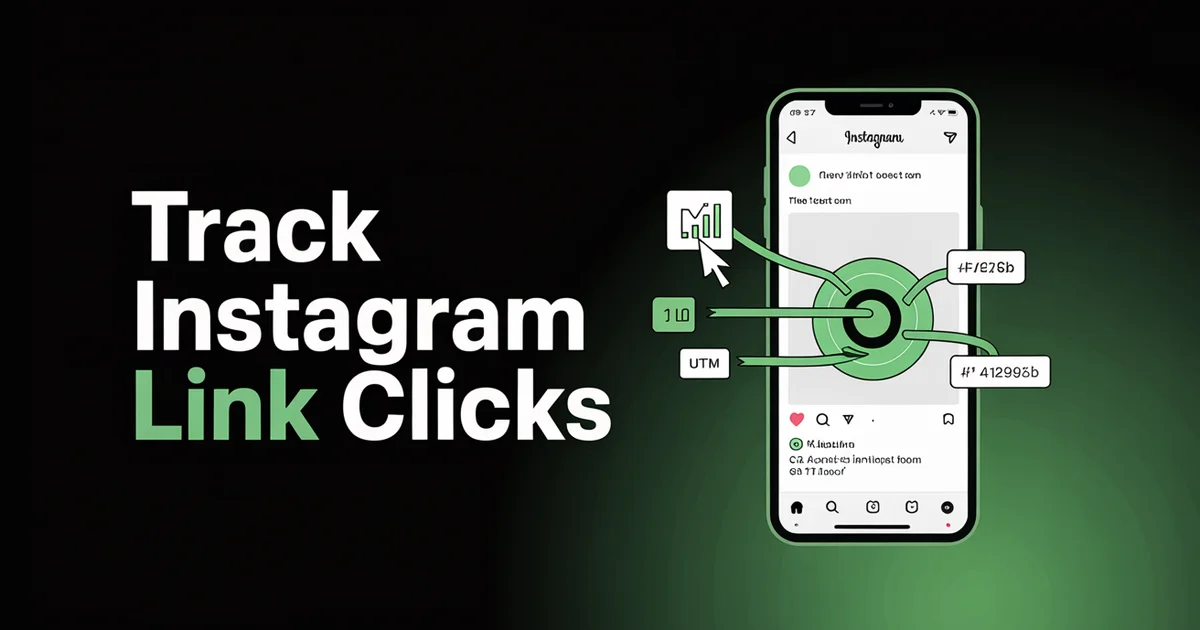
Can you see who clicks your links on Instagram? No. Instagram never shows the usernames of people who tap your bio link; Insights gives you only aggregate click counts and rough demographics. For real attribution, add UTM parameters and track clicks in GA4. To track who clicks at a more useful level, combine UTM parameters with Google Analytics, or use a link-in-bio tool or URL shortener with click analytics. That is the honest answer to "how to see who clicks on your Instagram link" in 2026, and the rest of this guide explains exactly how to get as close to real attribution as the platform allows.
If you searched "can you see who clicks your links on Instagram" expecting a list of usernames, the disappointing reality is that no native or third-party tool can give you that. Privacy law makes it impossible.
But aggregate counts, demographics, geography, device type, on-site behaviour, and conversion attribution are all available if you know where to look.
Edited by Jamie Partridge, Founder
TL;DR
- No tool shows the usernames of people who click your Instagram link. Privacy regulation and platform policy make it impossible.
- Instagram Insights shows total taps and aggregate demographics for Business and Creator accounts, refreshed weekly.
- The four honest workarounds: UTM parameters + GA4, link-in-bio tools (Linktree, Beacons), URL shorteners (Bitly, Rebrandly), and on-site heatmap tools.
- UTM + GA4 is the highest-resolution method because it tracks what visitors actually do on your site, not just that they clicked.
- Stack two methods for best results: a link-in-bio page for click breakdowns plus UTM tags on each destination link for conversion data.
What Instagram natively shows you about link clicks
Instagram's native Insights tool, available only on Business and Creator accounts, exposes link-tap data at two levels.
Account-level link taps
Open your profile, tap Insights, go to Accounts Reached, scroll down to Profile Activity, and you will see Website Clicks (sometimes labelled "External link taps"). This is the total number of taps on whichever URL you have set in your bio for the selected period (last 7, 14, 30, or 90 days).
Per-post link taps
In late 2025 Instagram rolled out per-post external link tap counts inside each post's individual Insights panel. If you use Instagram's "add link sticker" feature in Stories or have promoted a link in a Reel caption, you can now see how many taps came from that specific piece of content rather than only the account total.
Aggregate demographics
Inside Insights, the Total Followers breakdown shows age range, gender, top cities, top countries, and most active hours. This data is for the audience who interacted with your account in general, not specifically for the people who clicked your link, but it is the closest demographic signal Instagram gives you.
What Instagram does not show, and never will:
- Usernames of people who tapped the link
- Whether a specific follower clicked
- Any way to message the people who clicked
- Real-time click feed (data refreshes on a delay)
Does Instagram tell you who clicked your link in bio?
If a tool claims to show you the Instagram usernames of people who tapped your bio link, it is lying or about to be banned. Two reasons.
Privacy regulation. GDPR in the EU, CCPA in California, and similar regimes globally classify "the fact that you clicked this URL" as personal data. Sharing it with a third party without explicit consent is illegal.
Linktree spells this out plainly in their Trust Center: aggregated, anonymised data only.
Platform policy. Instagram's Graph API, the only way third-party tools can pull data, exposes aggregate metrics only. There is no endpoint that returns individual-user click events for a public bio link.
Anyone "scraping" that data is violating Meta's terms and risking an account ban for everyone they "track".
The honest reframing: instead of trying to identify individuals, identify segments and behaviour. That is exactly what UTM parameters + analytics tools do.
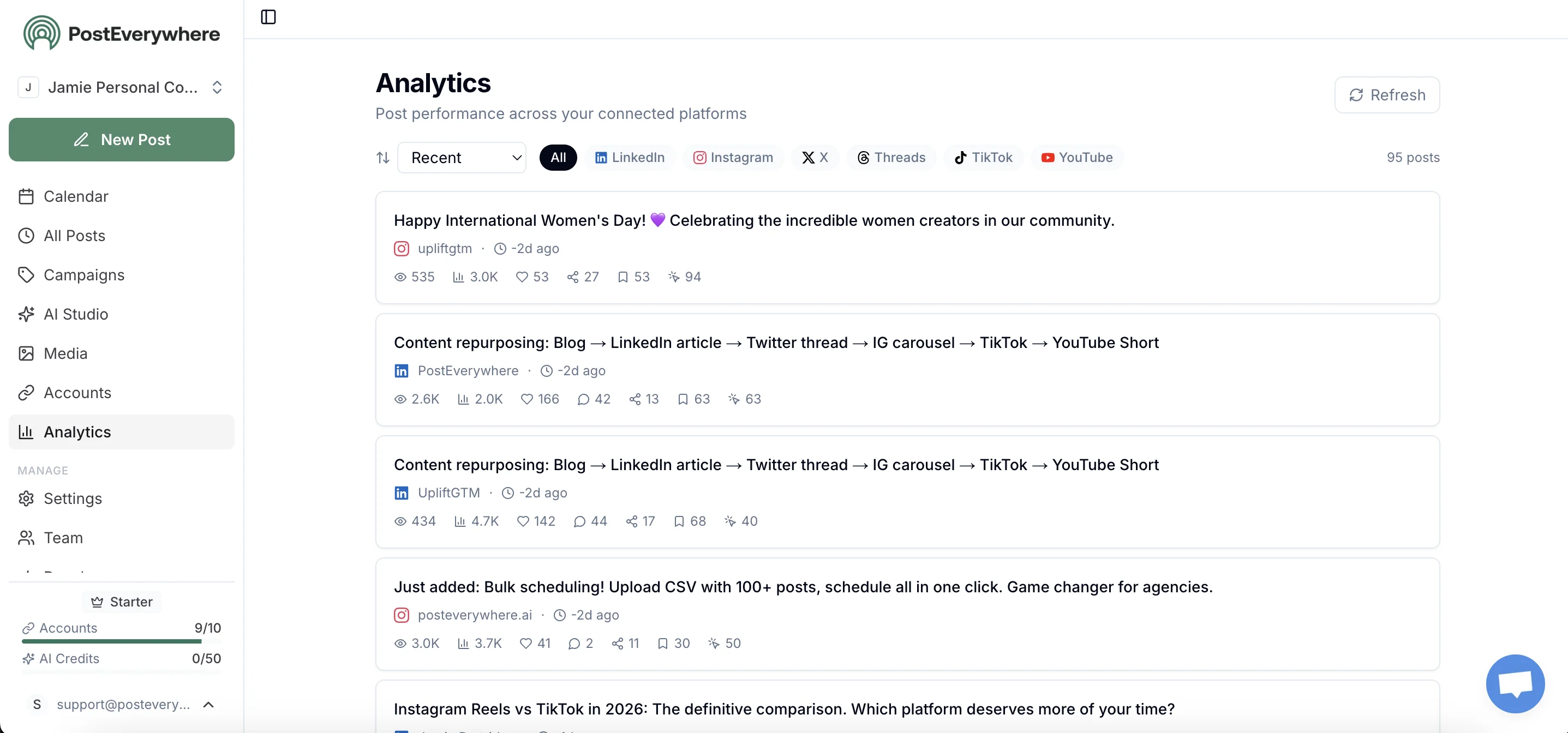
Want to actually understand which Instagram posts drive traffic? PostEverywhere's analytics show per-post click-through with UTM-aware reporting. Start your 7-day trial.
The four workarounds, ranked by how close they get you to real attribution
Method 1: UTM parameters + Google Analytics 4 (best)
This is the highest-resolution method available. UTM parameters are tags appended to your bio URL that tell Google Analytics 4 where the visitor came from. Combined with GA4's reports, you can see exactly which Instagram traffic converted, how long they stayed, and what they bought.
Step by step:
- Take your bio URL (for example,
https://yourbrand.com/spring-sale). - Append UTM parameters:
?utm_source=instagram&utm_medium=social&utm_campaign=spring-sale&utm_content=bio-link. - Use PostEverywhere's free UTM link builder to generate this without typos.
- Set the tagged URL as your Instagram bio link.
- In GA4, go to Reports > Acquisition > Traffic acquisition and filter by "Session source/medium = instagram / social".
- Layer on conversions, time on page, pages per session, and revenue (if e-commerce).
What you can see: Which Instagram campaigns drove the most sessions, which converted, geographic breakdown, device split (mobile vs desktop), referring landing page, browser language, returning vs new visitors.
What you cannot see: Usernames. (Same caveat applies to every method.)
This works whether your destination is a product page, blog post, lead form, or link-in-bio landing page.
Method 2: Link-in-bio tools (Linktree, Beacons, PostEverywhere)
A link-in-bio tool turns your single bio URL into a landing page with multiple destination buttons. Each button has its own click counter.
Linktree's analytics show:
- Total views and unique views of the bio page
- Total clicks and unique clicks per individual link
- Geographic breakdown by country and city
- Traffic sources (where visitors came from before tapping)
- Device type (mobile, desktop, tablet)
- Referrers
Linktree (paid plans), Beacons, and PostEverywhere's link-in-bio generator all work similarly. The advantage over Instagram Insights is granularity: you see which of your five linked destinations actually drove engagement, not a single combined "taps" number.
The advantage over UTMs alone is ease. No URL building, no GA4 setup, just a clean dashboard.
The disadvantage: link-in-bio analytics stop at the click. They cannot tell you whether the visitor bought anything afterwards. Stack with UTM tags on each Linktree button to fix that.
Method 3: URL shorteners with click tracking
If you only need one destination URL, a tracked short link works without a landing page in the middle. Bitly and Rebrandly both generate short links with built-in analytics.
You get:
- Total clicks
- Geographic breakdown
- Referrer
- Device and browser
- Time-of-day distribution
Same privacy boundary applies: counts and segments, not identities. The advantage over a link-in-bio tool: simpler. The disadvantage: no per-destination breakdown if you have multiple offers.
Method 4: Heatmaps and session replays on the destination page (Hotjar, Clarity)
If you want to know what Instagram visitors actually do on your site after clicking, install Microsoft Clarity (free) or Hotjar on the destination page. Filter session replays by "source = instagram" and watch a sample of recordings.
You will see:
- Where visitors scroll
- What they click
- Where they rage-click in frustration
- Where they bounce
This is the qualitative complement to GA4's quantitative data. Pair them together.
Step-by-step: setting up UTM parameter tracking for your Instagram bio link
This is the highest-leverage 10 minutes you can spend. Here is the exact workflow.
1. Pick a destination URL
Decide what you want Instagram visitors to do. A campaign-specific landing page works better than your homepage because the conversion event is unambiguous.
2. Build the UTM-tagged URL
Open PostEverywhere's free UTM link builder and fill in:
- Source: instagram
- Medium: social
- Campaign: name your campaign (for example,
april-launch) - Content:
bio-link(so you can distinguish bio clicks from Story link sticker clicks later)
The tool spits out a properly formatted URL. Lowercase everything to avoid GA4 splitting "Instagram" and "instagram" into two segments.
3. Shorten it (optional, recommended)
UTM-tagged URLs look ugly. Run yours through a shortener such as Bitly. The redirect preserves the UTM parameters when the visitor lands on your site.
4. Set as your Instagram bio link
In the Instagram app, go to Edit profile, paste the shortened URL into the Website field, save. The link is now live.
5. Verify in GA4 within 24 hours
In GA4, go to Reports > Realtime and tap your bio link from a different device. You should see one session attributed to "instagram / social" within seconds. If not, check your tagging.
6. Repeat per campaign
Every time you change the bio link, build a fresh UTM-tagged URL with a new campaign name. This is how you distinguish your April launch from your May product drop.
If you also schedule Instagram posts through PostEverywhere, the tagged links you use in Story stickers and Reel captions stay consistent across the calendar, so attribution holds end-to-end.

Comparing the four methods
| Method | Sees clicks | Sees demographics | Sees on-site behaviour | Sees usernames | Setup time |
|---|---|---|---|---|---|
| Instagram Insights | Yes (aggregate) | Yes (rough) | No | No | 0 min |
| UTM + GA4 | Yes | Yes | Yes | No | 10-30 min |
| Link-in-bio tool | Yes (per link) | Yes | No | No | 10-15 min |
| URL shortener | Yes | Yes | No | No | 5 min |
| Heatmap (Clarity) | Indirect | No | Yes | No | 15-20 min |
The honest stack for most creators: link-in-bio page + UTM parameters on each destination + GA4. That gives you per-link click breakdown, geographic and device data, and conversion tracking, with no privacy compromises.
When each method is overkill
Not every Instagram account needs full attribution.
If you have under 1,000 followers and post a few times a week, Instagram Insights alone is fine. Adding UTM tags before you have meaningful traffic is busywork.
If you sell physical products via a Shopify store, GA4 + UTM is essential because the conversion event has revenue attached. Skip this and you literally cannot answer "did Instagram drive sales".
If you are a creator monetising through brand deals, link-in-bio analytics matter most. Brands want to see click-through rates, geographic reach, and device split when negotiating rates.
If you are running paid Instagram ads, Meta Ads Manager already attributes clicks and conversions. UTM tags help reconcile Meta's numbers with GA4's, but that's accounting, not analytics.
Schedule Instagram posts and track every link tap in one dashboard. PostEverywhere combines scheduling, link tracking, and per-post analytics. Start your 7-day trial.
Common mistakes that destroy your attribution
Forgetting the UTM tags when you change the bio link. You ship a new campaign, swap the URL, and forget the tags. GA4 sees "(direct) / (none)" instead of "instagram / social" and the campaign looks like it failed. Use PostEverywhere's UTM builder every time, no exceptions.
Inconsistent capitalisation. "Instagram" and "instagram" are two different sources in GA4. Always lowercase.
Using URL shorteners that strip parameters. Most don't, but verify by opening the short link and checking the final URL keeps the UTM tags.
Counting bio-link taps as conversions. A tap is a click. A conversion is a purchase, signup, or goal completion. Track them separately.
Trusting third-party tools that promise usernames. They are scrapers and they will get your account banned.
Frequently asked questions
Can you see who clicks on your Instagram link?
No. Instagram does not show usernames of people who tap your bio link, and no compliant third-party tool can either. You can see the number of taps via Instagram Insights and rough demographics, plus geographic and device data via GA4 or link-in-bio analytics, but never individual identities.
How do I see how many people clicked my Instagram bio link?
Switch to a Business or Creator account, open your profile, tap Insights > Accounts Reached > Profile Activity > Website Clicks. The number shown is total taps for the period (7, 14, 30, or 90 days). For per-post breakdown, open an individual post's insights panel.
Does Instagram show demographics of people who clicked my link?
Not directly for clickers specifically. Instagram shows demographics for your overall audience (age, gender, top cities, top countries) under Total Followers. To see demographics of actual clickers, you need to add UTM parameters and view the segment in GA4.
What is the best way to track Instagram link clicks?
UTM parameters plus Google Analytics 4 give you the highest resolution, including on-site behaviour and conversions. Pair with a link-in-bio tool for per-destination click breakdown. Use PostEverywhere's UTM link builder to generate tagged URLs without typos.
Can Linktree see who clicked individual links?
Linktree's analytics show per-link clicks, unique clicks, geographic data, traffic sources, and device type, but not the identities of clickers. Privacy regulation prevents it.
Is there a way to see usernames of people who view my Instagram profile?
No. Instagram has never offered a "who viewed your profile" feature for personal accounts, posts, or bio links, and any app that claims to is a scam. The only exception is Stories, where you can see the usernames of people who watched a Story you posted (within 48 hours of posting).
Do URL shorteners show me who clicked?
Bitly and similar tools show aggregate clicks, geography, referrer, and device, not identities. They function the same way as link-in-bio analytics: counts and segments, never usernames.
How long does it take Instagram Insights to update link click data?
Account-level Insights data refreshes daily but with a lag of up to 48 hours. Per-post link tap counts appear within a few hours of the post publishing. For real-time tracking, use GA4's Realtime report instead.
Related guides
- How the Instagram algorithm works in 2026: the ranking signals behind your reach
- Best time to post on Instagram: when your audience is most likely to tap a link
- Instagram metrics and KPIs: every metric worth tracking
- PostEverywhere Instagram scheduler: product page
Stop guessing which Instagram posts drove traffic. PostEverywhere ties scheduling to link analytics so every post has clear attribution. Start your 7-day trial.

Founder & CEO of PostEverywhere. Writing about social media strategy, publishing workflows, and analytics that help brands grow faster.